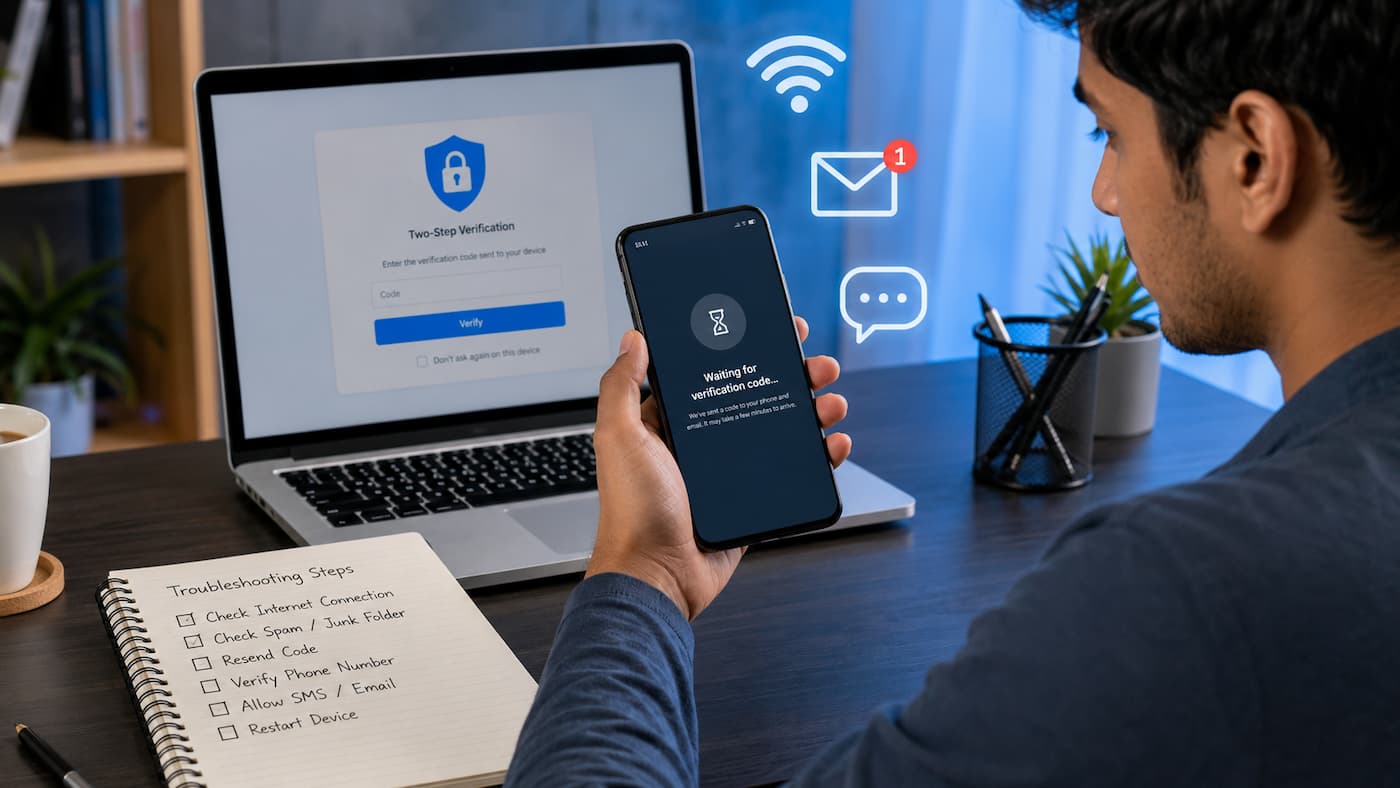
Why Verification Codes Sometimes Do Not Arrive
A verification code is usually a short number sent by SMS, email, or an authentication app to confirm that you are the real owner of an account. Services use these codes as an extra security layer to prevent unauthorized access. When a code does not appear, many people assume the service is broken. However, there are several possible reasons behind the delay. Understanding these causes makes troubleshooting much easier.
Common reasons verification codes fail
| Possible Cause | What Happens | Common Solution |
|---|---|---|
| Incorrect phone number or email | The code is sent somewhere else or cannot be delivered | Check and update your contact information |
| Weak mobile signal | SMS messages arrive late or fail | Move to an area with better reception |
| Email filtering | The message goes into spam or promotions folders | Search your mailbox and check filters |
| Too many requests | The system temporarily limits new codes | Wait before requesting another code |
| Blocked messages | Your phone or carrier blocks automated messages | Review message-blocking settings |
Another overlooked issue is time synchronization. Some security systems depend on accurate device time, especially authentication apps that generate changing codes every few seconds. If your phone clock is incorrect, those codes may not work even when they appear.
Tip: Before requesting multiple new codes, wait a few minutes. Sending repeated requests can sometimes create longer delays or temporary account restrictions.
Understanding different types of verification codes
Not all verification codes work the same way. The troubleshooting method depends on how the code is delivered.
| Verification Method | How It Works | Main Problems |
|---|---|---|
| SMS code | A text message is sent to your phone number | Signal problems, carrier delays, blocked messages |
| Email code | A message is delivered to your inbox | Spam filters, email delays, incorrect address |
| Authenticator app | The app creates temporary security codes | Incorrect time settings, lost device, app errors |
| Backup codes | Pre-generated emergency codes | Lost or already-used backup codes |
Knowing which type of verification you are using helps you choose the right solution instead of trying random fixes.
Quick Checks Before Trying Advanced Fixes
Before changing settings or contacting support, start with a few simple checks. You can solve many verification problems in just a few minutes.
1. Confirm your contact details
The most basic mistake is entering the wrong phone number or email address. A single missing digit, incorrect country code, or typing mistake can prevent delivery. For example, if your phone number requires a country prefix but you enter only the local number, the system may not know where to send the message.
- Check the phone number carefully.
- Please confirm the email address is spelled correctly.
- Please ensure you are checking the correct account.
- Update old contact information if necessary.
2. Check if the code is delayed
Verification systems are not always instant. During busy periods, maintenance, or unusual login activity, delivery can take longer than expected. Instead of clicking “resend code” repeatedly, wait around five to ten minutes. Multiple requests can sometimes invalidate earlier codes because only the newest code remains active.
3. Restart your device
A simple restart can refresh network connections, clear temporary software problems, and allow delayed messages to arrive. Restarting is especially useful when your phone has recently lost signal, switched networks, or installed updates.
Warning: Avoid requesting dozens of verification codes in a short time. Security systems may temporarily block requests to protect your account.
How to Fix SMS Verification Code Problems
SMS verification is one of the most common ways websites and apps confirm identity. However, text messages depend on several systems working together, including your phone, mobile network, and the service sending the code. A problem anywhere in this chain can delay or prevent delivery. Before assuming your phone number is the problem, try these practical solutions.
Check your mobile signal
A weak or unstable mobile connection is one of the most common reasons SMS codes arrive late. Even if you can browse the internet through Wi-Fi, your phone may still have trouble receiving traditional text messages if the cellular signal is poor. Try moving to an area with better reception, such as near a window or outside. If you are underground, inside a large building, or traveling, SMS delivery may be delayed.
Restart airplane mode
Turning airplane mode on and off forces your phone to reconnect with your mobile network. This can refresh your connection and sometimes resolves delayed SMS delivery.
- Turn on airplane mode.
- Wait about 15–30 seconds.
- Turn airplane mode off.
- Wait for your phone to reconnect.
- Request a new verification code.
Check if your carrier blocks short codes
Many companies send verification messages using short code numbers or automated messaging systems. Some mobile providers block these messages to reduce spam. If you receive normal texts but never receive security codes, your carrier settings may be the reason. Contact your mobile provider and ask whether they block short-code messages or automated verification texts on your account.
Check your phone storage and messaging settings
Although rare, a full message inbox or aggressive spam filtering can prevent new messages from appearing.
- Delete unnecessary old messages.
- Check your blocked numbers list.
- Review spam protection settings.
- Update your messaging app if an update is available.
| SMS Problem | Possible Reason | Solution |
|---|---|---|
| No code after several minutes | Network delay | Wait and request one new code |
| Normal texts work but codes do not | Short-code blocking | Contact your carrier |
| Codes arrive late | Temporary network congestion | Avoid repeated requests |
| Code never arrives abroad | Roaming restrictions | Enable international SMS support |
Expert Tip: If possible, keep a backup verification method enabled, such as an authentication app or recovery email. It prevents being locked out when SMS delivery fails.
How to Fix Email Verification Code Problems
Email verification codes often fail for different reasons than SMS messages. The email may have been delivered successfully but hidden by filters, sorted into another folder, or delayed by the email provider.
Check all email folders
Many users only review their main inbox. However, automated security emails are sometimes moved automatically.
Look in these folders:
- Spam or junk folder
- Promotions folder
- Social folder
- Archived messages
- Trash folder
Search your mailbox
Instead of scrolling through hundreds of messages, use your email search feature. Search for terms like:
- “verification”
- “security code”
- “confirm your account”
- “one-time password”
- The name of the service you are using
Add trusted senders to your contacts
Some email providers automatically filter messages from unfamiliar senders. Adding important services to your contacts can improve delivery in the future.
Check email storage limits
If your mailbox is full, new emails may bounce back or fail to appear. Such issues can happen with older email accounts that have accumulated years of messages and attachments.
| Email Issue | What Causes It | What To Do |
|---|---|---|
| Email not visible | Spam filtering | Check junk folders |
| Verification email delayed | Email server processing delay | Wait before requesting again |
| No emails arriving | Mailbox storage full | Delete old messages |
| Wrong email address | Typing mistake | Update account information |
Check email rules and filters
Advanced users sometimes create email rules that automatically move messages. A verification email may be redirected without being noticed. Please review your email settings and consider temporarily disabling any suspicious filters if necessary.
Tip: Never share verification codes received by email or SMS with another person. Legitimate companies do not need your security code to provide normal support.
Checking Network and Device Issues
Sometimes the verification service is working correctly, but your device is preventing the process from completing. Internet connection problems, outdated software, and incorrect settings can all interfere with account verification.
Test your internet connection
For app-based verification or login pages, a poor internet connection can stop requests from being completed correctly.
Try switching between:
- Wi-Fi and mobile data
- Different Wi-Fi networks
- A stronger mobile signal area
Update your device software
Older operating systems may have compatibility issues with newer security systems. Keeping your phone updated helps maintain compatibility with authentication services.
Clear app cache
Temporary app files can sometimes get corrupted, which can cause login or verification problems. On Android devices, clearing an app cache can help refresh stored information. On iPhones, reinstalling the app is often the simplest way to remove temporary app data.
Check automatic date and time settings
Authentication apps rely heavily on accurate time. If you manually change your phone clock or it is incorrect, the generated codes may fail.
Enable automatic date and time:
- Open device settings.
- Find date and time options.
- Enable automatic time adjustment.
- Restart the authentication app.
| Device Issue | Effect | Fix |
|---|---|---|
| Wrong date and time | Authentication codes fail | Enable automatic time |
| Outdated app | Login problems | Install updates |
| Weak connection | Verification request fails | Switch networks |
| Corrupted app data | The app behaves incorrectly | Clear cache or reinstall |
Blocked Messages and Security Settings That Prevent Verification Codes
Sometimes the verification code is sent successfully, but your device or email system prevents you from seeing it. Modern phones and email services include security features that automatically block suspicious messages. While these features help reduce spam, they can occasionally block legitimate verification messages.
Check blocked contacts and message filters
If you previously marked messages from a company as spam, your phone may continue blocking future verification codes. Please review your message settings and remove any accidental blocks.
- Open your messaging app settings.
- Check blocked numbers or spam protection lists.
- Remove trusted services from blocked lists.
- Request a new verification code.
Review email security settings
Email providers use advanced filtering systems to protect users. However, automated security emails can sometimes be incorrectly categorized.
Check whether your email provider has settings that control:
- Automatic spam filtering
- Blocked senders
- Email forwarding rules
- Restricted messages
Disable unnecessary call or SMS filtering apps
Some third-party security apps, spam blockers, and privacy tools can interfere with verification messages. If you recently installed an app that manages calls or messages, check its permissions.
| Security Feature | Possible Problem | Recommended Action |
|---|---|---|
| Spam protection | Blocks verification texts | Review blocked messages |
| Email filters | Moves security emails | Adjust filtering rules |
| Privacy apps | Restricts message access | Check app permissions |
Warning: Do not disable all security protections permanently just to receive a code. Adjust only the settings needed to solve the problem.
Problems With Authentication Apps and Generated Codes
Many online services now recommend authentication apps because they are more secure than SMS. These apps generate temporary codes that change regularly and do not require a mobile network. However, authentication apps can also create confusion when something goes wrong.
Check your phone’s time settings
Authentication apps depend on synchronized time between your device and the service. If your phone clock is incorrect by even a small amount, the generated code may not work. Make sure your device uses automatic time synchronization from your network.
Make sure you are using the correct account
People often have multiple accounts inside the same authentication app. A common mistake is entering a code from the wrong account entry.
- Open your authentication app.
- Find the correct account name.
- Use the currently displayed code.
- Please confirm that the code has not expired.
Recovering access after losing an authentication device
If you lost your phone or deleted your authentication app, recovery depends on the backup options you created earlier.
Possible recovery methods include:
- Backup codes
- Recovery email
- Trusted devices
- Account recovery forms
- Customer support verification
| Authentication Problem | Reason | Solution |
|---|---|---|
| Code rejected | Incorrect device time | Enable automatic time |
| App deleted | Lost stored accounts | Use backup recovery options |
| Wrong code entered | Multiple accounts | Select the correct account |
Account-Specific Verification Problems
Sometimes the issue is not your phone, email, or device. Sometimes the problem is with the account or service itself.
Temporary security restrictions
Online services may temporarily slow down or block verification attempts when they detect unusual activity. Such events can happen after:
- Many failed login attempts
- Logging in from a new location
- Using a new device
- Requesting too many codes
In these situations, waiting for a short period is often better than continuing to request new codes.
Check service status
Large platforms occasionally experience outages that affect login systems. If thousands of users are experiencing the same issue, your device settings may not be the cause. Look for official service updates or status pages when available.
Contact official support carefully
If you have tried all troubleshooting steps, contact the service provider through official channels. Be prepared to verify your identity using approved recovery methods.
Safety Tip: Never provide your password, full security codes, or account recovery information to someone claiming to offer unofficial support.
How to Prevent Future Verification Code Problems
Solving the current problem is important, but preventing future problems saves time and reduces the chance of losing access to important accounts.
Enable multiple verification methods
Many services allow users to add more than one security option. Having alternatives makes account recovery easier.
Useful backup options include:
- Secondary email address
- Authentication app
- Backup codes
- Trusted devices
Keep your contact information updated
Old phone numbers and unused email addresses are common reasons people lose account access. Review important accounts regularly and update outdated information.
Store backup codes safely
Backup codes are designed for emergencies. Keep them in a secure location such as an encrypted password manager or another protected storage method.
Maintain your devices
Regular device maintenance improves security reliability.
- Install operating system updates.
- Update authentication apps.
- Remove suspicious apps.
- Keep automatic date and time enabled.
- Use strong account passwords.
FAQs
Incorrect phone time can cause a failure of the authentication app code. These programs generate time-synchronized temporary codes. Enable automatic date and time settings and enter a new code.
3. Is it safe to ask for verification code help?
Verification codes should never be shared. These codes verify account ownership. Legitimate companies and support teams should not request your security code during typical assistance.
4. What if I never get a verification code?
Service-provided recovery methods are official. Backup codes, recovery emails, identification checks, and account recovery forms are examples. They may risk your account, so avoid illegitimate services or quick access.
Conclusion
A missing verification code is aggravating, but it’s usually caused by a minor issue that can be remedied. An organized troubleshooting method simplifies SMS delays, email filtering, device settings, and authentication app issues. Start with easy tasks like checking your contact information, spam folders, device reset, and network connectivity. Advanced solutions like security settings or account recovery may work if those fail.
Planning is the greatest approach to avoid issues. Update your contact information, protect backup codes, and use various verification methods wherever possible. Verification protects your accounts. With proper troubleshooting and security behaviors, you can fix most verification issues fast and safely.
References
- National Institute of Standards and Technology (NIST) – Digital Identity Guidelines:
https://pages.nist.gov/800-63-3/ - Cybersecurity and Infrastructure Security Agency (CISA) – Multi-Factor Authentication Guidance:
https://www.cisa.gov/resources-tools/resources/multi-factor-authentication-mfa - Federal Trade Commission (FTC) – Account Security and Verification Advice:
https://consumer.ftc.gov/ - Google Account Help – Verification and Account Recovery Guidance:
https://support.google.com/accounts/ - Microsoft Account Help – Security Verification Information:
https://support.microsoft.com/account-billing
Leave a Reply