Few things are more aggravating than opening your favorite social media app and being unable to log in. Login issues might disrupt your day when you want to react to messages, post images, view videos, or chat with friends. Fortunately, most login troubles are simpler than most people imagine. Typing the wrong password can cause the problem, as can an old program, internet connection issues, security checks, or brief server outages. Finding the right place can save hours of frustration.
This post lists effective troubleshooting strategies for popular social apps. Steps are described in easy English for novices; thus, no technical background is needed. You’ll learn how to find the problem, fix common login failures, safely recover your account, and avoid future troubles. Avoiding random answers, you’ll follow a logical step-by-step procedure to solve the problem faster and preserve your personal information.
1. Social App Login Issues: Why?
Before trying remedies, learn why login problems occur. Most social media apps safeguard accounts with multiple layers. If any step of that process fails, you may not sign in.
Your phone connects to the internet, submits your login credentials to the app’s servers, and waits for verification. Login may fail if the internet is unreliable, the password is wrong, or the servers are down. When they can’t sign in, many people fear their account is hacked. This is feasible, although less common than lost passwords or software errors.
Common Reasons You Cannot Log In
| Problem | Possible Cause |
|---|---|
| Wrong password | Typing mistake or forgotten password |
| Login error | Temporary app bug |
| Verification failed | Security check not completed |
| Blank login screen | Outdated app or corrupted cache |
| Account locked | Too many failed login attempts |
| Cannot reach server | Internet or server outage |
Tip: Always identify the exact error message before attempting a fix. Different messages usually point to different problems.
Read Error Messages Carefully
Many people ignore the message shown on the login screen. Instead of tapping the login button repeatedly, read the message carefully. It may say that your password is incorrect, your account needs verification, or the server is temporarily unavailable. That small message often tells you exactly where to begin troubleshooting.
2. Check Your Internet Connection First
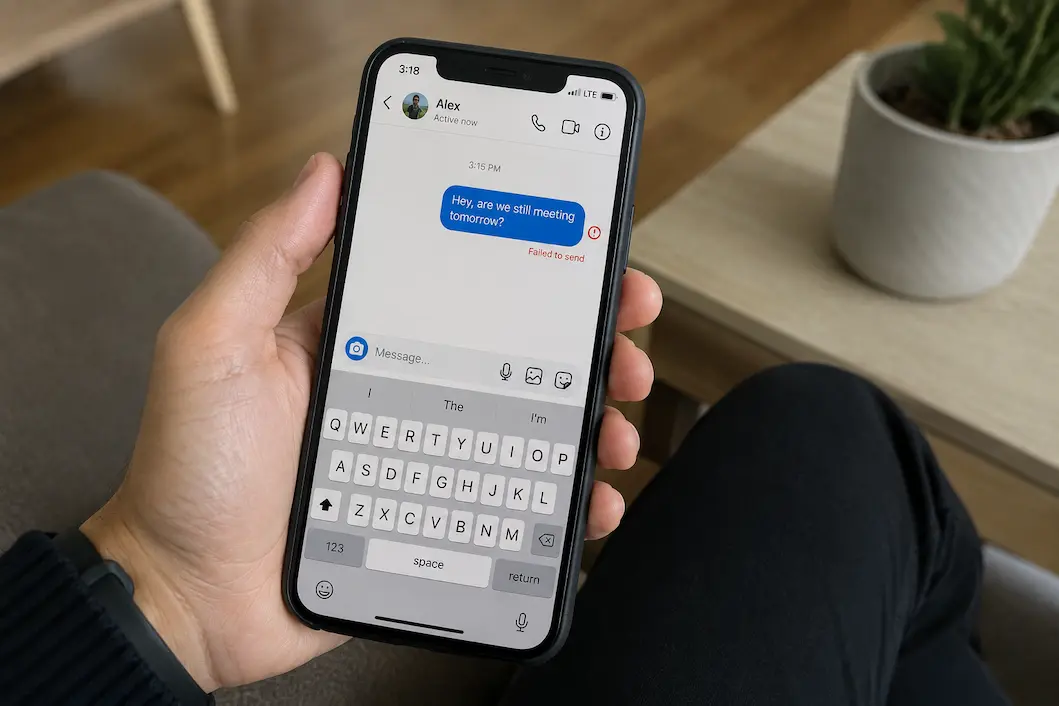
A weak or unstable internet connection is one of the most common reasons social apps fail to log in. Even if web pages load slowly, the app may not be able to complete its secure login process.
Simple Internet Checks
- Open another website to see if it loads.
- Switch between Wi-Fi and mobile data.
- Turn Airplane Mode on for 20 seconds, then turn it off.
- Restart your Wi-Fi router if other devices also have problems.
- Move closer to your wireless router if the signal is weak.
If your connection becomes stable after these steps, try logging into the social app again.
Restart Network Connections
Sometimes your phone keeps an unstable network connection even after your internet service returns to normal. Restarting Wi-Fi or mobile data forces the device to create a fresh connection. This simple step often fixes login problems without requiring any additional troubleshooting.
Warning: Public Wi-Fi networks sometimes block secure login connections. If possible, try using your mobile data instead.
3. Make Sure Your Login Information Is Correct
Typing mistakes happen more often than most people realize. Even experienced users occasionally enter the wrong email address or password, especially when switching between multiple accounts.
Things to Double-Check
- Correct email address
- Correct phone number
- Proper username
- Correct password
- Uppercase and lowercase letters
- Extra spaces copied from password managers
If your password manager automatically fills in your information, verify that it is using the correct account. Sometimes saved passwords become outdated after you change them on another device.
Check Keyboard Settings
Auto-correct, predictive text, or different keyboard languages can accidentally change what you type. Passwords are case-sensitive, meaning uppercase and lowercase letters matter. Temporarily showing the password while typing can help you spot mistakes before submitting the login request.
| Common Mistake | How to Fix It |
|---|---|
| Caps Lock enabled | Turn it off before typing |
| Wrong email | Verify every character |
| Old saved password | Update password manager |
| Typing too quickly | Enter information slowly |
4. Reset Your Password Safely
If you are certain your password is incorrect or you simply cannot remember it, resetting it is usually the fastest solution. Most social apps provide a secure password recovery option on the login screen.
How Password Recovery Usually Works
- Select “Forgot Password.”
- Enter your email address or phone number.
- Receive a verification code or recovery link.
- Create a strong new password.
- Log in using the updated password.
Choose a password that is unique and difficult to guess. Avoid using birthdays, names, or common words that attackers can easily predict.
Create a Strong Password
A secure password protects your account from unauthorized access while reducing the chances of future security alerts.
- Use at least 12 characters.
- Mix uppercase and lowercase letters.
- Add numbers.
- Include symbols if allowed.
- Do not reuse passwords from other websites.
Tip: Consider using a trusted password manager to generate and safely store strong passwords.
5. Update the App and Your Device
Outdated software is another common reason login issues appear. Social media companies regularly update their apps to improve security, fix bugs, and support new operating system versions. If your device is running an old version of the app, it may no longer communicate properly with the company’s servers.
Why Updates Matter
- Fix known login bugs.
- Improve compatibility.
- Patch security vulnerabilities.
- Increase performance.
- Support new authentication methods.
Update Both the App and Operating System
Many users update only the app while ignoring system updates. However, login issues can also occur when an older version of Android or iOS is incompatible with the latest app version. Before spending time on advanced troubleshooting, check for available updates in your device settings and app store.
| Update | Benefit |
|---|---|
| Social app update | Fixes bugs and login errors |
| Operating system update | Improves compatibility |
| Security update | Strengthens account protection |
6. Clear Cache and App Data
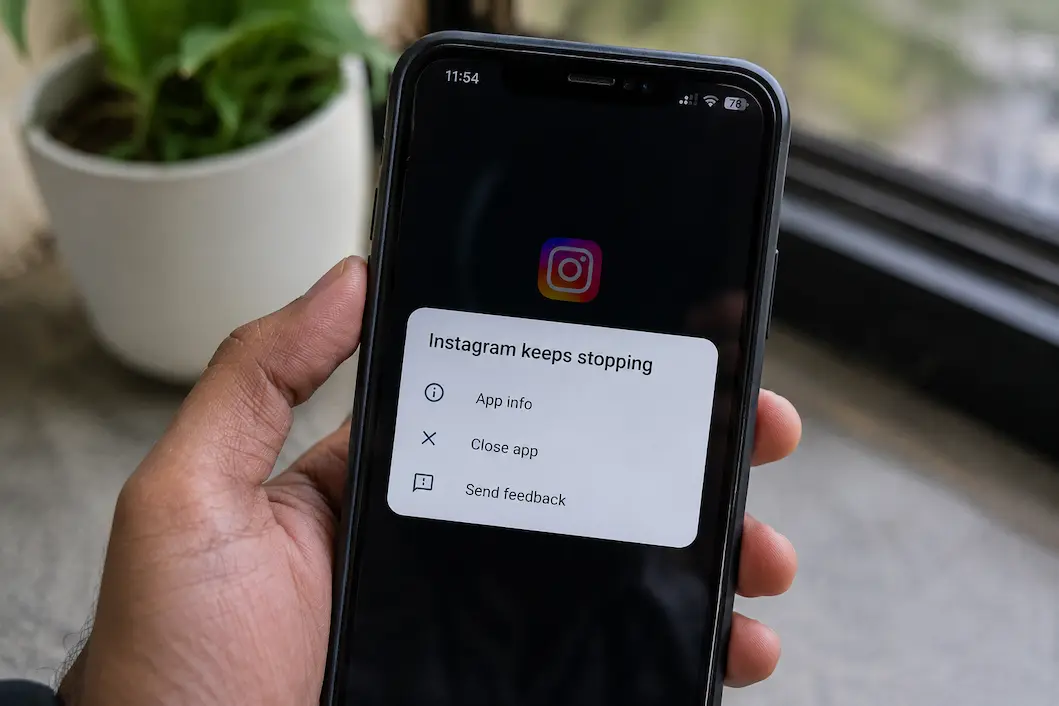
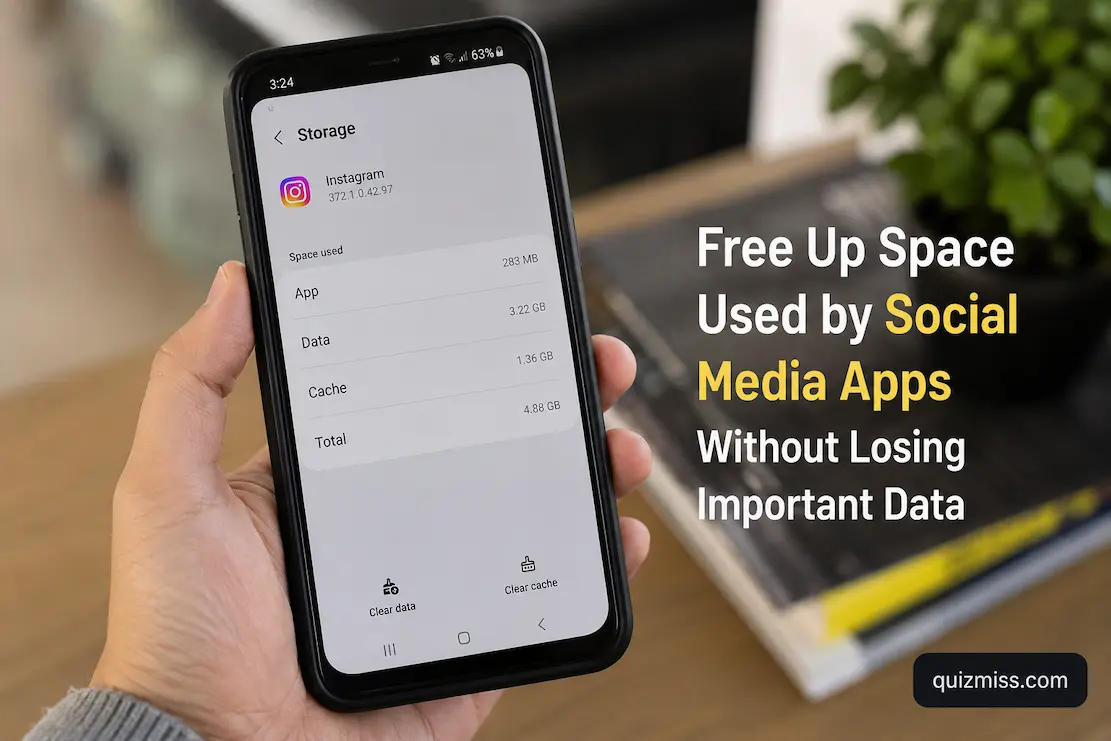
If your app continues showing the same login error even after updating it, corrupted temporary files may be the cause. Every app stores cached data to load content more quickly, but these files can sometimes become outdated or damaged. Clearing the cache removes temporary files without deleting your account. In many cases, this refreshes the app and resolves persistent login problems.
When Should You Clear the Cache?
- The login screen freezes.
- The app crashes during sign-in.
- You see the same error repeatedly.
- The app becomes unusually slow.
- The interface does not load correctly.
The exact steps vary depending on your device, but most smartphones allow you to clear an app’s cache from the settings menu under Apps or Storage.
Tip: Start by clearing only the cache. Clear app data only if necessary, as it may remove downloaded settings and require you to sign in again.
7. Understand Security Verification and Login Checks
Modern social apps use security systems to protect users from unauthorized access. These systems are helpful, but they can sometimes prevent you from logging in when the app thinks something unusual is happening. For example, logging in from a new phone, a different country, or an unfamiliar network may trigger an additional verification step. The app is not necessarily blocking you permanently; it is trying to confirm that you are the real account owner.
Common Security Checks You May Encounter
| Security Check | What It Means | What To Do |
|---|---|---|
| Email verification | The app sends a confirmation link | Open your email and confirm the login |
| SMS code | A temporary code is sent to your phone | Enter the code carefully |
| Two-factor authentication | An extra security layer is enabled | Use your authentication app or backup code |
| Identity confirmation | The platform needs more proof | Follow official recovery instructions |
Why Verification Codes Sometimes Fail
A common complaint is that users request a verification code but never receive it. This can happen for several reasons:
- The phone signal is weak.
- The email went to the spam folder.
- The code was requested too many times.
- The phone number or email address is outdated.
- The service provider delayed delivery.
Avoid requesting many codes repeatedly. Some platforms temporarily limit verification attempts for security reasons.
Security Tip: Never share a login verification code with anyone. Real support teams will not ask for your private security code.
8. Check If the Social App’s Servers Are Down
Sometimes the problem has nothing to do with your phone, password, or internet connection. Social apps depend on large online systems called servers. If those systems experience problems, many users may suddenly be unable to log in. During a server outage, changing your password, reinstalling the app, or restarting your device usually will not help because the issue is happening on the company’s side.
Signs That the App Server May Be Down
- Many users report the same login problem.
- The app suddenly stopped working after previously working normally.
- The website version also fails.
- You receive server-related error messages.
- Friends or family members experience the same issue.
How To Confirm a Server Problem
You can check official status pages, announcements from the platform, or reliable outage-reporting services. Always use trustworthy sources because scammers sometimes create fake outage pages to steal account information.
| Problem Type | Your Device | Company Servers |
|---|---|---|
| Password error | Possible | Unlikely |
| App completely unavailable | Possible | Likely |
| Many users affected | Unlikely | Very likely |
| Only your account is affected | Possible | Possible |
Tip: Before making major changes to your account, confirm whether the problem is widespread.
9. Try Logging In From Another Device
Testing your account on another device is a simple way to identify where the problem exists. If you can log in successfully on another phone or computer, your account is probably fine, and the issue is likely related to your original device.
Examples of Useful Tests
- Try the app on another smartphone.
- Open the social platform through a web browser.
- Try a different browser if using a computer.
- Use another internet connection.
This process helps separate account problems from device problems.
| Test Result | Likely Cause |
|---|---|
| Works on another device | Problem with your original device or app |
| Fails everywhere | Account or server issue |
| Works only in a browser. | App-related problem |
| Works only on mobile data | Network restriction issue |
Do Not Immediately Factory Reset Your Phone
A common mistake is performing extreme solutions too early. Resetting your entire device can remove personal files, photos, and settings while not solving the actual login problem. Always try simpler fixes first, such as checking credentials, updating software, and reinstalling only the affected app.
10. Recover a Locked or Disabled Account
Sometimes users cannot log in because their account has been temporarily locked, restricted, or disabled. Social platforms may take these actions when they detect unusual activity, possible security threats, or violations of their rules. A locked account does not always mean permanent loss. Many platforms provide recovery options that allow users to confirm their identity and regain access.
Possible Reasons an Account Gets Locked
- Too many unsuccessful login attempts.
- Suspicious login activity.
- Using unauthorized third-party applications.
- Unusual activity patterns.
- Violation of platform policies.
Steps To Recover a Locked Account
- Visit the official account recovery page.
- Follow the identity verification process.
- Change your password if requested.
- Remove unknown devices from account settings.
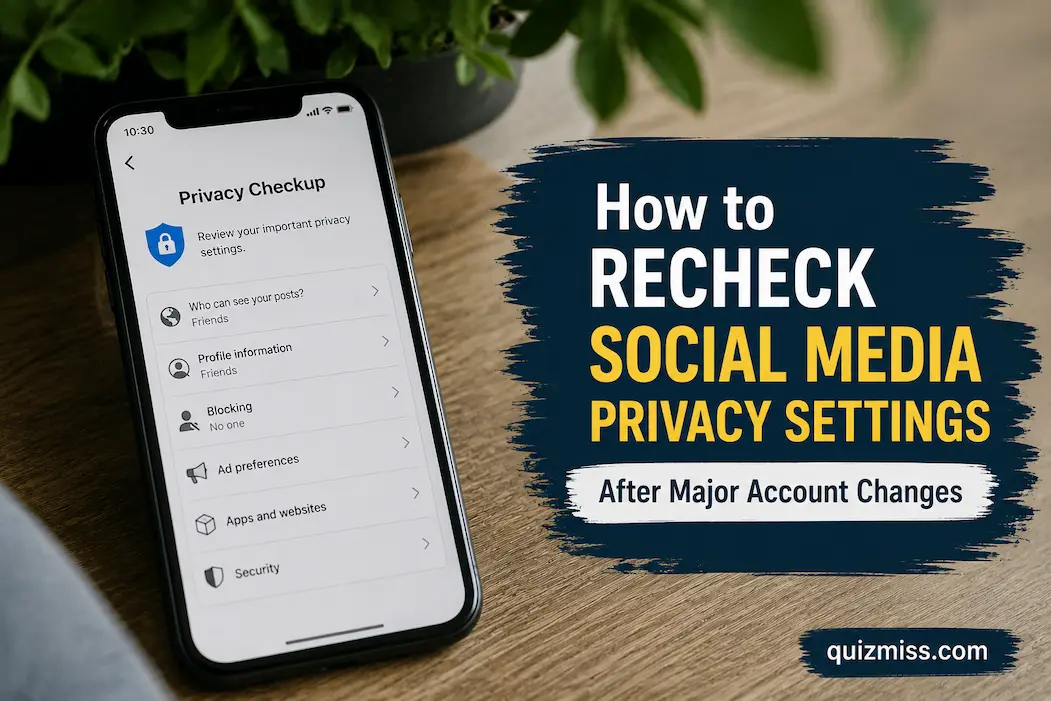
- Enable additional security features.
Warning: Avoid websites or people claiming they can unlock your account for a fee. Many of these services are scams.
11. Reinstall the Social App When Other Fixes Fail
If the app itself is damaged or important files are corrupted, reinstalling may solve the problem. This removes the existing application and installs a fresh version from the official app store.
Before Reinstalling
- Make sure you remember your login details.
- Confirm you have access to your email or phone number.
- Save important drafts if the app stores them locally.
- Check that your account is properly backed up.
Why Reinstalling Works
Over time, apps collect temporary files, settings, and stored information. A damaged file can prevent normal operation. Reinstalling removes these local problems and gives the app a clean start.
| Solution | Risk Level | When To Use |
|---|---|---|
| Restart the app. | Very low | First step |
| Clear cache | Low | The app behaves strangely |
| Update the app. | Low | Older version installed |
| Reinstall app | Medium | Other fixes fail |
| Factory reset device | High | Only as a last option |
Conclusion
Having trouble logging into a social app can be annoying, especially when you need messages or updates. Or you can fix most login issues with a few simple actions. First, check your internet connection, login details, app updates, and security verification requirements. If those options fail, check for account limitations, corrupted app data, or server outages.
The most crucial lesson is to troubleshoot before making changes. Use secure passwords, avoid questionable recovery services, and update account security settings. Effective account practices and a defined troubleshooting method may solve many social app login difficulties quickly and prevent recurrence.
FAQs
1. Why can’t I connect to my social app with the proper password?
If you have the right password but can’t log in, there may be additional causes. The app may be down, your account needs verification, or your installation is malfunctioning. Try checking your internet, upgrading the program, and logging in via a browser. If the issue persists, follow the platform’s account recovery method.
2. How can I know my social media account was hacked?
Unexpected password changes, login notifications, account messages, or profile information changes may indicate a hijacked account. Being unable to log in does not always mean your account was hacked. Start with typical recuperation. As soon as you suspect unwanted access, change your password, remove unknown devices, and set up two-factor authentication.
3. Why am I not receiving the login verification code?
Verification codes may not come due to delayed communications, wrong contact information, spam filtering, bad phone reception, or too many inquiries. Verify your email or phone number and check your spam or trash folder. Avoid several code queries quickly since some services momentarily block them for security.
4. Will removing and reinstalling the app delete my account?
No, removing the app does not remove your social media account. The platform’s servers maintain your account information, not just your phone. Reinstalling requires knowing your login credentials and having access to your recovery email or phone number.
5. Can a bad internet connection limit social app login?
Yes. Stable connections are needed for social apps to securely communicate with servers. A poor Wi-Fi signal, inconsistent mobile data, or network restrictions can disrupt login. Switch networks, restart your connection, or test the program on another internet connection to determine if the network is the issue.