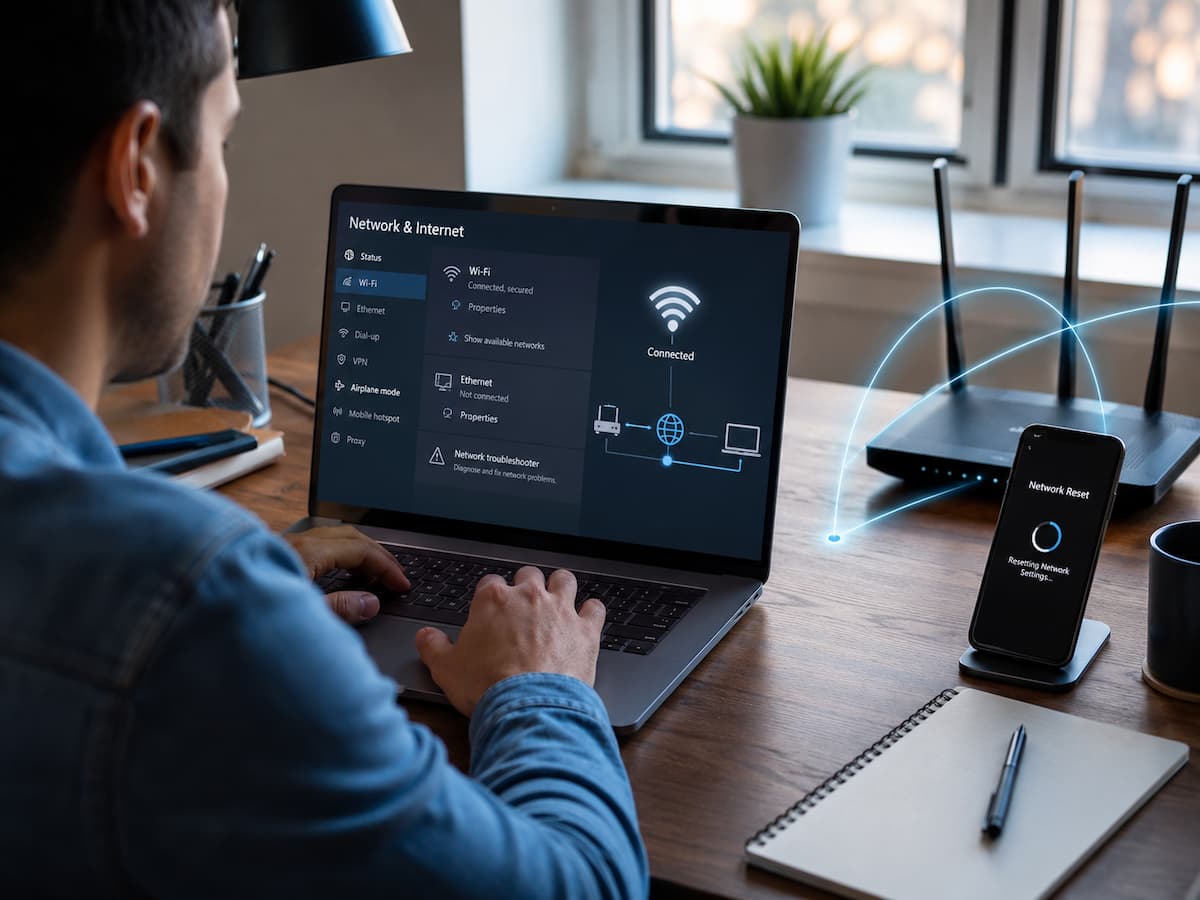
Network resets are different than restarting or disconnecting your router. It deletes network configurations and starts over. This makes it a valuable internet troubleshooting step when basic remedies fail. Understanding network resets, what they alter, and how to do them is crucial. A bad method might irritate, especially if you forget Wi-Fi passwords or use unique network setups. This instruction simplifies connection troubleshooting for safety.
What a Network Reset Does
A network reset resets your device’s network settings to default. It removes previous connection information and lets your device connect to your network again. Over time, devices save Wi-Fi networks, network adapters, DNS settings, VPN connections, and other communication preferences. A faulty or outdated setting can prohibit your device from connecting, although these settings usually function OK.
Suppose your laptop connects to your house Wi-Fi but always says “No Internet Access.” Your router works, other devices are online, and restarting the laptop accomplishes nothing. A faulty network configuration may prevent the laptop from receiving the correct connection details. Resetting network settings lets the system rebuild from the broken setup.
Network resets change settings like:
- Saved Wi-Fi passwords and networks
- VPN setups
- Some devices’ Bluetooth network connections
- Network adapter settings
- Configure DNS or proxy.
When Resetting Network Settings Is the Right Solution
A network reset should not be the first thing you try every time the internet stops working. Simple issues like a temporary router problem, weak Wi-Fi signal, or an unplugged cable can often be fixed faster. A reset becomes more useful when the problem appears to be connected to your device itself.
Common situations where a network reset may help include:
- Your device connects to Wi-Fi, but websites do not open.
- Internet works on other devices but not on one specific device.
- You recently installed a VPN, firewall tool, or network-related software.
- Your device keeps disconnecting from Wi-Fi for no obvious reason.
- Network settings were manually changed, and you are unsure what was modified.
- A system update caused unexpected connection problems.
For instance, if your phone connects normally to your home Wi-Fi but fails to connect after visiting another network, an old saved configuration may be interfering. Resetting network settings can remove those conflicting details. However, a reset will not fix every internet issue. If your internet provider has an outage, your router is damaged, or your signal is too weak, changing your device settings will not solve the underlying problem.
Things to Check Before Resetting Network Settings
Before performing a network reset, take a few minutes to check whether the problem has a simpler explanation. This can save time and prevent unnecessary setup work afterward. First, check whether other devices are connected to the same network. If your phone, tablet, and another computer are also offline, the problem may be with your router or internet service rather than your device.
Next, restart your device and router. A temporary software glitch can sometimes disappear after a normal restart. If the issue returns repeatedly, a network reset becomes a more reasonable next step. It is also helpful to remember your Wi-Fi password before starting. After the reset, your device may forget previously saved wireless networks, and you will need to enter the password again.
| Before Resetting | Why It Helps |
| Check other devices | Determines whether the problem is with your device or the entire network. |
| Restart router and device | Removes temporary connection errors. |
| Save Wi-Fi password | Allows you to reconnect quickly after the reset. |
| Remember VPN or custom settings | Helps restore special configurations if needed. |
How to Reset Network Settings on Different Devices
The exact steps for resetting network settings depend on the operating system you use. Each platform stores connection information differently, but the purpose is the same: remove old network configurations and allow the device to create fresh connections. Before starting, make sure you understand that the reset process is different from simply turning Wi-Fi off and on. It changes stored network information, so you may need to reconnect to wireless networks afterward.
Resetting Network Settings on Windows
Windows includes a built-in network reset option that removes and reinstalls network adapters while returning network settings to their default state. This can help when Wi-Fi, Ethernet, or other connection features behave incorrectly. On Windows 11, you can usually find this option by opening Settings, selecting Network & Internet, choosing Advanced network settings, and selecting Network reset. Windows will explain what will be removed before you confirm the action.
After completing the reset, Windows may restart your computer. Once it starts again, reconnect to your Wi-Fi network and test your internet connection. This process is especially useful when Windows shows errors such as “Unable to connect to this network,” frequent disconnections, or incorrect network identification.
Resetting Network Settings on Android
Android devices place network reset options inside the system settings, although the exact menu names vary between manufacturers. The option is usually located under settings related to system management, general management, or reset options. A network reset on Android commonly removes saved Wi-Fi networks, Bluetooth connections, and mobile network settings. It does not remove apps, photos, or personal files. If your Android phone connects to Wi-Fi but apps cannot access the internet, or mobile data settings appear incorrect after switching carriers, resetting network settings can help rebuild the connection.
Resetting Network Settings on iPhone
iPhone users can reset network settings through the device settings menu. This option restores network-related configurations while keeping personal content intact. After the reset, your iPhone will forget saved Wi-Fi networks, so you will need to reconnect manually. Any VPN or custom network settings may also need to be configured again. This is a common troubleshooting step when an iPhone has problems connecting to Wi-Fi, Bluetooth accessories, or mobile networks after a software change.
What to Do After Resetting Network Settings
A network reset is not the final step. Your device needs to rebuild its connection with your network. Taking a few minutes afterward can help you confirm whether the problem has actually been solved. Start by reconnecting to your Wi-Fi network. Select your network name, enter the password, and wait for the device to establish a connection. If you use multiple networks, such as home Wi-Fi, office Wi-Fi, or a mobile hotspot, you may need to reconnect to each one separately.
Next, open a few websites or apps to test the connection. Do not rely only on the Wi-Fi symbol because a device can show a connection while still having trouble reaching the internet. If you previously used a VPN, proxy server, custom DNS service, or workplace network settings, check whether you need to restore them. Some users forget that they configured these settings and assume the reset caused a new problem.
- Reconnect to important Wi-Fi networks.
- Test browsing, streaming, and other online services.
- Restore VPN or custom network settings if required.
- Update network drivers or system software if problems continue.
Common Mistakes People Make When Resetting Network Settings
Resetting network settings is generally safe, but mistakes before or after the process can make troubleshooting more confusing. Understanding these common problems helps you avoid unnecessary frustration.
Resetting Without Knowing the Wi-Fi Password
One of the most common mistakes is starting the reset without having access to the Wi-Fi password. Since saved wireless networks are usually removed, you may find yourself unable to reconnect afterward. If you do not remember your password, check whether it is saved on another connected device or available through your router settings before performing the reset.
Assuming a Reset Fixes Router Problems
A network reset only changes settings on your device. It cannot repair a damaged router, a broken cable, or an internet outage from your provider. If every device in your home loses internet access at the same time, resetting your laptop or phone will probably not help. In that situation, checking the router or contacting your internet provider is a better approach.
Forgetting Special Network Configurations
Some users rely on custom settings without realizing it. Businesses, schools, and advanced home users may use VPN connections, manually assigned IP addresses, or specific DNS settings. A reset removes these configurations, so make a note of anything unusual before proceeding.
Prevent Future Network Problems
Install only the network management tools you need. When configured poorly, VPN, optimization, and firewall software can disrupt network connections. Securing your Wi-Fi password and router details is also helpful. This simplifies resets and device replacements. Updating devices, placing the router appropriately, securing settings, and restarting when difficulties arise usually maintain a reliable network.
FAQs
Are my photographs, apps, and personal items deleted when I reset network settings?
No. A network reset just resets connection settings. Photos, videos, documents, apps, and accounts are unaffected. Saved Wi-Fi, Bluetooth, VPN, and other network setups are the primary improvements.
Should I reset my network settings often?
Network settings should not be reset periodically for maintenance. This is a troubleshooting step for recurring connectivity issues that simpler remedies fail. Resets might be inconvenient because you must reconnect networks and restore specific settings.
Why is my internet still down after a network reset?
Device settings errors or damage are the only issues a network reset fixes. This reset will not fix issues caused by your router, internet provider, faulty hardware, weak signal, or service outage. In that scenario, find the connection issue.
Must I reset network settings after changing my Wi-Fi router?
Not always. Most devices may connect to a new router by selecting the Wi-Fi network and inputting the password. Resetting network settings can remove obsolete connection information if your device keeps using old settings or won’t connect.
Does resetting network settings differ from a router restart?
Yes. Your internet connection is refreshed when you restart your router. Device configuration changes when network settings are reset. One impacts the router; the other, your computer, phone, or tablet.
Conclusion
Internet issues are frustrating since their causes are often unclear. A device may appear connected but not communicate due to hidden network settings. A practical solution to fix hidden setup issues and restart your device is to reset network settings.
Resetting at the right time is crucial. Before starting, check simple causes, remember your Wi-Fi password, and know what settings will be erased. This simple precaution can prevent future issues. Network resets are one of the best internet troubleshooting techniques when utilized properly. Although it does not cure router faults or service outages, it can swiftly fix many device settings-related connectivity issues.
Reliable References and Further Reading
The following resources provide official guidance about managing network settings and troubleshooting connection problems:
- Microsoft Support documentation on fixing network connection problems and using Windows network reset tools.
- Apple Support provides guidance for resetting network settings on iPhone and iPad devices.
- Android Help documentation for managing network settings and troubleshooting connectivity issues.
- Federal Communications Commission (FCC) consumer resources about internet connectivity and broadband troubleshooting.
Leave a Reply