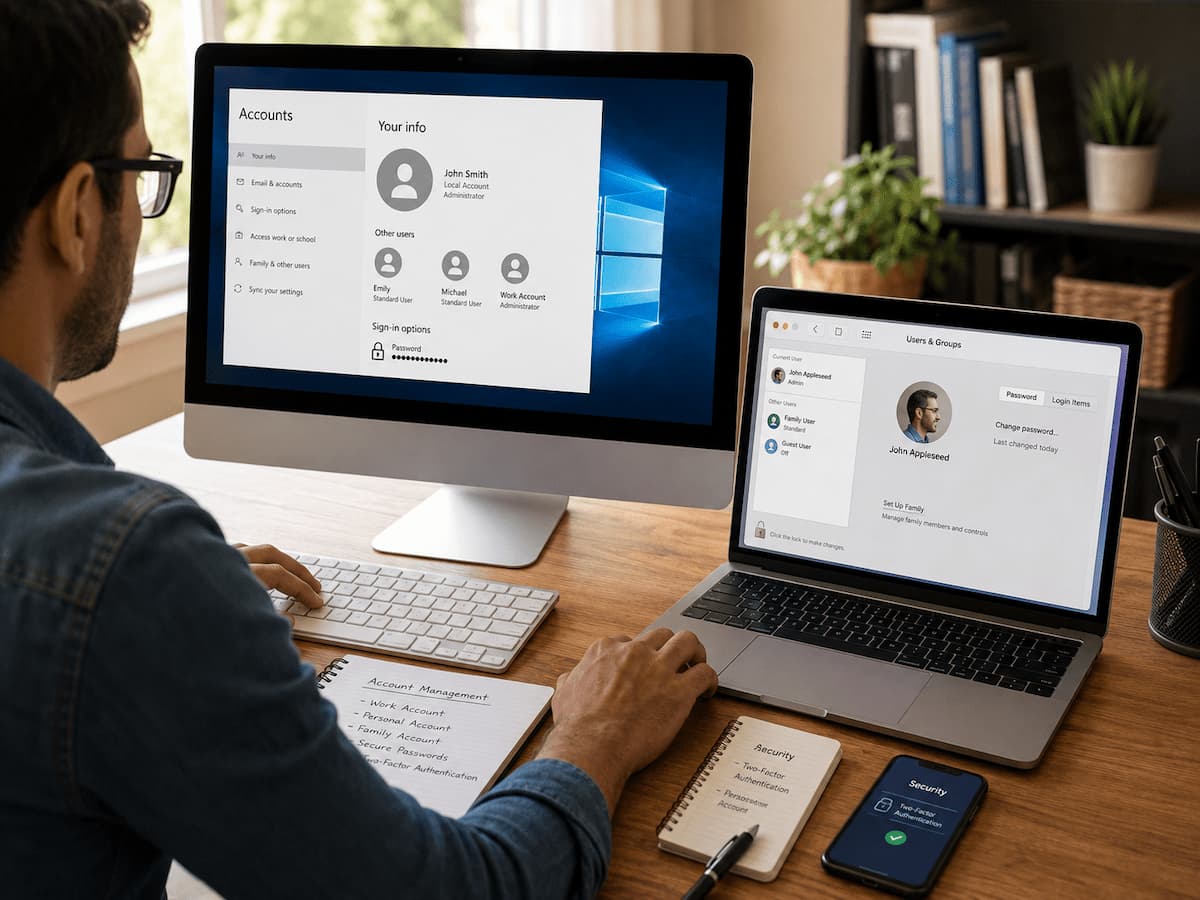
Effectively managing user accounts helps prevent forgotten passwords, unauthorized access, confusion over file ownership, and security risks. Effective account management does not require advanced technical knowledge. Mastering a few basic principles makes your computer more user-friendly and secure. This guide covers Windows and Mac user accounts, how to create and delete accounts, administrator rights, and account maintenance.
Understanding User Accounts (before making changes)
A computer user account is a personal identifier. It tells the operating system who is using the device and what actions they are permitted to perform. Accounts can have their own desktop, files, and settings without sharing them with others. Logging in loads your desktop layout, saved settings, program preferences, and file permissions. This isolation mechanism prevents users from interfering with one another, whether at home, school, or work.
Both Windows and Mac accounts rely on permissions. A user’s actions depend on their specific permissions. For example, one account can install software and change system settings, while another account can only use applications and access personal files. New users need to understand the difference between standard accounts and administrator accounts.
| Account Type | What It Can Do | Best Used For |
|---|---|---|
| Standard User | Use applications, manage personal files, and adjust personal settings without making major system changes. | Daily use includes children, guests, and regular employees. |
| Administrator | Install software, change system settings, create accounts, and manage device-level changes. | Device owners or trusted technical users. |
Many home users make the mistake of giving every person administrator access because it seems easier. While convenient, such actions can create unnecessary risks. A standard account is often enough for everyday activities such as browsing the internet, writing documents, watching videos, and using installed applications.
Managing User Accounts on Windows
Windows provides several ways to manage accounts depending on the version you use. In modern versions such as Windows 10 and Windows 11, most account settings are available through the Settings app. Microsoft also supports different account types, including local accounts and Microsoft accounts.
Microsoft Accounts and Local Accounts
A Microsoft account connects your Windows profile with Microsoft’s online services. It can synchronize certain settings, provide access to services such as cloud storage, and make it easier to use the same account across multiple Windows devices. A local account exists only on the computer. It does not require an online connection and stores settings directly on that device. Some users prefer local accounts because they want a simpler setup or do not want their computer login connected to an online service. Choosing between these account types depends on how you use your computer. Someone who owns multiple Windows devices may find an online account convenient, while someone using a single personal computer may prefer a local account.
Creating a New User Account in Windows
To create a new account on Windows, open Settings, go to Accounts, and look for options related to family members or other users. Windows guides you through adding a new account and choosing the appropriate permissions. A common example is setting up a separate account for a family member. Instead of sharing your personal login, the new user receives their desktop, files, and preferences. This keeps personal information private while allowing everyone to use the same computer. When creating accounts, avoid using simple passwords or leaving accothem unprotecteden a computer used only at home can contain private documents, saved browser passwords, financial information, and personal photos.
Changing Account Permissions in Windows
You can change account permissions when a user’s role changes. For example, a child who becomes older may need fewer restrictions, or an employee may need additional access for work tasks. Before changing a standard user into an administrator, consider whether that level of access is actually necessary. Administrator privileges should be given carefully because they allow changes that can affect the entire system.
Managing User Accounts on Mac
Apple designs macOS user accounts around simplicity and security. Like Windows, Mac allows multiple people to have separate accounts on the same device, each with their own files, settings, applications, and preferences. This separation is especially useful for households where several people share one Mac. Instead of switching between different browser profiles or manually organizing folders, each person can sign in to their own account and have a personal workspace.
macOS uses account permissions to control what users can do. The main account categories are administrator accounts and standard accounts. An administrator can make system-level changes, while a standard user can perform everyday tasks without having full control over the computer.
Creating a New Account on Mac
To add a new user, open System Settings and navigate to the users or account management section. From there, macOS allows you to add another person and choose the type of account they should have. For example, if a family shares a MacBook, parents can keep administrator access while creating standard accounts for other family members. Each person gets their documents, desktop layout, and application preferences without affecting others. When creating a new account, use a strong password and avoid creating unnecessary administrator accounts. A computer with many administrator users has more opportunities for accidental system changes.
Understanding Guest Accounts on Mac
macOS also includes a guest account option designed for temporary access. A guest user can use the computer without accessing the main user’s personal files. Guest accounts are useful when someone needs to quickly check email, browse the internet, or complete a short task. They are safer than sharing your personal login because your saved passwords, documents, and settings remain separate. If you rarely allow others to use your Mac, you can disable guest access to reduce the number of available login options.
How to Remove Old User Accounts Safely
Over time, computers often collect unused accounts. You may have an account from a previous family member, an old work profile, or a temporary account created for troubleshooting. Keeping unnecessary accounts can make your computer harder to manage and may create privacy concerns.
Before deleting an account, check whether it contains important files. Many users remove an old account without realizing that they have stored documents, photos, or downloads in that profile. A safer approach is to review the account first, copy important files to another location, and then remove the account if it is no longer needed.
| Before Removing an Account | Why It Matters |
|---|---|
| Check personal folders | Important files may exist only inside that user’s profile. |
| Confirm the account is unused | Deleting an active account can interrupt someone’s work. |
| Create a backup if needed | Backups prevent accidental data loss. |
Windows and macOS both provide options to remove accounts while keeping or deleting associated data. The correct choice depends on whether the files need to be saved or permanently removed.
Password Management and Account Security
A user account is only as secure as the protection behind it. A strong password is one of the simplest ways to prevent unauthorized access, especially on laptops that someone might lose or steal. Avoid passwords based on easily guessed information such as names, birthdays, or common words. A longer password made from a combination of words, numbers, and symbols is generally harder to guess. Many modern computers also support additional security features such as fingerprint login, facial recognition, or security keys. These features can make signing in faster while adding another layer of protection.
Good Account Security Habits
- Use a separate account for each person who regularly uses the computer.
- Keep administrator access limited to trusted users.
- Enable automatic updates for the operating system.
- Remove accounts that are no longer needed.
- Lock your computer when leaving it unattended.
One common mistake is saving sensitive information inside an account that many people can access. Even trusted family members may accidentally open files, change settings, or install unwanted software when everyone uses the same profile.
Common User Account Problems and Simple Fixes
Account problems can happen on any computer. The solution is often simple once you understand how accounts and permissions work.
Forgotten Password
If you forget your account password, the recovery process depends on whether you use a Microsoft account, Apple account, or local account. Using recovery options during account setup makes future access much easier. Avoid creating multiple new accounts just because you cannot access an old one. Such actions can create confusion and may leave important files behind.
Cannot Install Software
A standard account may not have permission to install certain applications or make system changes. This is normal and does not mean the computer is damaged. If you trust the software and need to install it, an administrator account may be required. After completing the task, continuing everyday work from a standard account is usually safer.
Account Settings Are Not Syncing
Users with Microsoft accounts or Apple accounts may expect settings to appear automatically across devices. If something does not sync correctly, check that you are signed in to the correct account and that you have internet access. Sync features can be useful but they should not replace regular backups. Account synchronization and file backup solve different problems.
Keeping User Accounts Organized Over Time
Creating user accounts is only the first step. Good account management requires occasional maintenance, just like organizing files or updating applications. Over the years, a computer can slowly collect unused profiles, outdated permissions, and forgotten settings. Every few months, check the accounts on your computer and see if you still need each one. Remove temporary accounts, update passwords, and check that you only give administrator access to people who actually require it.
Account maintenance is especially useful for computers shared by families. Children may grow older and need different access levels, guests may no longer need accounts, or a family member may stop using the device completely. Keeping accounts organized also makes troubleshooting easier. When every person has a separate profile, it becomes much easier to identify whether a problem affects the entire computer or only one user’s settings.
Best Practices for Managing Accounts Like a Pro
Professional computer users do not usually rely on complicated tricks. They follow simple habits that keep devices secure, organized, and easier to maintain.
- Create separate accounts: Every regular user should have their login instead of sharing one profile.
- Use standard accounts for daily work: Administrator access should be reserved for tasks that actually need it.
- Review permissions regularly: Remove unnecessary access when a person’s role changes.
- Protect every account with a password: Even accounts that seem less important can contain private information.
- Keep recovery options updated: Recovery emails, phone numbers, and account information can help when access problems occur.
A well-managed computer is not necessarily one with the most security settings enabled. It is one where each person has the right amount of access without unnecessary complexity.
FAQs
1. Should the person using my computer have a separate account?
In most cases, yes. A separate account offers better control over personal files, settings, browser data, and preferences. It also protects against accidental changes to files or settings.
2. Is an administrator account more secure than a standard account?
Administrator accounts offer more control but are not necessarily more secure. Because administrators can make extensive system changes, malware or accidental modifications can lead to significant issues. A standard account is more suitable for everyday tasks.
3. Can I change a standard account into an administrator account later?
Yes. Both Windows and macOS allow you to change account privileges. Granting administrator rights is useful, but it affects the entire computer, so proceed with caution.
4. What happens to the files associated with a deleted user account?
That depends on the deletion options chosen. Some systems allow you to save user files before deactivating the account, while others remove configuration files. Always check for important files before deactivating an account.
5. Should I use a separate account if I am the only person using the computer?
Not necessarily. A single account is sufficient for a computer used by only one person. However, for added security, users can create separate administrator and standard accounts.
Conclusion
User accounts are a fundamental feature of a computer and impact privacy, organization, and security. Creating the appropriate accounts and managing permissions can help prevent common issues on Windows or Mac systems.
The simplest approach is to assign each person their own account, limit administrator privileges, secure accounts with strong passwords, and remove any unnecessary profiles. These simple steps ensure that your computer remains organized and easy to manage, even as your needs change. Understanding user accounts gives you greater control over your device. Account settings are neither complex nor difficult to understand; they can help you better organize and secure your computer.
Reliable References
The following official resources provide additional information about managing user accounts and security settings:
- Microsoft Support documentation for managing accounts and permissions in Windows.
- Apple Support documentation for adding and managing users on Mac computers.
- National Institute of Standards and Technology (NIST) guidance on account security and authentication practices.
Leave a Reply