
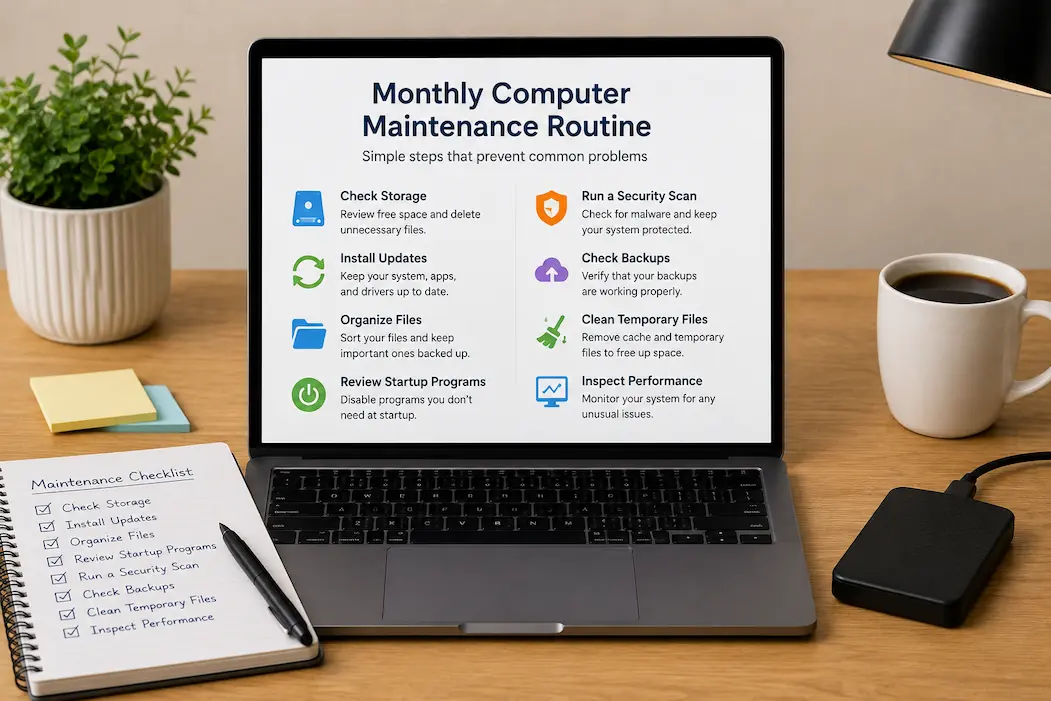
Computer problems rarely announce themselves with a complete failure.
More often, a system gives small warning signs first. A program takes longer to open, the computer starts making unusual noises, storage disappears faster than expected, or an application begins freezing occasionally. Because the computer still works, these changes are simple to ignore.
That can be a mistake. A small performance change does not necessarily mean that a major failure is coming. Computers naturally change as software, files, and usage patterns evolve. However, persistent or unusual changes are worth investigating because they can sometimes point to problems that become more difficult to resolve later.
The useful skill is learning to recognize these early signs and knowing what to monitor before they turn into a bigger disruption.
You don’t have to diagnose every problem on your own. f. Often, simply identifying an unusual change early gives you time to back up important files, install an update, remove unnecessary software, or seek technical help before the situation becomes more serious.
A Computer That Suddenly Starts Slowly
A computer that gradually takes longer to start may be experiencing several different issues.
Startup applications can accumulate over time. Software may add background processes, system updates may change startup behavior, or the storage drive may become heavily occupied. In other situations, slow startup can be an early indication of a hardware or operating system problem.
The important point is to notice the change. If the computer has always started slowly, there may not be a new problem. But if startup was previously quick and has recently become noticeably slower, investigate what changed.
Check:
- Which applications launch automatically.
- Whether the operating system has pending updates.
- How much free storage remains.
- Whether unusual error messages appear during startup.
- Whether the slowdown began after installing new software.
A recent change can provide an important clue.
Applications Start Taking Longer to Open
A single slow application does not necessarily indicate a computer-wide problem. The application itself may have received an update, be processing a larger amount of information, or be experiencing a problem with its settings. However, if several commonly used programs are taking noticeably longer to open, the underlying system deserves attention.
Compare the behavior of different applications.
If only one program is affected, investigate it first. If browsers, office applications, media tools, and other programs all become slower around the same time, check system resources, available storage, background processes, and recent software changes. This distinction can prevent unnecessary troubleshooting.
Programs Begin Freezing During Ordinary Tasks
Occasional software freezes can happen on any computer. A program may encounter a temporary error or become unresponsive while processing a demanding task. Repeated freezing during simple activities is different.
If an application that formerly worked normally begins freezing regularly, note when the problem occurs. Does it happen when opening a particular file? Does it happen after the computer has been running for several hours? When are multiple programs open? Immediately after a recent update?
Patterns are useful because they help narrow down the possible cause. Also pay attention to whether the entire computer freezes or only one application. A single program becoming unresponsive points toward a different problem than the operating system becoming unresponsive at the same time.
The Computer Becomes Slower During Basic Tasks
A computer does not need to be completely unusable before performance changes deserve attention.
If opening folders, switching between applications, browsing ordinary websites, or performing other routine tasks suddenly feels slower, investigate the change rather than automatically assuming the computer is simply aging.
Check whether:
- Storage space has decreased significantly.
- Several demanding programs are running simultaneously.
- New background applications were installed.
- System updates are pending.
- The slowdown occurs consistently or only during particular tasks.
Performance problems are easier to investigate when they are still occasional than after every task has become frustrating.
Storage Starts Disappearing Unexpectedly
Running out of storage can create more than an inconvenience. When available space becomes limited, users may have difficulty downloading files, installing updates, saving projects, or working with applications that require temporary storage. An important warning sign is storage disappearing faster than expected.
If you have not intentionally saved many large files but free space continues to decline, find out what is consuming it. Large videos, downloads, application caches, temporary files, old installers, duplicate files, and backup copies can all contribute. Do not immediately delete unfamiliar files simply because they are large. First determine what they are and whether they are needed. The earlier you investigate unusual storage growth, the easier it is to identify the cause.
The Cooling Fan Runs More Often
Fans are designed to increase their speed when a computer becomes warmer. Hearing a fan occasionally is normal. The warning sign is a noticeable change from the computer’s usual behavior. If the fans now run frequently while performing simple tasks, something may be causing the system to work harder or operate at a higher temperature.
Possible causes include demanding background processes, blocked ventilation, accumulated dust, intensive applications, or environmental conditions. Start by checking whether the computer’s air vents are clear and whether a particular application is using unusually high system resources. Do not assume that a constantly active fan automatically means the hardware is failing. The fan is often doing exactly what it is supposed to do: responding to increased heat.
The useful clue is the change in normal behavior.
The Computer Feels Hotter Than Usual
Temperature changes deserve attention, particularly when they appear alongside performance problems. A laptop can become warm during demanding tasks, gaming, video editing, or other intensive workloads. That alone is not necessarily unusual.
However, if the computer becomes noticeably hotter during activities that previously caused little heat, investigate the reason.
Check whether:
- A demanding application is running in the background.
- Air vents are blocked.
- The computer is being used on a soft surface.
- Fans are running continuously.
- The change started after installing new software.
If the system becomes extremely hot, repeatedly shuts down, or shows other serious symptoms, stop using it until the cause has been assessed.
The Battery Does Not Last as Long as It Used to
Battery capacity naturally declines with use. A laptop that once lasted many hours may eventually provide less operating time between charges. That gradual reduction is normal for rechargeable batteries. A sudden change, however, deserves closer attention.
If battery life drops dramatically within a short period, check which applications are consuming power and whether the operating system is reporting any battery-health information.
Also observe whether the computer behaves unusually while charging. Signs such as unexpected shutdowns, significant swelling, excessive heat, or other physical changes should not be ignored. A physically damaged battery requires greater caution than an ordinary reduction in battery capacity.
The Battery Stops Charging Normally
Charging problems can begin subtly. The battery may stop charging at a particular percentage, charge much more slowly than before, or repeatedly switch between charging and not charging. Before assuming the battery itself has failed, check simpler possibilities.
Inspect the charging connection and cable for visible damage, confirm that the correct charger is being used, and check whether the problem occurs at different outlets if appropriate.
Software settings can also affect charging behavior on some computers. Certain systems intentionally limit charging to a particular percentage to reduce battery wear. The key is determining whether the behavior is intentional or represents a new problem.
Unexpected Error Messages Start Appearing
An occasional error message may be harmless, but repeated errors deserve attention.
Take note of what the message says and when it appears. If the same error returns every time you open a particular program, the problem may be related to that application. If errors appear during startup, file operations, or system updates, the underlying issue may be different.
Avoid dismissing repeated messages simply because the computer continues working. An error that appears once may be a temporary event. The same error appearing repeatedly provides a pattern that can help identify a developing problem.
Files Take Longer to Open or Save
Changes in file performance can sometimes reveal problems before other symptoms become obvious. If ordinary documents, images, or other files suddenly take much longer to open or save, consider whether the issue affects one file or many.
A single damaged or unusually large file may behave differently from normal files. If many unrelated files are slow, investigate the storage device, available space, background activity, or other system conditions. Pay particular attention if slow file operations occur together with freezing, unusual noises, or unexpected errors.
When important files are involved, make sure current backups exist before performing troubleshooting that could put the data at risk.
Unusual Sounds Should Not Be Ignored
Modern computers can produce normal sounds, especially systems with mechanical components or active cooling fans. What matters is a new or changing sound.
A fan that suddenly becomes much louder, repeated clicking from a mechanical storage device, or unusual buzzing can be a useful warning sign. Do not assume every unfamiliar sound means hardware failure. Fans can become louder because of increased temperature, and electrical noise can vary between devices.
However, a persistent sound that is clearly different from the computer’s normal operation deserves investigation. If important data is stored on a computer that begins producing unusual mechanical sounds, prioritize backing up that information rather than continuing to use the device normally while waiting for the problem to worsen.
The Browser Becomes Unusually Slow
Because people use web browsers so frequently, they can sometimes mistake browser problems for general computer problems.
A browser may become slower because of excessive extensions, problematic websites, outdated software, large amounts of stored data, or other factors.
If browsing becomes noticeably slower, first determine whether the problem affects only the browser.
Try comparing the behavior of another browser or testing whether the slowdown occurs across different websites.
Review extensions as well. An extension that was useful months ago may no longer be necessary.
The goal is not to remove everything from the browser. It is to identify changes that may explain the new behavior.
The Computer Suddenly Restarts or Shuts Down
Unexpected restarts are more serious than ordinary application crashes because they can involve the operating system or hardware.
One isolated restart may have a straightforward explanation, such as an update.
Repeated unexpected restarts should be investigated.
Think about when they occur. Do they happen during demanding tasks, while the computer is idle, immediately after startup, or without any obvious pattern?
Also verify whether the system displays an error before restarting.
If unexpected shutdowns become frequent, make sure important files are backed up and consider getting professional assistance rather than repeatedly forcing the computer through the same failure.
Files or Folders Suddenly Become Difficult to Access
A file that refuses to open may simply be damaged. However, if multiple files suddenly become inaccessible, folders behave unusually, or the computer reports repeated problems reading stored information, the situation deserves greater attention.
Start by protecting important information. Do not repeatedly experiment with questionable fixes on the only copy of an important file. If the problem appears to involve the storage device itself, preserving accessible data should be a priority.
This is one reason maintaining current backups is so valuable: troubleshooting becomes much less stressful when an important file does not exist in only one location.
Updates Repeatedly Fail
Software updates are supposed to improve compatibility, security, and reliability, but an update that repeatedly fails can indicate another issue. Possible causes include insufficient storage, damaged system components, network problems, software conflicts, or an update that requires additional steps.
If an update fails once, retrying later may resolve the issue. If the same update repeatedly fails, record the error information and investigate the specific cause rather than continually postponing it. Ignoring important updates indefinitely can leave the underlying issue unresolved.
Programs You Do Not Recognize Appear on the Computer
Finding an unfamiliar application does not automatically mean the computer has been compromised. Some programs are installed as part of other software, hardware utilities, system components, or updates.
Nevertheless, unexpected software should be examined more closely.
Ask:
- When did it appear?
- What installed it?
- Is it associated with software you recognize?
- Does it run automatically?
- Is it still needed?
Avoid deleting system components simply because their names look unfamiliar. If you cannot determine what a program does, research it carefully or ask someone knowledgeable before removing it.
Internet Problems May Actually Be Computer Problems
Not every slow internet experience is caused by the internet connection. A computer may have browser problems, background downloads, outdated network drivers, or applications consuming bandwidth.
If only one computer is experiencing the problem while other devices on the same network work normally, investigate the computer itself.
Check whether an application is downloading large files, whether the browser behaves differently, and whether the problem occurs across different websites and applications. Separating network problems from computer problems can save a considerable amount of unnecessary troubleshooting.
Backup Problems Are Warnings Too
A backup that has quietly stopped working is itself a problem worth catching early. You may not notice the issue until you need to recover a file.
Check whether recent files are actually appearing in your backup system. Look for synchronization errors, disconnected drives, full cloud storage, or folders that are no longer included.
For important information, occasionally check that you can actually open or restore a backed-up file. A backup system should not simply exist. It should be capable of recovering the information you expect it to protect.
Watch for Changes Instead of Isolated Incidents
One of the most useful ways to identify developing computer problems is to pay attention to trends. A single slow startup does not necessarily mean anything serious. A computer that becomes progressively slower over several weeks is more interesting.
Similarly:
| Isolated Event | Repeated Change |
|---|---|
| One application freezes once | The same application freezes regularly. |
| A fan runs loudly during a demanding task. | The fan runs constantly during light tasks. |
| One update fails. | Updates repeatedly fail. |
| One file opens slowly. | Many files become slow to access. |
| One unexpected restart | Frequent unexplained restarts |
| One low-storage warning | Storage keeps disappearing unexpectedly. |
The repeated change provides more useful information than a single unusual event.
What to Do When You Notice an Early Warning Sign
Finding a warning sign does not mean you should immediately start changing system settings or installing troubleshooting utilities. Start with observation.
Write down what changed, when it started, and what you were doing when it happened. Then check simple explanations such as recent software installations, updates, storage changes, or unusual background activity. For important data, confirm that a recent backup exists before attempting more complicated troubleshooting.
If the symptoms involve physical hardware, repeated crashes, serious overheating, unexplained data loss, or other potentially damaging behavior, professional assistance may be safer than experimenting with unfamiliar fixes. The goal of early detection is not to solve every problem yourself. It is to recognize that something has changed while there is still time to respond safely.
A Simple Early-Warning Checklist
A quick review can help you notice changes before they become major disruptions.
| Check | Warning Sign |
|---|---|
| Startup | The computer takes noticeably longer to start. |
| Applications | Programs increasingly take longer to open. |
| Performance | Basic tasks become slower. |
| Storage | Free space disappears unexpectedly. |
| Temperature | The computer becomes hotter during normal use. |
| Fan | The cooling fan runs much more frequently. |
| Battery | Battery life drops suddenly. |
| Charging | Charging behavior changes unexpectedly |
| Errors | Repeated error messages appear. |
| Files | Files become unusually slow or difficult to access. |
| Restarts | The computer restarts or shuts down unexpectedly. |
| Updates | Important updates repeatedly fail. |
| Browser | Browsing becomes unusually slow. |
| Backups | Recent files are missing from backups. |
| Hardware | New or unusual sounds appear. |
You do not need to perform an extensive diagnostic every time you use your computer. The value comes from noticing meaningful changes and investigating them before they become normal enough to ignore.
When an Early Problem Needs Immediate Attention
Some warning signs should not be treated as ordinary maintenance issues.
Take extra care when you notice:
- Repeated unexplained shutdowns.
- Signs of physical damage.
- A swollen battery.
- Extremely high temperatures.
- Repeated data-access failures.
- Unusual mechanical sounds from a storage device.
- Important files becoming inaccessible.
- Signs that an account or computer may have been compromised.
In these situations, protecting your data and avoiding further damage should take priority over trying random fixes.
If a problem appears to involve hardware failure, electrical safety, or potentially damaged storage, professional help may be appropriate.
Conclusion
Computers often provide useful warning signs before a problem becomes serious. The signs may be small: a longer startup, a louder fan, unexplained storage loss, repeated application freezes, unexpected restarts, or files that suddenly take longer to open.
None of these symptoms automatically means that a computer is about to fail. What matters is recognizing changes from normal behavior and investigating persistent patterns instead of dismissing them.
Early attention gives you more options. You may be able to install an overdue update, remove unnecessary software, clear up storage, improve ventilation, correct a backup problem, or get technical assistance before the issue causes significant disruption. The most useful habit is simple: pay attention to changes in how your computer normally behaves. A computer does not have to stop working before it gives you a reason to take a closer look.
FAQs
1. Can a slow computer indicate a serious problem?
Sometimes, but not always. Slow performance can result from ordinary causes such as too many startup applications, limited storage, background processes, or software changes. A sudden or continuing decline in performance is worth investigating because it may help identify an underlying issue.
2. How do I know whether a computer problem is getting worse?
Look for changes in frequency and severity. A problem that occurs once may be temporary, while the same problem appearing repeatedly or affecting more tasks suggests that the situation deserves closer attention.
3. Should I back up my files when I notice a computer problem?
For important information, maintaining a current backup is always useful. If you notice symptoms involving unexpected shutdowns, unusual storage behavior, inaccessible files, or unusual hardware sounds, verifying your backup becomes especially important before attempting troubleshooting.
4. Is a loud computer fan always a sign of hardware failure?
No. Fans normally become louder when the computer is working harder or becoming warmer. The important warning sign is a significant change from the computer’s normal behavior, especially when the fan remains active during light tasks or is accompanied by overheating or performance problems.
5. Why does computer storage keep filling up?
Large files, downloads, temporary data, application caches, backups, duplicate files, and operating system data can all consume storage. If available space is disappearing unexpectedly, review storage usage to determine which category is responsible before deleting anything important.