
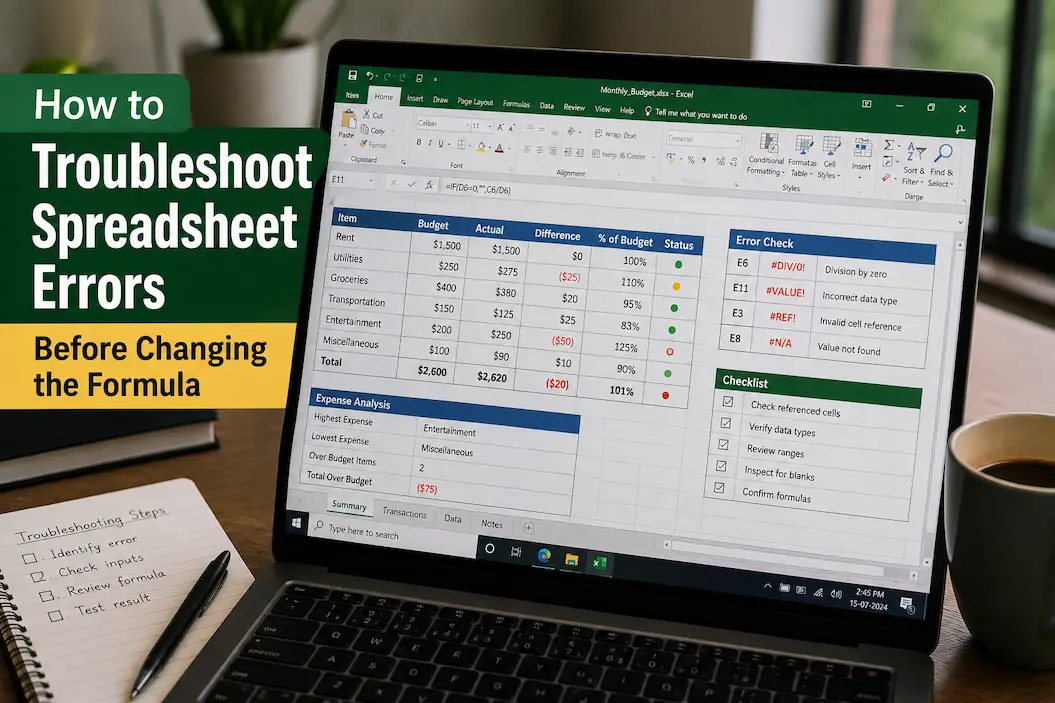
A spreadsheet error can make a perfectly good calculation look broken. The tempting response is to click into the formula, change a reference, add another function, or copy a formula from a nearby cell and hope the result improves. That approach sometimes works, but it can also hide the real problem. A formula may be correct while the underlying data, cell format, range, or workbook structure is not.
Before changing a formula, it helps to determine what kind of problem you are actually looking at. Excel and Google Sheets both provide clues through error messages, displayed values, formatting, references, and the behavior of related cells. Taking a few minutes to inspect those clues can prevent a small data problem from becoming a much larger spreadsheet mistake.
This process is especially important when you use a workbook for reports, budgeting, tracking, inventory, analysis, or decisions. A formula that produces an incorrect result may not look obviously wrong. The safest troubleshooting method is therefore to investigate first and edit second.
Start With the Exact Error
Don’t begin by rewriting the formula. Start by reading what the spreadsheet is telling you.
Common Excel and Google Sheets errors include #DIV/0!, #VALUE!, #REF!, #N/A, and #NAME?. Each points toward a different class of problem, although the exact causes can vary depending on the formula and spreadsheet.
For example, #DIV/0! generally indicates that a calculation is attempting to divide by zero or by an empty cell being treated as zero. #REF! indicates that a reference is no longer valid, often because a referenced row, column, or cell was deleted. #VALUE! can appear when a formula receives a type of value it cannot use as expected.
The error message is not necessarily the complete diagnosis. Think of it as the first clue.
Check Whether the Problem Is Actually in the Formula
A formula can be perfectly valid while producing an unexpected result because the cells it references contain unexpected information.
Suppose a total is calculated from a range of monthly figures. If one month contains text instead of a number, an empty cell, an incorrectly entered value, or a number stored in an unexpected format, the result may not match what you expect.
Click the formula cell and inspect the references it uses. Then look at those cells individually.
Ask:
- Are the referenced cells populated?
- Do the values have the expected type?
- Are there unexpected blanks?
- Are any cells displaying errors?
- Does the range include the intended rows and columns?
- Did someone insert or delete data recently?
This simple check often reveals more than immediately rewriting the calculation.
Test the Referenced Cells One at a Time
When a formula is complicated, looking at the entire expression can make the problem seem harder than it is.
Break the logic down.
For example, a formula might calculate a result from several intermediate values:
=(B2*C2)+(D2/E2)-F2
Instead of immediately replacing it, inspect B2, C2, D2, E2, and F2 separately.
If E2 contains zero, the division portion becomes the obvious suspect. If C2 contains text, the multiplication may be the issue. If every individual value looks correct, then you can move further into the formula’s structure.
This method is particularly useful with long formulas containing nested functions. Identify which part is producing the unexpected result before changing the entire expression.
Check for Text That Looks Like a Number
One of the most frustrating spreadsheet problems occurs when a value looks numeric but is actually stored as text.
A cell may visually contain:
1250
but the spreadsheet may treat it differently from a genuine numeric value because of how the data was imported, copied, or formatted. This can happen with information pasted from websites, exported systems, CSV files, or other applications.
Look for inconsistent alignment, warning indicators, unexpected behavior in calculations, or differences between otherwise similar cells. You can also test questionable cells with appropriate spreadsheet functions rather than assuming that what appears on screen represents the underlying data type. Don’t automatically convert an entire column, however. First determine why the values are being interpreted incorrectly and whether some entries intentionally contain text.
Look for Hidden Spaces and Unusual Characters
Data copied from another source can contain characters that aren’t immediately visible.
A customer name, product code, account number, or other field may appear identical to another value while containing a leading space, trailing whitespace, line break, or other hidden character. This can cause problems with comparisons, lookups, filtering, and conditional logic.
For example, a lookup may fail because the spreadsheet is comparing "Product A" with "Product A " even though they appear almost identical.
Functions such as TRIM can help remove certain unnecessary spaces, while other cleaning functions may be appropriate for different types of imported data. Before modifying a formula to compensate for inconsistent text, inspect and clean the underlying data when that is the real source of the problem.
Check the Range Before Blaming the Calculation
A surprisingly common mistake is a formula that simply doesn’t include all the data it should.
Imagine a SUM formula covering rows 2 through 20 while the newest entries now extend through row 25. The formula itself may be syntactically correct. It is just working with an incomplete range.
Check the first and last cells included in the formula.
This step is particularly important after:
- Adding new rows
- Copying sections
- Moving columns
- Inserting records
- Importing new data
- Extending monthly reports
- Reorganizing worksheets
A result can be mathematically correct for the selected range and still be wrong for the business question you’re trying to answer.
Look for Broken References
If you see #REF!, investigate what changed before attempting to repair the formula.
A reference can become invalid when a referenced cell, row, column, or worksheet is deleted or otherwise altered. For instance, a formula that once referred to another worksheet may stop working after that worksheet is removed or renamed in a way that breaks the reference.
If the spreadsheet has a recent version or backup, comparing the current workbook with an earlier version can be particularly helpful. You may be able to identify exactly which structural change caused the reference to break. Don’t replace a broken reference with a guess. A formula that calculates a number again isn’t necessarily repaired if it now points to the wrong data.
Check for Circular References
A circular reference occurs when a formula depends directly or indirectly on itself.
A simple example would be a total in cell B10 that includes B10 in the range it is summing.
More complicated circular references can involve several cells:
A1 depends on B1, B1 depends on C1, and C1 eventually depends on A1.
Depending on the spreadsheet and its settings, you may receive a warning or see an unexpected result.
If a calculation suddenly behaves strangely after rows or columns are inserted, inspect the references for loops before rewriting the formula.
Circular calculations can sometimes be intentional in specialized financial models, but they should not be introduced accidentally as a way to make an error disappear.
Compare the Formula With a Nearby Working Cell
If one cell is producing an error while similar cells are working, compare them.
This is often faster than starting from scratch.
Suppose rows 10 through 20 contain similar calculations and only row 17 shows an error. Compare the formula in row 17 with rows 16 and 18.
Look for differences in:
- Cell references
- Absolute references
- Range boundaries
- Function names
- Conditions
- Sheet references
- Quotation marks
- Manually entered values
The difference may reveal the problem immediately.
Be careful when copying a neighboring formula, though. A nearby formula may have been designed for a different row or condition. Comparison is for diagnosis first, not automatic replacement.
Pay Attention to Absolute and Relative References
References beginning with $ behave differently when formulas are copied.
For example:
A1
is a relative reference, while:
$A$1
is an absolute reference.
There are also mixed references such as:
$A1
and:
A$1.
If a formula works correctly in one location but produces strange results after being copied, incorrect reference behavior is worth checking.
A common example is a formula that should always use a fixed tax rate or lookup table but instead moves the reference as the formula is filled down or across.
Before changing the calculation itself, check whether the references are moving in the way you intended.
Check the Cell Formatting
Sometimes the calculation is correct but the displayed result makes it appear wrong.
A percentage may display as a whole number. A date may appear as a serial number. A large number may be rounded. A currency value may show fewer decimal places than expected.
For example, 0.25 could represent 25% when formatted as a percentage, but it could appear simply as 0.25 under a general number format.
Check the cell’s formatting before altering the formula.
This is especially important for financial and reporting spreadsheets, where a display difference can be mistaken for a calculation error.
Don’t Confuse Rounded Display With Rounded Data
A spreadsheet can display fewer decimal places than it actually stores.
A cell might show:
10.5
while the underlying value is something like:
10.4967
If another formula uses that underlying value, the result may differ slightly from what you calculate manually using the displayed number.
Before changing a formula because of a small discrepancy, increase the displayed decimal places temporarily or inspect the underlying value.
This can distinguish a genuine calculation problem from a presentation issue.
Check Whether an Error Comes From Another Cell
An error can travel through a spreadsheet.
Suppose cell C10 depends on B10, and B10 already contains #N/A. The problem appearing in C10 may simply be a consequence of the earlier error.
When a formula produces an error, follow its references backward.
Find the first cell in the calculation chain where the unexpected value appears.
Fixing the downstream formula without addressing the original problem can produce a misleading result while leaving the underlying issue untouched.
Understand What #N/A Actually Means
#N/A often appears in lookup-related calculations when the requested value cannot be found.
Before changing the lookup formula, check whether the value genuinely exists in the source data.
Common causes include:
- Different spelling
- Extra spaces
- Different capitalization in some functions
- IDs stored as different data types
- Missing records
- Incorrect lookup range
- Incorrect match mode
- A lookup column that doesn’t contain the expected value
For example, if a product code exists in one table as text and another table treats it as a number, a lookup can fail even though the values appear similar.
The correct fix may therefore be data cleanup rather than a new lookup formula.
Check the Lookup Range and Match Logic
Lookup formulas deserve additional attention because several independent problems can produce similar symptoms.
If you’re using functions such as XLOOKUP, VLOOKUP, HLOOKUP, INDEX with MATCH, or related functions, verify that the lookup range contains the intended data.
Also check whether the formula is using an exact match or an approximate match where applicable.
An approximate match can return an unexpected result if the source data isn’t arranged according to the function’s requirements.
If the desired record isn’t being returned, don’t immediately replace one lookup function with another. First determine whether the lookup value, source range, data type, and matching method are correct.
Check Named Ranges and Structured References
More advanced spreadsheets may use named ranges or Excel tables instead of ordinary cell references.
These make formulas easier to understand, but they introduce another place where a problem can occur.
A named range may point to an incomplete area. A table may not include newly added data in the way you expected. A structured reference may behave differently from a manually selected range.
If a formula looks correct but the result is unexpectedly incomplete, inspect the underlying named range or table structure.
This is particularly important in workbooks that several people have maintained over time.
Use a Small Test Instead of Rebuilding the Workbook
When a formula is complicated, create a controlled test using a few known values.
Suppose you’re trying to determine whether a calculation correctly applies a percentage to a total. Instead of experimenting with the entire report, reproduce the essential calculation in a small area using simple values where you already know the expected answer.
If the test works, the original problem could relate to the source data or workbook structure.
If the test fails in the same way, you should examine the logic more closely.
A small test reduces the number of variables involved and makes troubleshooting easier to follow.
Check Recent Changes Before Making New Ones
Ask yourself what changed immediately before the problem appeared.
This is one of the most useful questions in spreadsheet troubleshooting.
Perhaps someone:
- Added a new column
- Deleted a worksheet
- Imported new data
- Copied formulas
- Changed formatting
- Renamed a sheet
- Replaced a range
- Pasted values over formulas
- Added a new reporting period
If the spreadsheet worked yesterday and failed today, the recent change is a strong starting point.
Don’t make several unrelated modifications before investigating it. Every additional change makes it harder to determine what actually caused the problem.
Use Version History When Available
Cloud-based spreadsheets and file-storage systems may provide version history or previous versions.
If the workbook suddenly behaves differently, reviewing an earlier version can help identify when the problem appeared.
Google Sheets provides version history through its file history features, while Microsoft environments can provide version history depending on where and how the workbook is stored.
This is especially useful for collaborative work because another person may have changed the workbook without realizing that their edit affected a calculation elsewhere.
When an earlier working version exists, it can be much safer to compare changes than to experiment blindly with the current workbook.
Protect the Original Before Making Significant Changes
If the spreadsheet is important, make a copy before performing substantial troubleshooting.
This is particularly sensible when you’re considering:
- Changing many formulas
- Deleting data
- Cleaning imported information
- Removing worksheets
- Rebuilding lookup ranges
- Changing table structures
- Running bulk transformations
A separate working copy gives you room to investigate without immediately altering the version other people depend on.
For a critical workbook, also make sure the backup or version you rely on is actually accessible before making destructive changes.
When Changing the Formula Is Actually the Right Fix
Troubleshooting first does not mean formulas should never be changed.
Occasionally the formula really is wrong.
You may discover that it:
- Uses the wrong range
- References the wrong worksheet
- Applies an incorrect condition
- Uses the wrong function
- Has an incorrect absolute reference
- Excludes new data
- Uses the wrong lookup mode
- Contains a logical error
Once you’ve identified the cause, change the formula deliberately and test the result.
Don’t stop when the error message disappears. A formula can return a plausible number and still be logically incorrect.
Verify the Result With an Independent Check
After repairing a formula, verify it using another method when the result matters.
For a simple calculation, calculate the expected result manually.
For a larger report, compare totals against a source system, another worksheet, a previous reporting period, or a separate calculation.
You don’t necessarily need to rebuild the entire spreadsheet twice. The purpose is to confirm that the repaired formula produces a result that makes sense independently.
This extra check is especially valuable when the spreadsheet supports financial reporting, inventory decisions, operational planning, or other work where an incorrect number can have consequences.
A Practical Troubleshooting Order
When you’re unsure where to begin, work through the problem in this order:
| Step | What to Check | What It Can Reveal |
|---|---|---|
| 1 | Exact error message | General direction of the problem |
| 2 | Referenced cells | Bad or unexpected input |
| 3 | Range boundaries | Missing data |
| 4 | Cell data types | Text/number conflicts |
| 5 | Formatting | Display versus actual value |
| 6 | Recent changes | Source of a new problem |
| 7 | Similar working formulas | Reference or logic differences |
| 8 | Broken references | Deleted or moved data |
| 9 | Lookup conditions | Missing or mismatched records |
| 10 | Circular references | Calculation loops |
| 11 | Version history | Earlier working structure |
| 12 | Independent check | Confirmation of the repair |
This order isn’t mandatory. If you already know that a worksheet was recently reorganized, please start there. The point is to investigate logically instead of changing formulas at random.
Fix the Cause, Not Just the Cell
Spreadsheet troubleshooting becomes much easier when an error is treated as evidence rather than an instruction to rewrite a formula. The visible problem may be in the formula, but it may just as easily be in the data feeding it, the selected range, a lookup value, formatting, or a structural change elsewhere in the workbook.
Start with the exact error, trace the referenced cells, compare working and failing examples, and check what changed recently. If the calculation is genuinely wrong, then modify it and test the result rather than relying on the disappearance of an error message.
A spreadsheet is a connected system, not a collection of isolated cells. Finding where the unexpected value first enters that system is usually more reliable than changing the formula that happens to display the final error.