
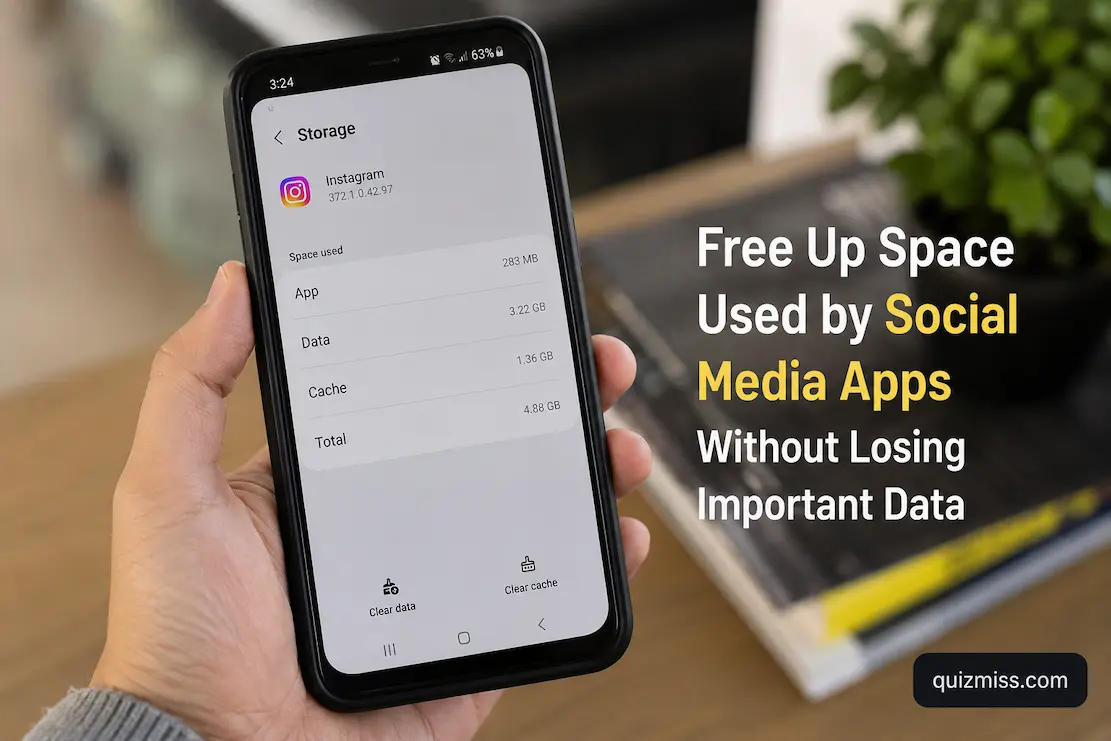
Social media apps can quietly become some of the largest users of storage on a phone. A single application may accumulate cached images, temporary video files, downloaded media, message attachments, browsing data, drafts, and other local information over months of normal use. The app itself might have been small when you installed it, yet its storage footprint can become several times larger as you browse feeds, watch videos, exchange photos, and use built-in editing tools.
The tricky part is that deleting everything associated with an app isn’t always the right solution. Some information is temporary and safe to remove, while other items may be something you actually want to keep. A saved draft, locally stored video, downloaded photograph, or file that hasn’t been synchronized elsewhere could disappear if you treat all app storage as disposable. The safest approach is therefore to identify what is taking up space before deciding what to remove.
Whether you’re using Android or an iPhone, you can usually recover useful storage without deleting your social media accounts or losing important information. Start with the phone’s own storage tools, distinguish temporary data from personal files, and only remove something after you understand where another copy exists.
Find Out What Is Actually Using the Storage
Before deleting anything, check the phone’s storage screen and look at the affected social media apps individually. Android and iPhone both provide ways to see how much storage applications are using, although the categories and terminology differ between operating-system versions.
This first check matters because the largest number isn’t necessarily the part you should delete. An app might have a relatively modest application size but a much larger amount of documents and data. Those additional files can include useful offline information as well as temporary material. Looking at the breakdown gives you a better idea of whether you’re dealing with accumulated cache, downloaded media, or the app’s broader local data.
If one social app occupies a surprising amount of space, compare it with the others. You may discover that one application has grown substantially while the rest remain relatively small. That can tell you where your effort is likely to produce the biggest improvement.
Don’t Confuse the App With Its Data
Phone storage screens often distinguish between the application itself and the data associated with it. The application is the software installed on the device, while its stored data can include files generated or downloaded during normal use.
Deleting the application doesn’t necessarily mean the same thing as clearing its temporary files, and the exact behavior differs between Android and iPhone. More importantly, not everything listed under an app’s storage usage is automatically safe to remove.
Think of the storage as several layers rather than one large pile. There are files the app needs to operate, temporary material that can usually be recreated, and personal content that you may need to preserve. That distinction should guide every cleanup decision.
Start With the Phone’s Built-In Storage Tools
The safest place to begin is the operating system’s own storage management area. These tools are designed to show which applications and categories are consuming space without requiring you to install another cleanup utility.
On iPhone, Settings > General > iPhone Storage provides an overview of installed apps and their storage usage. On Android, the exact menu can vary by manufacturer and version, but storage information is generally available through the device’s Settings app.
Don’t worry if your menu looks different from instructions written for another phone. Android manufacturers often add their interfaces, while Apple changes some wording and organization between iOS releases. Look for the device’s storage or app-management section rather than relying on an identical menu path.
Clear Temporary Cache on Android When Appropriate
Android provides a useful option for clearing an application’s cache on many devices. Cached information is generally temporary material that the app can recreate when needed. Removing it can recover storage without deleting your account or intentionally removing your personal information.
The exact steps vary by Android manufacturer, but you can usually reach the affected app through Settings, open its storage information, and find an option related to cached data. Read the available choices carefully before confirming anything.
The important distinction is between clearing cache and clearing storage or data. The latter can have much broader consequences, including removing local app information and requiring you to sign in again. Don’t select the broader reset option simply because it appears next to the cache control.
iPhone Uses a Different Approach
iPhone doesn’t provide a universal “clear cache” button for individual social media apps in the same way many Android devices do. Instead, iOS manages application storage through its own system, and the available options may include offloading or deleting an app.
Offload App can be useful when you need to reduce the space occupied by the application itself while retaining certain documents and data associated with it. You can then reinstall the app when needed. However, don’t interpret offloading as a universal method for removing every type of social media cache. What happens to particular categories of local data depends on how the app stores them.
If an app has become unusually large, check its storage entry first and read what iOS says will happen before choosing an option. The goal is to reclaim space without accidentally removing something you intended to keep.
Check for Downloaded Videos and Photos
Social platforms increasingly revolve around video, and media can consume storage much faster than ordinary text. Downloaded clips, saved videos, exported images, and files created by editing tools can remain on the phone even after you have forgotten about them.
Look through the phone’s Photos or Files app rather than assuming everything belongs exclusively to the social media application. A video downloaded through a social platform may have been saved to your normal media library, where deleting the social app won’t remove it.
Before deleting a large file, confirm whether it exists somewhere else. If a photo is important, make sure it has been backed up or otherwise preserved before removing the local copy. Storage cleanup is only useful if it doesn’t turn into accidental data loss.
Review Your Photos and Videos Separately
Your phone’s photo library may contain many items created or downloaded through social media. Screenshots, reposted videos, duplicate images, edited versions, and downloaded clips can accumulate quickly.
Use the Photos app’s organizational tools to find large videos, screenshots, duplicates, or other categories that you no longer need. Review them rather than deleting everything in bulk. Some screenshots may be disposable, while a downloaded video might be the only copy of something you want to keep.
If your phone offers a duplicate-detection or storage recommendation feature, treat its suggestions as a starting point rather than an automatic deletion command. Please confirm that the files are genuinely redundant before removing them.
Be Careful With Social Media Drafts
Drafts are easy to overlook because they may not appear in your ordinary photo library. A social app may store an unfinished post, video edit, caption, or other work locally until you decide what to do with it.
Before clearing app data, uninstalling an application, or using a broad cleanup function, check whether you have any drafts you care about. Draft storage varies by platform, and some may not sync to your account.
If a draft matters, finish it, publish it if appropriate, or save the underlying media somewhere you control before performing a major cleanup. Don’t assume that signing into the same account on another phone will automatically restore every unfinished item.
Check the Files App for Hidden Downloads
Not all social-media-related files are visible inside the social application. Depending on the platform and your actions, downloads may appear in your phone’s Files app or a Downloads folder.
Search for large files and review folders where downloaded media is commonly stored. Look at file sizes and dates to identify material that has accumulated over time.
This is especially useful when the social media app’s own storage screen doesn’t explain why it has grown so large. You may find that the application isn’t actually holding all the media; instead, your phone has accumulated exported or downloaded files elsewhere.
Remove Old Offline Content You No Longer Need
Some applications allow users to save content for offline access. Depending on the service, the content can include videos, music, posts, maps, or other material. Offline copies can be useful when you’re traveling or have limited connectivity, but they also occupy local storage.
Please review any offline content within the app and remove items you no longer use. If you still want access to the content, check whether it can be streamed again instead of permanently stored on the device.
Don’t confuse offline copies with content saved to your account. Removing a local offline copy generally has a different effect from deleting something from your account, but the exact behavior depends on the platform. Read the application’s wording before confirming removal.
Review Automatically Saved Media
Some social apps can automatically save photos or videos to the device after you post, edit, receive, or download them. If several versions of the same media exist, such behavior can create unnecessary duplication.
Check the app’s settings for options related to saving original media, downloaded content, or copies of posts to your device. If you don’t need automatic local copies, consider disabling the feature.
Be selective, though. Automatic saving may be useful if you rely on the phone’s photo library as your personal archive. Before turning it off, decide where you want important originals to live instead.
Don’t Delete Messages Just to Save Space
Messages can contain photos, videos, documents, voice notes, and other attachments, so conversations can become substantial over time. However, deleting entire conversations just to recover storage can remove information you may later need.
First check whether the platform provides a way to remove large attachments without deleting the entire conversation. Some apps offer storage-management tools that identify large media or files separately.
If the platform doesn’t provide that level of control, decide whether the conversation contains anything important before deleting it. If the information is valuable, you should save the relevant files or records elsewhere first.
Check Cloud Backup Before Removing Local Files
Cloud synchronization can make storage management easier, but don’t assume that a file is safely backed up merely because your phone is connected to an online account.
Open the relevant backup or photo service and confirm that your important files are present. If you’re using a photo backup service, check its synchronization status and make sure recent photos and videos have finished uploading.
Only after verifying the backup should you consider removing local copies. A file that is still waiting to upload, excluded from backup, or stored only on the device is not protected simply because cloud storage is available.
Avoid Third-Party “Storage Cleaner” Apps
You generally don’t need another app to clean the app you’re trying to troubleshoot. Third-party cleaners may request broad permissions to photos, files, applications, or other device information, and their automatic deletion recommendations may not understand which social media files matter to you.
Android and iPhone already provide built-in storage-management features. Start there. If you need a specialized file-management tool, understand exactly what it can access and what its deletion feature will do before giving it permission.
A storage cleaner that deletes a useful draft or your only copy of a downloaded file has created a bigger problem than the storage shortage you were trying to solve.
What Happens When You Delete an App?
Deleting a social media app removes the software from your phone, but it does not normally mean that your online account itself is deleted. The service generally maintains your profile, posts, followers, and other account information rather than storing them exclusively on the device.
That doesn’t mean every piece of local information will come back after reinstalling. Drafts, cached material, certain downloads, local preferences, and other device-specific information may not be restored.
Before uninstalling an app because it is using too much space, identify anything you might need afterward. If your goal is simply to remove temporary storage, uninstalling the entire application can be a much broader action than necessary.
Don’t Clear App Data Without Knowing the Consequences
On Android, the option to clear an app’s storage or data can be powerful, but it should not be treated as an ordinary cache-cleaning tool. It can return an application to a state that resembles a fresh installation and may remove locally stored information.
If the objective is simply to free up some temporary space, clearing the cache is usually the more targeted option when available. If you’re considering clearing all app data because the storage number is unusually high, first determine whether the app contains drafts, downloaded content, or other local information you need.
The extra minute spent checking can prevent an unnecessary recovery problem later.
Compare Storage Before and After Cleanup
After removing something, return to the phone’s storage settings and check whether the amount of available space actually changed. This helps you determine which actions are producing meaningful results.
If clearing an app’s cache recovers only a small amount of space, don’t keep repeating the same action. Look for larger sources such as downloaded videos, duplicate photos, offline content, or other applications.
A good cleanup is based on the biggest useful opportunities rather than performing the greatest number of deletions. Ten minutes spent removing a few large unnecessary files can be more effective than repeatedly clearing small caches.
A Safer Cleanup Order
If you’re unsure where to begin, work from the least disruptive options toward the more significant ones.
| Order | What to Check | Risk to Important Data |
|---|---|---|
| 1 | Check device storage | None |
| 2 | Identify the largest social apps | None |
| 3 | Review downloaded media | Low if reviewed first |
| 4 | Remove unnecessary files from Photos/Files | Depends on what you delete |
| 5 | Verify cloud backups | None |
| 6 | Remove old offline content | Usually low |
| 7 | Clear Android app cache | Generally low |
| 8 | Review automatic media-saving settings | None |
| 9 | Consider iPhone offloading | Review what iOS reports first |
| 10 | Reinstall an unusually large app | Some local data may not return |
| 11 | Clear Android app storage/data | Higher risk |
| 12 | Delete personal media or conversations | Potentially irreversible |
This order isn’t a strict rule for every phone, but it illustrates an important principle: don’t start with the most destructive option when a smaller change may solve the problem.
When the Phone Is Still Almost Full
If social media apps are not actually responsible for most of your storage usage, cleaning them won’t solve the larger problem. Check the complete storage breakdown to identify the biggest categories.
Large videos, games, downloaded files, podcasts, offline content, duplicate photographs, and unused applications can consume far more space than social media caches. Your phone’s storage screen can help you identify where the available capacity is going.
This broader check is particularly important if you repeatedly clean social apps only to find that the phone becomes full again a few days later. The real issue may be a different category that keeps growing.
Keep Enough Free Space for Normal Use
The objective isn’t necessarily to maximize the amount of empty storage. You need enough free space for normal phone operations, application updates, temporary files, photos, videos, and other everyday tasks.
If your device repeatedly reaches its storage limit, establish a simple maintenance habit instead of waiting until the warning appears. Review large media periodically, remove downloads you no longer need, and assess which applications have grown significantly.
You can also review automatic downloads and media-saving features so that unnecessary files aren’t continuously recreated after every cleanup.
Free Up Space Without Turning Cleanup Into Data Loss
The safest way to reduce social media storage isn’t to delete everything associated with the apps. It is to determine what has accumulated, identify what is temporary, and protect anything that exists only on the phone before removing it. A cache, a downloaded video, a draft, and a backed-up photograph are four unique things even if they all contribute to the storage number shown in your settings.
Start with the built-in storage tools on Android or iPhone, inspect the largest apps, and look beyond the app itself for downloaded media and duplicate files. Verify backups before removing local copies, and be particularly careful with drafts and app data because they may not be recoverable after a reset or reinstall.
Most importantly, don’t measure a successful cleanup by how much you deleted. Measure it by how much useful storage you recovered while keeping the information you actually care about. A smaller, controlled cleanup is far better than deleting valuable data simply to improve the indicator look.