
A Windows computer rarely gives you much warning before a full drive starts causing trouble. One day there may be plenty of free space, and a few large downloads, application updates, temporary files, or videos later, the system drive can suddenly become difficult to manage. Windows may display a low-storage warning, updates may refuse to install, applications can behave unpredictably, and everyday tasks such as saving files may become inconvenient.
The difficult part is deciding what can actually be removed. A storage screen can show dozens of gigabytes under broad categories such as temporary files, installed apps, documents, or system files, but the largest category isn’t automatically the best place to start. Some files are disposable, some are needed by Windows, and others may be personal files that simply need to be moved somewhere else.
Instead of deleting files until the storage warning disappears, treat the problem like a cleanup exercise. Identify what is consuming the space, separate replaceable data from important files, and work through the safest options first. Windows already provides several tools for doing this task, so you usually don’t need a third-party cleaner to get started.
Find Out Where the Space Went
The first step is surprisingly easy to skip: check the storage breakdown before deleting anything.
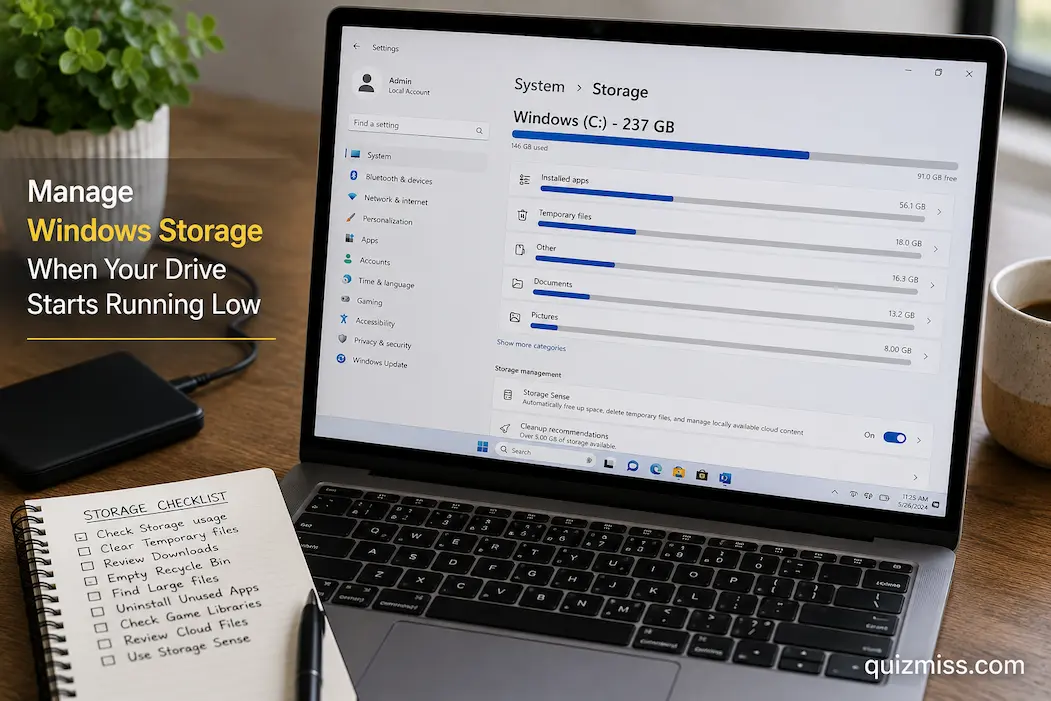
Open Settings > System > Storage. Windows will categorize the drive’s usage into areas such as installed apps, temporary files, documents, pictures, videos, and system-related storage. The exact categories and wording can vary between Windows versions.
Please allow the storage calculation time to finish. If the computer has a large drive or many files, Windows may take a little while to produce a complete breakdown. Once it appears, look for the categories that are actually consuming significant amounts of space.
This immediately changes the cleanup strategy. If videos account for 150 GB, clearing a few hundred megabytes of temporary files won’t solve the underlying problem. Likewise, if applications are consuming most of the drive, deleting old downloads may barely make a difference.
Don’t Start by Deleting Random System Files
A nearly full Windows drive can create a strong temptation to open folders such as C:\Windows and start removing large files. Avoid that approach.
Windows contains system files, component data, recovery information, drivers, update files, and other material that may look unnecessary if you don’t know what each item does. Manually deleting files from system directories can create stability problems or interfere with future updates.
Use Windows’ own storage and cleanup mechanisms first. They are better at identifying files that can be removed without requiring you to determine the purpose of every system file yourself.
If you eventually need to investigate a specific large system file, identify what it is and why it exists before touching it.
Clean Temporary Files First
Temporary files are one of the safer places to begin because Windows and applications routinely create them during normal operation.
Under Settings > System > Storage, open Temporary files and review the categories Windows presents. Some may include temporary application files, update-related material, thumbnails, recycle-bin contents, and other data.
Don’t simply select every category without reading the descriptions. Some items can affect recovery options or remove files you might still want. Windows normally explains what a category represents, so use that information before confirming the cleanup.
If the drive is critically low, this step can sometimes recover meaningful space without touching your personal documents.
Pay Attention to the Downloads Folder
The Downloads folder is one of the most common sources of forgotten storage usage. Installers, ZIP archives, PDFs, images, videos, spreadsheets, and duplicate downloads can remain there for months.
Open File Explorer and review Downloads. Sort the folder by size so that the largest files appear first. This is often more useful than browsing the files in alphabetical order.
Don’t delete something just because it is large. An old Windows installer might no longer be needed, while a large project archive could be important. Open or identify unfamiliar files before deciding whether they are disposable.
A five-minute review of Downloads can sometimes recover more space than complicated system-level cleanup.
Empty the Recycle Bin Carefully
Files moved to the Recycle Bin still consume disk space until the bin is emptied. If you’ve recently deleted large videos, installers, or other files, the storage may not actually have been reclaimed yet.
Right-click the Recycle Bin and review its contents before choosing to empty it. This is particularly important on a shared computer or if you frequently delete files and later change your mind.
Once the Recycle Bin is emptied, those files are no longer available through the normal Windows recovery mechanism. Make sure you don’t need anything inside it before confirming.
Find Large Personal Files
If temporary-file cleanup isn’t enough, look at your own files. Videos are often the biggest contributors, followed by large archives, virtual machines, disk images, installers, project files, and certain game libraries.
File Explorer can help you locate large files by searching or sorting folders by size. Start with locations where you commonly save data, such as Documents, Downloads, Pictures, Videos, and the Desktop.
Be especially careful with files stored on the Desktop. They can be easy to overlook, since they are always visible, but they still take up space on the system drive.
Move Large Files Instead of Deleting Them
Not every large file needs to disappear. If you need a file but don’t need it on the system drive, move it to another storage location.
An external SSD or hard drive can be useful for large personal archives. A separate internal drive is another option if the computer has one. Cloud storage can also work when the service and account provide enough capacity.
The important distinction is that moving a file is different from deleting it. If the data matters, confirm that the new copy exists and opens correctly before removing the original.
For particularly important files, maintaining another backup is even better than simply moving the only copy to another drive.
Review Cloud-Synced Folders Carefully
Cloud-storage applications can create confusing storage situations because files may appear in File Explorer while also being stored online. Depending on the service and its settings, some files may remain locally available even though you don’t need an offline copy.
Look at the cloud service’s own storage-management or offline-availability options. If a file is safely synchronized and the service supports an online-only state, making it online-only may recover local disk space without deleting the cloud copy.
Don’t manually delete files from a synchronized folder unless you understand what the service will do. In some configurations, deleting the local file can also delete the synchronized copy from the cloud and other devices.
The distinction between removing a local copy and deleting the file from synchronization matters.
Use Storage Sense for Ongoing Maintenance
Windows includes Storage Sense, which can automate some cleanup tasks.
Go to Settings > System > Storage > Storage Sense and review its configuration. It can help Windows remove certain temporary files and manage Recycle Bin contents according to the options you select.
The useful part is the ability to make the behavior predictable. You can decide what Windows is allowed to clean instead of relying on a third-party utility to make broad decisions.
Don’t enable every available cleanup option without reading the descriptions. Automatic maintenance works best when you understand what it is permitted to remove.
Check Which Applications Are Consuming Space
Open Settings > Apps > Installed apps and look at the applications installed on the computer. Depending on the Windows version, you may be able to sort or inspect them according to their size.
Large games and creative applications can occupy tens or even hundreds of gigabytes. If you haven’t used an application in months, uninstalling it may produce a much larger improvement than clearing small temporary files.
However, don’t remove software simply because you don’t recognize the name. Some entries are Windows components, drivers, support packages, or utilities required by your hardware.
If you aren’t sure what an application does, identify it before uninstalling it.
Remove Programs You Actually No Longer Use
Applications are a good target when they are clearly unnecessary.
Look for old games, duplicate software, discontinued utilities, trial applications, or programs you installed for a one-time task. Uninstall them through Settings > Apps > Installed apps or the application’s supported uninstaller.
Avoid manually deleting an application’s folder from Program Files as a substitute for uninstalling it. Proper uninstallers can remove associated files, configuration information, and system registrations that simply deleting a folder won’t necessarily handle.
After removing a large application, return to the storage screen to see how much space was actually recovered.
Check Game Libraries Before Deleting Anything
Games deserve special attention because their installations can be extremely large. If the computer has Steam, Xbox, Epic Games, or another game platform installed, review the platform’s own library management options.
Uninstall games through the launcher when possible. Some launchers also support moving installations to another drive, which can be a better option if you still play the game but don’t want it consuming system-drive space.
Don’t delete game folders manually unless the platform specifically recommends that procedure. You can create broken installations or confuse the launcher about what is installed.
Look at Windows Update and Previous Installations
Major Windows updates can temporarily require substantial additional storage. Windows may also retain files that support returning to a previous version for a limited period.
Storage settings may identify previous Windows installation files as removable. These can be useful if you have just upgraded and want the ability to roll back.
If the computer is stable and you are confident you won’t need the previous installation, removing those files may recover considerable space. But understand the consequence first: once the rollback files are removed, the corresponding recovery option may no longer be available.
This is one reason not to blindly select every large item in a cleanup list.
Check System Restore and Recovery-Related Storage
Windows recovery features can consume disk space, and that space exists for a reason. If you’re looking for storage to reclaim, don’t immediately disable recovery features simply because they occupy several gigabytes.
System protection can provide a useful recovery mechanism after certain software or configuration problems. The amount of storage it uses can be managed through Windows’ system-protection settings rather than by manually deleting hidden files.
If your drive is critically full, review recovery storage as part of a broader plan. But don’t sacrifice useful recovery options merely to gain a small amount of space when safer personal-file cleanup is available.
Check for Large Windows Error Files
Windows and applications can generate diagnostic information when something crashes or encounters a problem. Some of these files can become large, especially if the computer has experienced repeated failures.
Storage settings may identify certain diagnostic or temporary categories. If Windows offers them as cleanup options, review the description before removal.
If large diagnostic files keep appearing, however, don’t treat cleanup as the solution. Repeatedly generated error data can be a symptom of an underlying application, driver, or system problem that deserves attention.
Don’t Use Registry Cleaners to Free Storage
Registry-cleaning utilities are not a sensible answer to a low-disk-space problem. The Windows Registry isn’t where the majority of your missing storage is hiding, and aggressive cleaning can introduce unnecessary risk.
Focus on actual storage consumers: applications, videos, downloads, temporary files, backups, archives, and other large data.
A tool promising to “clean thousands of registry errors” may sound impressive, but removing registry entries isn’t equivalent to recovering meaningful disk capacity.
Check for Duplicate Files Before Removing Originals
Duplicate photographs, videos, downloads, and documents can gradually consume large amounts of storage. But duplicate detection should be handled carefully.
Two files with similar names aren’t necessarily duplicates. A project may have several versions, and two photographs may look similar while having different resolutions or edits.
If you use a duplicate-finding tool, review its results before deletion. Keep the version you actually want and make sure another copy exists if the file is important.
Never let an automatic cleanup process delete personal files simply because they have identical filenames.
Don’t Ignore the Desktop
The Windows Desktop is another location that can become an accidental storage dump. Large installers, videos, ZIP archives, project folders, and temporary work files can sit there for months.
Open the Desktop folder in File Explorer and sort its contents by size. Move completed projects to their proper folders or another storage location.
A cleaner Desktop also makes files easier to find. Storage management and file organization often solve two problems at the same time.
Check OneDrive or Other Cloud Storage Carefully
If you’re using OneDrive or another cloud service, examine which files are stored locally. A folder containing years of documents and photos can consume substantial local storage even when the purpose of cloud synchronization is to keep those files available across devices.
Use the service’s supported controls to make appropriate files online-only when possible. Don’t simply delete synchronized files from File Explorer without understanding the synchronization behavior.
If you’re unsure whether a file exists safely in the cloud, open the cloud service through its official interface and verify it before changing the local copy.
Keep the System Drive From Reaching Zero Free Space
A Windows computer doesn’t need to have half of its drive empty to work properly, but leaving almost no free space can make ordinary maintenance difficult.
Windows needs room for temporary files, updates, application operations, and other tasks. A drive that repeatedly reaches the last few gigabytes should be treated as a storage-management problem rather than something to fix every time a warning appears.
The exact amount of free space you should maintain depends on the drive’s capacity and how you use the computer. A computer with a 1 TB drive has very different storage needs from one with a 128 GB system drive.
Instead of following a single percentage as a universal rule, watch your actual usage patterns. If Windows repeatedly runs out of space during updates or normal work, you need a more substantial solution.
Move Your Default Storage Locations
If your system drive is relatively small, consider changing where large categories of personal data are stored.
Windows allows supported folders such as Documents, Pictures, and other personal directories to be moved to another drive in appropriate configurations. Applications and games may also allow a different installation location.
This can be more effective than repeatedly deleting files from the C: drive. If you regularly work with large videos or project files, storing them on a larger secondary drive can prevent the system drive from becoming overloaded.
Make changes deliberately, though. Moving folders incorrectly can create broken paths or confusing synchronization behavior.
Consider a Larger Drive When Cleanup Isn’t Enough
Sometimes the problem isn’t poor storage management. The drive is simply too small for the way you use the computer.
If you regularly work with large video projects, modern games, virtual machines, photography libraries, or extensive development environments, deleting files every few weeks may not be a sustainable solution.
At that point, upgrading to a larger SSD or adding a secondary drive may make more sense. Before replacing anything, check your computer’s supported drive types, physical compatibility, available slots, and operating-system setup.
The goal is to solve the capacity problem rather than repeatedly treating the symptoms.
A Sensible Windows Storage Cleanup Order
When the drive is getting full, the following sequence keeps the process relatively controlled:
| Step | Action | Why It Helps |
|---|---|---|
| 1 | Check Settings > System > Storage | Identifies the largest categories |
| 2 | Review Temporary files | Removes potentially disposable data |
| 3 | Check Downloads | Finds forgotten large files |
| 4 | Review Recycle Bin | Reclaims already-deleted space |
| 5 | Find large personal files | Targets major storage consumers |
| 6 | Verify cloud backups | Protects important files |
| 7 | Move files you still need | Frees space without deleting them |
| 8 | Uninstall unused applications | Removes large software installations |
| 9 | Review game libraries | Recovers potentially huge amounts of space |
| 10 | Check Storage Sense | Creates ongoing maintenance |
| 11 | Review previous Windows files | Useful after major upgrades |
| 12 | Consider additional storage | Solves recurring capacity problems |
You don’t necessarily need to perform every step. Stop once you’ve recovered enough space and the computer is operating normally.
What Not to Delete Just Because It Looks Large
Some storage categories deserve more caution than others.
Don’t manually remove files from Windows system directories, delete unfamiliar folders in Program Files, erase recovery partitions, or remove hidden system files simply because a storage scanner identifies them as large.
Likewise, don’t delete your only copy of personal photographs, documents, business files, or project archives simply because they occupy substantial space. Large doesn’t mean unnecessary.
The safest question isn’t “How big is this file?” It is “What is this file, and do I still need it here?”
Frequently Asked Questions
How do I see what is taking up space on Windows?
Open Settings > System > Storage. Windows provides a breakdown of storage usage by category, allowing you to identify whether applications, temporary files, personal data, or other categories are consuming the most space.
What should I delete first when my Windows drive is full?
Start with temporary files, unnecessary downloads, Recycle Bin contents, and personal files you have verified are no longer needed. Avoid manually deleting Windows system files.
Is it safe to delete temporary files in Windows?
Many temporary-file categories can be safely cleaned using Windows’ built-in storage tools. Read the descriptions first because some categories may affect recovery options or other useful system features.
Why is my Windows drive full even though I don’t have many files?
Applications, games, temporary data, Windows update files, cloud-synchronized folders, recovery data, and hidden system storage can all contribute to disk usage. The Storage settings page can help identify the largest category.
Can I move files from the C: drive to another drive?
Yes. Personal files such as documents, photos, videos, and archives can often be moved to another internal or external drive. Verify that the destination copy works before deleting the original.
Should I use Storage Sense?
Storage Sense can be useful for routine cleanup when configured carefully. Review what it is allowed to remove before enabling automatic cleanup.
Can I delete old Windows installation files?
They can sometimes be removed after a major upgrade, but previous installation files may support rollback to an earlier Windows version. If you delete them, that recovery option may no longer be available.
Storage Management Is More Than Deleting Files
When Windows reports that the drive is running low, the fastest-looking solution is often to start deleting things. That isn’t necessarily the safest or most effective approach. A better cleanup begins by finding the category responsible for the problem and then choosing an appropriate response.
Temporary files can be cleaned. Unused applications can be uninstalled. Large personal files can be moved after they’re safely copied. Cloud-synchronized data can sometimes be made available online instead of locally. And if the computer simply doesn’t have enough capacity for the way you use it, additional storage may be the right answer.
Most importantly, don’t turn a storage problem into a data-loss problem. Check what you’re removing, verify important backups, and use Windows’ own storage-management features whenever possible. Once you know what is consuming the drive, managing the space becomes a much more straightforward job.