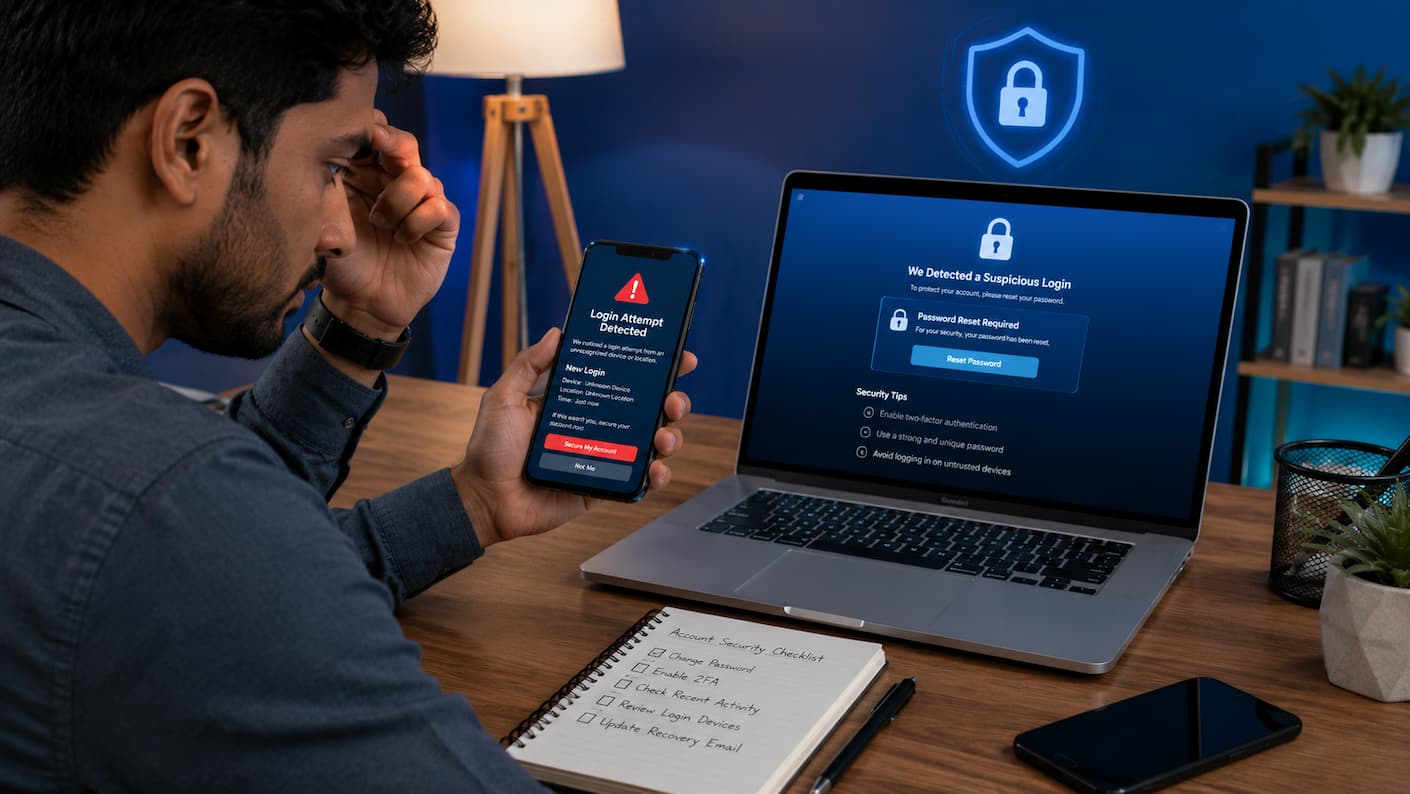
You open a social app expecting to see your friends, family members, or stored contacts, but something looks a little off. Missing names, suggested friends not showing up, or the app repeatedly requesting permission to access your contacts even after you have already given it. Contact sync problems occur not infrequently. There are various reasons why it can happen. Occasionally it’s just a matter of a permission setting. Other times, there’s a background sync option that’s switched off, there’s an issue with your connection to your account, or your phone is blocking the app from getting new info.
The frustrating thing is that your contacts might still be safe and sound on your phone. Usually the difficulty is the connection between your device, your account, and the social app. In this tutorial, we’ll show you why contacts stop syncing, how to check for the most common causes, and the exact actions you can take to fix the problem on your device. If you have an Android or iPhone, following troubleshooting steps can help get your contact syncing back to normal.
Why Contacts Stop Syncing with Social Apps
When contacts are not visible on a social app, many individuals think their phone has lost the information. It mostly was not. Your contacts are usually still on your device or in your cloud account. The issue is that the social app can’t read or change this information correctly. For contact synchronization, many things need to work together. Things to check: Your phone settings, app permissions, internet connection, account login, and the social app itself.
Reasons for contact sync failures
- Permission modifications: The app may no longer be able to read your contacts.
- Sync settings disabled: Contact sync may have been switched off accidentally.
- Battery limits: Certain phones prohibit apps from operating in the background to preserve battery.
- Internet Issues: If you don’t have a consistent connection, the app may not be able to update contact info.
- Account issues: You may need to refresh or rejoin your social app account.
- Using old software: Apps that haven’t been updated in a while might sometimes cause sync issues.
Check Contact Permissions First
One of the most common reasons social apps cannot display your contacts is that permission is blocked. Modern phones protect your personal information by allowing you to control which apps can access your contacts. If you denied permission during setup or removed it during a privacy update, the app may stop syncing completely.
How contact permissions work
When you allow a social app to access your contacts, the app can compare your phone contacts with its user database. This helps features such as finding friends, connecting with people you know, or suggesting accounts. Without permission, the app cannot read your contact list. It does not mean your contacts are deleted. The app simply cannot see them.
Check permissions on Android
- Open Settings on your phone.
- Go to Apps or Applications.
- Select the social app that is experiencing a syncing problem.
- Open Permissions.
- Make sure Contacts access is allowed.
Check permissions on iPhone
- Open the Settings app.
- Scroll down and select the social app.
- Tap Contacts.
- Turn on contact access if it is disabled.
| Permission Status | What It Means |
|---|---|
| Allowed | The app can access contacts |
| Denied | The app cannot read your contact list |
| Ask Next Time | The app will request permission again |
A common mistake to avoid
Many users uninstall and reinstall the app immediately when contacts do not sync. While this method sometimes helps, it does not resolve the problem if the real issue is a blocked permission. Always verify permissions first because it takes only a few seconds and can solve the issue without losing settings or saved data.
Make Sure Contact Sync Is Enabled
Even when an app has permission to access contacts, syncing may still fail if synchronization is disabled in your phone or account settings. Many devices include automatic sync controls that manage how often apps update information in the background. If this feature is turned off, your social apps may not receive new contact information.
Signs that sync settings may be disabled
- Newly saved contacts do not appear in social apps.
- Old contacts appear, but recent ones are missing.
- The app only updates after opening it manually.
- Multiple apps have similar syncing problems.
Refresh contact syncing
Try turning sync off and back on. This forces your phone to create a fresh connection between your contacts and connected services.
- Open your phone settings.
- Find account or sync settings.
- Select the account connected to your contacts.
- Disable contact sync temporarily.
- Wait a few seconds.
- Enable sync again.
Warning: Do not remove your main account from your phone unless you understand the consequences. Account removal can affect email, backups, and other connected services.
Check Your Internet Connection and Background Data
Contact syncing may seem like a phone setting issue, but sometimes the real problem is your internet connection. Social apps need to communicate with their servers to compare your contacts, update suggestions, and download the latest information. A weak connection may not completely stop the app from working. Instead, it can create smaller problems, such as missing contacts, delayed updates, or incomplete syncing.
Check your connection first
Before changing advanced settings, try these simple checks:
- Open a website to confirm your internet works.
- Switch between Wi-Fi and mobile data.
- Turn airplane mode on for a few seconds and turn it off.
- Restart your router if other apps are also slow.
| Problem | Possible Reason | Solution |
|---|---|---|
| Contacts load slowly | Weak internet connection | Try a stronger network |
| Sync works only on Wi-Fi | Mobile data restrictions | Allow background mobile data |
| The app stops updating | Battery or data-saving mode | Remove restrictions |
Allow background data usage
Many smartphones include data-saving features that prevent apps from using the internet when they are not open. These settings are useful for reducing data usage, but they can also stop automatic contact syncing.
Android background data settings
- Open Settings.
- Select Apps.
- Choose the social app.
- Open mobile data or data usage.
- Enable background data if it is disabled.
iPhone background refresh settings
- Open Settings.
- Select General.
- Tap Background App Refresh.
- Please ensure that the feature is enabled for the social app.
Tip: If contacts only update when you open the app, background restrictions are one of the first things to verify
Fix Account and Login Problems
Occasionally your contacts are not syncing because the connection between your social account and the app has become outdated. This can happen after changing passwords, switching phones, updating the app, or restoring a backup. Your app may still appear to work normally, but some connected features may stop updating correctly.
Signs of an account connection problem
- Contact suggestions suddenly disappear.
- The app asks you to log in again.
- Sync worked before but stopped after an update.
- Other account features also behave strangely.
Steps to refresh your account connection
- Open the social app settings.
- Confirm that you are logged into the correct account.
- Sign out and sign back in if necessary.
- Review the contact syncing settings in the app.
- Allow contact access again when requested.
Check that you are using the correct account
This simple mistake happens more often than people expect. Many users have multiple accounts, such as personal and work profiles. If you are logged into a different account, your expected contacts may not appear. Before you continue troubleshooting, check that the email address or username linked to the app is correct.
Contact Sync Fixes for Android Devices
Android phones provide users many customization options, but those extra settings can sometimes make troubleshooting confusing. Different phone manufacturers may use slightly different menu names, but the basic solutions are usually similar.
1. Restart contact synchronization
A temporary sync error can prevent your phone from updating contact information. Restarting the sync process often clears small connection problems.
- Open Settings.
- Go to Passwords & Accounts, Accounts, or Users & Accounts.
- Select your account.
- Turn contact syncing off.
- Wait briefly and turn it back on.
2. Check where your contacts are saved
A frequently overlooked problem is that contacts may exist in different places. Some contacts might be stored on your phone, some on a Google account, and others on a SIM card. A social app may only access certain contact sources depending on your settings.
| Contact Location | What It Means |
|---|---|
| Phone storage | Saved only on that device |
| Google account | Can sync across Android devices |
| SIM card | Limited storage with fewer features |
| Cloud service | Managed through an online account |
3. Disable battery restrictions temporarily
Android devices often limit background activity to save battery. This can stop apps from updating contacts when they are not open.
Check the app battery settings and allow normal background activity if syncing repeatedly stops.
4. Restart your phone
Restarting may seem too simple, but it can fix temporary software problems. It refreshes system processes and reconnects apps with phone services.
Best Practice: Restart your device before trying complicated fixes. Many temporary syncing problems disappear after a simple reboot.
Contact Sync Fixes for iPhone Users
iPhone contact syncing usually depends on iCloud settings, app permissions, and background activity controls. Apple places strong privacy controls on contact access, so a small setting change can prevent an app from seeing your contacts.
1. Check iCloud contacts
If you store your contacts in iCloud, make sure contact syncing is active.
- Open Settings.
- Tap your Apple ID profile.
- Select iCloud.
- Check that Contacts is turned on.
2. Review app contact access
iPhone allows you to control contact access separately for each app. A previous privacy choice may prevent syncing.
- Open Settings.
- Go to Privacy & Security.
- Select Contacts.
- Enable access for the social app.
3. Check default contact account
If you use multiple accounts, such as iCloud, Google, or another service, your new contacts may be saved somewhere different from where you expect. Checking the default account can prevent confusion when new contacts do not appear.
| iPhone Setting | Why It Matters |
|---|---|
| iCloud Contacts | Keeps contacts available across devices |
| App Permissions | Allows social apps to read contacts |
| Default Account | Controls where new contacts are stored |
Clear App Cache and Refresh Data
Apps store temporary files to improve speed. These files are called cache. Normally, cache is helpful, but sometimes outdated temporary data can cause syncing problems. For example, an app may continue showing an older contact list even after your phone has updated the information.
When clearing cache can help
- The app is slow or freezing.
- Contacts are outdated.
- Sync works after reinstalling the app.
- The app recently received an update.
Clear cache on Android
- Open Settings.
- Select Apps.
- Choose the social app.
- Select Storage.
- Tap Clear Cache.
iPhone cache options
An iPhone does not provide a universal clear-cache button. Instead, users can refresh app data by:
- Closing and reopening the app.
- Restarting the phone.
- Updating the app.
- Removing and reinstalling the app if necessary.
Warning: Avoid choosing “Clear Data” or deleting an app unless you understand what information may need to be restored afterward.
Advanced Troubleshooting Steps When Nothing Works
You can usually resolve most contact syncing problems with basic settings changes. However, if you have tried everything above and contacts still do not appear, you can move to deeper troubleshooting steps.
1. Remove and reconnect the account
Occasionally the connection between your phone account and the social app becomes corrupted. Removing the account connection and adding it again can create a fresh link. Before doing this, make sure you know your login details and that important information is backed up.
2. Reinstall the social app
Reinstalling removes the local app files and downloads a fresh copy. This can help when the app installation has become damaged. Remember that uninstalling an app does not delete your online account. However, some unsaved local settings may be removed.
3. Check if the service itself is having problems
Sometimes the issue is not your phone. Social platforms occasionally experience temporary outages that affect features such as contact suggestions and syncing. If many users are reporting the same problem, waiting until the service is restored may be the only solution.
4. Reset network settings
If multiple apps have connection problems, your network settings may need refreshing. Resetting network settings can remove saved Wi-Fi connections and Bluetooth settings, so use this option carefully.
Common Mistakes That Prevent Contact Sync
Many contact syncing problems happen because of small settings changes that users do not notice. Understanding these mistakes can help you avoid future issues.
Mistake 1: Blocking contact access for privacy reasons
Privacy settings are important, but some users disable contact access and later wonder why the app cannot locate friends or suggestions. If you want to protect privacy while still using syncing features, review permissions carefully instead of blocking everything.
Mistake 2: Saving contacts in different locations
A phone may store contacts in multiple places. Some contacts might be saved locally, while others are stored in cloud accounts. This can create confusion because one app may see some contacts but not others.
Mistake 3: Ignoring battery-saving settings
Battery optimization features are useful, but aggressive restrictions can prevent apps from updating in the background. If an app only syncs when opened manually, review battery and background activity settings.
Mistake 4: Using outdated apps
Old app versions may not work correctly with newer phone software. Regular updates reduce the chance of compatibility problems.
FAQs
1. Why aren’t my phone contacts showing up in social apps?
The most common reasons are limited permissions, turned-off synchronization, account connection difficulties, or background restrictions. Your contacts are typically still securely stored on your device. It could just be that the social app doesn’t have authorization or access to the latest contact info. First verify app permissions, then look at account connections and sync settings.
2. Why are only some of my contacts shown in my social app?
Partial syncing frequently occurs when contacts are saved in multiple places. Some may be saved on your phone, others on a cloud account, for example. The app may be accessing only one source. Please check your contact storage options and make sure you are saving your critical contacts to an account that can sync correctly.
3. Reinstall the social app to resolve contact sync issues.
Reinstalling can solve some difficulties because it deletes corrupted app files and gives you a fresh installation. However, it will not resolve issues caused by blocked permissions, wrong account settings, or deactivated synchronization. The simpler options are generally faster and safer, so you should check them before you start reinstalling.
Summary
Usually, when contacts aren’t syncing with social apps, it’s not as serious as it seems. Occasionally a quick change of permission, sync setting, or account refresh will bring everything back. First, check your contact permissions, make sure you’re synchronizing, confirm your internet connection is working, and update your apps. If those procedures don’t help, then try account troubleshooting, cache cleanup, or reinstalling the app.
Stay up to date with your phone, check your permissions periodically, and know where your contacts are stored to prevent any future syncing issues. With a few basic practices, you can keep an ordered contact list and keep your social apps running efficiently when you need them.
References
- Google Android Help – Managing app permissions and account synchronization settings.
- Apple Support – Managing contacts, iCloud contacts, and app privacy permissions.
- Android Developers Documentation – Background activity and application behavior guidelines.
- Apple Developer Documentation – App privacy and user permission practices.
- Federal Trade Commission (FTC) – Consumer privacy and mobile security guidance.
Leave a Reply