
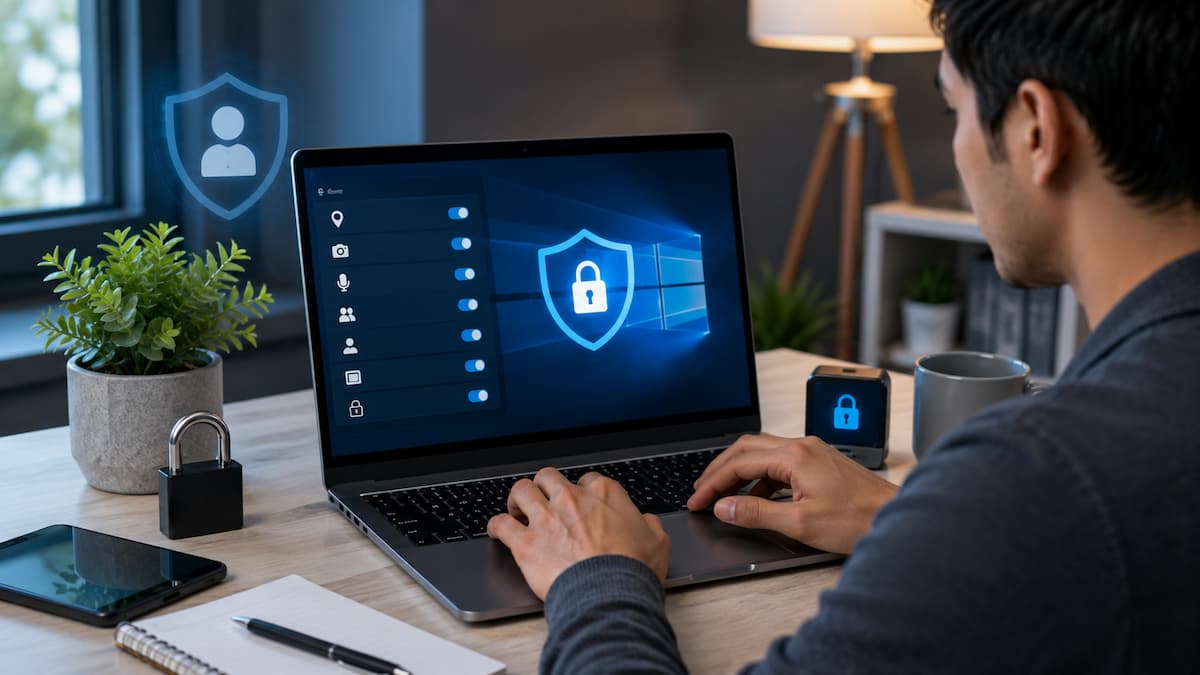
Checking your privacy settings does not mean you have to disable every feature. Some features can actually enhance security, help recover lost devices, or speed up Windows. You need to understand what each setting does so you can choose the configuration that best suits your computer usage. This article explains key Windows privacy settings in a simple, easy-to-understand way. You will learn which options require attention, which ones are safe to leave enabled, and how to strike a balance between privacy, ease of use, and security.
Windows Privacy Settings are Crucial
Every modern operating system collects data for updates, diagnostics, performance optimization, and online services. Windows systems are no exception. The amount of data collected by the system depends on the features, permissions, and privacy settings chosen during and after installation. Privacy is sometimes mistakenly viewed merely as hiding information. In reality, however, it is about controlling access to data and determining which services actually require that data. A weather app, for example, needs your location data, whereas a calculator does not. Windows allows apps to request access to your camera, microphone, contacts, calendar, and notifications. If these permissions are not reviewed over time, dozens of installed apps could end up with unnecessary access to data. Checking these settings every few months allows you to limit unnecessary data sharing without affecting essential functionality.
Where to Find Privacy Settings in Windows
Microsoft has grouped most privacy controls into one area, making them easier to review than in older versions of Windows. Although Windows 10 and Windows 11 look slightly different, the overall organization is very similar.
To begin reviewing your settings:
- Open the Start menu.
- Select Settings.
- Choose Privacy & Security in Windows 11 or Privacy in Windows 10.
- Browse each category one at a time instead of changing everything at once.
Changing one setting, testing your computer, and then moving to the next is usually a smarter approach than disabling numerous features simultaneously. This makes it much easier to identify which setting affects a particular application if something stops working later. You should also visit your Microsoft account privacy dashboard occasionally if you sign into Windows using a Microsoft account. Some privacy preferences related to your online account are managed there rather than directly on your computer.
Review App Permissions Before They Become a Problem
One of the easiest ways to improve privacy is by checking which applications have permission to access sensitive parts of your computer. Many users install software over several years without ever reviewing these permissions again. Inside the Privacy & Security settings, Windows separates permissions into categories. Instead of showing one long list, it lets you review access to your camera, microphone, location, contacts, calendar, notifications, file system, and other hardware individually.
As you open each category, ask yourself a simple question: Does this application genuinely need this permission to perform its main task? If the answer is no, consider turning that permission off.
| Permission | When It Makes Sense | When to Reconsider Access |
|---|---|---|
| Camera | Video meetings and online classes | Games or utilities that never use video |
| Microphone | Voice calls and speech recognition | Applications without voice features |
| Location | Maps and weather apps | Desktop tools with no location features |
| Calendar | Email and scheduling apps | Photo editors or media players |
| Contacts | Email clients | Applications unrelated to communication |
Some applications request permission only once during installation. Others may ask again after receiving updates that introduce new features. If a permission request surprises you, take a moment to understand why it is being requested before clicking Allow. It is also worth removing applications you no longer use. An uninstalled program cannot continue accessing your device permissions.
Understand Diagnostic Data Without Guessing
Most home users can pick from Windows diagnostic data choices. The restricted option lowers information sharing while allowing Windows to get critical updates and security upgrades. Diagnostic data differs from personal files, photographs, and stored files. Instead, it examines Windows’ operation. However, many users prefer restricting data to what’s essential.
The settings tab also has individual experience choices. These capabilities adjust suggestions, recommendations, and Microsoft services using diagnostic data. You may eliminate customized suggestions without compromising Windows functioning if you want fewer. Disable features you’ll never use and leave vital security services on. Understanding rather than turning off everything works best for privacy.
Be Careful Which Apps Can Access Your Location
Location services might be beneficial if you use maps, weather predictions, or apps to discover local sites. Not all programs need to know where you use your computer. Windows enables two-level location access control. You may disable the functionality or activate it while selecting which applications can utilize it. The second approach balances privacy and convenience better for most individuals.
Suppose you use a weather app every morning. Let it access your location to avoid entering your city manually. Knowing your location doesn’t help a simple note-taking software. Reviewing permissions this way prevents inappropriate data sharing without reducing Windows’ usefulness. Some Windows services keep a limited location history. Clearing location-based records is a basic housekeeping action that many users neglect if they rarely use them.
Manage Advertising ID and Personalization
Each Windows user account has an advertising identification that lets enabled programs offer more tailored ads. This identifier does not reveal your personal data but can be used to target app-based ads. Easy privacy improvement: disable the advertising ID if you don’t want targeted advertising. Applications will display ads, but they may not be personalized to your usage.
You may also see Windows settings for suggested material, suggestions, and personalized advice. Though created to help consumers discover apps and services, not everyone finds them beneficial. Two benefits commonly result from disabling unneeded suggestions. Data collection is reduced and the Windows interface is cleaner and less obtrusive.
Check Search Permissions and Cloud Content
Review cloud content, SafeSearch, search history, and device history choices under Search Permissions. Consider how you use Windows Search before enabling features. You may prefer a simpler search experience that uses fewer web resources if you mostly search for locally saved documents or installed programs.
Should You Clear Search History?
By deleting previously searched things from recommendations, erasing search history sometimes helps increase privacy on shared computers. Simply resets bits of your search history, not your files or applications.
Don’t Disable Security Features in the Name of Privacy
Assuming every feature sending data should be off is a typical error. Certain Windows services are designed to safeguard your device. Microsoft Defender, SmartScreen, automated security updates, and device encryption protect your PC. These services may use Microsoft servers to detect malware, validate downloads, and provide security fixes.
Disabling these measures generally increases danger more than privacy. A protected computer with proper privacy settings is usually preferable than an isolated machine without security.
| Feature | Recommended for Most Users | Reason |
|---|---|---|
| Microsoft Defender | Keep Enabled | Provides built-in malware protection. |
| Windows Firewall | Keep Enabled | Blocks unauthorized network connections. |
| SmartScreen | Keep Enabled | Helps detect unsafe websites and downloads. |
| Automatic Updates | Keep Enabled | Installs important security fixes. |
| Device Encryption (if available) | Usually Enable | Protects data if the computer is lost or stolen. |
Privacy and security work together. Disabling security tools simply because they communicate with trusted Microsoft services often leaves your computer more vulnerable to real threats.
Simple Privacy Habits That Make a Bigger Difference Than Any Setting
Privacy settings are only one part of protecting your personal information. Everyday habits often have an even greater impact.
- Install software only from trusted sources.
- Remove applications you no longer use.
- Review app permissions every few months.
- Use a standard user account for daily activities when practical.
- Lock your computer whenever you leave your desk.
- Keep Windows and installed software updated.
- Use strong, unique passwords and enable multi-factor authentication whenever available.
Another good habit is reading permission requests instead of approving them automatically. Taking a few extra seconds during installation can prevent unnecessary access to your camera, microphone, contacts, or location later. If you share your computer with family members, create separate Windows accounts instead of sharing one login. This keeps personal files, browser history, and privacy settings separate for each person.
Finally, remember that privacy is not something you configure once and forget. New applications, major Windows updates, and changing personal needs can all affect which settings make sense for you. Spending a few minutes reviewing them every few months is usually enough to stay in control.
Conclusion
The best approach is to review privacy settings with a practical mindset. Keep features that improve your experience, remove permissions that do not make sense, and avoid disabling security tools that protect your device. A few thoughtful changes can make your computer feel more private without making Windows difficult to use. Once you understand where these settings are located and what they control, maintaining your privacy becomes a simple routine rather than a complicated technical task.
FAQs
1. Does changing Windows privacy settings make my computer faster?
Privacy changes usually have a small effect on performance rather than creating a dramatic speed improvement. Some users may notice fewer background activities after disabling features they do not use, but the main benefit is greater control over data sharing rather than faster hardware performance.
2. Should I disable all Windows data collection?
No. Some data collection features support important services such as security updates, troubleshooting, and system reliability improvements. A better approach is reviewing available options and choosing settings that match your comfort level while keeping essential protections active.
3. Can Windows apps access my camera or microphone without permission?
Normally, Windows provides permission controls that allow you to manage camera and microphone access. You can review which applications have access and disable permissions for programs that do not need these features.