
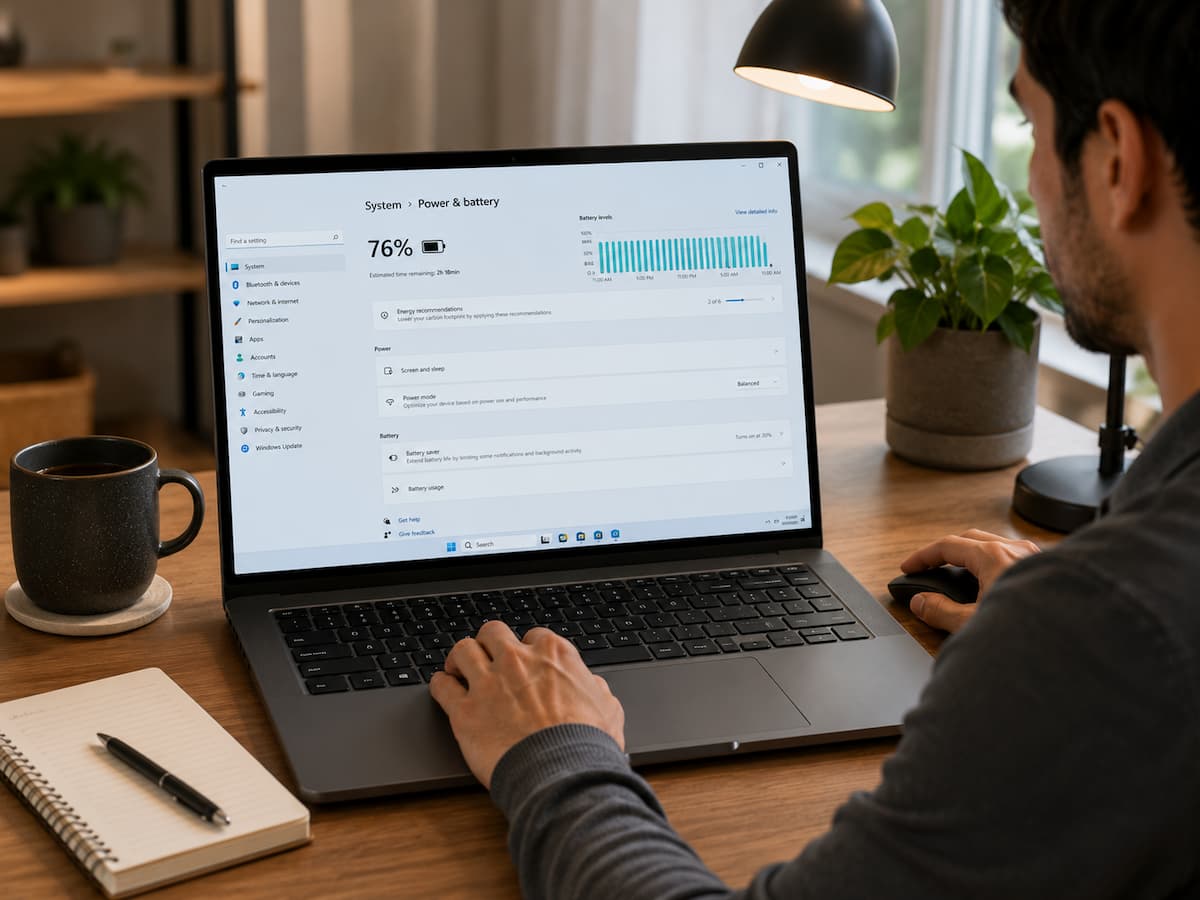
You can improve battery performance without technical expertise. Set power modes, regulate background activity, lower screen brightness, and manage launch programs to save energy on your laptop. This guide discusses Windows power settings, which choices to change, and how to set up a battery-friendly laptop for your usage.
Windows Power Settings Impact Laptop Battery Life
Your laptop needs energy for every job. Opening a browser tab, making a video chat, syncing files, upgrading apps, or using wifi connections drains the battery. Windows continually regulates these operations, but default settings may waste battery life. Laptops often balance speed and energy use. This configuration works great for daily tasks but may not be perfect when you’re without a charger for several hours. A laptop for library writing needs a different power profile than one for gaming or video editing.
Power options control how intensely your laptop utilizes its processor, when the screen turns off, how quickly it enters sleep mode, and how background programs behave. These minor modifications can save power. If your laptop screen stays bright for 15 minutes after you turn it off, it wastes power. Similarly, dozens of background applications might use system resources when not in use.
Configure Windows Power Mode
Windows Power Mode provides the easiest battery life boost. Windows balances performance and energy use with this setting. Users can prioritize laptop speed or battery efficiency. Modern Windows versions typically include these choices under Settings, System, and Power & battery. The modes offered depend on your laptop brand and hardware. Energy-efficient modes save power when battery life is a concern. Switch back to high performance for demanding jobs.
| Power Mode | Best Used For | Battery Impact |
| Best power efficiency | Web browsing, documents, emails, studying | Uses less energy by limiting unnecessary performance demands |
| Balanced | Daily general use | Provides a middle ground between speed and battery usage |
| Best performance | Gaming, editing, demanding software | May reduce battery runtime because more power is available |
A common mistake is leaving a laptop permanently set to maximum performance. While this may make applications respond slightly faster, many everyday activities do not need that extra processing power.
Adjust Screen Settings to Reduce Battery Drain
Windows has screen-off settings too. Reduce the display’s dark time to save battery life when you leave your laptop. If your laptop keeps the screen active for 30 minutes after inactivity, several minutes of unnecessary display time can mount during the day. Changing this setting to a shorter period can improve mobile use. Find screen and sleep controls in Windows power settings to change these choices. Choose times that fit your habit, not defaults.
Control Battery-Eating Background Apps
Many laptop users close visible apps but ignore background ones. These hidden processes might check for updates, sync data, issue notifications, and use internet connections when you’re not using them. An automatically starting music app, a cloud storage service transferring files, or a background chat program may seem harmless. When multiple programs do this, they drain your battery continuously.
Windows tools show which apps use system resources. Task Manager shows active processes and their CPU, memory, and network usage. Know what the app does before disabling. Some Windows, security, and hardware features require background processes. Removing critical system processes can harm battery life.
Utilize Battery Saver Features for Extra Runtime
Windows has battery-saving functions for use without a charger. These settings limit background activities and system activity to save battery life. Battery Saver is useful when your battery is low and you need to finish important work. Not meant to replace power settings, it adds energy management as needed.
Settings > System > Power & battery normally enables battery-saving options. Windows may activate automatically when the battery reaches a certain percentage. A train passenger may want Battery Saver to activate at 30% battery. This eliminates background activity and frees up power for vital tasks. Keep in mind that battery-saving options may compromise convenience. Some apps may delay background updates and notifications. Many users prefer a balanced approach to battery-saving features for daily use.
Control External Devices and Wireless Connections
Wireless functions are convenient yet energy-intensive. Wi-Fi, Bluetooth, and linked accessories constantly use your laptop’s battery. When working offline, turning off Wi-Fi reduces unwanted activity. Disabling Bluetooth while not using wireless headphones, mouse, or other devices stops your laptop from keeping unneeded connections.
External USB devices can draw electricity. Portable hard drives, USB lighting, charging cords, and various accessories can drain power even while not in use. Simple habit: unplug unnecessary devices. Basic writing and surfing on a laptop rarely requires multiple accessories.
Choose Sleep Settings That Match Your Routine
Many people find a brief idleness period before bedtime useful. Someone who constantly checks their laptop during brief intervals may choose a longer duration, while someone who forgets to close the lid may benefit from more aggressive power-saving settings. Laptop users should also know the difference between sleep and hibernation. Sleep stores your current session and uses little power. Hibernate stores your session and requires little energy, making it beneficial for long laptop downtimes. The best decision relies on habits. Students who switch schools may want speedy sleep recovery, whereas those who store a laptop overnight may prefer hibernation.
Update Windows and Drivers for Efficiency
Updates go beyond adding features and correcting security risks. Windows and hardware driver updates can also boost laptop power efficiency. Processors, graphics chips, Wi-Fi adapters, and battery controllers receive regular driver updates. Hardware can communicate better with Windows after these updates.
Long-term neglect of upgrades may keep your laptop running older software that doesn’t take advantage of efficiency gains. However, time matters. Large updates take more battery while downloading, installing, and resuming. If your battery is low, charge before big updates.
Common Laptop Battery-killing Mistakes
Not only Windows settings can improve battery life. Daily activities also affect laptop power efficiency. Common mistakes gradually degrade battery performance. Overopening applications is a mistake. Modern laptops can run numerous programs, but each uses system resources. Unneeded programs are closed to reduce processing.
Also typical is ignoring browser tabs. A browser with dozens of tabs may run programs, refresh content, or use memory in the background. Tab management and closing unwanted ones help save laptop workload. Many people leave their laptops connected to unused accessories. Even while inactive, external drives, gaming controllers, USB devices, and wireless gadgets can take power. Battery condition also affects lifespan. Software settings can save energy, but they cannot revive a battery that has lost capacity after years of use.
Windows Battery-Friendly Routine
Multiple tiny modifications are usually more effective than one setting for battery improvement. A well-set-up laptop uses energy more efficiently without hindering productivity. When working without a charger, switching to an energy-efficient power mode, decreasing screen brightness, and dismissing unnecessary apps can be straightforward.
Check battery settings before leaving home or work. It takes a few seconds but keeps your laptop from losing power early. Avoid restricting your laptop. The right power configuration should support your work style and reduce waste. The apps and functionalities you require should work.
- Use energy-efficient power modes during normal tasks.
- Adjust display timeout settings based on your working habits.
- Remove unnecessary startup applications.
- Enable battery-saving features when battery levels become low.
- Disconnect unused accessories and wireless devices.
- Keep Windows and hardware drivers updated.
FAQs
1. Does dimming the screen really extend your laptop’s battery life?
Yes. Screen brightness consumes a significant amount of power, especially at high levels. Lowering the brightness to a comfortable setting can extend your laptop’s battery life.
2. Should Windows power-saving mode always be enabled?
Not necessarily. While power-saving mode can extend runtime, some people prefer standard power settings for daily tasks. A balanced configuration usually provides a better experience.
3. Does closing applications help save energy?
Closing unnecessary applications can help if they are actively using CPU, memory, or network resources. However, not all background processes need to be closed, and doing so does not always lead to significant energy savings.
4. Do Windows updates extend battery life?
Sometimes. Updates can include improvements to power management, drivers, and system efficiency. Keeping Windows up to date allows your laptop to use the latest, optimized versions.
5. Sleep mode vs. shutting down: which is better for your laptop?
Sleep mode is ideal for short breaks, as it allows you to resume using the laptop quickly. If you won’t be using your computer for an extended period, you can save energy by shutting it down or putting it into hibernation.
6. My laptop battery still drains very quickly, even after adjusting the settings. Why is that?
If the problem persists after changing settings, it could be due to an aging battery, power-intensive software, overheating, or a hardware fault. Check the battery health and power consumption to identify the cause.
References
- Microsoft Windows documentation on power and battery settings:
Microsoft Support - Microsoft guidance on managing apps and system performance:
Microsoft Windows Support - U.S. Department of Energy information about energy efficiency practices:
U.S. Department of Energy
Final Thoughts
There’s no sophisticated software or extensive technical knowledge needed to extend the life of your laptop battery. Many of the means for controlling energy use are already part of Windows; the trick is to arrange them to match your actual use of your laptop.
Little things like controlling power modes, eliminating needless background activities, and using smarter sleep settings can lead to a more reliable everyday laptop experience. It’s not about making your laptop slower or taking away important functions to create a battery-friendly setup. It’s all about helping your gadget use energy where it matters most.