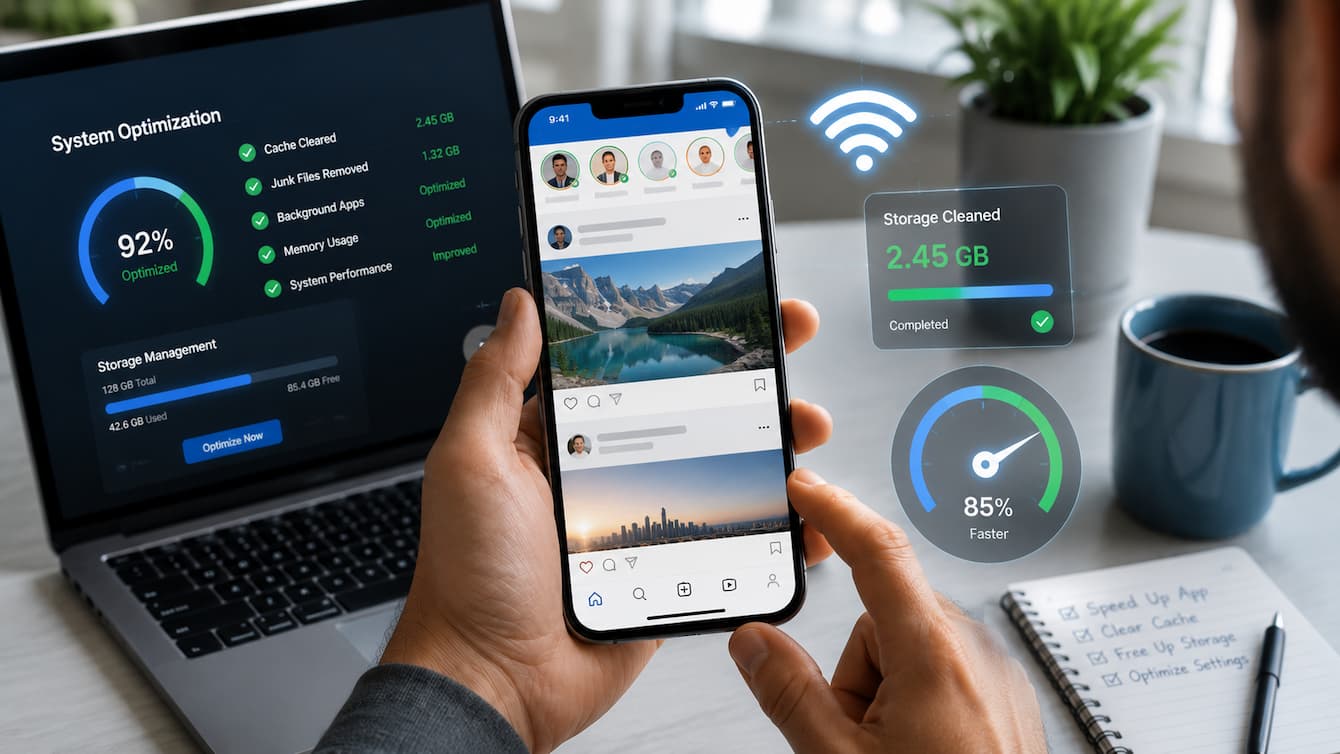
Social media apps have become part of everyday life. People use them to chat with friends, watch videos, share photos, follow news, and stay connected. However, one frustrating problem affects many users: apps that feel slow, freeze while scrolling, take too long to open, or drain battery quickly. A slow social app does not always mean you need a new phone. In many cases, simple changes in your device settings, app habits, storage management, and network connection can make a noticeable difference. Many users continue using apps with unnecessary files, outdated versions, or settings that reduce performance without realizing it.
1. Why Social Apps Become Slow Over Time
Many people assume that a slow social media app means the app itself is poorly designed. While app problems can happen, slow performance is often caused by changes that happen naturally during regular use.
Social apps constantly download new content, store images, save videos temporarily, and collect small files that help pages load faster. Over months of use, these files can become large and may actually slow things down instead of improving performance.
Common reasons social apps become slower
- Too much cached data: Temporary files can take up storage and create performance issues.
- Low storage space: Phones work slower when they have very little free space available.
- Outdated app versions: Older versions may contain bugs or compatibility problems.
- Poor internet connection: Slow networks make apps appear frozen or unresponsive.
- Too many background processes: Other apps may use memory and processing power.
- Device age: Older phones may struggle with newer app features.
| Problem | What You Notice | Possible Solution |
|---|---|---|
| Large cache files | App opens slowly or freezes | Clear temporary files |
| Low storage | Phone feels slow overall | Remove unused files |
| Weak internet | Videos buffer or images load slowly | Improve connection |
| Old app version | Crashes or missing features | Install updates |
Tip: Before changing advanced settings, identify the real cause of the slowdown. A simple storage cleanup may solve the problem.
2. Check Your Internet Connection First
One of the most common reasons social apps feel slow is a weak or unstable internet connection. Many users blame the app when the real problem is their Wi-Fi or mobile network. Social media platforms depend heavily on internet speed because they constantly load photos, videos, advertisements, messages, and live updates. Even a powerful smartphone can feel slow when the connection is unreliable.
Simple ways to test your connection
- Open another website and check if it loads normally.
- Try switching between Wi-Fi and mobile data.
- Move closer to your Wi-Fi router.
- Restart your router if other devices are also slow.
- Disable and reconnect your network connection.
Wi-Fi vs mobile data performance
| Connection Type | Advantages | Possible Problems |
|---|---|---|
| Wi-Fi | Usually faster and uses less mobile data | Can slow down with distance or many connected devices |
| Mobile Data | Works anywhere with network coverage | Speed depends on signal strength and data limits |
Common internet mistakes
Many people keep using a weak Wi-Fi signal and repeatedly restart their apps. This does not solve the actual problem. If multiple apps are slow at the same time, your connection is more likely the cause. Also remember that internet speed is different from internet stability. A connection can appear fast in a speed test but still have interruptions that affect video loading and scrolling.
Warning: Avoid downloading large files or streaming high-quality videos while testing app performance. Other activities may use your available bandwidth.
3. Keep Social Apps Updated
App updates are not only about getting new features. Developers regularly release updates to fix bugs, improve security, and make applications work better with newer operating systems. Using an outdated version of a social app can lead to slow performance, unexpected crashes, and compatibility problems. This is especially common after a phone receives a major system update.
Why updates improve speed
- They remove known bugs that may slow the app.
- They improve memory management.
- They fix problems with newer phone software.
- They optimize loading times.
- They improve security and stability.
How to update apps
On Android devices, open the app store, go to your account section, and check available updates. On iPhones, open the App Store and review pending updates. Turning on automatic updates can help, but it is still useful to check manually from time to time. Some users disable updates because they worry about storage usage, but outdated apps often create bigger problems.
| Update Habit | Result |
|---|---|
| Regular updates | Better stability and fewer bugs |
| Ignoring updates for months | Higher chance of slowdowns |
| Updating only when problems appear | Possible temporary fixes but not ideal maintenance |
4. Clear Cache and Temporary Files
Cache files are temporary data stored by apps to make future loading faster. For example, a social media app may save images or page information so it does not need to download everything again. However, cached files can become too large or contain outdated information. When this happens, they may contribute to slow performance instead of improving it.
When should you clear cache?
Clearing cache can help when you notice problems such as:
- The app takes a long time to open.
- Images fail to load correctly.
- The app freezes during scrolling.
- The app uses unusually high storage.
Cache clearing vs deleting app data
| Action | What Happens | Risk Level |
|---|---|---|
| Clear Cache | Removes temporary files | Low risk |
| Clear App Data | Resets the app completely | May remove saved settings and require login |
| Uninstall App | Removes the entire application | Requires reinstalling |
Best Practice: Start with clearing cache before trying more aggressive solutions like deleting app data or reinstalling the application.
5. Free Up Device Storage Space
Your phone needs free storage space to work properly. When storage becomes almost full, the operating system has less room for temporary files, updates, and background tasks. Social apps are often responsible for using large amounts of storage because they handle photos, videos, downloaded media, and message attachments.
Ways to free storage
- Delete unused apps.
- Remove duplicate photos and videos.
- Move large files to cloud storage or external storage.
- Delete old downloads.
- Review social app media folders.
How much free storage should you keep?
There is no exact number that works for every device, but keeping some free space available helps maintain smoother performance. A phone with almost no remaining storage may become noticeably slower during everyday tasks.
| Storage Situation | Expected Performance |
|---|---|
| Plenty of free space | Better overall speed |
| Limited free space | Possible slowdowns |
| Almost full storage | Higher chance of freezing and errors |
Tip: Check storage once every few weeks. Small cleanups are easier than waiting until your phone becomes unusably slow.
6. Control Background Apps and Processes
Many social apps continue working even when you are not actively using them. They may check for new messages, refresh feeds, download notifications, or update content in the background. These activities are useful, but too many background processes can slow down your phone. When several apps compete for memory, processor power, and internet access, the social apps you are using may respond more slowly. This is especially noticeable on older devices or phones with limited memory.
What are background processes?
A background process is an activity performed by an app while it is not open on your screen. For example, a messaging app may stay active to notify you about new messages. Some background activity is necessary, but unnecessary apps running all the time can reduce performance.
How to reduce background activity
- Close apps you are not using.
- Disable background refresh for apps that do not need constant updates.
- Remove unused apps that run automatically.
- Restart your phone occasionally to clear temporary memory issues.
- Check which apps consume the most battery and data.
| Background Activity | Effect on Performance | Recommended Action |
|---|---|---|
| Messaging notifications | Usually low impact | Keep enabled if important |
| Automatic video downloads | Can use storage and data | Disable if unnecessary |
| Multiple social apps refreshing | May slow device response | Limit background activity |
| Unused apps running | Consumes resources | Remove or restrict |
Common mistake
Many users install performance booster apps thinking they will speed up their phones. However, many of these apps run constantly in the background themselves, using the same resources they claim to save.
Expert Tip: Your phone’s built-in settings are usually safer and more effective than third-party cleaning apps.
7. Adjust Phone Settings for Better Performance
Small changes in your phone settings can improve how quickly social apps respond. You do not need advanced technical knowledge to make useful adjustments. Modern smartphones include several features designed to balance performance, battery life, and data usage. Understanding these options helps you choose settings that match your needs.
Reduce unnecessary visual effects
Animations and visual effects make phones feel smoother, but on older devices they may consume extra processing power. Reducing some effects can make navigation feel faster.
Keep your operating system updated
Social apps depend on your phone’s operating system. System updates often include improvements that help apps run more efficiently.
- Install official system updates when available.
- Restart after major updates if recommended.
- Avoid using unsupported operating systems.
Useful phone settings to review
| Setting | Possible Benefit |
|---|---|
| Background app limits | Reduces unnecessary resource usage |
| Storage management | Keeps enough free space available |
| Automatic updates | Keeps apps secure and compatible |
| Power management | Balances speed and battery usage |
Avoid extreme optimization
Some users disable almost every feature to increase speed. This can create other problems, such as delayed notifications or missing important updates. The goal is not to remove everything. The goal is to create a balanced setup where your apps work smoothly while your phone remains useful.
8. Reduce Data Usage Without Losing Important Features
Social media apps are designed to load rich content quickly. High-quality photos, autoplay videos, and large files can make apps feel slower, especially when using mobile data or slower networks. Reducing unnecessary data usage can improve loading speed and help your phone handle social apps more efficiently.
Turn off automatic video playback
Videos require more data and processing power than simple text or images. If videos automatically play while scrolling, your phone constantly loads content you may not even watch.
Use built-in data-saving options
Many popular social apps include settings that reduce image quality, limit downloads, or delay background loading.
| Feature | Performance Impact | When to Use |
|---|---|---|
| Autoplay videos | High data and processing use | Disable on slower devices |
| High-quality media uploads | Uses more storage | Reduce when unnecessary |
| Automatic downloads | Consumes bandwidth | Turn off if not needed |
Benefits of reducing data usage
- Faster loading on slower connections.
- Lower mobile data consumption.
- Less storage usage.
- Reduced battery drain.
Tip: A faster experience does not always require faster internet. Sometimes reducing unnecessary content loading makes the biggest difference.
9. Improve Performance by Managing Battery Settings
Battery-saving features help your phone last longer, but some aggressive settings may reduce app performance. Phones often limit background activity and processing power when battery-saving modes are active.
This can be helpful when your battery is low, but it may make social apps slower during normal use.
Check battery-saving modes
If social apps suddenly become slower, check whether your phone has entered a power-saving mode. Some devices automatically enable these features when battery levels drop.
Balance battery life and speed
| Battery Setting | Effect |
|---|---|
| Normal mode | Balanced performance |
| Battery saver | Longer battery life but reduced background activity |
| Extreme power mode | Maximum battery saving with limited features |
Other battery-related tips
- Avoid using damaged or poor-quality chargers.
- Keep your phone at a comfortable temperature.
- Close apps that constantly use high power.
- Check battery health on older devices.
Heat is another overlooked issue. When a phone becomes too hot, it may automatically reduce performance to protect internal components. This can make scrolling, video playback, and app switching feel slower.
Warning: Do not place your phone in extreme temperatures to improve speed. Overheating can damage the device.
10. Advanced Troubleshooting Steps
If basic adjustments do not improve performance, you can try deeper troubleshooting methods. These steps are still safe for beginners but require more attention.
Restart your device
A simple restart can solve temporary software problems. Phones may experience memory issues after running continuously for many days.
Log out and sign back into the app
Sometimes account synchronization problems can make an app behave incorrectly. Logging out and signing back in can refresh the connection.
Reinstall the social app
If an app continues freezing or crashing, reinstalling it can remove corrupted files and install a clean version.
Before reinstalling, remember:
- Save important drafts if the app stores them locally.
- Make sure you know your login details.
- Enable backups if the app provides that option.
| Troubleshooting Step | Difficulty Level | When to Try |
|---|---|---|
| Restart phone | Easy | First step for temporary problems |
| Clear cache | Easy | When apps feel slow |
| Reinstall app | Medium | When problems continue |
| Factory reset | Advanced | Only after other solutions fail |
11. Long-Term Maintenance Tips for Faster Social Apps
Keeping social apps fast is not a one-time task. Small maintenance habits can prevent performance problems from returning.
Create a simple monthly maintenance routine
- Review unused apps.
- Delete unnecessary downloads.
- Install pending updates.
- Check available storage.
- Restart your phone occasionally.
- Review apps with high battery usage.
Best practices for smoother performance
| Habit | Why It Helps |
|---|---|
| Keep storage organized | Allows the phone to work efficiently |
| Update apps regularly | Improves compatibility and security |
| Limit unnecessary notifications | Reduces background activity |
| Use official app stores | Reduces security risks |
Things to avoid
- Installing unknown cleaning applications.
- Ignoring storage warnings.
- Using outdated app versions for long periods.
- Running many demanding apps at the same time.
- Ignoring repeated crashes.
A little regular care can extend the useful life of your phone and keep everyday apps running smoothly.
FAQs
1. Why are my new phone’s social media apps slow?
Social apps might be slow on a new phone due to internet speed, storage capacity, app settings, and software upgrades. A fast gadget with a weak network connection may feel slower than an older one. Check Wi-Fi or mobile data first, then storage and background activity. Updating apps and the phone OS is also important.
2. Does emptying social app cache speed them up?
Cache clearing improves performance when temporary files are large or obsolete. Cache speeds up program loading, however corrupted or excessive cached files can freeze, lag, or exhibit difficulties. Cache clearing does not remove account or post data. Avoid removing app data until necessary because it may delete saved settings and require relogging in.
3. Does my phone need much free storage to work well?
No gadget needs the same amount of free storage, but some is essential. Your phone may struggle with temporary files, updates, and normal functions when storage is virtually full. Uninstalling programs, downloads, and videos regularly improves performance. A simple routine of checking storage every few weeks minimizes sudden slowdowns.
4. Can too many social media apps delay my phone?
Yes, having several social applications can slow performance, especially if they run background processes, send notifications, or store lots of media. Apps can use storage, memory, battery, and internet. Uninstalling unused programs and limiting background activity for non-update apps is helpful.
5. Will phone cleaning applications speed up social apps?
Third-party cleaning programs are unnecessary for most users. Modern Android and iOS devices provide storage, battery, and app performance tools. Cleaning programs that operate in the background may generate needless notifications or drain system resources. Better still, utilize your phone’s settings, manually delete unneeded files, and update apps.
Conclusion
Slow social apps can be frustrating, especially when you rely on them for communication, entertainment, and daily updates. However, many performance problems can be solved without buying a new device or using complicated tools. The most effective improvements usually come from simple actions: maintaining enough storage space, keeping apps updated, improving your internet connection, controlling background activity, and removing unnecessary files. These small changes help your phone use its resources more efficiently.
Remember that app speed depends on several factors working together. A strong phone cannot overcome a weak internet connection, and a fast network cannot fully fix a device with limited storage or outdated software. By following the steps in this guide and creating a simple maintenance routine, you can enjoy a smoother social media experience and help your device perform better for longer.
References
The following sources provide reliable information about smartphone performance, app management, and device maintenance:
- Google Android Help: Official Android support documentation covering device storage, app management, and troubleshooting.https://support.google.com/android/
- Apple Support: Official guides about iPhone storage management, app updates, and device performance.https://support.apple.com/
- Federal Communications Commission (FCC): Consumer information about internet connections, broadband performance, and connectivity.https://www.fcc.gov/
- National Institute of Standards and Technology (NIST): Cybersecurity and technology guidance related to safe device usage.https://www.nist.gov/
- Android Developers Documentation: Technical information about app performance, background processes, and optimization practices.https://developer.android.com/
Leave a Reply