
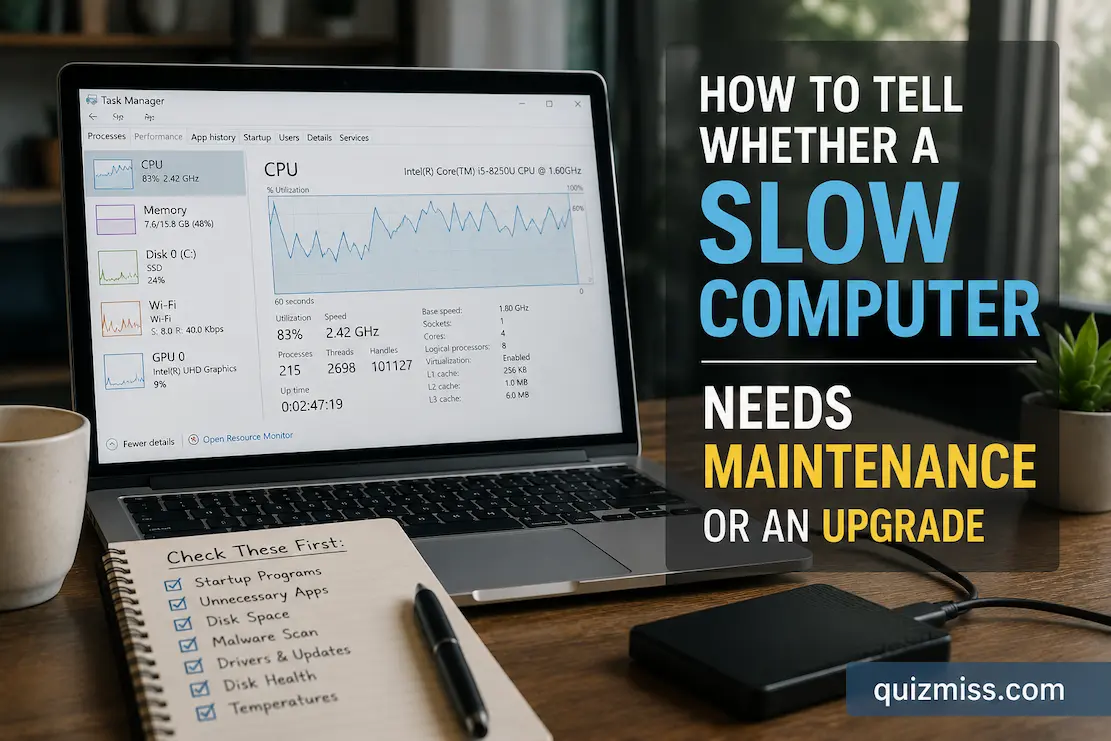
A computer that has become noticeably slower is not automatically one that needs replacing. The same symptoms can come from very different causes: a crowded startup routine, a nearly full drive, excessive browser activity, an aging storage device, insufficient memory, overheating, or hardware that simply cannot keep up with the software you now use. Treating every slowdown as a hardware problem can lead to an unnecessary expense, while assuming every old computer just needs “cleaning up” can waste hours without changing much.
The useful question is therefore not the computer’s age, but where the slowdown comes from and whether that limitation can realistically be removed. A machine that takes longer to start because dozens of unnecessary programs launch with Windows may respond well to maintenance. A laptop that struggles with the same workload even when CPU, memory, storage and background activity have been checked may be reaching a genuine hardware limit. The distinction becomes much easier when you look at what the computer is actually doing instead of judging it only by how it feels.
Start With the Pattern of the Slowdown
Pay attention to when the computer becomes slow before changing anything. If the delay mainly occurs at startup, the problem may not be related to the processor’s age. Windows allows applications to launch automatically when you sign in, and Task Manager can show which startup applications are enabled and how much startup impact they have. Microsoft specifically recommends reviewing startup applications as part of performance troubleshooting.
A different pattern appears when the computer works normally for ten or fifteen minutes and then becomes sluggish. That can point toward heat, background activity, memory pressure, a runaway application, or a process that gradually consumes resources. If everything is slow only when a particular application is open, the application and its workload deserve attention before the entire computer is blamed. The pattern matters because maintenance should address a specific bottleneck rather than become a collection of random “speed-up” tricks.
There is also an important difference between a slow computer and a slow internet connection. Web pages may take a long time to load because of the network while locally stored files open quickly. Likewise, an online application can feel sluggish even when the computer itself is operating normally. Before buying RAM, a drive or a new laptop, compare offline tasks with internet-dependent tasks. If File Explorer, locally stored documents and installed applications respond normally while websites struggle, replacing the computer may solve the wrong problem.
Check What Is Actually Using the Computer’s Resources
On Windows, Task Manager is one of the most useful places to start because it lets you observe CPU, memory, disk and running processes instead of guessing. Open it with Ctrl + Shift + Esc, then watch the Performance and Processes sections while reproducing the slowdown. You are looking for a resource that becomes heavily occupied at the same time the computer becomes unresponsive or unusually slow.
High CPU usage is not automatically evidence that the processor is too old. A browser tab, video-processing task, antivirus scan, software update or poorly behaved application can temporarily consume substantial processor capacity. If one process is responsible for the spike, investigate that process first. A processor that regularly approaches its limits during the tasks you intentionally perform is a different situation from one that is sitting mostly idle while an unnecessary background program consumes resources.
Memory requires a little more interpretation. A computer can slow down when the available RAM is repeatedly insufficient for the applications and files being used, particularly when multitasking causes the system to rely heavily on storage for memory management. But seeing a large percentage of RAM in use does not, by itself, prove that more RAM is needed. Modern operating systems use available memory for useful purposes such as caching, so the important question is whether memory pressure is affecting the work you are trying to do.
On a Mac, Activity Monitor provides similar evidence. Its Memory pane shows physical memory, memory used, compressed memory, cached files and swap usage, while the Memory Pressure graph indicates how efficiently the available memory is serving current workloads. Apple specifically recommends Activity Monitor when determining whether a Mac could benefit from more memory.
What the resource pattern can tell you
| What you observe | More likely explanation | First response |
|---|---|---|
| Slow mainly during startup | Too many startup programs | Review startup items |
| CPU spikes around one application | Heavy or problematic software | Identify and investigate the application |
| Memory pressure rises during multitasking | RAM limitation or unusually heavy workload | Reduce workload, investigate apps, then consider RAM |
| Disk activity stays extremely high | Storage, background process or paging issue | Check storage health, free space and active processes |
| Computer slows after becoming hot | Thermal limitation or cooling problem | Check ventilation, dust and temperatures |
| Internet tasks are slow but offline tasks are fine | Network or online-service issue | Test the connection separately |
| Everything remains slow after maintenance | Hardware may be limiting performance | Compare workload with hardware capability |
The table is not a diagnosis by itself. It is a way to decide where to investigate next. A single reading taken at an arbitrary moment can be misleading, especially if the computer is performing an update or another temporary task.
Look at Storage Before Assuming the Drive Is Too Old
Storage affects how a computer feels, particularly when the system drive is crowded or when the machine still uses an older mechanical hard disk. A nearly full drive can leave the operating system with less room to work comfortably, while years of accumulated applications, downloads and temporary files can also make everyday management unnecessarily difficult.
That does not mean you should constantly “clean” the computer with aggressive registry cleaners or questionable optimization utilities. Removing applications you no longer use, clearing unnecessary files through the operating system’s own tools, and keeping sensible free space are much more defensible maintenance steps. Microsoft lists limited storage, unused applications, background activity and outdated software among possible contributors to Windows performance problems.
The type of storage matters too. If an older computer still has a mechanical hard drive and the rest of the system is adequate, replacing that drive with a compatible solid-state drive can sometimes produce a much more noticeable improvement in startup and application responsiveness than small software tweaks. In that situation, you are not necessarily replacing the computer; you are correcting a specific hardware bottleneck.
Before upgrading a drive, however, check whether the computer supports the desired storage type and whether the existing drive is showing signs of failure. A machine that suddenly becomes extremely slow, freezes during file operations, produces unusual drive noises, or repeatedly reports disk errors deserves a backup and hardware assessment rather than a simple “performance optimization.”
Heat Can Make a Good Computer Behave Like a Bad One
Thermal problems are easy to overlook because the computer may have worked perfectly when it was newer. Dust buildup, restricted ventilation, aging fans, a blocked laptop intake or sustained heavy workloads can cause components to operate under thermal constraints. The result can feel like a weak processor even when the hardware is still capable of handling the workload under normal temperatures.
One useful clue is timing. If the computer performs reasonably well immediately after starting but becomes progressively slower during demanding work, heat deserves investigation. Fan noise that becomes unusually aggressive, a hot chassis, sudden performance drops during gaming or video rendering, and recovery after the system has cooled can all strengthen that suspicion.
Maintenance can help here, but it should be sensible. Keep vents unobstructed, use the laptop on an appropriate hard surface, remove accumulated dust carefully, and make sure the cooling system is functioning. Desktop users may have more opportunities to clean and replace components than laptop users. If opening the machine requires specialized disassembly or the cooling system has a hardware fault, professional service can be safer than experimenting.
Know When RAM Is the More Sensible Upgrade
RAM is worth considering when the computer repeatedly struggles with the amount of multitasking you actually perform. For example, a person working with large spreadsheets while keeping numerous browser tabs, communication software and other applications open may encounter a memory limitation that was not apparent when the computer was purchased.
The strongest evidence is a repeatable relationship between workload and memory pressure. If closing several applications immediately restores responsiveness and the problem returns whenever the same workload is reopened, memory is a more plausible bottleneck. On a Mac, Apple recommends using Activity Monitor’s Memory pane and Memory Pressure information to investigate this rather than judging RAM needs from the amount of “free” memory alone.
Whether RAM can actually be upgraded is another question. Some desktops and laptops have accessible memory slots, while many modern compact systems have memory that cannot be replaced by the owner. Apple notes that System Information can indicate whether a Mac has upgradeable memory; if the relevant upgradeable-memory information is not available, the memory may not be user-expandable.
This is why checking the exact computer model matters before purchasing anything. Buying a memory module based only on the amount of RAM currently installed can result in an incompatible part, wasted money, or an upgrade that cannot physically be installed.
The Processor Is Usually the Harder Question
A CPU upgrade is much less straightforward on most modern laptops than a software cleanup or storage upgrade. Even when a processor is technically replaceable in some desktop systems, compatibility, motherboard support, cooling requirements and cost all matter. For many ordinary users, the practical question is not “Can I install a faster CPU?” but “Does the current computer have enough remaining upgrade potential to justify keeping it?”
Look at the workloads that matter to you. If the computer handles email, documents, browsing and ordinary office work comfortably after maintenance but struggles with demanding video editing, 3D rendering, modern games or other processor-intensive tasks, the limitation may be genuine. A new machine becomes more attractive when the workloads that matter most consistently exceed what the current hardware can reasonably deliver.
Age alone should not be the deciding factor. An older computer with a capable processor, sufficient memory and a healthy SSD can remain perfectly useful for light work. Conversely, a relatively newer low-end machine can feel inadequate if your workload has become significantly more demanding. Performance should be judged against the work you need to perform, not the number printed on the purchase receipt.
Software Maintenance Still Deserves a Proper Check
Before spending money, bring the software environment into a sensible state. Remove applications you no longer need, review startup programs, install appropriate system updates, restart the computer, and check whether a specific application is responsible for the slowdown. On Windows, Microsoft recommends examining startup applications, background activity, storage and resource usage as part of performance troubleshooting.
Do not disable every startup program simply because it is listed. Some applications or services have legitimate reasons to launch automatically, and blindly turning off system components can create new problems. The better approach is to identify software you recognize and do not need running immediately after sign-in. If you are unsure what a process does, investigate it before changing its behavior.
The same caution applies to “PC optimizer” software. Programs that promise dramatic improvements from registry cleaning, memory boosting or dozens of hidden tweaks often make the diagnosis harder rather than easier. A good maintenance process should leave you knowing what was changed and why. If an optimization tool makes dozens of unexplained changes, you may not know which one helped, which one did nothing, or which one introduced a new problem.
A Clean Operating System Is Not Proof That the Hardware Is Fine
One common mistake is to perform a fresh operating-system installation and then assume that any remaining slowness must be normal. A clean installation removes a lot of software clutter, but it does not increase the physical capabilities of the processor, memory, graphics hardware or storage device.
A clean system that remains slow during the same workload is actually useful evidence. If the computer has minimal startup software, sufficient free storage, current software, no obvious background process consuming resources, and still struggles with routine tasks, the case for a hardware limitation becomes stronger.
The reverse is equally important. If performance improves dramatically after removing unnecessary startup applications or dealing with a problematic program, purchasing new hardware would have been premature. This is why maintenance should happen before an upgrade decision whenever the computer is otherwise stable.
When an Upgrade Makes More Sense Than Maintenance
An upgrade becomes more convincing when the bottleneck is consistent, measurable and tied to the work you need to do. If your normal applications regularly push the system beyond its available memory, an expandable RAM upgrade may make sense. If the computer relies on an old mechanical drive and storage responsiveness is the obvious limitation, an SSD upgrade may provide a meaningful improvement.
Replacement becomes more reasonable when several major limitations appear together. For example, a computer may have an old processor, limited non-upgradeable memory, outdated graphics capability, a failing battery, restricted storage options and an operating system that no longer fits your requirements. Spending money on one component may improve one symptom while leaving the underlying platform behind.
Cost matters as well. Compare the expected cost of the upgrade, installation and any related components with the price of a machine that already provides the performance you need. A cheap upgrade that extends the useful life of an otherwise capable computer can be sensible. A chain of increasingly expensive upgrades to an incompatible or heavily worn machine is harder to justify.
A practical decision test
Ask yourself these questions before buying anything:
- Does the slowdown have a specific trigger? If yes, identify that trigger before assuming the entire machine is underpowered.
- Have CPU, memory, disk and background activity been observed during the slowdown? If not, you still have useful diagnostic work to do.
- Does maintenance produce a measurable improvement? If yes, continue maintaining the system rather than replacing it immediately.
- Is one hardware component clearly limiting the workload? If yes, investigate whether that component can be upgraded.
- Is the component upgradeable on this exact model? Never assume that because one version of a laptop supports an upgrade, yours does too.
- Would an upgrade solve the actual problem? More RAM will not fix a weak internet connection, and a faster SSD will not make an unsuitable processor suddenly ideal for demanding rendering.
- Are several major components approaching their limits at once? If so, replacement may provide better long-term value.
Don’t Ignore Reliability and Support
Performance is only one part of the replacement decision. A computer can still be fast enough while becoming less attractive because of battery deterioration, failing storage, unreliable ports, damaged hinges, overheating, unavailable replacement parts or an operating system that no longer receives appropriate support.
Windows users also need to consider the operating-system support situation. Microsoft states that Windows 10 support ended on October 14, 2025, meaning supported security updates and technical assistance are no longer provided through the normal Windows 10 lifecycle. A machine that cannot meet the requirements for a supported Windows version therefore raises a different question from one that is merely slow.
On a Mac, software support and hardware compatibility also deserve consideration when deciding whether to keep an older machine. A computer that performs well today may still have a shorter practical lifespan if the software you depend on is no longer supported. That does not automatically make it unsafe or useless, but it changes the long-term value calculation.
The Best Decision Usually Comes From a Short Diagnostic Session
You do not need specialized benchmarking equipment to make a reasonable first decision. Start with the simplest observation: what task is slow, when does it become slow, and whether the problem affects the entire system or only one application. Then monitor CPU, memory and storage activity while reproducing the problem. Check startup applications, available storage, updates, background processes and obvious signs of overheating.
If a specific software or maintenance issue explains the slowdown, fix that first and test the same workload again. If the problem persists, identify the component that remains consistently limiting. Only then should you start comparing upgrade options or replacement machines.
That approach also prevents a common waste of money: buying hardware because the computer feels old without identifying what is actually holding it back. A computer does not become obsolete simply because it has accumulated years of use. What matters is whether its current hardware, software support and physical condition can still meet the tasks you ask it to perform.
FAQs
Is a slow computer always a sign that it needs more RAM?
No. Slow performance can come from storage problems, excessive startup activity, software issues, thermal throttling, background processes, network problems or an aging processor. RAM is worth investigating when the slowdown consistently appears during memory-heavy multitasking and monitoring shows that memory availability is actually becoming a constraint.
Should I replace an old computer or install an SSD?
If the computer is otherwise capable and the existing drive is the main bottleneck, an SSD can be a very worthwhile upgrade. This is particularly relevant to older systems that still use mechanical hard drives. Check compatibility first and back up important data before replacing or migrating a drive.
How can I tell whether my processor is too slow?
Look at what happens during the workloads you actually care about. If CPU usage remains very high while performing ordinary tasks and there is no obvious background process causing the load, the processor may be a limitation. Compare that with situations where CPU usage is low but the computer still feels slow, because that points toward another bottleneck.
Does freeing storage space make a computer faster?
It can help when the system drive is heavily crowded or when storage-related activity is contributing to poor performance, but freeing space is not a universal speed upgrade. If the computer has a healthy SSD and plenty of available space, deleting another group of files is unlikely to transform its performance.
How often should I maintain my computer?
There is no useful universal schedule that says every computer needs the same maintenance every month. Instead, review startup applications, installed software, storage, updates, backups and physical condition periodically, and investigate unusual performance changes when they appear. Preventive checks are more useful when they are based on the computer’s actual usage.
When is replacing the computer the better choice?
Replacement becomes more compelling when the machine has several limitations that cannot be economically corrected, particularly when important components are not upgradeable. It is also worth considering when the computer no longer supports the software or operating system you need, has significant physical reliability problems, or would require several expensive upgrades to meet your workload.
A Better Rule for the Upgrade Decision
The most reliable rule is simple: don’t upgrade because the computer is old; upgrade because you have identified a limitation that the upgrade will actually remove. Maintenance is appropriate when the machine’s hardware is still capable but its software environment, storage situation, startup workload or physical condition is holding it back.
If the same workload remains difficult after those factors have been checked, the evidence starts pointing toward hardware. At that point, a targeted upgrade can extend the computer’s useful life when the relevant component is replaceable and the cost is reasonable. If several parts are limiting performance or the system cannot meet current software requirements, replacement is likely to be the more sensible long-term decision.
The goal is not to make an old computer appear new at any cost. It is to determine whether the machine you already own can still do the work you need, and then spend money only when you know exactly what that money is supposed to fix.