
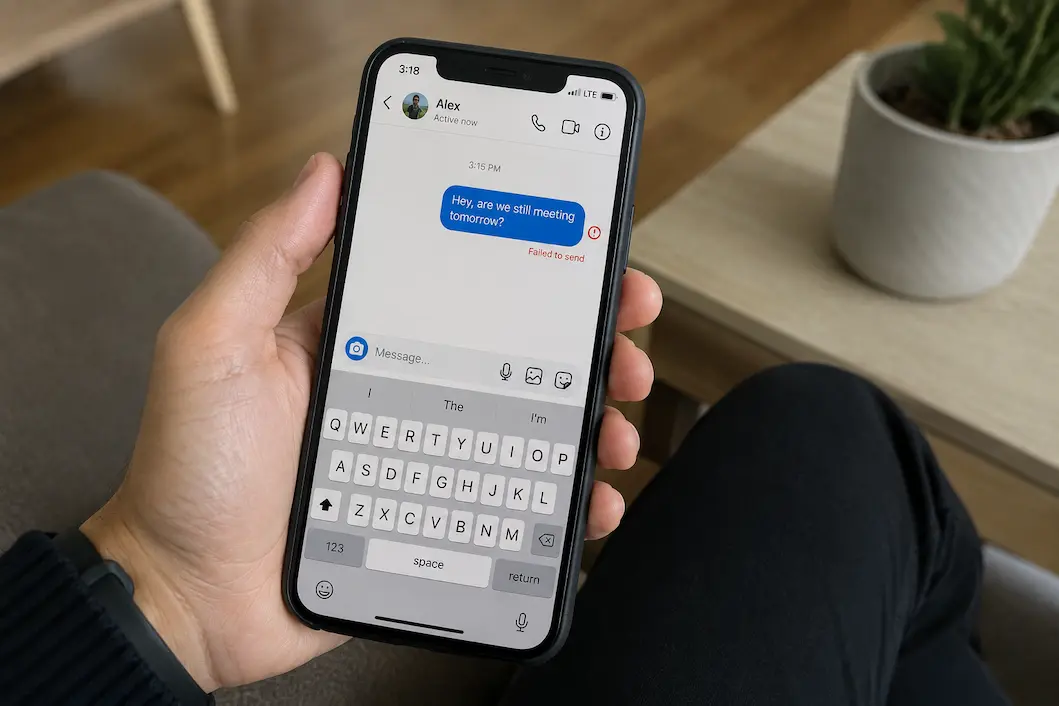
A message that refuses to send can be surprisingly difficult to diagnose because the failure may happen for several different reasons. Occasionally the phone has a weak connection, but in other cases the problem is limited to the app, a particular conversation, the recipient’s account, or the platform itself. You might see a spinning indicator, a failed-to-send warning, a message that stays stuck as pending, or no obvious response after you tap the send button. These symptoms can look similar even though the underlying causes are quite different.
Before changing account settings or reinstalling anything, please pay attention to what is actually happening. Can you receive new messages while your own messages remain stuck? Does the problem affect one conversation or everyone? Do text messages fail while photos work, or does nothing send at all? These details can narrow the possibilities considerably. A short message failing in every conversation points in a different direction than a particular conversation refusing to accept a message.
The best troubleshooting approach is therefore to test the problem in a controlled way. Start with the simplest explanations, make one change at a time, and avoid resetting settings that have nothing to do with the symptom. This can save your account preferences and device configuration from unnecessary changes while helping you identify whether the problem is local or connected to the social platform.
Start With a Simple Test Message
Before changing anything, send a short text such as “Test” to a conversation where you normally communicate. Avoid attaching a photo, video, link, GIF, or other media during the first test. A plain text message gives you a simpler way to determine whether the basic messaging function is working.
If the text sends successfully, the problem may be with the original message rather than with messaging as a whole. An attachment could be too large, a particular link could trigger a platform restriction, or the app may have encountered a temporary problem while processing the media. If even a simple text message refuses to send, you can focus on connection, app, account, or service-related causes instead.
Don’t repeatedly tap the send button while the message is stuck. Depending on the application, doing so can create duplicate messages once the connection is restored. Wait for the app to show a clear failure state before trying another troubleshooting step.
Check Whether You Can Receive Messages
Receiving messages is a useful clue because it tests part of the same service without requiring you to send anything. If new messages continue arriving normally but your outgoing messages remain stuck, your internet connection may not be completely unavailable.
Ask a trusted contact to send you a simple message if necessary, or check whether an existing conversation has received something recently. If incoming messages are working while outgoing messages fail, look more closely at the app’s sending function, account status, conversation-specific problems, or a temporary platform issue.
On the other hand, if both incoming and outgoing activity has stopped, a broader connection or service problem becomes more plausible. That doesn’t prove the cause, but it gives you a useful direction before you start changing settings.
Test Your Internet Connection Without Assuming It’s the Cause
Messaging requires an active connection, but you shouldn’t immediately assume that poor internet service causes every failed message. Open another website or app that needs the internet and see whether it loads normally. If several unrelated services are struggling, investigate the connection first.
If you are using Wi-Fi, temporarily switch to mobile data if available, and then send another simple test message. If you are already on mobile data, try a trusted Wi-Fi connection. You don’t need to permanently change your network settings just to perform this comparison.
The result is more informative than simply looking at the Wi-Fi icon. If messages work on one connection but not another, the network may be involved. If they fail identically on both, the problem is more likely to be inside the app, account, device, or social platform.
Check Whether the Problem Affects Every Conversation
One of the most useful distinctions is whether messages fail everywhere or only in one conversation. Try sending a short message to another person or an existing group where you are already allowed to participate.
If messages send normally elsewhere, the problem may be specific to the original conversation. The recipient may have changed account settings, the conversation may have encountered a temporary synchronization problem, or the particular thread may contain content that is causing the app trouble.
If messages fail in every conversation, stop focusing on that individual chat. Instead, check the app version, connection, account status, device settings, and any possible service problems. This simple comparison can prevent you from spending time changing settings that cannot affect the actual problem.
Check Whether the Recipient Is Still Available
A failed message can sometimes be connected to the recipient rather than your device. Depending on the platform, a person may have deactivated an account, blocked communication, changed privacy settings, or become unavailable through a particular messaging feature.
Don’t assume that a failed message automatically means you have been blocked. Social platforms use different indicators, and many messaging failures have nothing to do with blocking. If you can communicate with the same person through another legitimate channel, you may be able to tell whether the problem is limited to that conversation.
If you notice that the problem occurs only with one recipient while other conversations work normally, avoid repeatedly changing your phone’s network or app settings. The evidence already suggests that the problem may be specific to the account or conversation.
Restart the Social Media App
A social app can remain in an inconsistent state after switching networks, receiving an update, handling a large upload, or running for an extended period. Completely closing and reopening the app can refresh its current session and sometimes restore messaging without affecting your account.
On both Android and iPhone, the exact method for closing an application depends on the device and operating-system version. The important part is to actually close the affected app rather than simply returning to the home screen and opening it again.
After reopening it, wait for the conversations to synchronize before sending another message. If the app shows old conversations first and then gradually loads newer information, please allow it a moment to finish synchronizing. Sending messages while the app is still struggling to update can make the situation harder to interpret.
Restart the Phone If the App Still Fails
If closing the app doesn’t help, restart the phone. This clears temporary system states and reloads the operating system’s network and application processes.
A restart is particularly reasonable if other apps have also become sluggish, notifications have stopped arriving, or the phone has recently switched between Wi-Fi and mobile data. You don’t need to reset network settings just because a message won’t send. A normal restart is a much less disruptive test.
Once the phone starts again, open the social app and test one short message. If it works, observe whether the problem returns before making further adjustments.
Check for an Available App Update
Messaging failures can result from bugs in a particular application version, especially when the platform has recently changed its messaging infrastructure. Check the Google Play Store or Apple App Store to see whether an update is available for the affected app.
If there is an update, install it through the normal store process and test messaging afterward. If the application is already current, don’t assume that repeatedly checking for the same update will solve the problem. Instead, consider storage, permissions, account behavior, or a wider service issue.
If the problem started immediately after an app update, that timing is also useful information. It may indicate a version-specific bug rather than something you did incorrectly.
Check Your Phone’s Available Storage
Very low storage can affect how reliably apps operate, especially those that handle large amounts of images, videos, cached conversations, and temporary files. Messaging itself may require less storage than video processing, but a social media app still depends on the phone having enough room to operate normally.
Open your device’s storage settings and check how much free space remains. If the phone is almost full, review large videos, downloads, duplicate files, and applications you no longer need. Don’t delete important personal data simply to create space if there are safer alternatives.
After freeing a reasonable amount of space, restart the device and test messaging again. If the phone had been critically low on storage, improved app behavior may confirm that the device environment was contributing to the problem.
Review App Permissions When Attachments Fail
If text messages send normally but photos, videos, voice recordings, or other attachments do not, check the permissions relevant to that feature. A social app may need access to your photos, camera, microphone, or files depending on what you’re trying to send.
Review the affected app’s permissions through the phone’s system settings. Don’t grant every available permission just because something isn’t working. Only enable access that corresponds to the feature you are trying to use and that you are comfortable allowing.
After changing a relevant permission, close and reopen the app before testing it again. If plain text continues to work while attachments still fail, you may need to investigate the specific media type, file size, or service restrictions rather than the basic messaging function.
Check the Message Itself
Sometimes the problem is not the conversation or the app but the content you’re trying to send. This is especially worth considering when a message fails repeatedly while other messages work.
Try sending a short text without links, attachments, unusual characters, or large amounts of content. If that works, gradually test the original content again. A large video, unsupported file, problematic link, or unusual attachment can behave differently from ordinary text.
You should not attempt to bypass a platform’s content or messaging restrictions by repeatedly modifying the same message. If a platform is deliberately preventing a particular type of content from being sent, use its normal rules and supported sharing methods instead.
Check Whether the App Is Syncing Properly
Occasionally the message appears stuck because the app has not synchronized correctly with the service. You may see an old conversation state, missing recent messages, or a send indicator that never changes.
Check whether other conversations are updating normally. If the entire inbox appears frozen, the issue may involve synchronization rather than one failed message. If only one thread is affected, the conversation itself becomes more relevant.
Avoid repeatedly logging out and back in as your initial response. Signing out can introduce another problem if you no longer have easy access to your password, two-factor authentication method, or recovery option. Use account-session changes only when they are actually warranted.
Consider a Temporary Account Restriction
Some social platforms limit messaging when their systems detect unusual activity, suspicious login behavior, excessive automated actions, or other activity that triggers a security review. The exact behavior differs by platform, and a failed message alone does not mean that the platform has restricted the account.
Look for notifications, security alerts, warnings, or messages from the platform that explain a limitation. Review the account’s official settings or support area rather than relying on third-party claims about how restrictions supposedly work.
If the platform has placed a legitimate temporary restriction on the account, repeatedly trying to send the same message is unlikely to remove it. Follow the platform’s normal review or recovery process instead.
Check the Account on the Web
If the social platform provides an official browser version, sign in there and test the same conversation. This is one of the most useful ways to separate an account or service problem from a mobile-app problem.
If the message sends successfully through the website but not through the mobile application, the account and messaging service are probably functioning at least partially. You can then focus on the app installation, device storage, permissions, or mobile-specific issues.
If the message also fails through the website, changing the mobile app’s cache or reinstalling it is less likely to solve the underlying problem. Instead, consider account restrictions, the recipient, the service itself, or the specific content you’re trying to send.
Check Whether the Platform Is Having Problems
Social media services occasionally experience outages or partial disruptions. Messaging may stop working even while profiles, feeds, or other features continue loading normally.
If everything on your device appears normal but messages suddenly stop sending, check the platform’s official status information and support channels. Reliable reports from other users can also help establish whether the problem is widespread, although third-party reports should not be treated as definitive.
A service-side problem is one situation where there may be nothing useful to change on your phone. If the provider is already working on the issue, repeated reinstalls and network resets can waste time without improving anything.
Avoid Resetting Network Settings Too Early
Resetting network settings can be useful for persistent connection problems, but it should not be the first response to a single social media messaging failure. A reset can remove saved Wi-Fi networks and other network-related configuration, creating extra work without addressing an app-specific issue.
Before considering it, establish that the phone is having broader network problems. If websites, email, streaming services, and other apps all have trouble connecting, investigating the device’s network configuration makes more sense.
If everything else works normally and only one social app cannot send messages, keep the troubleshooting focused on that app and its account rather than resetting the entire network configuration.
When Reinstalling the App Is Reasonable
Reinstalling the app can help when the local installation has become damaged or the application continues to behave incorrectly after updates and restarts. It should generally come after simpler checks rather than being the automatic first step.
Before deleting the app, make sure you know your login credentials and can complete any required verification. If you use two-factor authentication, confirm that you still have access to the relevant verification method. Also remember that locally stored drafts or other device-specific information may not necessarily survive an uninstall.
After reinstalling, send a simple text message first. If it works, test attachments and other features separately. This makes it easier to determine whether the fresh installation actually resolved the problem.
A Practical Order for Troubleshooting
You don’t need to perform every possible fix every time a message fails. Start with the checks that provide the most information while making the fewest changes.
| Order | What to Check | What It Can Tell You |
|---|---|---|
| 1 | Send a simple text | Shows whether basic messaging works |
| 2 | Try another conversation | Identifies conversation-specific problems |
| 3 | Check incoming messages | Separates sending from broader connectivity |
| 4 | Test another app or website | Checks whether the internet works generally |
| 5 | Switch between Wi-Fi and mobile data | Helps isolate connection issues |
| 6 | Close and reopen the app | Refreshes the current app session |
| 7 | Restart the phone | Clears temporary system conditions |
| 8 | Check app updates | Addresses known bugs and compatibility |
| 9 | Check storage | Identifies device resource problems |
| 10 | Review relevant permissions | Useful when attachments fail |
| 11 | Test the web version | Separates app problems from account/service problems |
| 12 | Reinstall if necessary | Replaces a potentially damaged installation |
The order doesn’t have to be rigid. If you already know that only photo messages fail, for example, checking photo permissions and the attachment itself makes more sense than spending time troubleshooting ordinary text messaging.
If Only One Person Cannot Receive Your Messages
When messages work normally with everyone except one person, the evidence points away from a general phone or internet problem. The recipient’s account status, privacy settings, conversation state, or the platform’s handling of that particular connection may be involved.
Don’t interpret this automatically as evidence that the person has blocked you. Different platforms behave differently, and there are several legitimate reasons why one conversation may behave in a different way from another. If you need to communicate urgently, use another appropriate channel rather than repeatedly sending failed messages.
If the same conversation consistently fails while other conversations work, report the specific behavior to the platform if normal troubleshooting doesn’t resolve it. Include useful details about what happens when you press Send rather than simply reporting that messaging is broken.
If No Messages Will Send Anywhere
When every conversation fails, broaden the investigation. Confirm that the phone can access other online services, test a different network, restart the app and device, and verify whether the platform has announced an outage.
If the app’s website also refuses to send messages, the issue may be account-related or service-side. If the website is working but the mobile app is not, focus on the mobile application and device environment.
This distinction matters because different fixes operate at different levels. Reinstalling an app cannot correct a platform-wide outage, while waiting for an outage to end won’t repair a damaged local installation.
Don’t Change Everything When One Message Fails
When social media messages stop sending, the temptation is to start changing settings until something works. That approach can create more problems than it solves. A failed message is a symptom, not an explanation, and the most useful information often comes from comparing different situations: one conversation versus several, text versus attachments, Wi-Fi versus mobile data, and the mobile app versus the official website.
Start with a simple test message, check whether other conversations work, and confirm that the phone’s internet connection is functioning normally. From there, move through app restarts, device restarts, updates, storage, permissions, and platform status checks before considering more disruptive actions such as reinstalling the app or resetting network settings.
The important part is to find the level at which the failure occurs. If only one conversation is affected, don’t reset the entire phone. If the website fails as well, don’t assume that reinstalling the mobile app will fix the problem. And if the platform is down, there may be nothing to fix on your device.
Frequently Asked Questions
Why are my social media messages stuck on sending?
A message can remain stuck because of a connection problem, app synchronization issue, outdated software, account restriction, recipient-specific problem, or a temporary platform failure. Start by testing a simple message in another conversation and checking whether other internet services work.
Why can I receive messages but not send them?
Receiving messages successfully shows that at least part of the connection to the service is working. The problem may be related to the sending function, account restrictions, a particular conversation, or an issue with the app.
Why will text messages send but photos won’t?
The problem may involve photo permissions, file size, available storage, the specific media file, or the platform’s handling of attachments. Check whether smaller files work and review the app’s photo or media permissions.
Should I restart my phone when social media messages won’t send?
Yes, a normal restart is a reasonable early troubleshooting step. It clears temporary system and application states without changing your account or network configuration.
Should I reinstall the social media app?
Reinstalling can help when the local application installation is damaged, but it shouldn’t be the first step. Check the connection, app version, storage, permissions, and account behavior first, and make sure you can sign back in before deleting the app.