
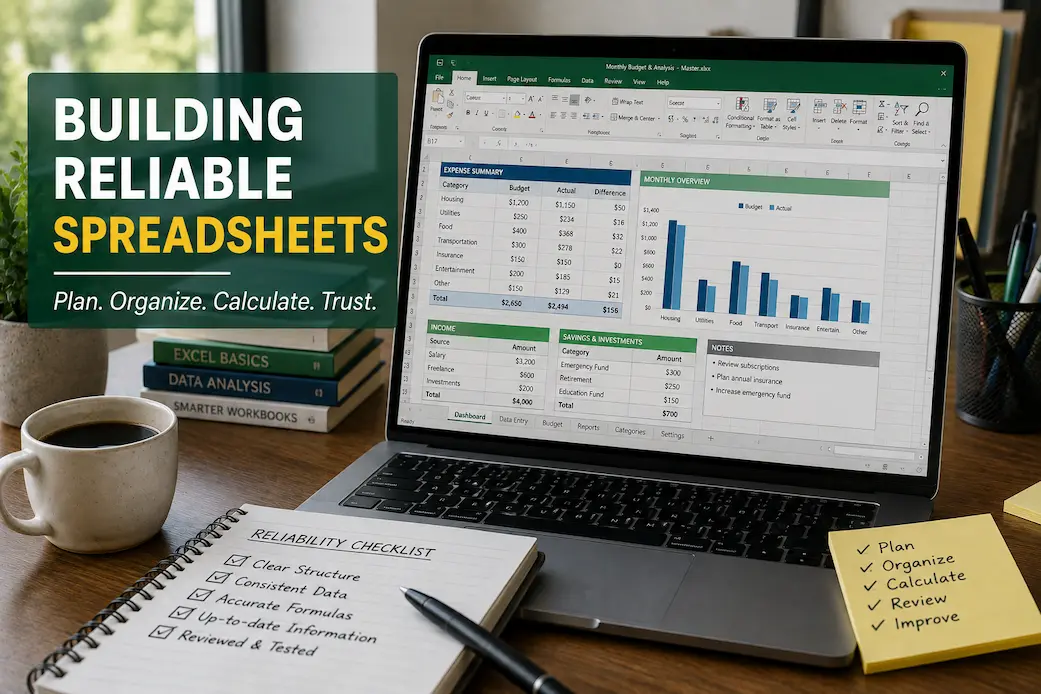
A spreadsheet can work perfectly when it is first created and still become unreliable months later. A few new rows may be added, formulas copied into new sections, worksheets renamed, assumptions changed, or information imported from another source. None of these changes necessarily causes an immediate problem. The difficulty is that small changes can gradually create errors that are not obvious when someone opens the workbook.
This is why spreadsheet reliability checks matter. A reliability check is a deliberate review of a spreadsheet to make sure its data, formulas, structure, assumptions, and results are still working as expected. It is not the same as simply looking for spelling mistakes or checking whether the file opens. The goal is to determine whether the workbook can still be trusted for the purpose it was designed to serve.
A useful reliability check does not need to be complicated. In many cases, a structured review of the important parts of a workbook can reveal problems before they affect reports, budgets, decisions, or other work.
What Is a Spreadsheet Reliability Check?
A spreadsheet reliability check is a review of a workbook’s important components to determine whether they remain accurate, consistent, understandable, and functional. The exact checks depend on the spreadsheet. A household budget may need careful checking of totals and categories, while a business report may require closer attention to formulas, source data, reporting periods, and assumptions.
A basic reliability review can include:
- Checking whether formulas are still correct.
- Comparing important totals with expected results.
- Looking for missing or duplicated data.
- Checking whether formulas have been replaced with values.
- Reviewing assumptions used in calculations.
- Confirming that references point to the correct cells or worksheets.
- Checking for unexpected changes in formatting or data types.
- Reviewing recently added rows and columns.
- Making sure charts and summaries reflect the current data.
- Confirming that outdated information is not being used.
The purpose is not to inspect every cell manually. Instead, focus attention on the areas where an unnoticed problem could have the greatest effect.
Start by Confirming What the Spreadsheet Is Supposed to Do
Before checking individual formulas, clarify the workbook’s purpose. A reliability check is much easier when you know what the spreadsheet is expected to produce.
For example, a sales workbook might be designed to calculate monthly revenue and compare it with previous periods. A project tracker might monitor tasks, deadlines, and completion rates. A personal budget might compare planned spending with actual expenses. Write down the main purpose in simple terms.
Then ask:
- What information should the workbook contain?
- What calculations are essential?
- Which results are used for decisions?
- What information should change regularly?
- Which parts should normally remain unchanged?
This gives you a reference point for the rest of the review. A formula cannot be judged properly if you do not understand what it is supposed to calculate.
Check the Source Data Before Checking the Results
A spreadsheet can produce perfectly consistent calculations even from incorrect input. For this reason, reliability checks should begin with the underlying data whenever possible. Look for missing records, duplicated entries, unexpected values, incorrect dates, unusual numbers, and inconsistent descriptions.
For example, imagine a monthly expense spreadsheet where most transactions contain dates in the current year, but several entries are accidentally assigned to the previous year. The formulas may calculate every total correctly, yet the final report will still be wrong.
Check whether:
- Required fields are populated.
- Dates fall within the expected period.
- Numbers are within reasonable ranges.
- Categories are used consistently.
- Duplicate records have been removed or explained.
- Imported information contains unexpected changes.
- Text has not accidentally replaced numerical values.
Checking the source data first helps prevent a common mistake: assuming that accurate formulas automatically mean accurate results.
Inspect Formulas for Unexpected Changes
Formulas deserve special attention because a single altered cell can affect many results. You do not necessarily need to inspect every formula individually. Search for patterns and exceptions. If a column normally contains the same type of calculation, compare several cells within that column. A formula that suddenly refers to a different range, worksheet, or cell may indicate an accidental change.
For example, if most rows calculate a value using cells from the same row but one formula refers to the row above, that exception deserves investigation.
Pay particular attention to:
- Formulas that have been manually edited.
- References that point to unexpected cells.
- Formulas copied into newly added rows.
- Ranges that stop before the final record.
- References to renamed or deleted worksheets.
- Hard-coded numbers inside formulas.
- Formulas that produce errors or unexpected blanks.
Consistency is useful here. When similar rows use similar formulas, unusual formulas become much easier to identify.
Look for Formulas That Have Been Replaced With Values
One of the easiest spreadsheet problems to miss is a formula that has accidentally been replaced with a manually entered number. The number may look completely reasonable, so the problem can remain hidden until the underlying data changes. Suppose a total should automatically update whenever new expenses are entered. If the formula has been replaced with a fixed value, the displayed total may remain unchanged even after additional transactions are added.
During a reliability check, compare cells that should contain formulas with neighboring cells that perform the same calculation. When a number appears in a cell that should contain a formula, investigate why.y. This is particularly important in shared workbooks where several people can edit the same file.
Verify Important Totals Independently
Important results should not always be trusted simply because a spreadsheet displays them. For key calculations, perform an independent check. The second check does not have to reproduce the entire workbook. It can be a simple comparison using another calculation, a smaller sample, or an external source.
For example, if a spreadsheet reports total monthly expenses, you could separately add the major expense categories and compare the result with the reported total. If a report calculates the number of completed tasks, manually inspect a sample of records to determine whether the status values match the reported figure. Independent checks are valuable because they can reveal errors that a formula review might miss.
Check Whether Data Ranges Include All Current Records
A spreadsheet may continue calculating without showing an obvious error even when its formulas no longer include the entire dataset. This often happens when new rows are added below an existing calculation range. Imagine a total that originally covers rows 2 through 100. Later, twenty more records are added, but the formula still ends at row 100. The workbook may display a perfectly normal total while quietly ignoring the latest information.
Check whether important calculations include:
- The first record.
- The last current record.
- Newly added rows.
- Newly added columns where applicable.
- All relevant categories or reporting periods.
This check becomes especially important in spreadsheets that grow continuously.
Review Important Assumptions
Many calculations depend on values that may change over time. Examples include tax rates, prices, exchange rates, interest rates, working hours, budget limits, reporting dates, and discount percentages. If these assumptions are hidden inside formulas, they can be difficult to review.
A reliability check should identify the values that influence important calculations and confirm that they are still appropriate.
Ask:
- Is the value current?
- Is it being used consistently?
- Has it been changed recently?
- Are multiple formulas using different versions of the same assumption?
- Is the source or reason for the value clear?
A spreadsheet becomes easier to verify when important assumptions are visible and clearly identified.
Check Dates and Reporting Periods
Date errors can be particularly difficult to notice because the values often look normal. A spreadsheet may contain a mixture of months, years, or reporting periods without producing an obvious formula error.
Check whether the workbook is using the correct:
- Start date.
- End date.
- Month.
- Financial year.
- Reporting period.
- Time range for comparisons.
Also look for dates that are formatted correctly but represent the wrong period. For example, a transaction recorded on January 2 may accidentally belong to a December reporting period depending on the business process. The spreadsheet cannot always determine that distinction on its own. The reliability assessment should therefore consider both the date value and its intended meaning.
Check for Duplicate or Missing Records
A reliable spreadsheet should represent the underlying activity accurately. Duplicate records can inflate totals, while missing records can make results appear lower than they should be.
Look for situations where:
- The same transaction appears twice.
- A record has been imported more than once.
- A sequence contains an unexplained gap.
- Expected entries are missing.
- Two records appear different but represent the same event.
The best way to identify these issues depends on the spreadsheet. A unique transaction number, invoice number, date-and-amount combination, or another identifying field may provide a useful comparison point.
Review Blank Cells That Should Contain Information
Blank cells are not always errors. Sometimes a blank value is intentional. Other times it indicates that information was never entered or that a formula failed to populate. During a reliability check, focus on blanks in places where information is normally expected.
For example, if every transaction should have a category, blank category cells should be reviewed. If every completed project should have a completion date, missing dates may require review. The important question is not simply whether a cell is empty. The question is whether it is supposed to be empty.
Check Formatting That Affects Meaning
Formatting is often treated as a cosmetic issue, but some formatting choices can affect how users interpret information. A number formatted as a percentage can mean something very different from the same number displayed as a regular decimal. Dates, currencies, negative values, and decimal places can also influence interpretation.
During a reliability check, look for:
- Inconsistent date formats.
- Incorrect currency symbols.
- Percentages displayed as ordinary numbers.
- Unexpected decimal places.
- Negative values displayed unclearly.
- Important cells that have lost their normal formatting.
Formatting should support understanding rather than hide differences between values.
Review Charts and Summary Reports
A spreadsheet’s charts and dashboards can become outdated even when the underlying data is correct. For example, a chart may continue using an old data range and exclude recently added records. A summary table may also reference a previous reporting period.
Check whether:
- Charts include current data.
- Summary tables use the correct ranges.
- Labels still describe the information accurately.
- Filters or selections are still appropriate.
- Report dates match the underlying data.
This is especially important when a spreadsheet is used to communicate results to other people. A reliable underlying dataset does not automatically guarantee a reliable report.
Check Worksheet References
Large workbooks often contain formulas that connect multiple worksheets. These references can become unreliable when worksheets are renamed, copied, deleted, or reorganized.
Review important formulas for references to:
- Old worksheet names.
- Missing worksheets.
- Unexpected external files.
- Incorrect ranges.
- Previous versions of data.
- Cells that have moved or changed purpose.
If a workbook depends on information stored somewhere else, also confirm that the source is still available and contains the expected information.
Review External Links and Imported Data
Some spreadsheets depend on information outside the workbook. External links may connect to another spreadsheet, database, exported report, or other source. If that source changes location or structure, the workbook may no longer behave as expected.
During a reliability review, identify external dependencies and ask whether they are still valid.
Check:
- Whether linked files still exist.
- Whether imported data is current.
- Whether source columns have changed.
- Whether connection paths are still correct.
- Whether the latest update was completed successfully.
This check is particularly important for workbooks that are refreshed regularly.
Test a Few Known Results
One practical reliability technique is to use known examples. Choose several records where the expected result is already understood. Then check whether the spreadsheet produces the correct answer.
For example, if a calculation should produce a known total for a small group of transactions, enter or review those records and compare the spreadsheet’s result with the expected value. Known-result testing is useful because it tests the actual behavior of the workbook rather than only its appearance. It can also reveal problems caused by incorrect cell references, unusual data types, or formula logic.
Review Recent Changes First
When something appears wrong, start by examining what changed recently.
A spreadsheet that worked correctly last month may have been affected by:
- New rows.
- New columns.
- Formula edits.
- Worksheet changes.
- Imported data.
- Updated assumptions.
- New users.
- Changes to report periods.
Keeping a simple change record can make this process easier.
It does not need to be complicated. A note containing the date, change, and reason may be enough to help identify the source of a later problem.
Check the Workbook After Major Updates
Reliability checks are especially valuable after significant changes. Do not wait for the next scheduled review if you have:
- Added a large amount of data.
- Changed important formulas.
- Reorganized worksheets.
- Added a new report.
- Changed calculation assumptions.
- Imported data from a different source.
- Modified a template used by several people.
A short review immediately after a major change can prevent the problem from spreading through later updates.
Use a Simple Reliability Checklist
A repeatable checklist makes spreadsheet reviews easier because you do not have to remember every check each time.
A basic review can include the following:
| Reliability Check | What to Look For |
|---|---|
| Source data | Missing, duplicated, or unusual records |
| Formulas | Unexpected or inconsistent calculations |
| Formula ranges | New rows or columns accidentally excluded |
| Fixed values | Formulas replaced with manually entered numbers |
| Totals | Results that fail independent checks |
| Assumptions | Outdated or inconsistent variables |
| Dates | Incorrect reporting periods |
| Blank cells | Missing information where values are expected |
| Formatting | Values displayed in misleading formats |
| Charts | Outdated ranges or labels |
| References | Broken or incorrect worksheet links |
| External data | Missing or outdated source information |
The checklist can be adjusted depending on the purpose and complexity of the workbook.
Decide How Often a Reliability Check Is Needed
There is no single schedule that works for every spreadsheet. A workbook used once a year may only need a review before important use. A spreadsheet updated every day and used for financial or operational decisions deserves more frequent checks.
Consider the following factors:
- How often the workbook changes.
- How many people edit it.
- How important the results are.
- How much data it contains.
- How many formulas and worksheets it uses.
- Whether it depends on external information.
A simple personal tracker may need only occasional reviews. A frequently updated business workbook may benefit from routine checks as part of its normal maintenance process.
Keep a Record of Important Checks
For important workbooks, recording when reliability checks were completed can be useful. A simple review log might contain:
| Date | Area Checked | Result | Follow-Up |
|---|---|---|---|
| March 5 | Formulas | No major issues | None |
| March 5 | Source data | 3 duplicates found | Removed |
| June 10 | Reporting ranges | One range outdated | Corrected |
The purpose is not to create unnecessary administration. A small record simply provides a history of what was reviewed and what was changed. This becomes particularly useful when several people work with the same spreadsheet.
Make Reliability Checks Part of Normal Spreadsheet Maintenance
Reliability should not be treated as something to investigate only after a spreadsheet produces a suspicious result. Regular checks are more useful because they identify problems while they are still relatively small. A practical routine might involve a quick review of formulas and recent data after major updates, followed by a more complete check every few months for frequently used workbooks. The exact schedule matters less than having a repeatable process.
What a Reliable Spreadsheet Should Look Like
A reliable spreadsheet does not have to be perfect or highly sophisticated. Instead, it should have characteristics that make its information easier to verify. You should generally be able to determine:
- Where the source data comes from.
- Which cells contain formulas.
- Which values are assumptions.
- How important totals are calculated.
- Which reporting period is being used.
- Whether the current data is included.
- What changed recently.
- Where to investigate if something appears unusual.
When these answers are easy to find, reliability checks become faster and future maintenance becomes simpler.
Conclusion
Spreadsheet reliability is not something that can be confirmed simply by opening a workbook and checking whether it looks normal. A dependable spreadsheet needs periodic checks that examine its data, formulas, ranges, assumptions, references, reports, and recent changes. The most useful reliability checks focus on specific areas and can be repeated. Confirm that the source data is complete, compare important formulas, verify calculation ranges, test important results, review assumptions, and make sure reports still represent the current information.
The goal is not to inspect every cell unnecessarily. It is to identify the parts of a spreadsheet where an unnoticed error could have the greatest effect. By making reliability checks part of normal spreadsheet maintenance, you can catch small problems earlier, maintain greater confidence in important results, and keep a workbook useful as its data and purpose evolve.
FAQs
1. What is the purpose of a spreadsheet reliability check?
The purpose is to determine whether a spreadsheet is still accurate, consistent, and functioning as intended. The check can identify formula errors, missing data, outdated assumptions, incorrect ranges, and other problems before they affect important results.
2. How often should a spreadsheet be checked for reliability?
It depends on how frequently the workbook changes and how important its results are. Frequently updated spreadsheets should be checked more regularly, while simple files may only need occasional reviews or checks after major changes.
3. What should I verify first in a spreadsheet?
Start by confirming the workbook’s purpose and then review the source data. After that, inspect important formulas, calculation ranges, assumptions, and key results. This approach helps you understand whether the final numbers are based on appropriate information.
4. Can a spreadsheet be unreliable even when there are no formula errors?
Yes. A spreadsheet can contain formulas that work correctly while using incorrect, incomplete, duplicated, or outdated data. Reliability checks therefore need to examine both the calculations and the information being calculated.
5. Why should important totals be checked independently?
An independent check provides another way to verify an important result. It can reveal problems that are difficult to notice by looking only at the formula that produced the number.