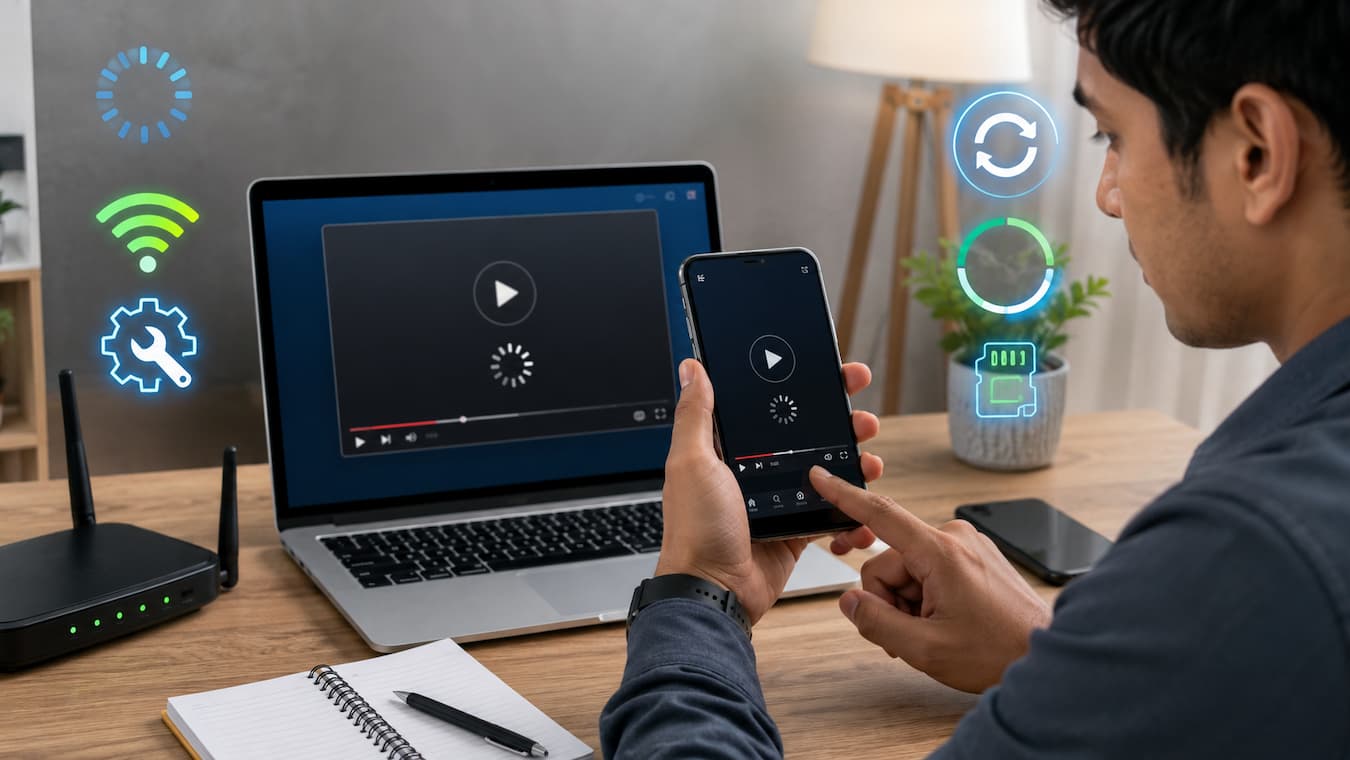
Watching videos on social apps has become part of everyday life. People use platforms to watch tutorials, follow news, enjoy entertainment, communicate with friends, and discover new content. Because videos load instantly most of the time, it can be frustrating when a video suddenly stops working, keeps buffering, shows a black screen, or refuses to play at all.
Video playback problems can happen for many reasons. Sometimes the issue is a weak internet connection, while other times the problem comes from outdated apps, storage limitations, incorrect settings, or temporary platform errors. The good news is that most video problems can be fixed with a few simple steps. This guide explains the most common reasons why social app videos are not playing and shows practical solutions anyone can follow. You will learn how to check your connection, update apps, manage settings, clear problems, and prevent future playback issues without needing advanced technical knowledge.
Why Social App Videos Stop Playing
When videos fail to play on social apps, many people immediately assume the app is broken. However, video playback depends on several different parts working together, including your internet connection, device hardware, app software, and platform servers. A problem in any one of these areas can interrupt playback. Understanding the possible causes makes troubleshooting easier because you can test the most likely solutions first.
Common Reasons Social App Videos Do Not Work
| Possible Cause | What You May Notice | Basic Solution |
|---|---|---|
| Slow internet connection | Videos buffer constantly or stop loading | Improve connection or switch networks |
| Outdated app version | Videos fail after updates or changes | Install the latest app update |
| Too much cache data | The app becomes slow or freezes | Clear temporary files |
| Low storage space | Apps crash or perform poorly | Free up device storage |
| App settings issue | Videos only fail under certain conditions | Review playback settings |
| Platform outage | Many users experience the same problem | Wait for service recovery |
The fastest way to fix video problems is to start with simple checks. There is no need to change complicated settings before confirming basic issues like internet access or app updates.
Tip: Always start with the easiest solutions first. A simple restart or network change can often solve video playback problems within minutes.
Check Your Internet Connection First
A stable internet connection is one of the most important requirements for watching videos on social apps. Videos require more data than text posts or images, so connection problems usually appear first when streaming content. Even if websites open normally, your connection may still be too slow or unstable for smooth video playback. Short interruptions can cause videos to pause, freeze, or display loading circles.
Signs Your Internet May Be the Problem
- Videos stop at the same point repeatedly.
- The loading icon appears for a long time.
- Other apps also load slowly.
- Video quality keeps changing automatically.
- Wi-Fi works in some areas but not others.
Simple Internet Fixes to Try
- Test another website or app: Check whether other online services are working normally.
- Switch between Wi-Fi and mobile data: This helps identify whether your network is causing the problem.
- Move closer to your router: Weak Wi-Fi signals can affect video streaming.
- Restart your router: Temporary connection problems may disappear after a restart.
- Reduce network usage: Pause large downloads or other streaming activities.
Restart the App and Your Device
Restarting may seem like a basic solution, but it fixes many temporary software problems. Social apps constantly process images, videos, notifications, and background tasks. Sometimes these processes become stuck and affect video playback. Closing and reopening the app gives it a fresh start. Restarting your device can also clear temporary system issues that affect performance.
How to Properly Restart a Social App
- Close the app completely instead of leaving it running in the background.
- Wait a few seconds.
- Open the app again and test a different video.
- If the problem continues, restart your phone, tablet, or computer.
Update Your Social Media App
Apps receive regular updates to improve performance, fix bugs, and support new device features. Using an older version of a social app can sometimes cause problems with video playback. Developers frequently update video systems because streaming depends on changing technologies, security improvements, and compatibility with different devices.
Why Outdated Apps Cause Video Problems
- The app may not support newer video formats.
- Old versions may contain playback bugs.
- Security features may stop working correctly.
- The app may become incompatible with your operating system.
How to Check for App Updates
- Open your device’s app store.
- Search for the social media app.
- Check whether an update is available.
- Install the latest version.
- Restart the app after updating.
Best Practice: Enable automatic app updates when possible, especially for apps you use every day.
Clear App Cache and Temporary Data
Social media apps store temporary files called ‘cache data’ to help content load faster. For example, an app may save video thumbnails, recently viewed content, and other temporary information so it does not need to download everything again.
Cache is normally helpful, but over time it can become outdated or corrupted. When this happens, it may cause problems such as videos not loading, apps freezing, slow performance, or unexpected crashes.
How Cache Problems Affect Video Playback
- Videos keep showing a loading circle.
- The app opens normally, but videos remain blank.
- Video thumbnails appear but content will not play.
- The app becomes slower after long use.
How to Clear Cache Safely
The steps depend on your device. Most smartphones include storage options where you can remove temporary app files without deleting your account.
| Device Type | General Method | Important Note |
|---|---|---|
| Android phones | Settings → Apps → Select app → Storage → Clear Cache | Clearing cache usually keeps your account data |
| iPhone | Use app settings or reinstall the app if needed | Some apps do not provide a separate cache option |
| Web browsers | Browser settings → Privacy → Clear cached files | You may need to sign in again |
Cache Clearing Mistakes to Avoid
- Do not clear all phone data unless you understand what it removes.
- Remember that clearing app storage may log you out.
- Do not download random “cleaner” apps claiming to fix everything.
Tip: Clearing the cache is useful when an app worked correctly before but suddenly starts showing playback problems.
Check Device Storage and Performance
Your device needs enough free storage and system resources to run social apps smoothly. When storage becomes almost full, apps may slow down, crash, or have trouble processing videos. Video content requires more resources than simple text or images. If your device has limited storage, older hardware, or many background apps running, playback issues may appear.
Signs Your Device May Be the Problem
- The entire phone feels slow, not just one app.
- Apps close unexpectedly.
- Videos freeze while other features work.
- The device becomes hot during normal use.
- Storage warnings appear frequently.
Ways to Improve Device Performance
- Free up storage space: Remove unused apps, duplicate files, and unnecessary downloads.
- Close background apps: Too many running apps can reduce available memory.
- Restart your device regularly: This helps refresh system resources.
- Update your operating system: New updates often include performance improvements.
- Remove unused files: Old videos and large downloads can consume significant storage.
| Storage Situation | Possible Effect | Recommended Action |
|---|---|---|
| More than 20% free space | Usually normal performance | Continue regular maintenance |
| Less than 10% free space | Apps may slow down | Delete unnecessary files |
| Almost full storage | Frequent crashes and errors | Free space immediately |
Best Practice: Keep some free storage available. A device that is constantly full may struggle with everyday tasks, including video playback.
Review Video Playback Settings
Many social apps include settings that control how videos load and play. These options are designed to save mobile data, improve battery life, or adjust video quality. Sometimes these settings can prevent videos from playing smoothly, especially when they are changed accidentally or enabled automatically.
Important Video Settings to Check
| Setting | Purpose | What to Check |
|---|---|---|
| Data Saver Mode | Reduces mobile data usage | Disable temporarily to test playback |
| Autoplay | Automatically starts videos | Check if it affects loading behaviour. |
| Video Quality | Controls resolution | Lower quality on slower connections |
| Background Data | Allows apps to update content | Make sure it is not restricted |
When Lower Video Quality Helps
High-quality videos require more bandwidth and processing power. If your connection is slow or your device is older, reducing video quality can improve playback. Lowering quality does not mean the video is broken. It simply reduces the amount of data needed, allowing smoother playback.
Common Settings Mistakes
- Keeping data-saving features enabled when using Wi-Fi.
- Blocking background data accidentally.
- Setting video quality too high for the current connection.
- Ignoring app-specific playback controls.
Check App Permissions
Social apps require certain permissions to work correctly. While video playback does not always need many permissions, restricted access can sometimes affect app performance and content loading. For example, if background activity is blocked, the app may struggle to refresh content. If storage permissions are limited, saving temporary files may not work properly.
Permissions Worth Reviewing
- Mobile data access: Allows the app to connect when not using Wi-Fi.
- Storage access: Helps manage downloaded or temporary files.
- Background activity: Allows the app to refresh content.
- Notifications: Keeps you informed about app activity.
How to Review Permissions
- Open your device settings.
- Go to Apps or Application Management.
- Select the social media app.
- Review permissions.
- Allow only the access the app actually needs.
Warning: Avoid giving unnecessary permissions to unknown apps. More access means more potential exposure of your personal information.
Fix Social Videos Playing in Browsers
Not everyone watches social media videos through mobile apps. Many people use browsers on computers or phones. Browser-related issues can also prevent videos from loading correctly. Problems may come from outdated browsers, blocked scripts, extensions, cookies, or incorrect settings.
Common Browser Video Problems
| Problem | Possible Cause | Solution |
|---|---|---|
| Black video screen | Browser error or blocked content | Refresh page or update the browser. |
| The video keeps buffering | Network or browser performance issue | Close unused tabs |
| No sound | Muted settings | Check browser and device volume |
| The video does not load | Cookies or extensions interfering | Clear browser data |
Browser Troubleshooting Steps
- Refresh the page.
- Restart the browser.
- Update the browser to the latest version.
- Disable unnecessary extensions temporarily.
- Clear browser cache and cookies.
- Try another browser to compare results.
Testing another browser is useful because it helps identify whether the problem is with the website itself or your current browser settings.
Advanced Troubleshooting Methods
If basic solutions do not fix the problem, it is time to look at deeper issues. Advanced troubleshooting does not mean making complicated changes. It simply involves checking areas that are less obvious but can affect video playback. Before trying advanced steps, make sure you have already tested your internet connection, restarted your device, updated the app, and checked storage. These simple fixes solve many common problems.
Check Whether the Social Platform Is Experiencing Problems
Sometimes the issue is not your phone, computer, or internet connection. Social media platforms occasionally experience temporary outages or technical problems that affect video loading.
Signs of a platform-wide problem include:
- Videos fail on multiple devices.
- Friends report the same issue.
- Other features of the app also stop working.
- The problem starts suddenly without any changes on your device.
What to Do During a Platform Outage
- Wait and try again later.
- Avoid repeatedly reinstalling the app.
- Check official platform updates.
- Do not change many settings at once.
Tip: If many users are reporting the same video issue, the problem is likely temporary and does not require device repairs.
Reinstall the social media app.
If the app files become damaged or important components stop working correctly, reinstalling can provide a fresh installation.
Before uninstalling, make sure you know your login information. Removing an app does not delete your account, but you may need to sign in again.
Steps to Reinstall Safely
- Confirm that you remember your username and password.
- Remove the app from your device.
- Restart your device.
- Download the latest version from the official app store.
- Sign in and test video playback.
Check Device Compatibility
Older devices may struggle with newer versions of social apps. Video features often require more processing power because platforms continue improving video quality, effects, and interactive features. If videos work poorly only on one older device but play normally elsewhere, compatibility may be the reason.
| Situation | Likely Cause | Recommended Action |
|---|---|---|
| Videos fail only on one device | Device settings or hardware limitation | Update software or check storage |
| Videos fail everywhere | Account or platform issue | Check service status |
| Only one app has problems | App-specific issue | Update or reinstall the app |
| All video apps fail | Network or device issue | Check connection and system settings |
Quick Troubleshooting Checklist
Use this checklist whenever social app videos stop playing:
- Check whether your internet connection is working.
- Switch between Wi-Fi and mobile data.
- Restart the app.
- Restart your device.
- Update the social media app.
- Clear cache or temporary files.
- Check available storage space.
- Review video playback settings.
- Check app permissions.
- Try another browser or device.
- Reinstall the app if necessary.
Expert Tip: Change one setting at a time while troubleshooting. This helps you identify what actually solved the problem.
FAQs
1. Why are videos not playing on my social media app?
Social media videos may stop playing because of internet problems, outdated apps, insufficient storage, incorrect settings, or temporary platform issues. Start by checking your connection and restarting the app. If the problem continues, update the app, clear cache data, and review device settings. Testing another app or device can also help determine whether the issue is related to your account, device, or network.
2. Why do social media videos keep buffering even with Wi-Fi?
A Wi-Fi connection does not always guarantee smooth video playback. Your signal strength, network congestion, router performance, and internet speed can all affect streaming. Try moving closer to your router, restarting the router, reducing video quality, or testing mobile data. If other devices on the same network are also slow, the issue may be with your internet service rather than the social app.
3. Will clearing the app cache delete my account or photos?
In most cases, clearing cache only removes temporary files stored by the app and does not delete your account, posts, or personal content. However, clearing full app storage or reinstalling an app may remove saved settings and require you to log in again. Always check what option you are selecting before removing app data.
4. Why do videos work in my browser but not the app?
If videos work in a browser but fail in the app, the problem is likely related to the app installation, settings, cache, or permissions. Updating or reinstalling the app often fixes these issues. It can also help to check whether the app has data restrictions enabled or whether your device software supports the latest app version.
5. Can low storage space stop videos from playing?
Yes. When a device has very little free storage, apps may not have enough space for temporary files needed during normal operation. This can cause slow performance, crashes, and video playback problems. Removing unused apps, old downloads, and unnecessary files can improve overall device performance and help apps work more reliably.
Conclusion
When social app videos stop playing, the cause is usually something simple that can be fixed with the right troubleshooting steps. Internet problems, outdated apps, storage limits, cache issues, and incorrect settings are some of the most common reasons behind playback failures.
The best approach is to start with basic solutions and move toward advanced fixes only when necessary. Checking your connection, restarting the app, updating software, and managing device storage can solve many problems without technical knowledge. Keeping your apps updated and maintaining your device regularly will also help prevent future video playback issues. With a few simple habits, you can enjoy smoother video experiences and spend less time dealing with frustrating loading problems.
References and Reliable Sources
- Google Android Help – Official guidance for managing apps, storage, updates, and device troubleshooting.
- Apple Support – Official documentation for iPhone app troubleshooting, storage management, and software updates.
- Federal Communications Commission (FCC) – Consumer information about internet connections and broadband performance.
- Mozilla Support – Browser troubleshooting and privacy-related guidance.
- Microsoft Support – Device, browser, and application troubleshooting resources.
Leave a Reply