
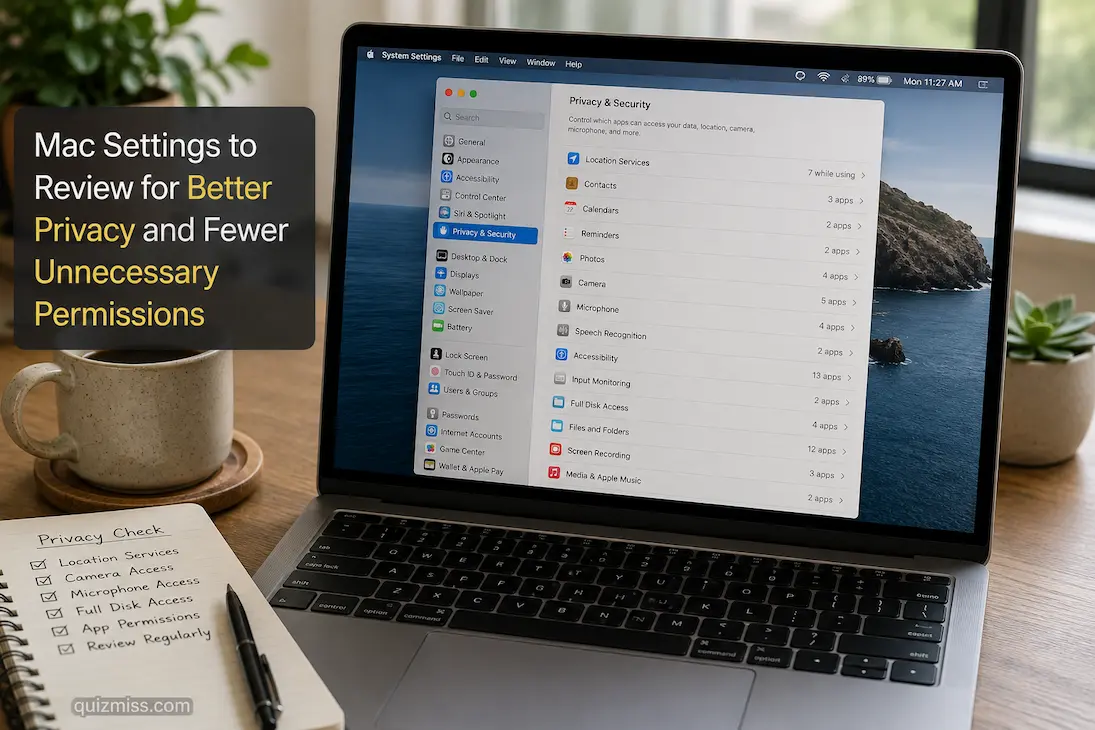
A Mac can ask for access to your camera, microphone, files, contacts, location, photos, and other information without making it obvious how often those permissions accumulate. An application you installed for a one-time task may still have access months later, while another program may request permissions that aren’t necessary for the way you use it. The problem isn’t that every permission request is suspicious. Many legitimate applications genuinely need access to certain features.
What matters is whether those permissions still make sense. A video-calling application may need your microphone and camera, while a calculator probably doesn’t. A photo editor may reasonably need access to selected images, but that doesn’t automatically mean it should have unrestricted access to your entire photo library. Reviewing permissions periodically gives you a chance to revoke access that no longer has a practical purpose.
macOS provides several controls for managing this access. The exact names and locations can vary between macOS versions, but the important categories remain similar. Instead of disabling everything for the sake of privacy, review permissions according to what each application does and what information you’re comfortable allowing it to access.
Start With Privacy & Security
The best place to start is Apple menu > System Settings > Privacy & Security. This section brings together many of the controls that determine which applications can access sensitive information and hardware features.
You don’t need to go through every category in one sitting. Start with the permissions that can reveal the most personal information or provide access to devices you don’t expect every application to use.
A useful review asks two questions: Does this application still need this permission? and Would I be comfortable with this application having this access today? If the answer to either is no, check whether the permission can be removed without affecting something you actually use.
Why Permission Reviews Matter
Permissions are often granted while you’re installing or configuring an application. At that moment, clicking Allow may seem easier than deciding whether the access is genuinely necessary.
Months later, you may have forgotten why the permission was granted. Reviewing the list gives you a clearer picture of what applications can currently access rather than relying on old decisions.
This is especially useful after uninstalling applications, replacing software, changing how you work, or discovering that a program no longer needs a particular feature.
Check Location Services
Location information can reveal more about your routine than many people realize. Maps and navigation applications have an obvious reason to request it, while a basic utility may not.
Under Privacy & Security > Location Services, check which applications can access your Mac’s location information. macOS may present different choices depending on the application and system version.
Don’t automatically disable location access for everything. If you use maps, local recommendations, weather applications, or other location-aware features, revoking access can reduce their usefulness.
Instead, concentrate on applications whose purpose doesn’t clearly require location information.
Review System Services Too
Location Services can include system-level options as well as individual applications. Some of these services support features built into macOS, so disabling them without understanding their purpose can affect other functionality.
Read the descriptions provided by macOS before changing system-level options. Privacy improvements are most useful when they are deliberate rather than based on turning off every available switch.
Review Camera Access
Your Mac’s camera is one of the permissions worth checking carefully because it can expose a live view of your surroundings.
Open Privacy & Security > Camera and review the applications listed there. A video-conferencing application may obviously need access, while an application that never uses video may not.
If you rarely use the camera, there is little reason to leave access enabled for applications that don’t need it. Removing permission doesn’t uninstall the application; it simply prevents that application from accessing the camera through macOS’s permission system.
When you later need the camera, macOS can generally ask for permission again.
Check Microphone Permissions Separately
Microphone access deserves its own review because an application can potentially use it for audio input even when you aren’t thinking about recording.
Go to Privacy & Security > Microphone and examine the list. Video-conferencing software, recording tools, music applications, and voice utilities may have legitimate reasons for access.
A program that never uses audio input may not need the same permission. If you don’t recognize why an application has microphone access, investigate what feature requested it before leaving the permission enabled indefinitely.
Don’t Confuse Microphone Access With Listening All the Time
Seeing an application listed under microphone permissions doesn’t automatically mean that it is continuously recording you. The permission determines whether macOS allows the application to request access to the microphone.
macOS also provides indicators when an app uses the microphone or camera. Pay attention to those indicators if you’re concerned about unexpected access.
Revisit Photos Access
Applications that work with images may request access to your Photos library. That can be reasonable for an image editor, social media application, or photo-management tool.
However, you don’t necessarily need to give every application broad access simply because it wants to work with pictures. Depending on your macOS version and the application’s capabilities, you may have more selective options for what it can access.
Review Privacy & Security > Photos and consider whether each application’s access still matches how you use it. If you stopped using an image application months ago, there may be little reason for it to retain access.
Check Files and Folders
File access can be more significant than a simple camera or microphone permission because it may expose documents, work files, downloads, or other personal information.
Under Privacy & Security, look for controls related to Files and Folders. macOS may show applications that have requested access to particular locations.
Review permissions based on the folders involved. A backup application may need access to large portions of your storage, while a small utility may only need access to a particular working folder.
If an application requests access to a folder you don’t expect it to use, please take a moment to review the request before approving it. Check what the application does and whether that access is genuinely required.
Take a Closer Look at Full Disk Access
Full Disk Access deserves special attention because it is broader than ordinary access to a specific folder.
Some legitimate applications need it. Backup software, security tools, system-management utilities, and certain specialized applications may require broader access to perform their intended functions.
That doesn’t mean every application requesting Full Disk Access should receive it. Review the list and revoke access for software you no longer use or don’t recognize.
Why This Permission Deserves Extra Caution
Giving an application broad access can make certain tasks easier, but it also means the application can potentially reach information that a more restricted permission would not expose.
If an application works perfectly well without Full Disk Access, there is little reason to grant the broader permission simply because its setup instructions recommend it without explanation.
If you’re unsure, check the application’s official documentation to understand why the developer says the permission is required.
Review Accessibility Permissions
Accessibility access can allow applications to interact with aspects of the Mac’s interface and control certain functions. Many legitimate utilities use this permission for features such as window management, keyboard automation, shortcuts, or assistive functionality.
Go to Privacy & Security > Accessibility and check which applications have access.
If you use a window manager or automation utility, seeing it there may be expected. But old utilities and applications you no longer use should not necessarily retain access.
This is another category where removing everything isn’t the goal. The goal is to ensure that the applications with this capability are there intentionally.
Check Input Monitoring
Input Monitoring can involve access to information about keyboard and other input activity. That makes it an important permission to understand rather than casually approve.
Review Privacy & Security > Input Monitoring and consider why each application has been granted access. Keyboard utilities, automation tools, and certain accessibility applications may have legitimate reasons.
If you don’t recognize an application or no longer use the feature that required the permission, investigate before leaving it enabled.
Don’t grant Input Monitoring simply because an application claims that it will make the setup easier. Understand what the application needs and whether you truly require that feature.
Look at Screen & System Audio Recording
Applications that capture your screen or record system audio may require additional permissions. This scenario is common with presentation tools, recording software, remote-support applications, and video-production programs.
Under Privacy & Security, review Screen & System Audio Recording and examine the applications listed there.
The permissions may be completely appropriate if you frequently record your screen. But an old application that you installed for a temporary project may no longer need access.
Removing permission is particularly useful when you no longer use the application but don’t want to uninstall it immediately.
Review Bluetooth Access
Some applications can request Bluetooth access to discover or communicate with nearby Bluetooth devices.
Under Privacy & Security, check the Bluetooth permission category if it is available on your macOS version.
A utility that controls a keyboard, mouse, headset, speaker, or other accessory may have a legitimate reason for this access. A program with no apparent relationship to Bluetooth deserves closer examination.
This case is a good example of why permissions should be evaluated according to an application’s function rather than simply being turned off universally.
Check Contacts and Calendars
Contacts and calendar information can contain considerably more personal information than a single application feature might suggest.
Review the relevant permission categories under Privacy & Security and consider whether each application still needs access.
A calendar application may require calendar access by design. A scheduling tool might need contacts for a specific feature. But if you granted access to an application months ago and no longer use that feature, removing the permission can reduce unnecessary exposure.
Ask Whether the Feature Is Actually Useful
Sometimes the better question isn’t “Does this application need contacts?” but rather “Do I use the feature that requires contacts?”
If you don’t use contact suggestions, invitations, synchronization, or related functions, keeping the permission enabled may provide little benefit.
Privacy settings become easier to manage when you connect each permission to a feature you actually use.
Review Automation Permissions
Automation permissions can allow one application to control or communicate with another. They can be useful for productivity workflows, scripting, and specialized utilities.
If you use automation tools, review which applications have been allowed to control other applications and whether those relationships are still necessary.
An old automation setup may remain after you stop using the workflow that created it. Removing unnecessary access can simplify the permission landscape without affecting unrelated applications.
Look at Desktop & Documents Access
Some applications request access to your Desktop and Documents folders because they need to open or save files there.
This can be perfectly reasonable for office software, creative applications, backup tools, and file-management utilities. But because these locations often contain important personal and work data, it’s worth reviewing which applications can access them.
If you rarely use a program anymore, removing its access may be appropriate. You can always reconsider the permission if the application later needs to access those locations.
Don’t Forget Safari Website Permissions
Mac privacy isn’t limited to installed applications. Your browser can also maintain permissions for websites that you’ve visited.
If you use Safari, review Safari > Settings > Websites. Depending on the feature, you may find permissions related to location, camera, microphone, notifications, downloads, pop-ups, and other website behavior.
This can be especially useful if you regularly visit many sites that have requested notifications or device access.
A website doesn’t necessarily need permission simply because it asked for it. Consider whether the feature provides enough value to justify allowing it.
Clear Out Notification Permissions You Don’t Need
Website notifications are a common source of unnecessary interruptions. If Safari keeps showing alerts from sites you no longer visit, review the relevant website permissions and remove any unwanted access.
This improves more than privacy. It can also make the Mac quieter and reduce distractions during work.
Review Login Items and Background Activity
Privacy and performance sometimes overlap. Applications that launch automatically can continue running in the background even when you aren’t actively using them.
Open System Settings > General > Login Items and review both the applications that open at login and any background activity controls shown there.
If an application doesn’t need to launch automatically, disabling its startup behavior can reduce unnecessary background activity. This doesn’t necessarily remove the application or its data.
Be careful with security software, synchronization tools, drivers, and other utilities that intentionally need to run in the background.
Check Which Applications You Still Have Installed
Permission reviews are much easier when your application list isn’t full of software you forgot about.
Open System Settings, then go to General > Storage or the relevant Applications management area, and review the installed software. If you find applications you haven’t used in a long time, decide whether you still need them.
Uninstalling software you genuinely don’t use can remove both the application and some of the permissions associated with it.
Don’t delete application files manually just because you’re trying to clean up. Use the application’s supported uninstaller or macOS’s normal removal process where appropriate.
Review Password and Passkey Security
Privacy settings aren’t only about permissions. Your account credentials are another important part of keeping a Mac secure.
Depending on your macOS version, Apple’s password-management features can help you review saved passwords, passkeys, and security-related information. Check for reused or weak passwords and update important accounts when necessary.
If you use iCloud Keychain or Apple’s password manager, make sure your account security settings and recovery options are current.
Avoid keeping important passwords in plain-text notes or unsecured documents simply because they’re convenient to access.
Check Find My and Location-Related Account Features
If you use Apple’s Find My features, review them as part of your overall privacy and device-security setup.
Find My can be particularly useful if you lose your Mac or if someone steals it. Turning off location-related features simply to reduce permissions can remove useful recovery capabilities.
The better approach is to understand which account-level location features are enabled and why. Privacy doesn’t always mean disabling a feature; sometimes it means knowing exactly what the feature does and keeping only the functions that serve a purpose.
Review Analytics and Sharing Settings
macOS includes options related to analytics and sharing information with Apple and developers. The available controls can vary between macOS versions.
Look through the relevant settings under Privacy & Security and decide whether you are comfortable with the information-sharing options enabled on your Mac.
These choices aren’t necessarily about preventing every form of diagnostic data. Some analytics can help developers improve software and identify problems. The decision is ultimately about how much diagnostic sharing you’re comfortable allowing.
Check AirDrop and Sharing Behavior
AirDrop can be extremely convenient, but it’s worth understanding who can discover and send files to your Mac.
Use Control Center or the appropriate sharing settings to review AirDrop visibility. Choose the option that fits how you actually use the feature rather than leaving the broadest setting enabled permanently.
If you rarely use AirDrop, you can keep it more restricted and temporarily make it available when needed.
A More Useful Way to Review Mac Permissions
Trying to inspect every permission in one sitting can become tedious. A category-based review is usually easier.
| Permission Area | Ask Yourself | Typical Reason for Access |
|---|---|---|
| Camera | Does this app need video? | Video calls, recording |
| Microphone | Does it actually use audio input? | Calls, recording, music |
| Location | Does location improve its function? | Maps, local services |
| Photos | Does it need my photo library? | Editing, media management |
| Files & Folders | Which files does it need? | Editors, document tools |
| Full Disk Access | Is broad access genuinely necessary? | Backup/security tools |
| Accessibility | Does it control or modify the interface? | Automation, utilities |
| Input Monitoring | Does it legitimately need input access? | Keyboard/automation tools |
| Screen Recording | Do I actually use screen capture? | Recording, remote support |
| Contacts | Does this feature depend on contacts? | Communication tools |
| Calendar | Does it need calendar information? | Scheduling tools |
| Bluetooth | Does it interact with devices? | Hardware utilities |
The table isn’t a list of permissions you should automatically disable. It is a way to question whether the access still makes sense.
What to Do When You Don’t Recognize an Application
An unfamiliar application in a permission list isn’t automatically malicious. It could be a helper component, an application you installed long ago, or software provided by your employer or hardware manufacturer.
Before revoking its access, identify the application. Check its name in Applications, look at its developer information, and consider whether you installed software that might use it.
If you still don’t know why it exists, investigate through Apple’s documentation or the developer’s official website rather than trusting a random “Mac cleaner” or security blog.
If the application is genuinely unwanted, uninstalling it may be more appropriate than simply removing one permission while leaving the software installed.
Don’t Grant Permissions Just to Make an App Stop Asking
Repeated permission prompts can be annoying, especially when you’re trying to finish setting up an application. But approving everything just to get through the setup can create a privacy configuration you’ll later forget about.
When a permission request appears, consider what the application is trying to do. If the requested access clearly relates to a feature you want to use, granting it may make sense.
If the request seems unrelated, deny it initially and see whether the application still works. You can revisit the permission later if you discover that a feature genuinely requires it.
Permissions Should Match How You Use the App
A permission that was reasonable six months ago may no longer make sense today.
You might stop using a video feature, replace a photo editor, discontinue an automation workflow, or uninstall a related accessory. Your Mac doesn’t necessarily know that your needs have changed.
That’s why permission reviews are more useful when tied to real changes in your setup. A new application, a major macOS update, a change in work habits, or removing old software are all good moments to revisit access.
A Simple Rule for Unnecessary Permissions
If you can’t explain why an application needs a permission, don’t immediately assume it is dangerous—but don’t ignore it either.
Find out what feature depends on the access. If the feature is useful and legitimate, keep the permission. If you don’t use the feature, consider removing the access.
That approach avoids both extremes: giving every application unrestricted access and disabling permissions so aggressively that useful software stops working.
Frequently Asked Questions
How often should I review privacy permissions on a Mac?
There is no required schedule, but reviewing them every few months is reasonable, especially after installing several new applications or making major changes to your setup. You should also review permissions when an application no longer seems to need access.
How do I see which apps have access to my Mac’s camera?
Open System Settings > Privacy & Security > Camera. macOS will show applications that have requested camera access, allowing you to review which ones are currently permitted.
Should I disable microphone access for every Mac application?
No. Some applications genuinely require microphone access for calls, recording, music, accessibility, or other features. Review each application based on what you actually use it for.
What is Full Disk Access on Mac?
Full Disk Access provides an application with broader access to certain files and data protected by macOS. Some legitimate backup, security, and management tools need it, but it should not be granted casually.
Why does a Mac application need Accessibility access?
Some utilities use Accessibility access to interact with the Mac’s interface, automate actions, manage windows, or provide accessibility features. If you don’t understand why an application needs it, please check the developer’s explanation.
Can I remove an app’s permission without uninstalling it?
In many cases, yes. macOS allows you to manage individual permissions through Privacy & Security. The application may continue working, although a feature dependent on that permission could stop functioning.
A Cleaner Permission Setup Is Better Than a Locked-Down Mac
Good privacy settings aren’t about making every permission switch read “Off.” A Mac becomes more sensible to manage when applications have access that corresponds to what they actually do.
Start with Privacy & Security, then work through the permissions that matter most: camera, microphone, location, photos, files, Full Disk Access, Accessibility, Input Monitoring, and screen recording. After that, look at website permissions, login items, installed applications, sharing features, and account security.
The most useful changes are usually small. Removing camera access from an application you no longer use, stopping unnecessary website notifications, restricting an old utility’s file access, or disabling automatic startup for software you rarely need can all improve the way the Mac behaves without breaking useful features.
And if a permission request doesn’t make sense, don’t feel pressured to approve it simply because the application asks. First, understand the request, then decide whether the feature is worth the access, and keep the permission only when there is a clear reason for it.