
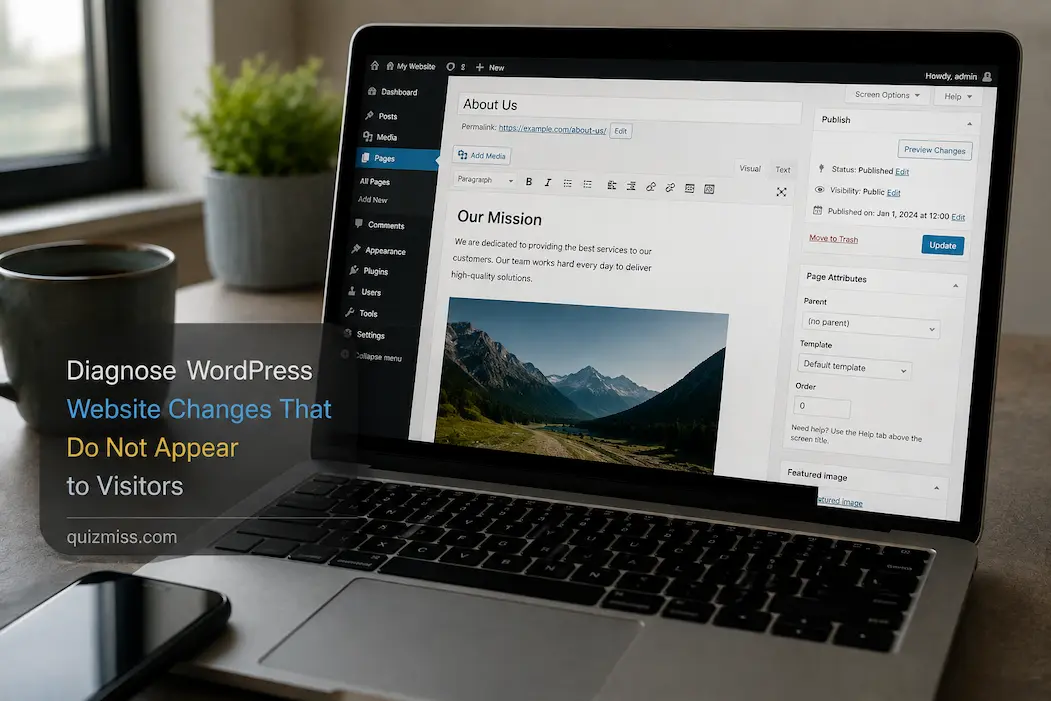
You change a WordPress page, save it, refresh the browser, and the old version is still there. Maybe you replaced an image, edited a paragraph, changed a menu item, updated the homepage, or adjusted some CSS. The change is clearly visible inside the WordPress editor, yet someone visiting the site continues to see the previous version.
That situation doesn’t necessarily mean WordPress failed to save the change. In many cases, the new version exists, but something between WordPress and the visitor is still serving an older copy. Browser caching, WordPress caching plugins, hosting-level caching, content delivery networks, or even a different page being displayed can all create the impression that an update didn’t work.
The quickest way to troubleshoot this is to stop making repeated edits and determine where the old version is coming from. Once you know whether the problem exists inside WordPress itself, in the browser, or somewhere in the site’s delivery chain, the appropriate fix is usually much simpler.
First, Confirm the Change Was Actually Saved
Before clearing caches or changing server settings, return to the WordPress editor and confirm that the updated content is still present.
Open the affected post or page and look at the current content. If the new text, image, link, or setting is still visible in the editor, WordPress has likely stored the change correctly.
If the editor itself has reverted to the old version, you have a different problem. The issue could involve autosaves, revisions, failed updates, permissions, an editor problem, or another WordPress-side error.
Don’t keep clicking Update repeatedly. First determine whether the content inside WordPress is correct.
Check the Published Status
Also confirm that you’re editing the version visitors can actually access.
A page can be saved as a draft, scheduled for later publication, or remain pending review rather than being publicly updated. WordPress can also have separate revisions, particularly when several people work on the same site.
Look at the page’s status and publication information before investigating caching.
Open the Public URL Directly
Once you’ve confirmed the content is saved, open the actual public URL in a new browser tab.
Don’t rely only on the preview inside WordPress. The editor and preview environment can behave differently from the page delivered to ordinary visitors.
If the public URL shows the new version while your normal browser still shows the old one, that immediately points toward a local browser or session-related issue.
If the public URL shows the old version everywhere, continue investigating the site’s caching and delivery layers.
Try a Private Browsing Window
A private or incognito window is one of the quickest diagnostic tests.
Open the page in a private window where you aren’t logged into WordPress and check the result. This removes many browser-session variables and gives you a better approximation of what a normal visitor sees.
If the new content appears there but not in your regular browser, the website may be working correctly. The stale copy is probably being supplied by your browser cache, an extension, or another local factor.
This simple test can save you from changing WordPress settings unnecessarily.
Hard Refresh the Browser
If the normal browser still shows an older version, try a hard refresh.
A regular refresh can reuse locally cached resources. A hard refresh asks the browser to retrieve the page and its resources again according to the browser’s normal cache rules.
The exact keyboard shortcut varies by operating system and browser, so use the supported hard-refresh method for the browser you’re using.
If this fixes the problem, you don’t need to change your WordPress configuration. The issue was likely local to your browser.
Check Whether the Problem Affects Other Visitors
If possible, ask another person to open the same URL.
This is more useful than repeatedly refreshing your own computer. If another visitor sees the new version while you see the old one, the problem probably isn’t the WordPress page itself.
You can also test from a different device or connection. A phone using mobile data can be particularly useful because it avoids the local network and computer environment you’re currently using.
If everyone sees the old version, investigate the site’s caching and server layers instead.
Understand the Caching Chain
A WordPress page can pass through several caching layers before reaching a visitor.
A simplified path might look like this:
WordPress → hosting/server cache → CDN → browser
Any one of those layers can potentially continue serving an older version.
This is why clearing only your browser cache sometimes does nothing. The browser may request the page again and receive an old cached copy from the server or CDN.
Likewise, clearing a WordPress plugin’s cache won’t necessarily remove a stale copy held elsewhere.
Check Your WordPress Caching Plugin
If your site uses a caching plugin, look at its cache controls.
Common WordPress caching systems can store generated versions of pages so they don’t have to be rebuilt for every visitor. This can improve performance, but it also means that a recently edited page may continue to display an older cached version until the cache is refreshed.
Most reputable caching plugins provide an option such as Clear Cache, Purge Cache, or Delete Cache.
Use the plugin’s documented controls rather than deleting cache files manually.
Purge the Appropriate Cache
Some plugins allow you to clear one page, a group of pages, or the entire cache.
If only one article was changed, a targeted purge may be enough. If you’ve made broader theme or site-wide changes, a larger cache purge may be appropriate.
Avoid repeatedly clearing the entire cache every time you edit a paragraph. Frequent full purges can temporarily reduce the performance benefits of caching and aren’t necessary when a targeted option exists.
Check Hosting-Level Caching
Your hosting provider may cache pages independently of your WordPress plugin.
This can happen even when you don’t remember installing a caching system. Managed WordPress hosting and performance-oriented hosting platforms sometimes provide server-side page caching automatically.
If you cleared the WordPress cache and the old page remains visible, check your hosting control panel for caching or performance options.
The exact interface differs between providers, so look for terms such as page cache, server cache, dynamic cache, or cache purge.
If you can’t identify how the hosting cache works, check the host’s documentation rather than changing unrelated server settings.
Don’t Forget Your CDN
A content delivery network can introduce another layer between your WordPress site and visitors.
CDNs commonly cache static resources such as images, CSS, JavaScript, and other files. Depending on the configuration, they may also cache complete HTML pages.
If you’ve changed an image or stylesheet but visitors still receive the previous version, the CDN may be serving an older copy.
Look at your CDN’s cache or purge controls and determine whether the affected resource is actually being cached there.
HTML and Static Files Behave Differently
A useful distinction is whether the stale content is HTML or a static resource.
If the paragraph itself is old, page caching is a likely area to investigate.
If the text is correct but the page still displays an old logo, image, font, or visual style, the problem may involve a cached static asset instead.
That difference helps narrow the search considerably.
When Only the Design Looks Old
Suppose you changed the site’s CSS and the WordPress Customizer shows the new design, but visitors still see the old styling.
Don’t immediately assume that the CSS code is wrong.
The browser, WordPress cache, CDN, or optimization plugin may still be serving the previous stylesheet.
Open the page in a private window and inspect whether the problem remains. If it does, clear the relevant WordPress and delivery caches.
If the old design persists, inspect the page’s loaded CSS resources to determine whether the browser is receiving the file you expect.
When a New Image Doesn’t Appear
Images have their own caching complications.
If you replace an image while keeping the same filename and URL, a browser or CDN may continue serving its previous cached version.
This is especially noticeable with logos, banners, icons, and frequently displayed images.
First confirm that the new image exists in WordPress and is actually the one attached to the page. Then check the relevant caching layers.
Don’t upload dozens of slightly renamed copies simply because an old image appears in one browser. That can create unnecessary duplicates in your Media Library without solving the underlying caching problem.
Check the Image URL
If you’re uncertain which image the page is loading, inspect the image’s URL.
The URL can tell you whether the browser is requesting the expected file, an older file, a CDN-hosted version, or an entirely different image.
This is particularly helpful after replacing images manually. You may discover that the page is still referencing the original file rather than the new upload.
If the page points to the wrong URL, clearing the cache won’t solve the problem. The content itself needs to be corrected.
Theme Changes Can Take a Different Path
Changes made through the WordPress Customizer, Site Editor, theme settings, or theme files don’t always behave exactly like ordinary post edits.
If you changed a header, footer, typography setting, template, navigation area, or other global design element, check whether the change was actually published.
Block themes and classic themes can expose different configuration screens, so the exact process depends on how your site is built.
If the change is saved but visitors still see the previous design, caching becomes a strong possibility.
Check Whether You Edited the Correct Template
A particularly confusing WordPress situation occurs when you edit something that looks like the page visitors are seeing, but another template actually controls that section.
This can happen with block themes, page builders, archive templates, reusable sections, headers, and footers.
For example, changing the content of one page won’t necessarily alter a category archive if the archive uses a separate template.
If a change appears to have no effect, ask whether the element you’re editing is actually responsible for what visitors see.
Page Builders Add Another Layer
Sites using page builders can have their own generated CSS, cached layouts, or optimization systems.
If the page builder provides a cache-clearing or asset-regeneration option, check its documentation and use the supported process.
Don’t repeatedly edit the page hoping the builder will eventually display the new version. Confirm that the builder has saved the layout and that any generated assets have been refreshed.
This is particularly important after changing global styles, templates, headers, or reusable design elements.
Check WordPress Revisions
If content seems to have reverted, revisions can help determine what happened.
Open the affected post or page and review its available revisions if WordPress provides them. You may find that a previous version was restored or that another edit replaced the content you expected to see.
This is especially useful on sites where multiple people have editing access.
A revision history can provide a clearer explanation than repeatedly making the same edit.
Consider User-Specific Content
Not every visitor necessarily receives exactly the same content.
Membership plugins, personalization systems, geographic rules, login status, A/B testing tools, and other plugins can alter what different users see.
If you’re logged into WordPress while testing, try viewing the page as a logged-out visitor.
If a plugin changes content based on user status, your administrator session may not accurately represent the experience of an ordinary visitor.
Check for Maintenance or Optimization Plugins
Performance and security plugins can sometimes modify how pages and assets are delivered.
If you recently installed, configured, or updated a plugin that handles caching, minification, CSS optimization, JavaScript optimization, image delivery, or CDN integration, consider whether it could be involved.
Don’t disable every plugin at once. That makes it difficult to identify the cause.
Instead, start with the plugin or service most closely related to the symptom and follow its troubleshooting guidance.
When CSS or JavaScript Is the Real Problem
Sometimes the new HTML is being delivered correctly, but JavaScript or CSS prevents the visitor from seeing the change.
For example, you may update a menu, button, popup, or interactive section, but an old script or stylesheet changes its appearance or behavior.
If the problem persists after cache purging, browser testing, and confirming the correct content, inspect the browser’s developer tools for errors or outdated resources.
This is more technical than simply clearing a cache, but it can distinguish a delivery problem from an actual front-end problem.
Check the Site From Outside Your Normal Environment
If you’re trying to determine what visitors see, test from an environment that isn’t tied to your usual browser.
Useful comparisons include:
- Private browsing
- Another browser
- Another computer
- A mobile device
- A different internet connection
- A logged-out session
You don’t need to use every test. The purpose is to establish whether the problem follows the website or stays with your normal browsing environment.
If the change appears everywhere except your primary browser, focus locally. If it is missing everywhere, move further down the delivery chain.
Don’t Keep Editing the Same Page
Repeatedly changing the same content while troubleshooting can make the situation harder to understand.
You might update the page three times, clear one cache, refresh another browser, and then no longer know which action actually fixed the problem.
Instead, make one change, verify it, and trace the delivery path.
A controlled test is much more informative than repeated edits.
A Practical Diagnostic Order
When a WordPress change isn’t visible, work from the simplest explanation toward the more complicated ones.
| Check | What It Tells You |
|---|---|
| Confirm the edit is saved | Determines whether WordPress has the new content |
| Open the public URL | Separates editor behavior from visitor behavior |
| Use private browsing | Tests browser/session caching |
| Try another device | Helps identify local problems |
| Check WordPress cache | Finds stale generated pages |
| Check hosting cache | Identifies server-side copies |
| Check CDN | Finds cached delivery-layer content |
| Verify the URL/resource | Confirms the page loads the intended asset |
| Check theme/template | Rules out editing the wrong source |
| Check page-builder cache | Addresses generated layouts/assets |
| Inspect CSS/JS | Investigates front-end behavior |
| Check plugins | Identifies specialized delivery or personalization |
You don’t necessarily need to go through every item. Stop when you’ve found the layer responsible for the stale version.
When You Should Purge Everything
A full cache purge can be appropriate after major changes, particularly when you’ve changed multiple templates, styles, scripts, or site-wide components.
But it shouldn’t become the default response to every WordPress edit.
If a caching system supports targeted purging, use it when appropriate. A single article update usually doesn’t justify clearing every cached resource on a busy website.
After a full purge, the first visitors may experience slightly different performance while caches are rebuilt, depending on how the system works.
Check Whether Search Engines Are Seeing the Same Version
If your concern is that Google or another search engine isn’t showing an updated page, don’t assume that the browser caching problem is the same issue.
Search engines crawl pages independently and may not immediately reflect a recent change in their search results.
First make sure the public URL itself contains the updated content. Then, if necessary, use the relevant search-engine webmaster tools to inspect the currently indexed version and request recrawling where appropriate.
Changing the page repeatedly won’t necessarily make search engines update it faster.
What If the Change Is Visible to You but Not Everyone Else?
This is often the most revealing scenario.
If you’re logged into WordPress and see the new version but visitors see the old one, check page caching, CDN caching, and user-specific behavior.
If visitors in different locations see different versions, a CDN or distributed caching layer becomes more plausible.
If only your own computer sees the old version, concentrate on browser cache, extensions, local DNS behavior, or other local factors.
The differences between test environments are evidence. Use them to narrow the problem instead of treating every symptom as a WordPress error.
When the Problem Is Not Actually WordPress
Sometimes a WordPress change is saved correctly, and the website is delivering it correctly, but another factor creates the appearance of a failed update.
Examples include:
- Browser extensions modifying pages
- Corporate or network-level caching
- DNS changes that haven’t propagated as expected
- CDN configuration
- A reverse proxy
- Different domain or subdomain URLs
- Logged-in versus logged-out content
- Plugin-based personalization
If basic WordPress checks don’t explain the problem, look at the rest of the delivery environment.
This is why diagnosing the complete request path is more useful than repeatedly pressing the WordPress Update button.
The URL Matters More Than the Editor
Always compare the exact public URL you expect visitors to use.
Check whether you’re testing:
wwwversus non-www- HTTP versus HTTPS
- A staging domain versus the production domain
- A different subdomain
- A redirected URL
- An old bookmarked address
A perfectly updated staging website won’t help visitors if they’re actually accessing the production site.
Keep a Record of Major Changes
For sites with frequent updates, keeping a simple record of significant configuration changes can make troubleshooting easier.
Note when you changed a caching plugin, CDN, theme, page builder, optimization setting, or hosting configuration.
You don’t need a complicated technical log. Even a short record can answer an important question later: What changed immediately before this problem started?
That information can significantly reduce the amount of guesswork involved in troubleshooting.
Frequently Asked Questions
Why can I see my WordPress changes but visitors cannot?
The most common explanation is caching. Your browser, WordPress caching plugin, hosting server, or CDN may still be serving an older copy of the page. User-specific content can also produce different results.
Should I clear my browser cache first?
Testing the page in a private browsing window is often a quick first step because it helps determine whether the problem is specific to your normal browser session. If the new version appears there, investigate your browser cache or extensions.
Why does my WordPress page still show the old version after I click Update?
First confirm that the updated content remains in the editor and that the page is published. If it is, check caching layers and make sure you’re visiting the correct public URL.
How do I clear WordPress cache?
The exact process depends on your caching plugin or hosting environment. Use the cache plugin’s supported purge or clear-cache option rather than manually deleting unknown cache files.
Can a CDN prevent WordPress changes from appearing?
Yes. A CDN may continue serving a cached version of a page or static resource. If WordPress and your browser show the new version but visitors still receive the old one, check the CDN’s caching behavior.
Why does my new image not appear on my WordPress site?
The page may still reference the old image URL, or a browser, WordPress cache, hosting cache, or CDN may be serving the previous image. Confirm the image URL first, then investigate caching.
Why does my CSS change not appear?
The stylesheet may be cached or a generated CSS file may not have been refreshed. Check your caching and optimization systems and, when relevant, your theme or page builder’s generated assets.
Can a WordPress theme prevent my changes from appearing?
It can appear that way if you’re editing the wrong template or if another theme component controls the area you’re trying to change. This is particularly relevant with block themes, page builders, global templates, and reusable sections.
Should I clear every cache whenever I edit WordPress?
No. Targeted cache clearing is generally preferable when available. Full cache purges are more appropriate after broader changes that affect multiple pages or site-wide assets.
Why do I see a different WordPress page when I’m logged in?
Some plugins and themes provide different content to administrators or logged-in users. Caching can also be configured differently for logged-in visitors. Always test important changes in a logged-out or private browsing session.
Find the Layer Serving the Old Version
When a WordPress change doesn’t appear to visitors, the instinct is often to edit the page again. That rarely helps once you’ve confirmed the change is already saved.
Instead, compare the editor with the public URL, test outside your normal browser session, and then work through the caching layers that sit between WordPress and the visitor. If the problem involves an image, stylesheet, or script, verify the actual resource URL rather than assuming the entire page is stale.
The most useful troubleshooting question is simple: Where is the old version coming from?
Once you identify whether it’s the browser, WordPress cache, hosting layer, CDN, template, plugin, or the wrong URL, you can fix that specific layer without making unnecessary changes elsewhere. That keeps the WordPress site more stable and makes future updates much easier to troubleshoot.