
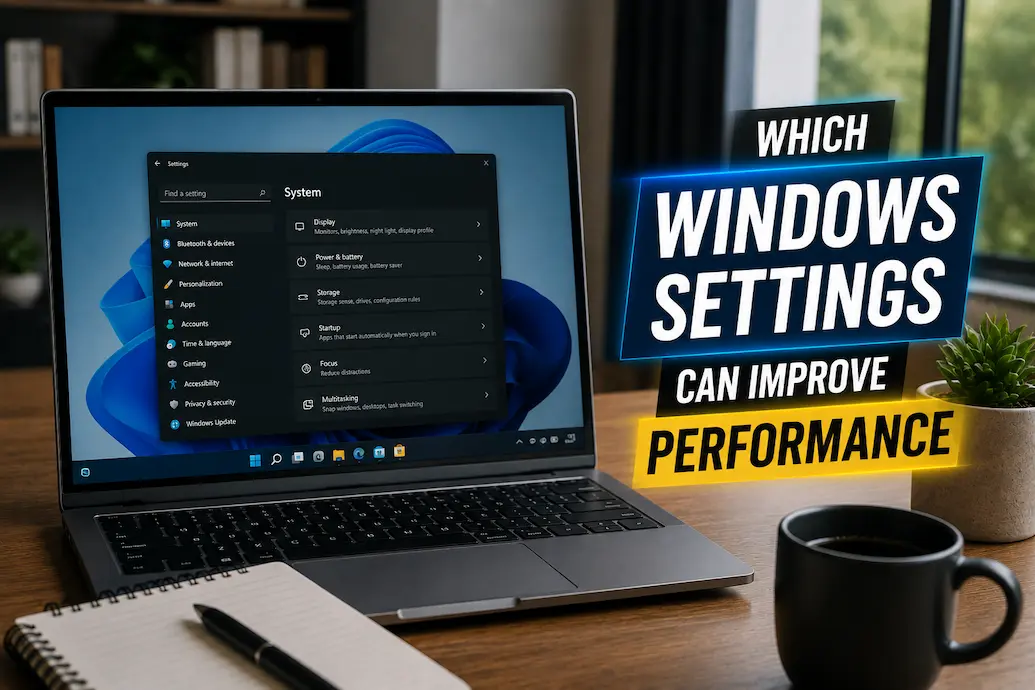
A Windows PC can feel slower even when its hardware has not suddenly become incapable of doing the work. Startup applications accumulate, background activity grows, storage gets crowded, visual effects consume resources, and power settings can favor battery life over responsiveness. Sometimes the difference is noticeable after only a few months of installing software. Other times, a computer gradually becomes less responsive because its configuration has stayed the same while the way you use it has changed.
That does not mean every performance problem can be solved through Settings. A machine with insufficient RAM, an aging storage drive, overheating components, or a processor that is consistently overloaded has a hardware limitation that configuration changes cannot remove. The useful approach is to adjust Windows settings that address unnecessary work first, measure what changes, and leave the settings that provide little benefit alone. Microsoft also recommends investigating resource usage, startup applications, storage and background activity rather than relying on generic optimization tricks. (support.microsoft.com)
Begin With the Settings That Control What Starts With Windows
A computer can feel slow before you have even opened your first application because several programs may launch automatically when you sign in. Cloud storage clients, messaging applications, update helpers, game launchers and other utilities can all compete for CPU time, memory and disk activity during startup.
Open Settings > Apps > Startup in current versions of Windows and review the applications listed there. You do not need to disable everything. Instead, look for programs that you recognize but do not need immediately after signing in. Microsoft also provides startup controls through Task Manager, where Windows can indicate the relative startup impact of applications. (support.microsoft.com)
This setting is most useful when startup is your actual problem. If Windows boots quickly but becomes slow five minutes later because a particular application consumes memory or disk resources, disabling unrelated startup items will not solve the underlying issue. Watch what happens after making changes rather than assuming every disabled application equals a performance improvement.
Also remember that some startup applications serve legitimate purposes. Security software, synchronization tools and hardware utilities may need to launch automatically. If you are unsure what a startup entry does, research it before disabling it.
Change Background Permissions for Apps You Rarely Need
Some Windows applications can perform background activity even when you are not actively using them. Depending on the application and Windows version, background activity can support notifications, synchronization or other features.
On systems where these controls are available, review Settings > Apps > Installed apps, open the relevant application’s advanced options, and look for its background-app permissions. Microsoft notes that background activity can be controlled for supported applications, although the available options vary by app. (support.microsoft.com)
This is a setting where being selective matters. Turning off background activity for an application you never need to update or notify you is reasonable. Doing it indiscriminately can make useful synchronization or notifications disappear.
The practical goal is to reduce unnecessary activity, not to make Windows run with every background process disabled.
Use Power Mode According to the Work You Are Doing
Windows power settings can influence how aggressively the system balances performance and energy consumption. On a laptop, the configuration may prioritize battery life when unplugged, while a desktop or plugged-in laptop may be better suited to a performance-oriented setting.
In current Windows versions, power mode can be found under Settings > System > Power & battery. Microsoft describes options such as balanced operation and performance-oriented modes, with the exact choices depending on the device. (support.microsoft.com)
If your computer feels sluggish during demanding work while running on battery, changing the power mode may make a difference. The trade-off is increased power consumption and potentially more heat. On a laptop, that means a setting that helps performance while plugged in may be less attractive when you are trying to maximize battery life.
Don’t leave the highest-performance setting enabled simply because it sounds better. If your normal work consists of browsing, documents and email, the difference may be negligible. Use the setting according to the workload.
Reduce Visual Effects When Responsiveness Matters More Than Animation
Windows uses animation, transparency and other visual effects to make the interface feel smoother. On a modern PC with adequate resources, these effects generally have a small performance impact. On older or lower-powered machines, reducing these effects can improve the interface’s responsiveness.
Windows provides visual effects controls through Accessibility > Visual effects, where you can adjust options such as animation and transparency. Microsoft also documents performance-related visual-effects settings through Windows’ performance options. (support.microsoft.com)
The important distinction is between measured performance and perceived responsiveness. Removing an animation does not make your processor faster. It can, however, make menus and windows appear to react more quickly because there is less visual transition between actions.
If you like the Windows interface as it is and your computer already feels responsive, there is little reason to disable every effect. Try the settings that bother you most and keep the changes that produce a noticeable improvement.
Make Windows Easier to Work With by Reducing Unnecessary Notifications
Notifications do not normally represent a major CPU bottleneck, but a large number of alerts can create constant interruptions and background activity. They can also make a computer feel more chaotic when several applications are competing for attention.
Open Settings > System > Notifications and review which applications are allowed to send notifications. Disable notifications that you never use rather than turning off everything.
This is a good example of a change that improves the overall experience more than raw benchmark performance. A PC that constantly interrupts you can feel less efficient even if its processor and memory usage are perfectly normal.
If you are trying to diagnose actual slowness, however, do not confuse fewer notifications with a major performance optimization. This is an organizational improvement, not a substitute for finding a CPU, memory, disk or thermal bottleneck.
Turn Off Unnecessary Startup Services Carefully
Windows contains many services that run in the background, but this is an area where aggressive tweaking can cause more harm than good.
You may find online guides recommending that you disable large numbers of Windows services to “boost” performance. Avoid following such lists blindly. A service that looks unnecessary may support networking, security, updates, hardware functionality or another Windows component.
If a third-party application installs a service you no longer use, uninstalling the application is generally a more understandable solution than randomly disabling its service. If you need to troubleshoot a specific service, research what it does and document the change.
Windows is already designed to manage its core services. Performance improvements are more likely to come from removing genuinely unnecessary software and background workloads than from turning off obscure system components.
Check Storage Before Changing Advanced Performance Options
One of the most useful Windows settings-related maintenance steps is simply checking how much free space remains on the system drive.
Go to Settings > System > Storage and review the categories consuming space. Windows provides Storage Sense and related controls to help manage temporary files and other storage usage. Microsoft recommends using Windows’ built-in storage tools when a drive is becoming crowded. (support.microsoft.com)
A nearly full system drive can create practical problems even when the processor is perfectly adequate. Updates may need temporary working space, applications may generate caches, and Windows needs room for normal system operations.
Don’t use Storage Sense as an excuse to delete files you have not identified. Review what Windows has categorized before removing anything important, particularly Downloads and large personal files.
Choose Which Apps Windows Should Use by Default
Default-app settings are unlikely to transform a slow computer, but they can make everyday work more efficient. If Windows repeatedly launches a heavy application for a simple file type or opens links in a browser you do not actually use, small delays accumulate.
Under Settings > Apps > Default apps, review the programs associated with common file types and protocols. This is especially useful after installing or removing browsers, media players, PDF applications or office software.
The performance benefit here is indirect. You are reducing friction and avoiding unnecessary application launches, rather than making Windows itself substantially faster.
That distinction matters because not every useful Windows setting should be sold as a “speed boost.” Good maintenance separates changes that improve performance from those that simply improve workflow.
Let Windows Manage Virtual Memory Unless You Have a Specific Reason Not To
Virtual memory is often the subject of questionable optimization advice. You may encounter instructions telling you to manually choose a specific paging-file size because it supposedly makes every Windows computer faster.
For most users, this is unnecessary. Windows manages virtual memory automatically, and changing the page-file configuration without understanding the workload can create problems rather than solving them.
If your computer is frequently under memory pressure, the better first step is to identify what is consuming memory. Open Task Manager and observe usage while reproducing the slowdown. If the workload genuinely exceeds the system’s available memory, manual page-file tweaking does not create additional physical RAM.
This is an important principle for Windows optimization generally: a setting should not be changed simply because it sounds technical. If you cannot identify the problem the setting is supposed to solve, leave it alone.
Adjust Search Indexing Only When It Matches Your Usage
Windows Search indexes files so that searches can return results quickly. Indexing can involve disk and CPU activity, particularly when many files are being added or changed.
If you regularly search large collections of files, reducing indexing indiscriminately can actually make the computer less convenient to use. If there are folders you never search and Windows allows you to adjust indexing scope, limiting unnecessary locations can be more sensible than disabling Search entirely.
The same logic applies to cloud synchronization. A service such as OneDrive can be useful, but syncing enormous folders continuously can consume network, storage and system resources. Instead of disabling synchronization everywhere, consider whether every folder really needs to be available on every device.
Manage Startup and Background Activity Together
One reason people fail to see improvements from individual settings changes is that several small workloads may be contributing to the problem at once.
Imagine a laptop with a browser, cloud-storage client, messaging application, game launcher and several update utilities launching at sign-in. No single program may be responsible for terrible performance, but collectively they can create a noticeable burst of CPU, memory and disk activity.
This is where Task Manager becomes more useful than a generic optimization list. Open it while the computer is behaving slowly and look for the processes consuming the most resources. Then connect those processes to applications you recognize and decide whether their behavior is necessary.
If you disable five startup programs and the computer becomes faster, that is useful evidence. If nothing changes, restore anything that you still need and investigate another bottleneck.
Keep Windows and Drivers Appropriately Updated
Updates are not usually a magical performance switch, but they can address bugs, compatibility issues and security problems. Windows Update can be accessed from Settings > Windows Update, where available updates and restart requirements are shown.
Graphics and hardware drivers can also affect performance, particularly when you use demanding applications, games or specialized hardware. However, don’t install random driver packages from websites promising “turbo performance.” Use Windows Update, the device manufacturer’s support resources, or the hardware vendor’s official driver channels when a driver update is actually needed.
A useful maintenance approach is to update when there is a legitimate reason rather than chasing every advertised optimization. If the computer works correctly, a driver update should have a clear purpose such as fixing a known problem, adding compatibility, improving stability or addressing security.
Use Graphics Settings for the Apps That Actually Need Them
Windows provides graphics preferences that can allow you to choose how particular applications use available graphics hardware. This can matter on systems with integrated and dedicated GPUs, especially for games, video applications and other graphics-intensive workloads.
Go to Settings > System > Display > Graphics and review applications that need specific graphics behavior. The exact options depend on the hardware and Windows version.
This is another setting where expectations matter. Selecting a higher-performance GPU for an application does not make the GPU itself more powerful. It can ensure that a demanding application uses the appropriate existing hardware.
For ordinary office applications, there may be little reason to force high-performance graphics. Doing so can increase power consumption without producing a meaningful improvement.
Make Windows Start Cleaner Without Installing an Optimizer
A surprisingly effective approach is to use Windows’ own tools rather than adding another program whose sole purpose is to “optimize” Windows.
Task Manager can identify resource-heavy processes and startup impact. Settings can manage applications, storage, power and notifications. Windows Security handles core security functions. Storage Sense can manage certain unnecessary files. These built-in tools give you information about what is happening without introducing another layer of software.
This matters because an optimizer itself becomes another application running on your computer. Some third-party tools also make broad registry or system changes that are difficult to evaluate afterward.
If Windows provides a direct way to control the setting you need, start there.
What You Should Not Change Just for Speed
Some settings are frequently presented online as secret performance improvements even though the potential benefit is tiny, highly situational or difficult to verify.
Be cautious with recommendations to:
- Disable large numbers of Windows services.
- Change registry values without understanding them.
- Delete system folders manually.
- Disable security features to gain performance.
- Turn off Windows Update.
- Permanently disable virtual memory.
- Use registry cleaners.
- Install multiple “PC booster” applications.
- Disable hardware drivers because they appear in a list.
- Change advanced settings simply because a guide calls them “hidden.”
A performance setting is not automatically a good setting. If it weakens security, breaks functionality or makes troubleshooting harder for a barely measurable gain, it is usually a poor trade.
How to Know Whether a Setting Actually Helped
Do not make ten changes and then decide that Windows “feels faster.” You will have no idea which change mattered.
Instead, choose one area and test a repeatable task. If startup is slow, measure how long it takes from sign-in to the point where the desktop is responsive. If a particular application is slow, open the same project or perform the same task before and after the change.
You do not need laboratory-grade benchmarking for ordinary maintenance. You simply need a consistent comparison.
If disabling unnecessary startup applications makes the computer noticeably more responsive, keep the change. If removing transparency produces no meaningful difference, there is no need to spend more time optimizing visual effects.
This approach prevents endless tweaking and gives you a clearer understanding of your own computer.
When Windows Settings Are No Longer Enough
There is a point where software configuration stops being the answer. If the system remains slow after unnecessary startup activity has been reduced, storage is healthy and sufficiently free, background processes have been investigated, and the computer still struggles with the workloads you regularly perform, you may be looking at a hardware limitation.
The same applies if performance collapses under sustained workloads because of overheating or if the storage device is failing. No power-mode adjustment can repair failing hardware, and no visual-effect setting can compensate for insufficient memory during a workload that genuinely needs more.
Use settings to remove unnecessary workload first. If the bottleneck remains measurable afterward, investigate whether a targeted hardware upgrade or replacement makes more sense.
A Sensible Windows Performance Routine
Rather than applying every optimization you find online, use a small sequence whenever the computer begins feeling slower:
First, identify the symptom. Is startup slow, one application slow, everything slow, or only internet activity slow?
Then observe the resources. Check CPU, memory, disk and active processes while the problem is occurring.
Next, review configuration. Look at startup applications, background activity, power mode and storage.
After that, make one or two controlled changes. Avoid changing unrelated advanced settings at the same time.
Finally, test the same workload again. Keep changes that clearly help and reverse those that provide no useful benefit or cause unwanted side effects.
This process is more reliable than a giant collection of “best Windows settings” because it connects each change to an actual problem.
Frequently Asked Questions
Can Windows settings really make an old computer faster?
They can improve responsiveness when unnecessary software, startup activity, background workloads, storage pressure or power settings are contributing to the problem. They cannot turn weak hardware into powerful hardware. If the processor, RAM or storage device is the real bottleneck, configuration changes will have limited effect.
Which Windows setting usually makes the biggest difference?
There is no universal setting. On some computers, reducing unnecessary startup applications produces a noticeable improvement. On others, storage pressure, background activity or an unsuitable power mode may matter more. The best setting is the one that addresses the bottleneck you can actually observe.
Should I turn off all Windows visual effects?
Usually not. Modern computers generally handle them well, and the performance gain may be small. If an older or lower-powered PC feels sluggish when opening menus and windows, reducing animations or transparency can improve perceived responsiveness.
Does high RAM usage always mean I need more RAM?
No. Windows uses available memory for useful purposes, so a high percentage alone is not enough evidence. Look for repeated memory pressure and slowdowns during your normal workload. If the problem consistently appears when you have many applications or large files open, additional RAM may be worth investigating.
Will changing Windows to the highest performance power mode make it faster?
It can allow the system to favor performance over energy savings, but the effect depends on the hardware and workload. It may also increase power consumption and heat. On a laptop, it is often more sensible to use a performance-oriented mode when plugged in and a more balanced mode when battery life matters.
Are Windows registry tweaks useful for performance?
Some registry settings have legitimate purposes, but random registry tweaks copied from optimization guides are rarely a good general solution. They can create unexpected behavior and make future troubleshooting more difficult. Use documented settings first and change advanced configuration only when you understand the specific problem and intended result.
Should I install a PC optimizer to improve Windows performance?
Usually, you can begin with Windows’ built-in tools. They already provide controls for startup applications, storage, power, applications, notifications and resource monitoring. Adding an optimizer introduces another program that itself consumes resources and may make broad changes that are difficult to evaluate.
How do I know whether a setting actually improved performance?
Test a repeatable task before and after changing the setting. For example, compare startup responsiveness, the time required to open a particular application, or performance during a consistent workload. Make fewer changes at once so you can identify which change produced the result.
When should I stop changing settings and consider hardware?
Stop when the remaining slowdown corresponds to a consistent hardware limitation rather than unnecessary Windows activity. If CPU, memory, storage or thermal constraints remain after sensible configuration and maintenance, investigate a targeted upgrade or replacement instead of endlessly changing settings.
Use Windows Settings to Remove Waste, Not to Defeat the Hardware
The most useful Windows performance settings are not secret switches that transform a slow computer overnight. They are controls that let you decide what Windows should do, when it should do it, and which applications are allowed to consume resources in the background.
Start with startup applications, background activity, storage and power behavior. Reduce visual effects only if they matter to your particular machine. Keep updates and security protections intact, and avoid advanced tweaks that have no clearly identified purpose. Most importantly, observe the computer before and after making changes.
If the machine becomes more responsive, you have found a configuration problem worth keeping under control. If it remains slow despite a sensible configuration, that is useful information too. It means the next step should probably be diagnosing the hardware or workload rather than searching for another list of hidden Windows settings.