
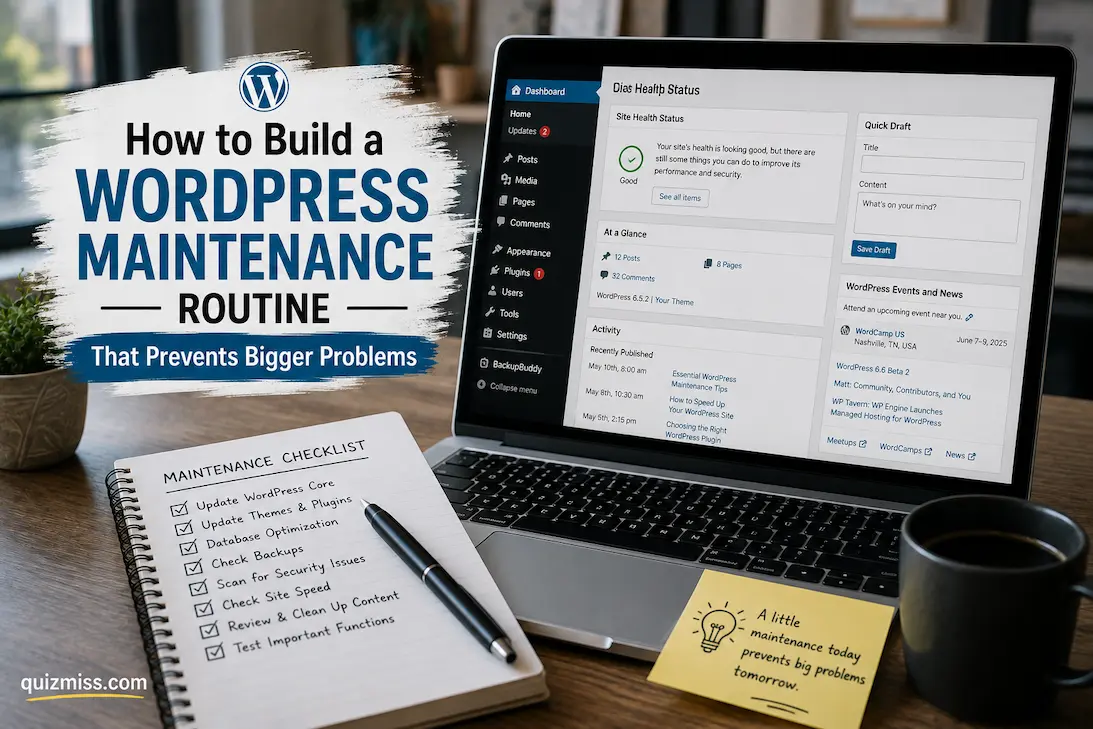
WordPress maintenance is often treated as something to do after a site breaks. A plugin stops working, an update creates an error, the database becomes bloated, a contact form fails, or a site suddenly becomes slow, and only then does someone start searching for a solution. That approach is understandable when a website is searching for a solution, as the site grows. Problems that a routine check could have caught become much harder to diagnose after several changes have piled up.
A useful maintenance routine is therefore less about constantly “optimizing” WordPress and more about keeping the site understandable and recoverable. You want to know what changed, whether backups actually work, which plugins are still necessary, whether important pages function correctly, and whether the site is becoming slower or less reliable. The best routine is not the one with the longest checklist. It is the one you can repeat consistently without making unnecessary changes.
Start by Understanding What You Are Maintaining
Before creating a schedule, make a basic inventory of the website. Record the WordPress version, active theme, important plugins, hosting environment, domain and DNS provider, backup system, security tools, analytics, search-related services, and any external services that the website depends on.
This information becomes extremely useful when something goes wrong. If a form stops working after an update, for example, you want to know which form plugin handles submissions and whether it depends on another service. If the site becomes inaccessible, you need to know where you manage the hosting account and domain. Without that information, troubleshooting starts with searching through old emails and guessing.
Your inventory does not need to expose passwords or other sensitive credentials. Keep those in an appropriate password manager. The maintenance record should describe the site’s architecture and important dependencies rather than becoming a second credential database.
A simple record might include:
| Item | What to record |
|---|---|
| WordPress | Current version and update method |
| Theme | Name, version, and whether it is actively maintained |
| Plugins | Purpose, current version, and whether essential |
| Hosting | Provider and hosting type |
| Backups | Frequency, storage location, and retention |
| Domain | Registrar and renewal information |
| DNS | Provider and important records |
| Forms | Plugins and delivery method |
| Analytics | Services connected to the site |
| Search | Search Console or equivalent tools |
| Security | Firewall, login protection, or other controls |
The value of this inventory increases as the site becomes more complicated. When you know what exists, you can notice when something unnecessary has been added.
Backups Should Come Before Updates
One of the most important maintenance habits is also one of the most frequently misunderstood: having a backup is not the same as knowing that you can restore the website. A backup should be recent enough to be useful, stored somewhere separate from the live website, and restorable when needed. WordPress documentation recommends maintaining regular backups and emphasizes that both the database and files are important because a WordPress site depends on both. (wordpress.org)
The database contains things such as posts, pages, settings, and other structured information, while the files include WordPress itself, themes, plugins, and uploaded media. Depending on the site, additional configuration outside the standard WordPress directory may matter too.
Don’t wait until the day after an update causes a problem to discover that your backup plugin was failing for months. Check whether backups are actually being completed and whether you can access the stored copies.
For an important site, occasionally perform a restoration test in a safe environment rather than testing recovery directly on the production website. A backup that cannot be restored when needed is not much of a safety net.
Use Updates as Controlled Changes
Keeping WordPress, themes, and plugins updated is important, but pressing every available update button without checking the site afterward is not a maintenance strategy. WordPress explains that updates can include security fixes, bug fixes, and improvements, while also recommending appropriate backup and update practices. (wordpress.org) The important part is controlling the change.
Before updating a critical plugin, know what that plugin does and whether the site depends heavily on it. After an update, check the parts of the website that matter to visitors rather than assuming a successful update screen means everything works.
For a typical business or content site, that might include:
- Homepage
- Main navigation
- Several important articles or pages
- Search function
- Contact form
- Login or membership functions
- Checkout or payment features, if applicable
- Images and embedded media
- Mobile layout
- Important integrations
You don’t need to click every link after every minor update. Focus your post-update testing on functions that could affect visitors, revenue, lead generation, or publishing.
Don’t Keep Plugins Just Because They Are Installed
Plugin management is one of the areas where a maintenance routine can prevent problems before they become visible.
A plugin that is active but no longer needed adds unnecessary complexity. An inactive plugin may also deserve attention because it remains part of the site’s software inventory and may need updates or removal. The goal isn’t to reach a magical number of plugins; it is to make sure every plugin has a clear purpose.
For each plugin, ask:
Why is this installed?
If nobody can answer that question, investigate it before keeping it indefinitely.
Then ask whether another plugin already performs the same function. Multiple plugins that modify similar areas of WordPress can introduce conflicts, duplicate features, additional scripts, and unnecessary maintenance.
WordPress also recommends keeping plugins and themes updated and removing software that is no longer needed. (wordpress.org)
Avoid making plugin cleanup during a rushed troubleshooting session unless necessary. First document what the plugin does, then deactivate or remove it in a controlled way and test the site afterward.
Review Themes With the Same Discipline
Themes are not just visual templates. Depending on the theme and site configuration, they can influence layouts, templates, menus, widgets, custom code, and other parts of the front end. Keep the active theme current when updates are available and confirm that it remains compatible with the site’s current WordPress environment. If a child theme is being used, understand what it contains before changing or replacing the parent theme.
Unused themes should not accumulate indefinitely. A WordPress installation often includes a default theme as a fallback, so keeping one current default theme can be useful. Other unused themes can generally be removed when there is no legitimate reason to retain them.
The important point is to understand the difference between removing clutter and removing a safety mechanism. Don’t delete a theme simply because you personally do not use it without considering whether it serves as a fallback or contains custom work.
Check the Website From a Visitor’s Perspective
Administrative screens can look perfectly healthy while the public website has a problem. During maintenance, open the site as an ordinary visitor would. Test the homepage, navigation, important landing pages, and any functions that matter to the site’s purpose. Check both desktop and mobile views where practical.
A contact form is a particularly useful test because it can fail without producing an obvious visual error. Submit a test message and verify that it reaches the intended destination. If the website accepts registrations, purchases, or bookings, those functions deserve similar attention.
Don’t make every maintenance check an exhaustive audit. Instead, create a small collection of critical user journeys. If you know the five or six things visitors absolutely need to be able to do, testing those regularly gives you much more useful information than randomly clicking around the site.
Watch Performance for Trends, Not Just Scores
Performance maintenance becomes more useful when you look for changes over time instead of chasing a perfect score. Google’s Core Web Vitals focus on loading performance, responsiveness, and visual stability through metrics including Largest Contentful Paint, Interaction to Next Paint, and Cumulative Layout Shift. Google recommends measuring real user experience and using performance tools to identify opportunities for improvement. (web.dev)
That does not mean a maintenance routine should become an endless exercise in optimizing every number. Record a sensible baseline and investigate meaningful deterioration. If a page that used to load reliably becomes noticeably slower after several plugin additions, that’s useful evidence. If performance drops immediately after installing a new visual feature, investigate that change before rebuilding the entire site.
Look for causes rather than symptoms. Large images, excessive scripts, third-party services, poorly configured caching, slow database queries, hosting limitations, and plugin behavior can all contribute to performance problems.
Keep an Eye on Storage and Database Growth
WordPress sites naturally accumulate data. Media uploads, revisions, logs, transients, comments, form entries, and other information can grow over time. That does not mean you should routinely delete database tables or run aggressive database-cleaning operations. Some data exists for legitimate reasons, and removing information without understanding what it does can create new problems.
Instead, observe growth and investigate unusual changes. If storage usage suddenly increases, find out what caused it. A large collection of backup files stored inside the hosting account, for example, can consume significant space without improving the site’s live performance. Database optimization can be useful in specific circumstances, but it should be treated as a targeted maintenance task rather than a ritual performed simply because a plugin offers an “optimize database” button.
Review Security Without Turning Maintenance Into Panic
Security checks belong in routine maintenance because many security problems become worse when ignored. Use reputable security mechanisms, keep core software and extensions maintained, and pay attention to unusual administrator accounts, unexpected files, suspicious login activity, and unexplained changes. WordPress recommends keeping installations updated because updates can contain important security fixes. (wordpress.org)
Review administrator accounts periodically. Every administrator should have a legitimate reason for that level of access. If someone no longer needs administrative privileges, reduce or remove their access.
Use strong, unique credentials and appropriate multi-factor authentication where available. Don’t make maintenance more complicated by installing several overlapping security plugins unless you understand exactly what each one contributes. A good security routine should make the website easier to understand, not create a maze of alerts that nobody checks.
Check HTTPS and Domain-Related Functions
A website can appear normal while important domain or HTTPS-related details have deteriorated. Check that the site loads correctly over HTTPS and that browsers do not report certificate problems. If the site uses forms, embedded resources, or external services, confirm that they still operate correctly after certificate or domain-related changes.
Mixed-content problems can appear when an HTTPS page tries to load resources over an insecure HTTP connection. WordPress’s HTTPS documentation explains that properly configuring HTTPS involves more than simply obtaining a certificate; site URLs and resources also need to be handled correctly. (wordpress.org)
Domain renewals should also be part of the broader maintenance picture. A perfect WordPress installation cannot help if the domain expires or DNS changes unexpectedly. Keep domain, hosting, and DNS renewal information documented separately from WordPress itself. These are dependencies of the website even though they are not WordPress settings.
Monitor Search and Indexing Changes
For sites that depend on organic search traffic, maintenance should include occasional checks of search visibility. Look for unexpected changes such as important pages disappearing from search, indexing errors increasing, incorrect canonical signals, accidental noindex settings, broken internal links, or significant changes to important pages.
Google Search Console can provide useful information about indexing, crawling, and search performance. It should not be treated as a daily panic dashboard, though. Small fluctuations are normal. The useful signals are persistent or meaningful changes that require investigation.
A maintenance routine can also catch accidental publishing problems. A page that was intended to remain indexable may have inherited a different setting after a plugin or template change. Checking important pages periodically helps catch configuration mistakes before they remain unnoticed.
Keep Documentation About Important Changes
One of the simplest ways to make WordPress maintenance easier is to record what you change.
The record can be extremely short:
Date — Change — Reason — Result
For example:
August 17 — Updated caching plugin — Security/compatibility update — Homepage, article pages and contact form tested successfully.
This becomes valuable when a problem appears later. If the site suddenly develops an issue, you can look backward and identify recent changes instead of trying to remember everything.
Documentation is particularly important when more than one person manages the site. Without it, two people may unknowingly troubleshoot the same problem in different ways or undo each other’s work. You don’t need a complicated project-management system. A simple maintenance log stored somewhere accessible to authorized site managers can be enough.
Don’t Make Several Unrelated Changes at Once
This is one of the most useful habits for preventing difficult troubleshooting. Suppose a website is slow, so you update five plugins, change the caching configuration, install an optimization plugin, replace the image-compression system, and alter the theme. If the website becomes faster, you don’t know which change helped. If it breaks, you don’t know which change caused it.
When practical, group only changes that logically belong together and record them. For important production websites, make significant changes in a staging environment first when the hosting setup supports it.
This is particularly valuable for plugin conflicts. If you change ten components simultaneously, identifying the cause becomes difficult. Controlled changes make the site easier to maintain because every result provides useful information.
Create Different Maintenance Levels
Not every task needs to happen every week. A tiered routine is easier to maintain than a giant checklist.
A quick recurring check
Look for:
- Failed backups
- Obvious site errors
- Unusual downtime
- Important form failures
- Security alerts
- Unexpected administrator changes
- Major performance deterioration
This is the “is the site behaving normally?” check.
A deeper periodic review
Every few weeks, or according to the site’s activity, review plugin and theme status, backup health, storage growth, user accounts, important integrations, performance trends, and critical visitor journeys. The frequency should reflect the site. A frequently updated business site may need more attention than a small personal site that changes once a month.
A larger quarterly review
For a more comprehensive review, examine the overall architecture. Ask whether every plugin is still needed, whether hosting still matches the workload, whether backup retention is appropriate, whether users still require their current permissions, whether important pages remain functional, and whether the website has accumulated unnecessary complexity. This is also a good time to review documentation and update the site inventory.
What a Useful Maintenance Calendar Looks Like
| Frequency | Main focus |
|---|---|
| Regular quick checks | Uptime, backups, errors, security alerts, critical functions |
| After important updates | Public pages, forms, navigation, integrations, and key workflows |
| Periodic review | Plugins, themes, users, storage, performance, and connected services |
| Quarterly or similar | Architecture, hosting, backups, permissions, documentation |
| Before major changes | Backup, staging/testing, dependency review, and rollback plan |
| After major changes | Functional testing and comparison with the previous state |
There is no requirement to follow these exact intervals. The point is to match maintenance frequency to risk and activity. A high-traffic store with frequent plugin changes deserves more attention than a small brochure website that rarely changes.
Know Which Problems Should Not Wait for the Routine
A maintenance calendar should never become an excuse to postpone obvious problems. If the website has been hacked, important pages have disappeared, backups are failing, the database is showing errors, visitors cannot submit forms, administrators are seeing unexplained login activity, or the site is repeatedly going offline, investigate immediately.
Routine maintenance is for catching problems early. It is not a substitute for incident response. Likewise, don’t make significant changes to a broken site simply because they appear on the maintenance calendar. Stabilize the immediate problem first, preserve useful evidence and backups where appropriate, then return to normal maintenance once the site is understood.
Build the Routine Around the Website’s Real Risks
A maintenance routine becomes much more effective when it reflects what the website actually does. A simple blog may need particular attention to backups, updates, indexing, forms, and performance. An online store has additional concerns around checkout, payment integrations, inventory, transactional email, and customer accounts. A membership website may need more extensive testing of login, registration, permissions, and restricted content.
This is why copying a generic “50-point WordPress maintenance checklist” is rarely ideal. A list can remind you of possible tasks, but your own website’s architecture should determine which tasks matter most. Start with the functions that would cause the most damage if they failed. Those deserve the strongest monitoring and testing.
The Best Maintenance Routine Is the One That Reduces Uncertainty.
A well-maintained WordPress website is not one where nothing ever changes. WordPress, plugins, themes, hosting environments, and external services all evolve. Trying to freeze the site completely can create its own problems.
The real objective is to make changes predictable, observable, and recoverable. Keep reliable backups. Know what is installed. Update software deliberately. Test important functions afterward. Remove unnecessary components. Monitor meaningful performance changes. Review users and integrations. Record significant changes. And periodically ask whether the website’s current setup still makes sense.
That approach prevents many small problems from turning into large mysteries. When something eventually does go wrong—and every active website will encounter problems at some point—you have a better chance of knowing what changed, what still works, and how to restore the site without starting from scratch.
FAQs
1. How often should a WordPress website be maintained?
There is no single schedule that works for every site. Active websites with frequent content, plugin, or theme changes need more frequent checks than sites that rarely change. A useful baseline is to perform quick health checks regularly, review the site’s components periodically, and conduct a deeper structural review several times a year.
2. Should I update WordPress plugins as soon as updates appear?
Security-related updates deserve prompt attention, but updates should still be handled deliberately. Maintain a current backup, understand the importance of the plugin, and test important site functions after updating. For major changes, staging can provide a safer testing environment.
3. Do I need to back up both WordPress files and the database?
For a complete WordPress backup, both are important. The database contains much of the site’s structured content and configuration, while files include WordPress components, themes, plugins, and media. The exact backup requirements can vary depending on the hosting environment and additional services used. (wordpress.org)
4. How can I know whether my backup actually works?
Check that backups are completing successfully and that stored backup files are accessible. For important sites, periodically perform a restoration test in a safe environment. A successful backup job does not automatically prove that the resulting files can restore the complete website.
5. Should I remove inactive WordPress plugins?
If an inactive plugin is no longer needed, removing it can simplify the installation. However, first determine why it is inactive and whether it contains configuration or functionality that the site still relies on. Don’t delete components simply to make a plugin count smaller.
6. Do I need a staging website for every WordPress update?
Not necessarily. A small, low-risk site may have a simpler update process. A site that handles sales, memberships, important forms, or complex integrations benefits much more from controlled testing. The more costly a failure would be, the more valuable staging becomes.
7. Can too many WordPress plugins make a site slow?
The number of plugins alone does not determine performance. A single poorly designed or resource-heavy plugin can have a larger effect than several lightweight plugins. Look at what each plugin does, how it behaves, and whether it adds unnecessary scripts, database work, or external requests.
8. What should I do if a plugin update breaks the website?
Avoid making several unrelated changes at once. If you have a recent working backup or a staging environment, use the safest available recovery method and identify the change responsible. Plugin conflicts, theme incompatibilities, and environment-specific problems can require different solutions, so restoring functionality should come before experimenting with multiple fixes.
9. Is a WordPress maintenance plugin enough to maintain a website?
No. Maintenance plugins can automate useful tasks, but they cannot replace decisions about backups, recovery, plugin necessity, user access, testing, hosting, search visibility, and the website’s actual visitor experience. Automation is useful when you understand what it is doing and verify that critical tasks are succeeding.