
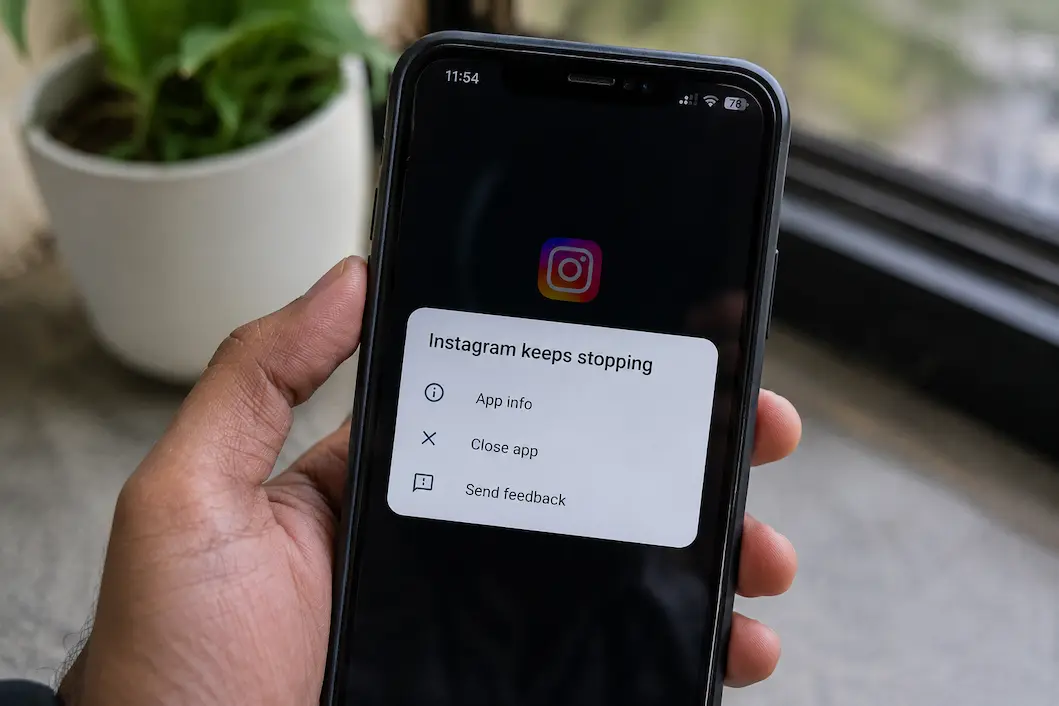
A social media app that closes every time you open a particular screen can be more frustrating than an app that simply refuses to launch. You might be trying to reply to a message, upload a photo, check a notification, or switch between accounts when the app suddenly disappears. The problem can look like an internet issue, but repeated crashes often have nothing to do with your connection. An outdated app, damaged temporary data, insufficient storage, an operating-system compatibility problem, or a fault affecting only one part of the app can all produce similar symptoms.
The useful thing is that you don’t need to jump straight to deleting the app or resetting the entire phone. Start by finding out whether the crash is happening only in one app or across several apps, and whether it began after an update or another change. That distinction can save you from making unnecessary changes. A social app that crashes while every other app works normally should be approached differently from a phone that is repeatedly running out of storage or struggling with several applications.
First Find Out How Broad the Problem Is
Before changing anything, open a couple of other apps and use them for a few minutes. If only one social media app is crashing, the problem is more likely to be connected to that app, its stored data, its current version, or a problem affecting its service. If several unrelated apps are closing unexpectedly, look more closely at the phone itself, including available storage, operating-system updates, and whether the device is behaving normally in other situations.
Also notice exactly when the crash occurs. An app that closes immediately after opening has a different pattern from one that works normally until you open the camera, view a particular conversation, switch accounts, or start uploading a video. If you can identify the trigger, avoid repeatedly performing the same action while troubleshooting. Knowing what consistently causes the crash can also make it easier to determine whether the problem is fixed later.
Restart the Phone Before Going Further
A complete restart is easy to dismiss because it sounds too basic, but it can clear temporary processes and memory conditions that are contributing to an unstable app. If the app has been running for a long time, or the phone has recently installed updates, restarted background services, or experienced several apps becoming sluggish, a reboot is a sensible first step.
After restarting, don’t immediately change several settings. Open the affected app and reproduce the problem once. If it now works normally, you may have been dealing with a temporary system or app-state problem rather than a persistent fault. If it crashes again, you have a clearer reason to continue with more targeted troubleshooting.
Check Whether the App Is Up to Date
App updates are not only about adding new features. They can contain compatibility fixes, security updates, performance improvements, and corrections for crashes affecting particular versions of Android or iOS. A social media application that suddenly starts closing after an operating-system update may simply need a newer app version.
On Android, check the app’s page in the Google Play Store and see whether an update is available. On iPhone, check the App Store for pending updates. If the app is already current, don’t repeatedly reinstall it just because an update isn’t available. Move to the next checks instead, particularly if the problem began immediately after a recent update.
Check the Phone’s Available Storage
Low storage can create problems that don’t always appear to be storage-related. Social media apps regularly handle cached images, downloaded videos, temporary files, uploaded media, and other data. When a phone is close to its storage limit, apps may become less reliable and other operations can become slower as well.
Look at your device’s storage settings and see how much free space remains. You don’t need to remove personal files simply because the phone isn’t empty; the important question is whether storage is becoming unusually constrained. If the device is nearly full, remove or move files you genuinely no longer need, review large videos and downloads, and then restart the phone before testing the social app again.
Android: Clear the App’s Cache
Android provides a troubleshooting option that can be useful when an individual app behaves strangely: clearing its cached data. The exact wording and menu location can differ between Android versions and manufacturers, but the option is generally found through the app’s information or storage settings.
Cached files are temporary data that an app stores to speed up certain operations. If some of that temporary data becomes corrupted or inconsistent after an update, clearing the cache can sometimes resolve repeated crashes without removing your account from the app. Be careful to distinguish Clear Cache from Clear Storage or Clear Data, because the latter can remove locally stored app information and may require you to sign in again.
After clearing only the cache, open the app and test the action that previously caused the crash. The first launch may take slightly longer while temporary information is rebuilt, which isn’t necessarily a sign that something went wrong.
iPhone: Offload or Reinstall the App Carefully
iOS doesn’t provide the same general-purpose cache-clearing control for individual apps that Android does. If an iPhone app continues to crash, one option is to use Offload App from the iPhone’s storage settings. Offloading removes the app itself while generally preserving its documents and data, so you can reinstall the app later.
If offloading doesn’t help, deleting and reinstalling the app can provide a more complete reset of its local installation. Before doing that, make sure you know the account credentials and any other information you may need to sign back in. If the application contains locally stored information that isn’t synchronized with your account, understand what could be removed before choosing the delete option.
For an ordinary social media account, posts and account information are generally stored by the service rather than solely on the phone, but you shouldn’t assume that every draft, downloaded item, or local setting will survive an uninstall.
Check the Operating System
An app can become unstable when its version and the phone’s operating system are no longer working well together. This can happen after a major Android or iOS update, but it can also happen when an app introduces changes that require a newer system version.
Check whether your phone has a pending system update. If one is available and the device is otherwise behaving normally, installing the current supported update can resolve compatibility issues. Make sure the phone has sufficient battery and storage and follow the device’s normal update process.
If the crashes began immediately after a major operating-system update and the app has not yet released a compatible version, updating the app may be the only immediate fix. In that situation, repeatedly changing unrelated phone settings is unlikely to solve the underlying compatibility problem.
Pay Attention to Battery and Background Restrictions
Some Android devices apply aggressive battery-management rules to applications running in the background. These settings can affect notifications, synchronization, uploads, and other background activity. They don’t always cause a classic crash, but if the app fails during background-dependent tasks, reviewing battery restrictions can be worthwhile.
On iPhone, iOS manages background activity differently, and users have less direct control over individual processes. Instead of searching for Android-style background controls that don’t exist, check the relevant app permissions and system settings available on your device.
Don’t disable every battery or background restriction simply because an app is crashing. Change only settings that are relevant to the specific behavior you’re seeing. Unnecessary changes can increase battery use without fixing the actual problem.
Check Camera, Photos, Microphone, and Other Permissions
A social app may crash or behave incorrectly when it tries to access a device feature that has changed permissions or encountered a problem. Camera access, photo-library access, microphone access, contacts, and notifications can all be relevant depending on what you are trying to do.
If the app works normally until you open the camera or attempt to upload a photo, check the permissions associated with that function. On Android and iPhone, the available controls and wording differ, but both platforms allow users to review app permissions through system settings.
Avoid granting every available permission as a troubleshooting experiment. If the application only needs access to photos and the camera for the task you’re performing, review those permissions specifically. Privacy settings should be restored to the minimum level that still allows the feature you actually use.
When the App Crashes During Uploads
Crashes that occur only while uploading photos or videos deserve a slightly different approach. Large media files can put more pressure on storage, memory, processing resources, and the application’s upload system than ordinary text-based browsing.
Try uploading a small image or short video to see whether the behavior changes. If smaller files work while larger ones consistently trigger the crash, the media-processing path may be the problem rather than ordinary app navigation. Please check the available storage and ensure the app has the required photo or media permissions before assuming the network is responsible.
It can also be useful to test the same account through the service’s web interface. If the website works normally while the mobile app crashes during uploads, that points more strongly toward the app installation or device environment.
Don’t Assume a Slow App Means a Bad Internet Connection
A social media app can become slow or unstable even when other websites and applications load normally. Internet connectivity is only one part of the process. The app still has to process its interface, retrieve local data, manage cached content, decode images and videos, and communicate with the service.
If other internet-dependent apps are working normally, test the social app using a different connection only as a comparison. For example, you can switch between Wi-Fi and mobile data to see if the behavior changes with the network. If both connections cause the app to crash in exactly the same way, repeatedly resetting the router is unlikely to address the main problem.
This distinction is particularly useful because crashing and connection failure can look similar to someone using the phone. If the application disappears completely rather than simply showing a loading error, investigate the app and device as well as the connection.
Try the Web Version If You Need Access Immediately
When troubleshooting takes time, you don’t necessarily have to stop using the service completely. If the platform offers a browser-based version, sign in through its official website and check whether the account works there.
This provides two useful pieces of information. First, it gives you temporary access if you need to respond to messages or manage your account. Second, it helps isolate the problem. If the website works normally while the mobile application repeatedly crashes, the account itself may not be the main issue.
A web version is not a permanent replacement for a functioning mobile app, but it can be a practical workaround while you determine what is going wrong.
Check Whether the Problem Is Account-Specific
Sometimes an app behaves differently depending on what it loads after authentication. If you have access to another account, you can test whether that account experiences the same crash without changing anything else on the phone.
For example, if one account crashes when opening its messages while another account works normally on the same device and app version, the issue may be connected to account-specific content or a server-side problem rather than the phone itself. You shouldn’t create unnecessary accounts simply for troubleshooting, but if another account is already available, the comparison can be informative.
This is also why you shouldn’t immediately assume that reinstalling the application will solve every crash. A clean installation cannot necessarily fix a problem that is being triggered by information the service sends to the app after you sign in.
When Reinstalling the App Makes Sense
Reinstallation is more useful after you’ve ruled out simple causes such as an outdated version, temporary storage problems, and obvious permission issues. Removing and reinstalling the app gives you a fresh application installation and can eliminate damaged local files that survived ordinary restarts.
Before deleting the application, confirm that you can sign back in. Check that you know the correct password or have another supported sign-in method available. If you use two-factor authentication, ensure you still have access to the required verification method.
After reinstalling, don’t immediately restore every setting or install several related apps. Open the freshly installed application first and test the basic function that was crashing. This makes it easier to determine whether the reinstall actually changed anything.
Avoid Random “Cleaner” Apps
When an application repeatedly crashes, it can be tempting to install a third-party cleaner, booster, memory optimizer, or similar utility that promises to fix the phone automatically. These apps are rarely necessary for diagnosing a specific social media crash and can introduce additional permissions, notifications, background processes, or privacy concerns.
Android and iPhone already provide built-in tools for managing storage, applications, permissions, and system updates. Start with those controls before adding another application to the device.
A troubleshooting tool should simplify the problem, not create another layer that requires troubleshooting.
Check for a Wider Service Problem
Not every crash is your phone’s fault. A social platform can experience a service-side problem that affects particular features, regions, accounts, or app versions. If the app suddenly began crashing for many users at the same time, changing your device settings may not accomplish anything.
When the problem appears widespread, check the platform’s official status information or reliable reports from other users. Pay attention to whether the problem affects a specific feature, such as messages, video uploads, or account switching.
If a service-side problem is confirmed, the most sensible action may be to wait for the provider to correct it rather than repeatedly reinstalling the app.
What to Do If Only One Feature Causes the Crash
A particularly useful clue is when the application works normally everywhere except one feature. If you can browse posts, view profiles, and receive notifications but the app closes whenever you open a specific conversation, camera tool, or editing screen, avoid treating the entire installation as broken.
Document exactly what you were doing when the crash occurred. Note whether it happens every time, whether it affects one item or all items, and whether the same feature works through the web version. This information can help distinguish a local installation problem from an issue associated with specific content or the service itself.
If the problem persists after normal troubleshooting, report it through the platform’s official support or feedback mechanism. Include the device model, operating-system version, app version, and the steps that consistently reproduce the crash rather than simply saying that the app doesn’t work.
A Practical Troubleshooting Order
You don’t need to perform every possible fix whenever an app crashes. A sensible order reduces unnecessary changes and makes it easier to identify what worked.
| Step | What to Check | Why |
|---|---|---|
| 1 | Restart the phone | Clears temporary system and app states |
| 2 | Test other apps | Determines whether the problem is isolated |
| 3 | Check the app update | Resolves known bugs and compatibility issues |
| 4 | Check available storage | Very low storage can affect app reliability |
| 5 | Review relevant permissions | Important when a specific feature crashes |
| 6 | Clear Android cache | Removes potentially damaged temporary data |
| 7 | Check iOS storage/offload options | Provides a safer app reset path |
| 8 | Check the operating system | Addresses compatibility problems |
| 9 | Test another connection | Separates app behavior from network issues |
| 10 | Try the web version | Helps isolate the mobile app |
| 11 | Reinstall the app | Replaces a potentially damaged installation |
| 12 | Check for a wider outage | Prevents unnecessary device changes |
You don’t have to follow the entire list if the problem disappears earlier. If a restart resolves the issue and it doesn’t return, there is little value in immediately deleting the application. Likewise, if several apps are crashing, spending an hour reinstalling one social app may miss the broader device problem.
When the Problem May Need More Than an App Fix
If several applications repeatedly crash, the phone becomes unusually hot, storage is constantly full, the operating system shows errors, or the device restarts by itself, broaden the investigation beyond the social media application. Those symptoms suggest that the app may be one visible part of a larger device problem.
In that situation, back up important information and use the phone manufacturer’s or Apple’s supported troubleshooting resources rather than making aggressive system changes based on random online advice. Avoid factory-resetting the phone as an early troubleshooting step. A reset removes far more information than an individual app reinstall and should be considered only after less disruptive options have been exhausted and important data has been backed up.
Fix the Cause Instead of Repeating the Same Reset
A social media app that keeps crashing doesn’t automatically mean that the phone needs replacing or that the application needs to be deleted immediately. Often, the useful clue is the pattern: whether one app or several are affected, whether the crash happens at launch or during a particular feature, whether the problem began after an update, and whether the same account works through a browser.
Start with the least disruptive checks and move toward more involved solutions only when necessary. Update the app, check storage, review relevant permissions, use Android’s cache controls where appropriate, consider iPhone’s offloading options, and test the web version when you need to separate an account problem from a mobile-app problem.
Most importantly, don’t change five things at once. If you restart the phone, reinstall the application, change permissions, reset network settings, and install a cleaner simultaneously, you may fix the problem without ever knowing why it happened. A controlled troubleshooting process is slower by a few minutes but much more useful when the same problem returns later.
Frequently Asked Questions
Why does my social media app keep crashing while other apps work normally?
When only one app is affected, the cause is often related to that application’s installation, cached data, current version, permissions, or a problem with a particular feature. Check for updates and available storage first, then use platform-specific troubleshooting options before reinstalling it.
Why does a social media app crash immediately after opening?
A damaged local file, incompatible app version, insufficient storage, or an operating-system compatibility issue can cause immediate crashes. Restart the phone, check for updates, and inspect storage before moving to more disruptive steps.
Should I clear the app’s cache on Android?
Clearing the cache can help if temporary app data becomes corrupted. Use the Android settings for the affected app and make sure you select the cache option rather than clearing all stored app data unless you understand the consequences.