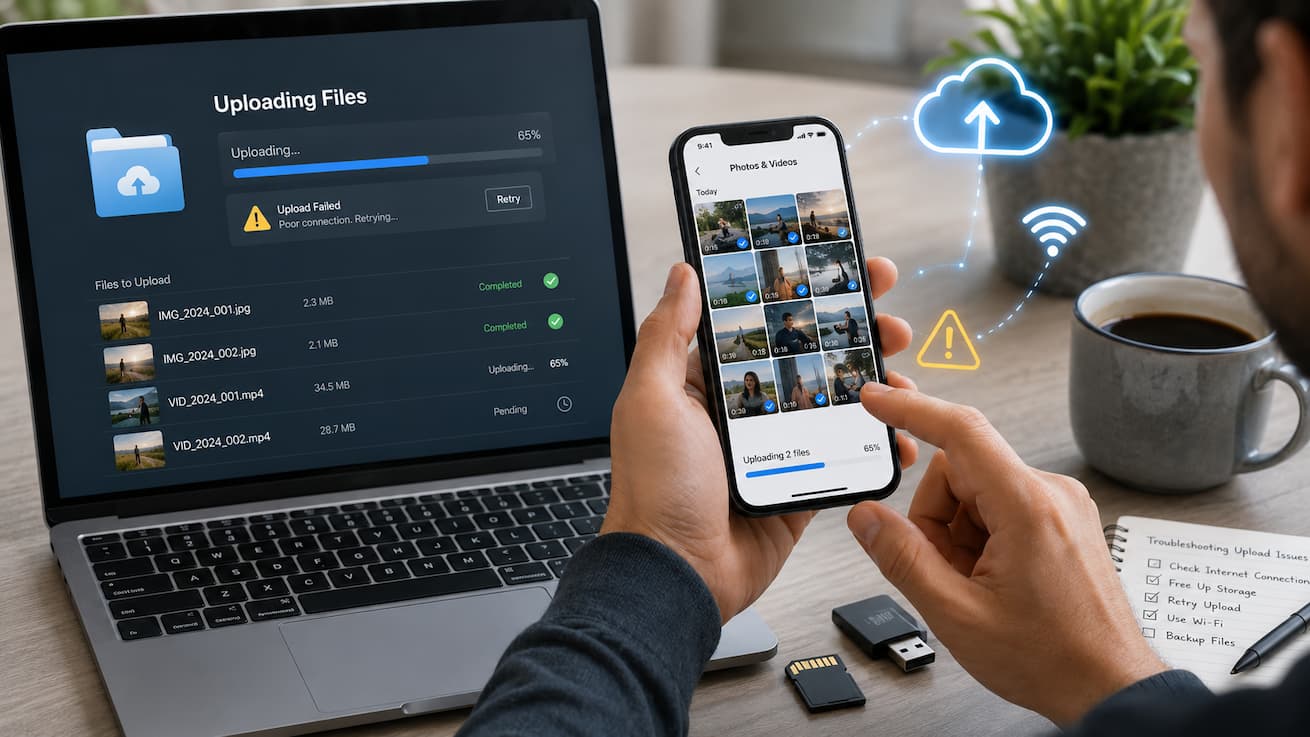
Uploading photos and videos has become part of everyday digital life. People upload pictures to social media, save family memories to cloud storage, send videos through messaging apps, and share important files for work or school. When an upload suddenly stops working, it can be frustrating, especially when there is no clear reason why it happened.
Sometimes the problem is simple, such as a weak internet connection or not enough storage space. Other times, the issue may come from app permissions, file size limits, outdated software, or a temporary service problem. Many people spend time restarting their device repeatedly without checking the actual cause.
This guide explains the most common reasons why photos or videos fail to upload and shows practical solutions that work on smartphones, tablets, and computers. Whether you are trying to upload files to Google Photos, iCloud, Instagram, WhatsApp, Facebook, email, or another platform, these troubleshooting steps will help you identify and fix the problem. By the end of this article, you will understand how upload systems work, what mistakes to avoid, and how to prevent future upload failures.
Why Photos and Videos Stop Uploading
Before trying random fixes, it helps to understand why uploads fail. An upload requires several things to work together: your device, the app or website, your internet connection, storage availability, and the file itself. If any one of these parts has a problem, the upload may freeze, fail, or show an error message. For example, a phone may successfully take a high-quality 4K video, but uploading that large file through a slow mobile connection may take hours or fail completely. Similarly, an app may not be able to access your photos because permission settings were changed.
Common reasons uploads fail
- Slow or unstable internet: Uploading requires a consistent connection, especially for large videos.
- Low storage space: Your device or online storage may not have enough room.
- Incorrect permissions: The app may not have access to photos, videos, or files.
- Unsupported file formats: Some websites do not accept certain file types.
- Large file sizes: Many platforms have upload limits.
- Outdated apps: Older versions may contain bugs or compatibility problems.
- Temporary server problems: Sometimes the service itself is unavailable.
Tip: Always check the simplest causes first. A poor Wi-Fi signal or full storage space is often responsible for upload failures.
Check Your Internet Connection First
The most common reason photos and videos fail to upload is an unreliable internet connection. Many users focus on their download speed because websites and videos load quickly, but uploads depend on upload speed, which can be much slower. A connection may appear normal while browsing websites but still struggle with uploading large files. Videos especially require a stable connection because the entire file must be transferred successfully.
How to test your connection
- Open another website or video service to confirm your internet is working.
- Run an internet speed test and check the upload speed.
- Move closer to your Wi-Fi router if the signal is weak.
- Try switching between Wi-Fi and mobile data.
- Avoid uploading while many devices are using the same network.
Wi-Fi vs mobile data for uploads
| Connection Type | Advantages | Possible Problems |
|---|---|---|
| Wi-Fi | Usually faster and better for large videos | Weak signals and crowded networks can slow uploads |
| Mobile Data | Useful when Wi-Fi is unavailable | Data limits and unstable signals may interrupt uploads |
If your upload keeps stopping, avoid moving between networks during the process. Changing connections halfway through an upload can cause the file transfer to fail.
Simple internet fixes
- Restart your router.
- Disconnect unused devices from Wi-Fi.
- Disable VPN temporarily and test again.
- Pause downloads or streaming on other devices.
- Try uploading a smaller file to check whether the connection is the problem.
Warning: Do not assume fast internet always means fast uploads. Many internet plans provide much lower upload speeds than download speeds.
Free Up Storage Space on Your Device
Another common reason photos and videos cannot upload is a lack of storage space. Many people check their online account storage but forget that their phone or computer also needs temporary space during the upload process.
When you upload a large video, your device may create temporary files while preparing and transferring the data. If your storage is almost full, the upload may fail even when your internet connection is working correctly.
Signs that storage is causing upload problems
- The upload stops near the end.
- Your device becomes slow while uploading.
- You receive messages like “not enough space” or “storage full”.
- Apps close unexpectedly.
Ways to free up storage
- Delete unnecessary screenshots and duplicate photos.
- Remove downloaded videos you no longer need.
- Move old files to external storage.
- Clear unused apps.
- Empty the recycle bin or recently deleted folder.
| Device | Where to Check Storage |
|---|---|
| Android Phone | Settings → Storage |
| iPhone | Settings → General → iPhone Storage |
| Windows PC | Settings → System → Storage |
| Mac | System Settings → General → Storage |
Keeping some free storage space is a good habit. A device that is almost completely full often experiences performance problems beyond failed uploads.
Cloud storage can also be full
If you are uploading to a cloud service, check your online storage account as well. Services such as photo backup platforms usually have limits. When your account reaches its maximum capacity, new uploads may stop automatically.
Best practice: Keep at least 10–15% of your device storage free for smoother performance and fewer file errors.
Check App Permissions and Settings
Many upload problems happen because an app does not have permission to access your photos, videos, camera files, or storage. Modern smartphones protect user data by asking apps for permission before allowing access to personal files. If you recently updated your phone, installed a new app, changed privacy settings, or accidentally selected “deny” when an app asked for access, uploads may stop working.
How permissions affect uploads
Imagine you are trying to upload a photo through a messaging app. The app may be working correctly, and your internet may be fine, but the app cannot see your photo library. As a result, the upload button may not work or the file selection screen may appear empty.
Check permissions on mobile devices
| Device | Permission Location |
|---|---|
| Android | Settings → Apps → Select App → Permissions |
| iPhone | Settings → Privacy & Security → Photos |
Make sure the app has permission for the type of access it needs. For example, a photo-sharing app usually needs access to your photos, while a cloud backup app may require access to files and media.
Common permission mistakes
- Allowing access only to selected photos when you need full library access.
- Disabling background data usage for backup apps.
- Blocking storage permission after a security update.
- Using a guest or restricted account on a shared device.
Tip: Review permissions regularly. Giving an app access does not mean you should ignore privacy settings. Only allow permissions that are necessary.
Check File Size and Format Problems
Not every failed upload is caused by your device. Sometimes the photo or video itself is the problem. Websites and apps often limit the maximum file size or support only certain formats. A modern smartphone can create very large files, especially when recording high-resolution videos. A single 4K video can easily reach several gigabytes, which may exceed upload limits.
Common file problems
- The video is too large.
- The file format is not supported.
- The file is damaged or incomplete.
- The filename contains unusual symbols.
- The file was interrupted while saving.
| Problem | Possible Solution |
|---|---|
| Large video file | Compress or reduce video quality before uploading |
| Unsupported format | Convert the file to a common format such as JPG, PNG, or MP4 |
| Corrupted file | Open the file locally to check if it plays correctly |
| Strange filename | Rename the file using simple letters and numbers |
Reduce video size without losing too much quality
- Lower video resolution from 4K to 1080p when high quality is unnecessary.
- Remove unnecessary parts before uploading.
- Use standard video formats supported by most platforms.
- Avoid sending extremely large files through apps designed for quick sharing.
For personal videos, reducing file size often makes uploads faster while keeping the quality good enough for everyday viewing.
Restart and Update Your Device
A simple restart can solve many temporary software problems. Phones and computers constantly run background processes, and sometimes an app or system service becomes stuck. Restarting clears temporary memory and forces important services to start again. This is why restarting is still one of the first troubleshooting steps recommended by technical support teams.
When restarting helps
- The upload is frozen at a certain percentage.
- The app crashes repeatedly.
- Your device becomes unusually slow.
- Multiple apps are having problems.
Keep software updated
Updates are not only about adding new features. They often include bug fixes, security improvements, and compatibility changes that help apps work correctly.
| Update Type | Why It Matters |
|---|---|
| Operating System | Improves device stability and fixes system problems |
| App Updates | Fixes upload bugs and improves compatibility |
| Browser Updates | Helps websites upload files correctly |
Best practice: Enable automatic updates when possible, but restart your device occasionally to complete important changes.
Clear App Cache and Temporary Data
Apps store temporary files called ‘cache data’ to load faster. Usually this is helpful, but damaged or outdated cache files can sometimes create problems, including failed uploads. Clearing the cache does not usually delete your personal photos or videos. It only removes temporary files created by the application.
Signs of a cache problem
- The same upload fails repeatedly.
- The app behaves strangely.
- The app takes longer than usual to open.
- Other features inside the app also stop working.
How to clear cache
Android: Open Settings → Apps → Choose the app → Storage → Clear Cache.
iPhone: iOS does not provide a universal cache button. You may need to restart the app, update it, or reinstall it if problems continue.
Computer browsers: Clear browser cache and cookies if uploads fail on websites.
Before clearing app data
- Make sure you know your login details.
- Check whether important drafts are saved.
- Understand that “clear data” is different from “clear cache”.
Warning: Clearing app data can remove saved settings and offline files. Use it only when cache clearing does not solve the problem.
Fix Cloud Storage Upload Problems
Cloud storage makes it easy to back up photos and videos, but it can also create confusion when uploads stop. Services may pause backups because of account limits, battery settings, or synchronisation problems. Common cloud services use automatic background uploads. This means the upload may not happen immediately if the app is restricted from running in the background.
Common cloud upload issues
| Problem | Fix |
|---|---|
| Storage limit reached | Delete unnecessary files or increase available storage |
| Battery saver enabled | Allow the backup app to run normally |
| Backup paused | Open the app and resume syncing |
| Wrong account selected | Confirm you are signed into the correct account |
Improve cloud upload reliability
- Keep your device connected to Wi-Fi for large backups.
- Charge your device during long uploads.
- Allow background activity for backup apps.
- Check cloud storage space regularly.
Cloud backups work best when they are treated as a regular maintenance task rather than something you only check after losing files.
Fix Social Media Upload Issues
Social media platforms process millions of photos and videos every day, but uploads can still fail because of app bugs, temporary server issues, or content restrictions. If a photo uploads successfully to one platform but fails on another, the problem is probably not your device. It may be related to the specific app or service.
Common social media upload fixes
- Update the social media app.
- Log out and sign back in.
- Check whether the service is experiencing outages.
- Try uploading from a web browser.
- Reduce the file size.
- Check account restrictions.
Browser upload problems
When uploading through a computer browser, extensions, blocked permissions, or outdated browser versions can interfere with uploads.
Try these steps:
- Open the website in a private/incognito window.
- Disable unnecessary browser extensions.
- Update the browser.
- Try another browser.
Advanced Troubleshooting Methods
If basic fixes do not solve the problem, the issue may require deeper troubleshooting. Advanced steps are useful when uploads fail repeatedly across different apps or devices. Before making major changes, try to identify whether the problem is related to the device, the internet connection, the app, or the specific file. This prevents unnecessary changes and saves time.
Test with a different file
One of the easiest ways to find the cause is to upload a different photo or video. If another file uploads successfully, the original file may be damaged, too large, or unsupported. For example, if a 5GB video fails but a small JPG image uploads normally, your internet connection and app are probably working correctly. The issue is likely related to the video file.
Try another device
Testing the upload on another phone, tablet, or computer can help identify where the problem exists.
| Test Result | Likely Cause |
|---|---|
| The file fails everywhere | Problem with the file itself |
| The file works on another device | Problem with original device settings |
| Only one app fails | App-specific issue |
| All apps fail | Network or device problem |
Check for service outages
Sometimes the problem is not on your side. Online services occasionally experience maintenance or technical problems that temporarily affect uploads. If many users are reporting problems, waiting until the service restores normal operation may be the only solution.
Reset network settings
Network settings can become corrupted after software updates or configuration changes. Resetting them may fix connection-related upload problems. Keep in mind that resetting network settings removes saved Wi-Fi passwords and Bluetooth connections, so make sure you have important information available before using this option.
Check security software
Security programs, firewalls, and VPN applications can sometimes block file transfers. This is more common on computers, especially in workplace environments.
- Temporarily disable VPN connections for testing.
- Check firewall permissions.
- Make sure security software is not blocking the upload application.
- Contact your network administrator if using a managed device.
How to Prevent Future Upload Problems
Fixing an upload problem is useful, but preventing the problem from happening again is even better. A few simple habits can make photo and video uploads much more reliable.
Keep your device organised.
- Delete unnecessary files regularly.
- Move old videos to external storage or cloud backup.
- Remove duplicate photos.
- Keep important files in clearly named folders.
Maintain your apps
- Install app updates regularly.
- Remove apps you no longer use.
- Review app permissions occasionally.
- Restart your device when it begins behaving unusually.
Use better upload habits
| Good Habit | Why It Helps |
|---|---|
| Upload large videos over Wi-Fi | Provides a more stable connection |
| Keep storage available | Allows temporary files to be created |
| Use common file formats | Improves compatibility |
| Back up important files regularly | Protects against accidental loss |
Best practice: Do not wait until your device storage is completely full. Regular maintenance prevents many upload and performance problems.
Quick Troubleshooting Checklist
Use this checklist when photos or videos refuse to upload:
- Check your internet connection.
- Restart your device.
- Confirm you have enough storage space.
- Check app permissions.
- Update the app and operating system.
- Try uploading a smaller file.
- Check the file format.
- Clear app cache if necessary.
- Test another device or network.
- Check whether the service is temporarily unavailable.
FAQs
1. Why are my photos not uploading even though I have internet?
A working internet connection does not always guarantee successful uploads. The problem may be caused by low storage space, missing app permissions, unsupported file formats, or a temporary issue with the app or website. Try uploading a smaller file first, check permissions, and make sure the app has access to your photos. If the problem continues, restart your device and update the application.
2. Why does my video upload stop halfway?
Videos often fail halfway because they are much larger than photos. A weak Wi-Fi signal, limited storage space, or a file size restriction can interrupt the transfer. Large videos also require more processing time, which increases the chance of failure. Try moving closer to your router, freeing storage space, compressing the video, or uploading when your network is less busy.
3. How do I fix photos not uploading to cloud storage?
First, check whether your cloud account has enough available storage. Then confirm that backup is enabled and the app is allowed to run in the background. Battery-saving modes can sometimes pause automatic uploads. Keeping your device connected to Wi-Fi and charging during large backups can also improve reliability.
4. Why can I upload some photos but not others?
When only certain files fail, the problem is usually related to those specific files. They may be corrupted, too large, or saved in a format that the platform does not support. Open the file on your device to confirm it works properly. You can also rename it, convert the format, or create a smaller copy and try again.
5. Can full phone storage prevent uploads?
Yes. Even when you are uploading files online, your device may need free space for temporary processing. When storage is almost full, apps may become unstable and uploads can fail. Removing unnecessary files, deleting old downloads, and keeping some free storage available can improve overall device performance.
Conclusion
Many different things can cause photos and videos not to upload, but most problems can be solved with a few simple checks. The key is to avoid guessing and troubleshoot step by step. Start with the basics: check your internet connection, confirm storage space, review permissions, and make sure your app is updated. If those steps do not work, move to advanced solutions such as testing another device, checking file compatibility, or reviewing network settings.
Regular maintenance also makes a big difference. Keeping your device organised, updating software, and maintaining enough free storage can prevent many upload problems before they happen. The next time a photo or video refuses to upload, use this guide as a checklist. In most cases, identifying the exact cause is the fastest way to get your files shared, backed up, and protected.
References
- Apple Support – Official guides for managing storage, permissions, and iPhone troubleshooting.
- Google Help Center – Official documentation for Google Photos and Google Drive upload troubleshooting.
- Microsoft Support – Official Windows storage and file management guidance.
- Android Help – Official Android troubleshooting and app permission information.
- Internet Society – Educational resources about internet connectivity and network performance.
Leave a Reply