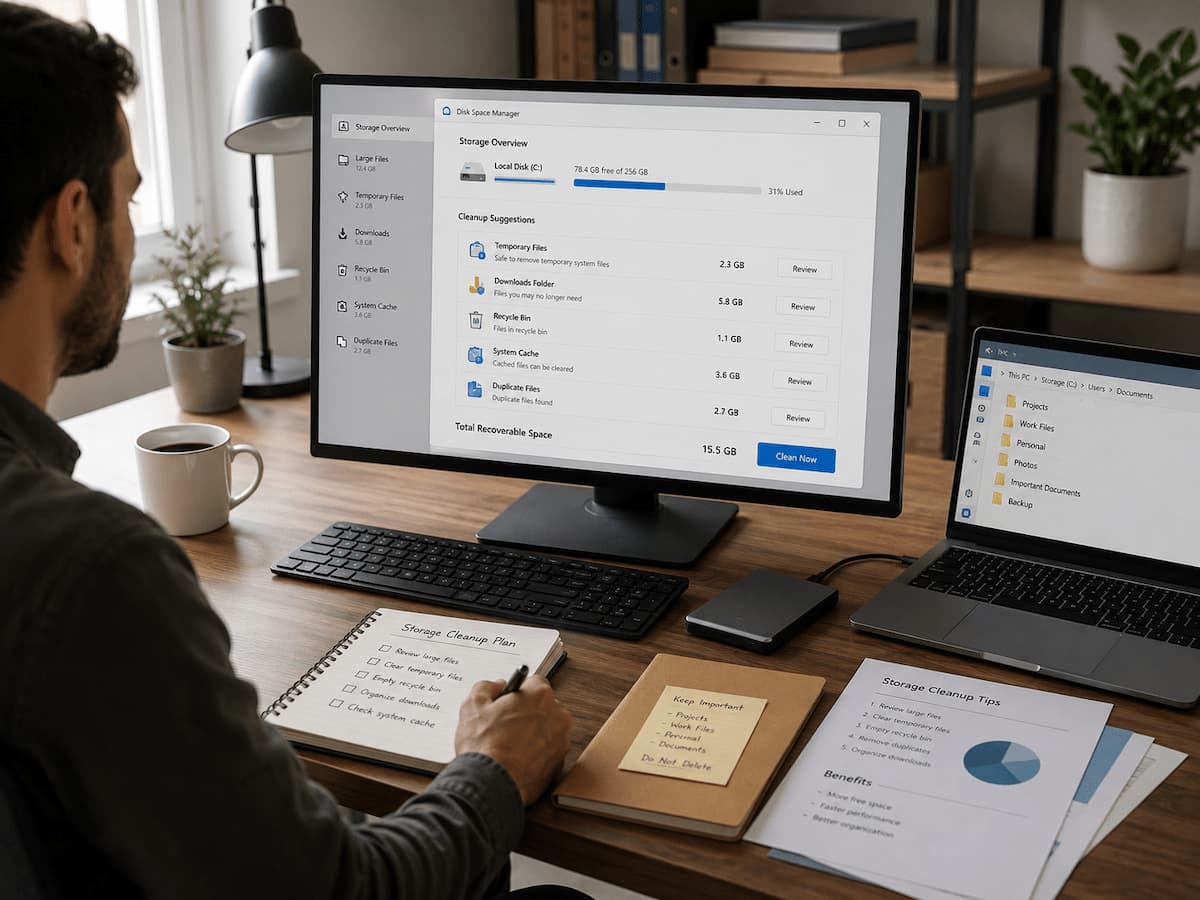
The trick isn’t to delete every file, but to identify exactly which files are taking up space on your computer. By locating unused data and safely removing it, you can free up terabytes of space without losing important documents, photos, or applications. This article offers practical tips for beginners on how to free up space, avoid costly mistakes, and keep your computer running smoothly without putting valuable information at risk.
See What’s Really Eating Up Your Storage
Before deleting any files, it is crucial to understand what is consuming your disk space. People often assume that personal data—such as photos and videos—is the primary cause of insufficient storage, but computers often harbor other hidden space-hogs that are easily overlooked. When you install updates, create documents, browse the web, or run applications, the operating system may generate temporary files. Programs also create cache files to speed up startup times, but over time, these files can grow much larger than expected. Outdated software is another common cause of a lack of disk space. You may have downloaded applications months or even years ago and stopped using them, yet they remain installed on your computer and continue to take up space. To avoid wasting storage, first check how much space you are currently using. Instead of deleting folders at random, focus on areas where you can free up a significant amount of space.
Common sources of unnecessary disk usage
| Storage area | What it contains | Usually safe to review? |
| Temporary files | Short-term files created by Windows, applications, and installers | Yes, after checking what will be removed |
| Downloads folder | Files downloaded from websites, email attachments, and installers | Yes, but review manually first |
| Unused applications | Programs you no longer use | Yes, if you know you do not need them |
| Browser cache | Saved website data used to improve loading speed | Usually safe to clear |
| Old update files | Previous system installation and update leftovers | Usually safe through built-in tools |
Start With Built-In Storage Cleaning Tools
The safest way to free up disk space is usually by using the operating system’s built-in tools. These tools have a deeper understanding of system files than third-party cleanup programs and minimize the risk of accidentally deleting important files. Windows includes built-in storage options that can identify temporary files, Recycle Bin contents, and other categories of removable files. Windows also offers a program called “Disk Cleanup” to remove unwanted system files.
On macOS, the “Storage Management” feature helps users view categories that take up space, such as large files, unused applications, and so on. It does not automatically determine what you need, but it provides a clear overview before you make any changes.
Clean Temporary Files Without Removing Personal Data
Temporary files exist for a reason. They are created by applications during execution and used during operating system updates and installations. The problem is that these files can persist for a long time, even when they are no longer needed. For example, a software installer might download several gigabytes of installation files; once the application is installed, these files may no longer be required. Failed updates can also leave behind numerous temporary folders that the system does not automatically clean up.
Deleting temporary files can often free up a significant amount of storage space without affecting your personal files. However, it is advisable to review the list of files to be removed before proceeding.
Helpful habit: Create a backup of important files before performing major storage cleanup, especially if you are unsure about a folder or file type.
Remove Applications You No Longer Use
Installed programs are one of the easiest places to recover storage because many applications take up much more space than people expect. A game, video editor, design tool, or old utility can occupy several gigabytes even if you have not opened it for months. Many users keep software installed because they forget it exists. Over time, computers collect trial programs, duplicate applications, outdated tools, and software that users only needed for a one-time task. Before uninstalling anything, review the application list carefully. Do not remove programs simply because you do not recognize the name. Some unfamiliar applications are important system components or drivers required for hardware to function correctly.
A safer way to decide what can be removed
- Check when you last used the application:
If you have not opened a program in a long time and have no future need for it, it may be a good candidate for removal. - Look for duplicate software:
Some computers contain multiple programs that perform similar tasks, such as several media players or image editors. - Keep essential tools:
Avoid removing drivers, security software, or applications you do not understand.
Uninstalling unused software also has another benefit. It reduces background processes that may run automatically when your computer starts, which can sometimes improve overall system responsiveness.
Review Large Files Instead of Deleting Random Data
When storage is running low, many people begin searching through folders and deleting files based on appearance. This approach is risky because file names are not always a reliable indicator of importance. A better method is to find the largest files first. Large videos, old backups, downloaded installers, archived projects, and duplicate files often consume significant space while remaining forgotten. Storage analysis tools built into modern operating systems can help identify large categories of files. You can then decide whether to move them to external storage, cloud storage, or remove them if they are no longer needed.
Files worth reviewing carefully
- Old installation files: Software installers that were downloaded months ago may no longer be needed after installation.
- Duplicate photos and videos: Multiple copies of the same media can quietly consume large amounts of space.
- Large archives: ZIP or backup files may contain old data that you have already saved elsewhere.
- Screen recordings: Video captures can become surprisingly large, especially at high quality.
Avoid deleting files from system folders unless you know exactly what they are. The biggest storage problems are usually found in personal folders, old downloads, and unused applications rather than essential system files.
Manage Your Downloads Folder Before It Becomes a Storage Problem
The Downloads folder is one of the most common places where unnecessary files accumulate. People often download documents, images, software installers, and email attachments but never return to remove them. Unlike carefully organized folders, Downloads is usually a temporary holding area. A file that was useful when first downloaded may have no purpose months later. Creating a simple review routine can prevent this folder from becoming a hidden storage drain. For example, you might check your downloads every few weeks and remove installers or files you no longer need.
Before deleting downloads, check:
- It is unclear whether the file is saved somewhere else.
- Whether it contains important documents or records.
- It is unclear whether it is only an installer that can be downloaded again if needed.
Avoid deleting everything in Downloads automatically. Some users store important PDFs, work documents, or personal files there and forget they have not moved them.
Clear Browser and Application Cache Carefully
Clearing cache files is generally harmless, although there is a slight trade-off. It may take a little longer for websites and applications to load the first time after you clear them, since the data has to be downloaded anew. Application-specific cache should be used more carefully. Some apps save temporary working files that may contain partial projects or settings. Always inspect what an application’s cleanup option cleans before you confirm.
Transfer Files Before Deleting
Sometimes you don’t have to permanently delete data to save up disk space. There are plenty of useful giant files that just don’t need to be on your main drive. You may also expand space and yet keep your contents accessible using external hard drives, USB storage devices, or cloud storage services. This is especially great for family photos, videos, completed projects, and older documents. Moving files might also help in making your computer easier to manage. Your main drive is for the operating system and programs, but long-term storage is something different.
Good candidates for moving
- Completed video projects.
- Large photo collections.
- Old work documents.
- Backups that are no longer needed on the main drive.
Remember to keep backups of important files. A single copy stored on one device is not a complete backup strategy because hardware failures, accidental deletion, or damage can still result in data loss.
Prevent Storage Problems Before They Return
Cleaning your drive once can solve an immediate storage problem, but long-term maintenance prevents the same situation from happening again. A computer naturally collects temporary files, downloads, application data, and updates over time, so storage management works best as an ongoing habit. You do not need to spend hours organizing files every week. Small actions performed regularly can make a noticeable difference. Reviewing large files occasionally, removing unused applications, and keeping downloads organized can prevent your drive from slowly filling up again.
Simple habits that keep storage under control
- Review large files regularly: Check your storage usage every few months and look for files that are no longer useful.
- Remove unused applications: Uninstall programs that you no longer use instead of allowing them to occupy space indefinitely.
- Organize important files: Store documents, photos, and projects in clear folders so you know what can safely be removed later.
- Keep backups: Store copies of valuable files on another device or a trusted backup service.
- Avoid unnecessary downloads: Delete old installers and temporary files after completing software installations.
A clean storage system also makes future troubleshooting easier. When your files are organized, it becomes much simpler to identify what is taking space and what can be safely removed.
Common Storage Cleanup Mistakes to Avoid
Freeing disk space is usually safe when done carefully, but mistakes can cause unnecessary problems. Many storage issues happen because people remove files without understanding their purpose.
- Deleting unfamiliar system files
- Using aggressive cleaning software without checking settings
- Ignoring backups before major cleanup
- Keeping unnecessary duplicate files
Full Drive May Signal a Bigger Issue
Sometimes storage fills quickly after cleaning. This may indicate a deeper concern if it happens frequently. Applications generating a lot of data, failed updates, backup systems making multiple copies, or other background operations saving files automatically can create a fast-filling drive.
Find out which folders are growing if you see unusual storage growth. Locating the source is usually better than deleting files without knowing why space vanishes. Hardware constraints can also contribute. Older computers with small storage drives may need storage upgrades or improved file management.
References
- Microsoft Support documentation on managing storage and freeing drive space:
Microsoft Support - Apple Support documentation on optimizing storage on Mac computers:
Apple Support - National Institute of Standards and Technology guidance on data management and security practices:
National Institute of Standards and Technology
Leave a Reply