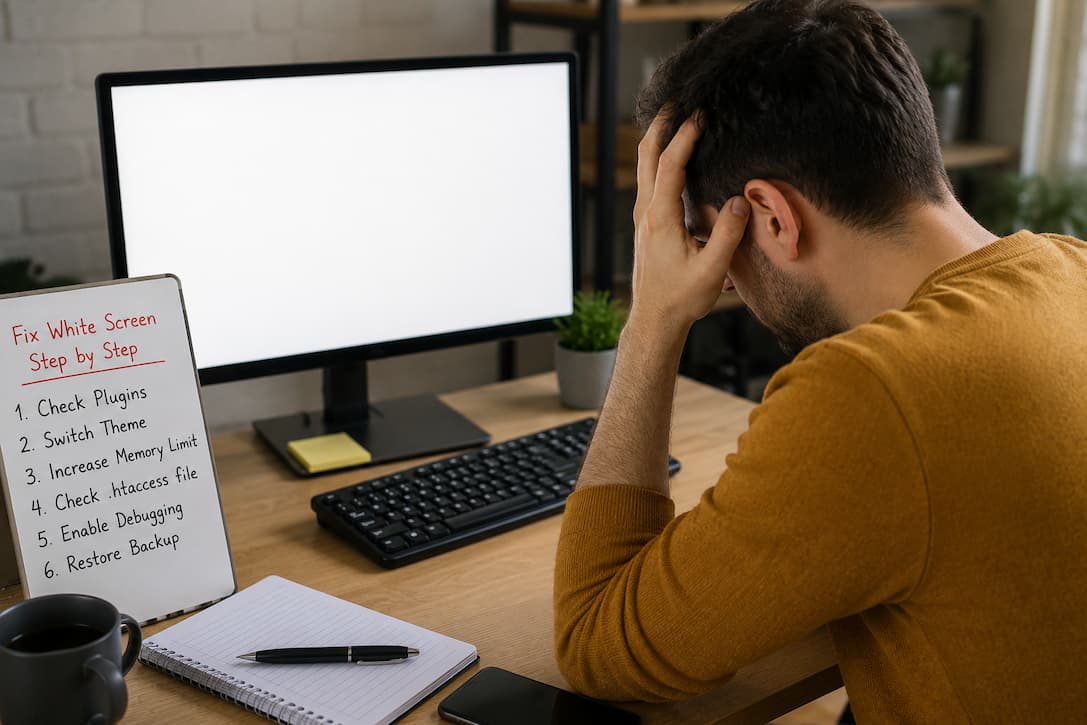
You open your WordPress website expecting to update a page or publish a new post, but instead you’re greeted by a completely blank screen. No error message. No dashboard. Sometimes the entire website disappears, while other times only the admin area goes white.
This problem is known as the WordPress White Screen of Death (WSOD). Despite the dramatic name, it doesn’t usually mean your website is permanently damaged. In most cases, WordPress is encountering a fatal PHP error but isn’t displaying it, leaving you with nothing more than an empty page.
The challenge is that many different issues can trigger the same symptom. A plugin update that failed, a theme containing incompatible code, exhausted PHP memory, corrupted core files, or even a recent server configuration change can all produce the identical blank screen.
The key is to troubleshoot methodically instead of guessing. This guide walks through the process in the same order many WordPress technicians use when diagnosing client websites. Each step explains not only what to do, but also why it matters and how to interpret the results.
Recognize What Type of White Screen You’re Seeing
Before changing anything, identify exactly where the blank screen appears. That small detail often narrows down the possible causes.
| What You See | Most Likely Cause |
|---|---|
| The entire website is blank | Core files, PHP error, server issue |
| Only WordPress dashboard is blank | Plugin or admin-specific problem |
| One page is blank | Theme template or page builder issue |
| The website works, but editing pages fails | Memory limit or plugin conflict |
| A blank screen appears after an update | Failed update or incompatible code |
If visitors can still browse your website but you cannot access the admin area, your troubleshooting path will be different from a site that’s completely offline.
Don’t Panic or Start Reinstalling WordPress
One of the biggest mistakes website owners make is deleting files or reinstalling WordPress before understanding what happened.
A blank screen rarely means your content has been erased. Your posts, images, and database are usually still intact.
Instead:
- Stop making additional changes.
- Make a backup if your hosting panel still allows it.
- Think about what happened immediately before the issue appeared.
Ask yourself:
- Did I update a plugin?
- Did WordPress just complete an automatic update?
- Did I switch themes?
- Did I edit code in the Theme File Editor?
- Did I install custom snippets?
- Did my hosting company recently upgrade PHP?
The answer often points directly to the source of the problem.
Enable WordPress Debug Mode
A white screen often hides an error that WordPress isn’t configured to display.
To reveal it, edit the wp-config.php file and locate this line:
define('WP_DEBUG', false);
Replace it with:
define('WP_DEBUG', true);
define('WP_DEBUG_LOG', true);
define('WP_DEBUG_DISPLAY', false);
This setup records errors without showing them to visitors.
After refreshing your website, check:
wp-content/debug.log
Instead of guessing, you may now see a message such as:
- Fatal error in a plugin
- Undefined function
- Memory exhausted
- Missing class
- Syntax error
Reading this log often saves hours of trial and error.
Increase the PHP Memory Limit
WordPress can stop loading if PHP runs out of available memory.
This commonly happens after:
- installing feature-rich plugins
- importing large databases
- running WooCommerce stores
- using heavy page builders
- processing large images
You can temporarily increase memory by adding this line to wp-config.php:
define('WP_MEMORY_LIMIT', '256M');
If your hosting provider already limits memory, this setting may not take effect. In that case, you’ll need to increase the PHP memory allocation from your hosting control panel or contact your hosting provider.
How to tell if memory is the problem
The debug log often includes messages similar to the following:
Allowed memory size exhausted
When you see that message, increasing memory or reducing plugin usage is usually the correct fix.
Disable Every Plugin Without Logging In
A faulty plugin is responsible for a large percentage of White Screen of Death cases.
Fortunately, you don’t need access to the dashboard to disable them.
Using File Manager or FTP:
Navigate to:
wp-content
Rename:
plugins
to something like:
plugins-disabled
WordPress treats the folder as missing and automatically disables every plugin.
Now reload your website.
If the site loads again
You’ve confirmed that at least one plugin caused the crash.
Rename the folder back, then activate plugins individually until the white screen returns.
The last plugin activated is usually the culprit.
Replace the Active Theme Temporarily
Themes can also trigger fatal errors, particularly after updates or custom code edits.
Inside:
wp-content/themes
Rename your current theme folder.
Example:
generatepress
becomes
generatepress-old
If a default WordPress theme such as Twenty Twenty-Five or Twenty Twenty-Six exists, WordPress will automatically activate it.
What this tells you
- Website loads normally → Theme issue confirmed.
- Website still blank → Continue troubleshooting elsewhere.
If your custom theme contains recent modifications, compare those changes with a previous backup.
Look for Recently Edited Files
The White Screen of Death often appears immediately after someone edits PHP files.
Common examples include:
functions.php- custom plugins
- template files
- header.php
- footer.php
- custom code snippets
Even one missing semicolon can prevent PHP from executing.
If you’ve recently edited code, restore the previous version from a backup or undo the changes.
This is especially common when copying code from online tutorials without verifying compatibility.
Replace WordPress Core Files
Sometimes the problem isn’t your theme or plugins at all.
A failed update, interrupted upload, or corrupted file can damage WordPress itself.
Download the same WordPress version currently installed on your site.
Replace these folders:
wp-adminwp-includes
Also replace loose WordPress core files in the root directory.
Do not overwrite:
wp-contentwp-config.php
This refreshes WordPress without affecting your website’s content or settings.
Check PHP Version Compatibility
Modern WordPress versions require supported PHP releases, but not every plugin keeps pace with PHP updates.
A website that worked yesterday may suddenly fail after the hosting provider upgrades PHP automatically.
Review:
- current PHP version
- plugin compatibility
- theme compatibility
If the issue started immediately after a PHP update, look for plugins that haven’t been updated in a long time.
Rolling back PHP should only be a temporary troubleshooting step while incompatible extensions are updated or replaced.
Examine the Error Log Provided by Your Hosting Company
Your hosting account usually stores PHP errors separately from WordPress.
Look for:
- PHP Fatal Errors
- Parse Errors
- File Permission Errors
- Missing Files
- Timeout Errors
Examples include:
- unexpected end of file
- undefined function
- class not found
- failed include
- permission denied
Unlike a blank browser page, these logs usually explain exactly where execution stopped.
Restore a Recent Backup
If the website failed immediately after a specific change and you have a recent backup, restoring it may be the fastest solution.
However, don’t restore blindly.
Consider:
- Was the backup created before the problem started?
- Will restoring remove important new content?
- Can only the affected files be restored instead of the entire website?
Many managed WordPress hosts allow selective restoration of files, databases, or both.
Investigate File Permissions
WordPress needs permission to read and execute files.
Incorrect permissions can produce blank pages without obvious errors.
Typical recommendations are
| Item | Suggested Permission |
|---|---|
| Directories | 755 |
| Files | 644 |
| wp-config.php | 400 or 440 (where supported) |
Avoid setting everything to 777. While it may appear to fix permission issues, it creates serious security risks.
Review Recent Server Changes
Sometimes WordPress isn’t responsible at all.
Ask whether your hosting environment changed recently.
Examples include:
- PHP extensions disabled
- ModSecurity rules updated
- Firewall configuration changed
- Disk storage reached its limit
- Server migration completed
- Resource limits exceeded
These problems can affect every WordPress site on the account simultaneously.
If multiple websites become blank at the same time, investigate the server before focusing on WordPress.
Advanced Troubleshooting Techniques
When standard fixes don’t work, it’s time to dig deeper.
Check Scheduled Tasks
A malfunctioning scheduled task can repeatedly trigger fatal errors.
Temporarily disable scheduled jobs and see whether the website becomes accessible.
Review Recently Installed Custom Snippets
Many websites use snippet plugins instead of child themes.
Disable recent snippets if possible by accessing the database or disabling the snippets plugin.
A single incompatible function can stop WordPress before the dashboard loads.
Test with Another Browser
Although uncommon, browser extensions sometimes interfere with JavaScript-heavy admin pages, making them appear blank.
Try:
- Incognito mode
- Another browser
- Another computer
This quickly eliminates browser-specific issues.
Scan for Malware
Some malware deliberately hides administrator access or damages WordPress files.
Warning signs include:
- unknown administrator accounts
- modified core files
- unexpected redirects
- suspicious PHP files
If malware is suspected, clean the infection before restoring backups; otherwise, the malicious code may return.
Mistakes That Delay Recovery
Many site owners lose valuable time by making changes without confirming the cause.
Avoid these common errors:
- Updating additional plugins while troubleshooting.
- Deleting plugins before identifying the faulty one.
- Editing multiple files at once.
- Ignoring error logs.
- Restoring very old backups unnecessarily.
- Copying random code from forums without testing it.
Changing one thing at a time makes it much easier to isolate the problem.
Reduce the Chances of Seeing WSOD Again
While no website is immune to software problems, you can greatly reduce the risk.
Some practical habits include:
- Keep WordPress updated.
- Remove plugins you no longer use.
- Update themes regularly.
- Test major updates on a staging site first.
- Maintain automatic daily backups.
- Monitor PHP compatibility before upgrading.
- Avoid editing live theme files whenever possible.
- Install plugins only from trusted developers with active maintenance.
These habits make future troubleshooting much easier and often prevent downtime altogether.
Quick Troubleshooting Matrix
| Symptom | Most Likely Cause | First Action |
|---|---|---|
| Blank website after plugin update | Plugin conflict | Disable plugins |
| Blank after theme customization | Theme error | Switch theme |
| Blank after PHP upgrade | Compatibility issue | Check error logs |
| Blank after importing data | Memory exhausted | Increase PHP memory |
| Blank following WordPress update | Corrupted core files | Replace core files |
| Blank with fatal errors in log | Specific code issue | Fix reported file |
Frequently Asked Questions
Why is my WordPress website completely blank without any error?
WordPress suppresses many PHP fatal errors by default. Enabling debug logging or checking your server’s PHP error log usually reveals the underlying problem.
Can a plugin update cause the white screen of death?
Yes. If a plugin contains incompatible code or an update is interrupted, WordPress may stop loading before it can display an error message.
Is the White Screen of Death a sign that my website has been deleted?
No. In most cases, your database, media files, and posts are still safe. The issue usually prevents WordPress from completing the page request.
Should I reinstall WordPress immediately?
No. Reinstalling rarely fixes plugin, theme, or server-related issues. It’s better to identify the actual cause first to avoid unnecessary downtime.
Can low hosting resources trigger a blank screen?
Yes. Running out of PHP memory, hitting CPU limits, or exhausting available disk space can all interrupt WordPress before a page is generated.
Does switching themes delete my website content?
No. Your posts, pages, media, and database remain intact. Switching themes is simply a diagnostic step to determine whether the active theme is responsible.
Why did my site stop working after changing PHP versions?
Some older plugins and themes aren’t compatible with newer PHP releases. Updating or replacing incompatible extensions is usually the long-term solution.
How long does it usually take to fix a White Screen of Death?
If the cause is a plugin conflict or memory issue, the fix may take only a few minutes. More complex cases involving corrupted files, server configuration, or custom code can take longer because they require careful investigation.
Final Thoughts
The White Screen of Death isn’t a single bug—it’s WordPress telling you that something prevented PHP from finishing its work. Because many unrelated problems produce the same blank page, the fastest path to a solution is a structured troubleshooting process rather than trial and error.
Start with the changes that happened most recently, enable debug logging to uncover hidden errors, and isolate potential causes one at a time. Whether the issue stems from a plugin, theme, memory limit, server configuration, or corrupted core files, a systematic approach will usually restore your site without risking your content or making the problem harder to diagnose.