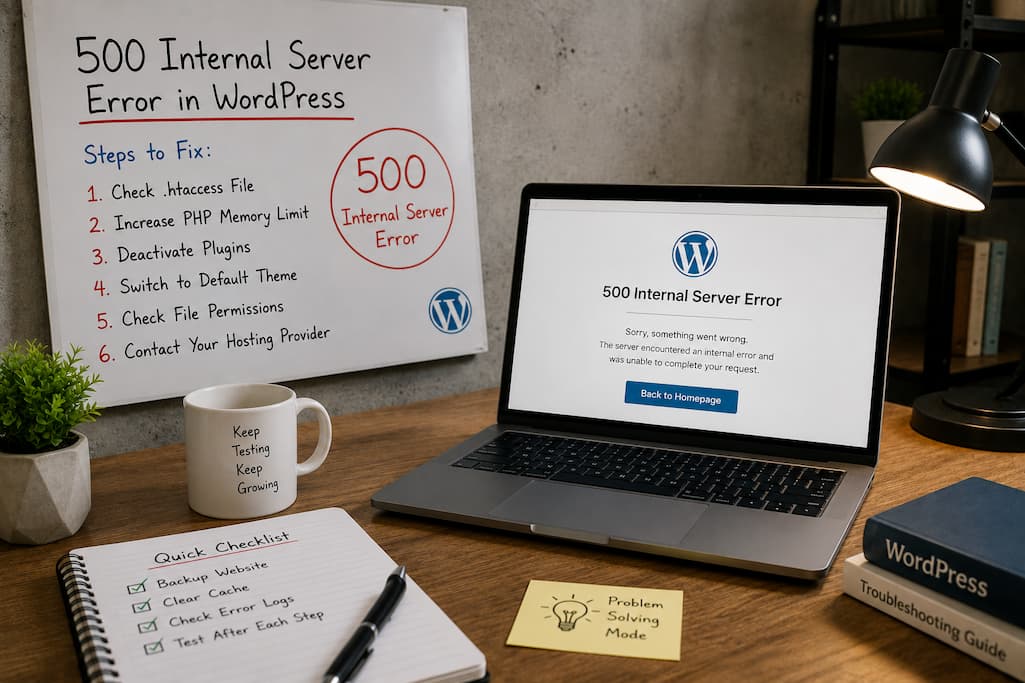
Few WordPress errors are as confusing as the 500 Internal Server Error. Unlike a login error that tells you your password is incorrect or a missing page that returns a 404 message, a 500 error provides almost no useful information. It simply tells you that something went wrong on the server, without explaining what or where.
You might see it after updating a plugin, editing your theme, changing PHP settings, or even making no obvious changes at all. Sometimes the homepage returns a 500 error while the WordPress dashboard still works. In other cases, the entire website becomes inaccessible, leaving you wondering whether the problem is with WordPress, your hosting provider, or the server itself.
That uncertainty is what makes this error frustrating. The good news, however, is that the error is usually the result of a specific issue rather than random server failure. Once you narrow down the cause, fixing it is often much easier than the error message suggests.
This guide takes a practical approach to troubleshooting the 500 Internal Server Error. Instead of jumping from one random fix to another, you’ll learn how to identify the most likely cause, verify your assumptions, and restore your WordPress site without making unnecessary changes.
What Does a 500 Internal Server Error Actually Mean?
A 500 internal server error isn’t a WordPress-specific problem. It’s an HTTP status code returned by the web server when it encounters a condition that prevents it from completing the request.
Think of it as the server saying the following:
“I received your request, but something happened while processing it, and I can’t finish the job.”
Unfortunately, the server doesn’t tell visitors exactly what failed. That information usually appears only in server logs or debugging tools.
This means the same error message can be caused by dozens of completely different problems, including:
- Corrupted WordPress files
- Faulty plugins
- Theme errors
- PHP configuration issues
- Server misconfiguration
- Damaged
.htaccessrules - Memory exhaustion
- File permission problems
The challenge isn’t fixing the error—it’s discovering which of these is responsible.
Before You Change Anything, think about what happened recently.
Experienced WordPress administrators rarely begin troubleshooting by editing files.
Instead, they ask a simple question:
“What changed?”
Many 500 errors appear immediately after a specific action.
Perhaps you:
- installed a new plugin,
- updated WordPress,
- modified your theme,
- edited the
.htaccessfile, - changed your PHP version,
- migrated the website,
- restored a backup.
If the website worked perfectly before one of those changes, there’s a strong chance the problem is connected to it.
This simple timeline often eliminates hours of unnecessary troubleshooting.
Check Whether the Problem Affects the Entire Website
Not every 500 error behaves the same way.
Visit several parts of your website.
Try opening:
- the homepage,
- a blog post,
- the WordPress login page,
- the admin dashboard,
- the media library.
Different behavior provides useful clues.
If only the dashboard returns a 500 error, an administrative plugin or dashboard-specific process may be responsible.
If only one page fails, the issue could involve a template or recently edited content.
If every page returns the same error, the cause is more likely to involve WordPress core, server configuration, or PHP.
Understanding the scope of the problem helps you avoid investigating the wrong area.
Start With the Error Logs Instead of Guessing
One mistake many website owners make is trying five or six different fixes before checking whether the server already recorded the answer.
Your hosting account usually provides access to PHP or web server error logs.
Those logs often reveal messages such as the following:
- PHP Fatal Error
- Parse Error
- Allowed Memory Size Exhausted
- Undefined Function
- Permission Denied
- Maximum Execution Time Exceeded
Unlike the generic browser message, these logs point directly to the file or process that failed.
If WordPress debugging is enabled, you may also find useful information inside:
wp-content/debug.log
Reading the logs first often saves considerably more time than trying random fixes.
A Faulty Plugin Is Still One of the Most Common Causes
Plugins extend WordPress, but they also introduce additional code that runs on your server.
If one plugin contains incompatible code, conflicts with another extension, or fails during an update, WordPress may stop before it finishes generating the page.
Fortunately, you don’t need dashboard access to test this possibility.
Using File Manager or FTP, navigate to:
wp-content
Rename:
plugins
to something like:
plugins-disabled
WordPress will automatically deactivate every plugin because it can no longer find the directory.
Now refresh your website.
If the 500 error disappears, you’ve confirmed that one of the plugins caused the problem.
Rename the folder back to its original name and reactivate plugins individually until the error returns.
Although this process takes a little patience, it’s much more reliable than uninstalling plugins blindly.
Themes Can Trigger Server Errors Too
Themes don’t just control appearance—they also execute PHP code every time WordPress generates a page.
A syntax error, incompatible update, or problematic customization inside a theme can easily trigger a 500 error.
Testing the theme follows a similar process.
Open:
wp-content/themes
Rename your active theme folder.
If a default WordPress theme such as Twenty Twenty-Five or Twenty Twenty-Six is already installed, WordPress automatically activates it.
If your website immediately starts working again, you’ve isolated the problem to the previous theme.
That doesn’t necessarily mean replacing it permanently. Sometimes a single custom function or outdated template is responsible.
Don’t Overlook the .htaccess File
The .htaccess file quietly controls many important aspects of how Apache servers process requests.
A missing character, incorrect redirect rule, or plugin-generated rewrite can cause every request to fail.
Because of this, checking .htaccess is usually one of the earliest troubleshooting steps.
Locate the file in your WordPress root directory.
Instead of deleting it, rename it temporarily.
For example:
.htaccess
becomes:
.htaccess-old
Reload your website.
If the error disappears, log into WordPress and visit the following:
Settings → Permalinks
Click Save Changes without modifying anything.
WordPress automatically generates a fresh .htaccess file containing the correct rewrite rules.
Low PHP Memory Can Produce Unexpected Errors
Not every server reports memory problems clearly.
Instead of displaying an “Out of Memory” message, some simply return a 500 Internal Server Error.
This often happens when:
- importing large files,
- running WooCommerce,
- processing backups,
- updating many plugins,
- using complex page builders.
Increasing the WordPress memory limit may resolve the issue.
Add the following line wp-config.php if it isn’t already present:
define('WP_MEMORY_LIMIT', '256M');
Keep in mind that this setting cannot override restrictions imposed by your hosting provider.
If your hosting account enforces lower limits, you’ll need to adjust them through your hosting control panel or contact support.
File Permissions Matter More Than Many People Realize
WordPress must be able to read, write, and execute certain files correctly.
Permissions that are too restrictive can prevent PHP from accessing necessary files.
Permissions that are too open create security risks.
A good starting point is
| Item | Recommended Permission |
|---|---|
| Directories | 755 |
| Files | 644 |
wp-config.php |
400 or 440 where supported |
Incorrect permissions rarely produce only one symptom. They often appear alongside failed updates, inaccessible uploads, or plugin installation problems.
Replace Corrupted WordPress Core Files
Occasionally the problem isn’t your plugins or theme at all.
Power interruptions, incomplete updates, or interrupted uploads can leave WordPress core files damaged.
The safest approach is downloading the same WordPress version currently installed and replacing the following:
wp-adminwp-includes- Core files in the root directory
Leave these untouched:
wp-contentwp-config.php
This refreshes WordPress itself while preserving your content and settings.
Consider PHP Version Compatibility
Modern WordPress versions continue supporting newer PHP releases, but plugins and themes don’t always keep pace.
A website that worked perfectly under one PHP version may fail after a server upgrade.
Review:
- current PHP version,
- plugin requirements,
- theme compatibility,
- recent hosting changes.
If the timing matches a PHP update, compatibility becomes a likely suspect.
Updating outdated plugins is generally preferable to running unsupported PHP versions long-term.
When the Problem Isn’t WordPress
Sometimes the website is only reporting a server problem that WordPress has no control over.
Hosting providers occasionally experience the following:
- temporary outages,
- exhausted server resources,
- failed maintenance,
- corrupted file systems,
- firewall misconfigurations,
- overloaded databases.
If multiple websites on the same hosting account suddenly begin displaying 500 errors simultaneously, investigate the server before changing WordPress files.
Likewise, if your hosting company recently announced maintenance or infrastructure updates, it’s worth checking their status page before assuming something is wrong with your installation.
Troubleshoot Methodically Instead of Trying Everything
One reason this error becomes difficult to solve is that many people change several things at once.
They disable plugins, switch themes, regenerate .htaccess, update PHP, restore backups, and modify server settings—all within a few minutes.
If the website suddenly starts working again, there’s no way to know which change actually fixed it.
A slower, more deliberate approach usually reaches the solution faster.
Change one variable.
Test.
Observe the result.
Then move to the next step if necessary.
This approach also makes future troubleshooting much easier because you understand what caused the problem instead of simply making it disappear.
Preventing Future 500 Errors
Although no website is completely immune to server problems, many 500 errors can be avoided through consistent maintenance.
Keep WordPress, plugins, and themes updated, but avoid performing major updates on a live website without a backup.
Before installing new plugins, verify that they’re actively maintained and compatible with your version of WordPress.
Avoid editing live PHP files unless you’re confident in the changes or have a staging environment available for testing.
Regular backups remain one of the simplest forms of insurance. Even if a serious error occurs, recovering from it is much less stressful when you know a recent backup is available.
Finally, pay attention to your hosting environment. As websites grow, server resources that once seemed adequate may eventually become the limiting factor.
Quick Troubleshooting Guide
| Symptom | First Thing to Check |
|---|---|
| 500 error after plugin update | Disable plugins |
| An error appeared after editing code | Restore recent changes |
| The error started after changing URLs | Review .htaccess |
| The website was slow before failing | Check PHP memory |
| Multiple websites affected | Investigate hosting |
| Random server errors | Review server logs |
Frequently Asked Questions
Why does WordPress show a 500 Internal Server Error instead of a specific message?
The server encountered an unexpected problem but wasn’t configured to display detailed error information publicly. The actual cause is usually recorded in PHP or server error logs.
Can a single plugin cause a 500 error?
Yes. A plugin containing incompatible or faulty code can stop PHP from executing, resulting in a server error before WordPress finishes loading.
Will deleting the .htaccess file damage my website?
It’s better to rename it rather than delete it. If the file is responsible, WordPress can generate a new one through the Permalinks settings after the site becomes accessible.
Is the error caused by my hosting company?
Sometimes. Server outages, resource limits, or configuration changes can all trigger 500 errors, especially if several websites on the same hosting account are affected simultaneously.
Can low PHP memory trigger this error?
Yes. When WordPress exceeds the available memory limit, some servers return a generic 500 error instead of displaying a more descriptive message.
Should I reinstall WordPress immediately?
No. Most 500 errors are caused by plugins, themes, server settings, or configuration problems. Reinstalling WordPress should only be considered after other likely causes have been ruled out.
Why did the error appear after updating PHP?
Some older plugins and themes may not support newer PHP versions. Reviewing compatibility and updating outdated software usually resolves the issue.
What’s the fastest way to identify the real cause?
Checking your server’s error logs is usually the quickest approach. They often identify the exact file or process that failed, allowing you to focus on the real problem instead of guessing.
Conclusion
The 500 Internal Server Error can seem intimidating because it provides so little information on the surface, but it’s rarely an unsolvable mystery. More often than not, the server already knows what went wrong—you simply need to look in the right place. Error logs, recent website changes, and a step-by-step troubleshooting process will usually reveal whether the problem lies with a plugin, theme, configuration file, memory limit, or the hosting environment itself.
Rather than applying every possible fix at once, work through the problem methodically. Isolate one potential cause, test the result, and move forward only when necessary. That approach not only resolves the current error more efficiently but also gives you a better understanding of how your WordPress site behaves, making future issues much easier to diagnose.