
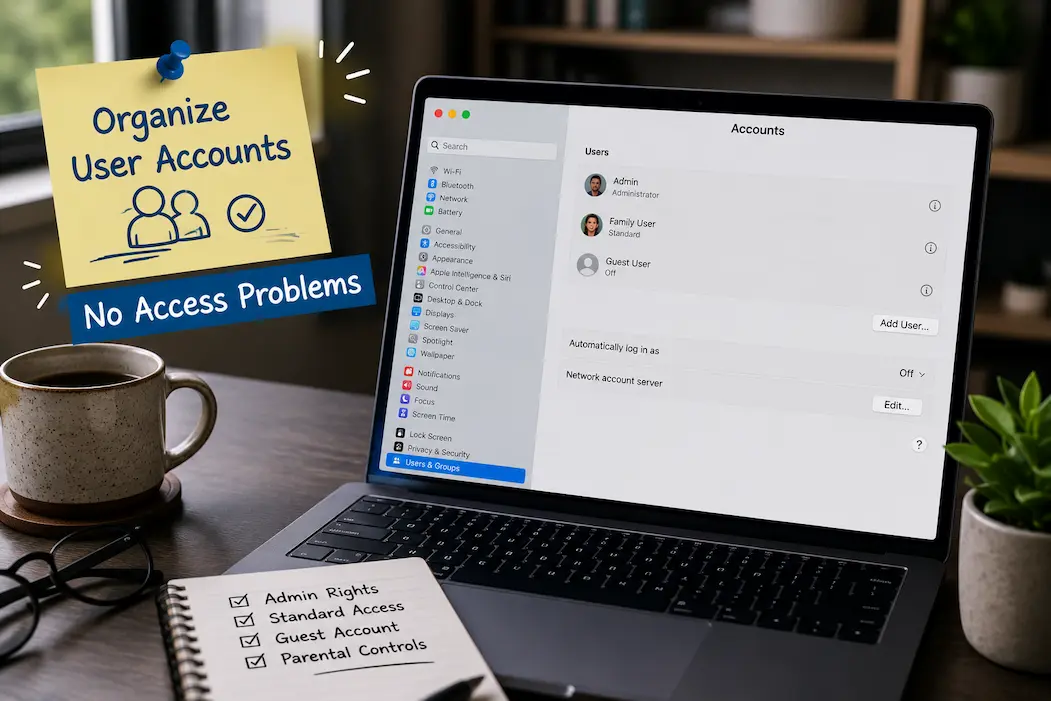
User accounts are easy to ignore when a computer is used by one person and everything works as expected. The situation changes quickly when a household shares a computer, several people use the same Mac, an employee leaves a team, or an old account remains on a device long after it stopped being useful. Over time, accounts accumulate, passwords become unclear, administrator privileges spread further than intended, and important files can end up attached to the wrong profile.
A well-organized account setup is not about creating as many restrictions as possible. It is about giving each person an appropriate identity, keeping administrator access limited, making recovery methods usable, and removing accounts when they genuinely no longer have a purpose. Windows and macOS approach some of these tasks differently, but the underlying principle is similar: every account should have a clear reason to exist and an appropriate level of access.
Start by Finding Out Who Actually Uses the Computer
Before changing account settings, make a list of the people and services that legitimately need access to the device. On a family computer, that might mean separate accounts for adults and children. On a work Mac or Windows PC, there may be a primary employee, an administrator, and occasionally a temporary or support account.
Then compare that list with the accounts currently configured on the computer. You may discover profiles belonging to former users, old family members, previous employees, temporary technicians, or accounts created during setup and never used again.
On Windows, account information can be reviewed through Settings > Accounts, while macOS provides user management under System Settings > Users & Groups. The wording and available options vary between operating-system versions, so don’t rely on an old screenshot when looking for a particular control.
The important part at this stage is observation. Don’t delete anything merely because you don’t immediately recognize the account. Some accounts or services may be required by the operating system or installed software.
Give Each Person Their Own Account
Sharing one account between several people seems convenient until something needs to be traced back to a specific user.
Separate accounts keep desktop preferences, application settings, files, browser information, and other personal data from being mixed together. They also make it easier to control permissions without affecting everyone else.
For example, if two people share a Windows laptop, one person should not need administrator privileges simply because the other person originally configured the computer. Likewise, a family member shouldn’t have to use someone else’s password to access their own files.
On a Mac, separate user accounts provide the same basic advantage. Each person gets an independent home directory and their own account environment rather than working inside another person’s profile.
This is particularly valuable when a computer contains personal or work information. Account separation isn’t just organizational housekeeping; it reduces the number of situations where one person’s access unintentionally exposes another person’s information.
Don’t Make Everyone an Administrator
Administrator access is one of the areas where convenience can quietly create problems.
An administrator can make system-level changes that a standard user cannot. That capability is necessary for certain tasks, but it does not need to be available to everyone who uses the computer.
A sensible setup usually has at least one trusted administrator account for system management while everyday users operate with standard privileges when practical. On Windows, account types can be managed through the account settings and related user-management controls. On macOS, administrator status is also assigned through Users & Groups.
There is no benefit in turning every account into an administrator simply to avoid occasional permission prompts. Those prompts exist partly to make significant changes visible before they happen.
If a person genuinely needs administrative access for their work, give it intentionally rather than treating administrator status as the default.
Keep One Reliable Administrator Account
Removing unnecessary administrator accounts is useful, but don’t take it so far that you lose your ability to manage the computer.
A computer should have a trusted administrative path for legitimate maintenance. That means knowing which account has administrator privileges, having access to its authentication method, and knowing how recovery works.
On a personal computer, this might be your primary account. On a business device, administrative access may be controlled by an organization rather than an individual employee.
Before changing account types, verify that another appropriate administrator exists and can actually sign in. It is surprisingly easy to demote an account and discover later that nobody has the credentials needed to perform administrative tasks.
The goal is not to minimize the number of administrator accounts at any cost. The goal is to avoid unnecessary privilege while maintaining a dependable recovery path.
Separate Everyday Work From Administrative Tasks
Using an administrator account for every task can make the computer easier to manage, but it also means ordinary activities are performed from a more powerful account.
A standard account can be preferable for routine browsing, documents, email, and general use. When an administrative action is required, the operating system can request appropriate authentication.
This separation creates a useful boundary. Installing software, changing system settings, adding users, and modifying protected areas are different activities from reading a document or browsing the web.
For a personal computer, you don’t necessarily need an elaborate security architecture. Even a simple distinction between everyday use and system administration can make the account structure easier to understand and maintain.
Give Accounts Names That Still Make Sense Later
Account names often outlive the circumstances in which they were created.
Instead of leaving several profiles with vague names such as “User,” “Admin2,” “Test,” or “New Account,” use names that make their purpose understandable. A family computer might have accounts corresponding to individual household members. A work device should use names that clearly identify the assigned user when organizational policy permits.
Be careful with changing account names just for appearance. Windows and macOS can distinguish between a visible account name and the underlying home-folder or account identifier. Changing one does not necessarily rename every associated path.
If the computer is already configured correctly, don’t rename important account identifiers casually. Cosmetic cleanup is not worth breaking application paths or creating confusion around existing files.
Understand the Difference Between an Account and an Online Identity
Modern Windows and Mac computers can connect local user profiles with online accounts.
Windows can use a Microsoft account, while macOS can use an Apple Account for services such as iCloud and related features. These online identities are separate from the basic question of who has a local profile on the computer, even though the two can be closely connected.
That distinction matters when troubleshooting access.
Someone might have a valid Microsoft or Apple Account but no local user profile on a particular computer. Conversely, a local profile may remain on the computer even after a person’s relationship with the associated online services has changed.
Before deleting a local account, determine whether important files, cloud synchronization, subscriptions, device-management arrangements, or other services depend on it.
Don’t Delete an Account Before Checking Its Files
Account cleanup should start with data, not the delete button.
A user’s home directory may contain documents, photographs, downloads, application data, browser information, project files, or other material that isn’t stored anywhere else. If the account belongs to someone who no longer uses the computer, you still need to establish whether their data should be retained, transferred, archived, or deleted.
On Windows, inspect the user’s files and storage carefully before removing the account. On macOS, do the same with the user’s home folder and any relevant shared storage.
If the person is leaving an organization, follow the organization’s retention and data-transfer procedures rather than improvising. Business files may belong to the company even when they are physically stored inside a user’s profile.
Shared Folders Are Better Than Sharing Passwords
Sometimes people create one account for everyone because they want several users to access the same documents.
That solves one problem by creating another.
If several people genuinely need access to the same files, use an appropriate shared folder or shared storage arrangement instead of distributing one person’s account password. This keeps individual identities separate while providing controlled access to common material.
The exact approach depends on the operating system, storage location, and whether the computer is personal or managed by an organization. Cloud storage can also provide a shared workspace when collaboration is needed.
The principle remains the same: share the files that need to be shared, not the identity that owns them.
Passwords Should Belong to People, Not the Computer
A common source of access problems is keeping passwords in informal places.
Don’t rely on a note beside the monitor, a text message sent to several people, or a browser password saved inside another person’s profile as the primary recovery method.
Each user should have control of their own authentication information where appropriate. A reputable password manager can help people maintain unique passwords without requiring them to memorize dozens of credentials.
For administrator accounts, recovery information should also be available to the person responsible for maintaining the device. On managed computers, follow the organization’s authentication and recovery procedures instead of creating a private workaround.
Don’t Forget Recovery Methods
An account can be perfectly organized today and still become inaccessible tomorrow if recovery information is outdated.
Check whether the relevant Microsoft or Apple Account has a current recovery email address, trusted phone number, recovery contact, or other supported recovery method. The available options vary depending on the account and current service policies.
For local accounts, understand what recovery options are available before changing passwords or removing administrator access.
This is especially important before someone travels, leaves an organization, changes their phone number, or loses access to an old email account. Account recovery is much easier to verify while the person is still able to authenticate normally.
Windows and Mac Handle Permissions Differently
Windows and macOS both use user accounts and permissions, but their interfaces and underlying mechanisms are not identical.
Windows users will encounter concepts such as standard users, administrators, Microsoft accounts, local accounts, User Account Control, and permissions on files and folders. macOS users may work with standard users, administrators, sharing-only users, groups, login options, FileVault, and Apple Account-related services.
Because the systems differ, avoid blindly copying instructions designed for the other platform. A setting that appears to have an equivalent name may not have exactly the same effect.
The useful approach is to understand the purpose of the account rather than trying to make Windows and Mac look identical.
A Guest Account Is Not a Replacement for a Real User
Temporary access can be useful, but a guest-style arrangement should not automatically become a permanent account for someone who regularly uses the computer.
If someone uses the machine frequently, a separate account with an appropriate permission level is generally easier to manage. A temporary user can then remain genuinely temporary rather than becoming another forgotten profile.
If you allow guests to use a personal computer, consider what information they can access and whether the operating system’s guest or temporary-user features are appropriate for your situation.
Never assume that “guest” means “completely isolated from everything.” Review what the operating system actually permits.
Family Computers Need a Little More Planning
A household computer can become messy when everyone logs into the same profile.
Separate accounts make it easier for each person to maintain their own browser settings, files, desktop preferences, and application environment. Parents can also manage appropriate controls separately from their own account rather than changing settings that affect every user.
For children, use the operating system’s supported family or parental-control features where appropriate rather than attempting to enforce restrictions through a shared administrator password.
The exact controls available depend on the Windows or macOS version and the accounts involved, so check the current settings rather than relying on old tutorials.
Work Computers Should Follow the Organization’s Rules
On a company-managed Windows PC or Mac, account organization may not be yours to redesign.
Organizations can use centralized identity systems, device-management platforms, security policies, single sign-on, certificates, and other controls that change how local accounts are handled. Removing an account or changing administrator privileges without authorization can interfere with those systems.
If an employee leaves, don’t simply delete their profile because they no longer need to log in. The correct process may involve preserving business data, revoking access elsewhere, transferring ownership, removing credentials, and allowing the organization’s management system to handle the device.
A personal computer and an enterprise-managed computer should therefore be treated as two very different account-management situations.
Review Old Accounts Before They Become a Problem
Account cleanup does not need to happen every week. A periodic review is enough for most personal computers.
Look for accounts that belong to people who no longer use the device, temporary accounts that became permanent, administrator accounts that no longer have a clear purpose, and profiles consuming significant storage.
For each account, ask:
- Who uses it?
- Why does it exist?
- Does it need administrator access?
- Does it contain important files?
- Is its recovery information current?
- Does any software depend on it?
- Should it remain on the computer?
If you cannot answer those questions for an account, investigate before changing it.
What to Do When Someone Stops Using the Computer
Removing a former user’s access involves more than deleting their profile.
First determine what happens to their files. Then consider whether their browser data, cloud services, application licenses, or work documents need to be transferred. If the account is associated with a Microsoft or Apple identity, remember that removing the local profile does not necessarily delete the online account itself.
For a work computer, also consider access outside the device. If someone leaves a company, their email, cloud storage, collaboration tools, VPN, password manager, and other services may need to be handled separately.
The local computer is only one part of the account lifecycle.
Avoid Keeping Dormant Administrator Accounts “Just in Case”
People sometimes leave old administrator accounts untouched because they might need them someday.
That creates unnecessary ambiguity. If an administrator account is no longer needed, determine whether it can be removed or changed according to the device’s requirements.
If you do retain an account for recovery or maintenance, give it a clearly documented purpose and protect its credentials properly. An unexplained administrator account is difficult to audit and easy to forget.
The objective is not to eliminate every account that isn’t used every day. It is to make sure every powerful account has a legitimate reason to remain.
Be Careful With Built-In Accounts
Windows and macOS include system-related accounts and components that should not be treated like ordinary user profiles.
If an account appears unfamiliar, research its exact purpose before deleting or modifying it. A name that looks unnecessary may be associated with a legitimate operating-system function or installed service.
This is one of the few areas where aggressive cleanup can cause more harm than leaving things alone.
If you’re uncertain, leave the account unchanged until you can verify what it does.
Keep the Account Structure Simple
A well-organized computer does not need a complicated hierarchy.
For a typical household, separate accounts for regular users plus one or more appropriately protected administrator accounts may be enough. For a small business, the structure may need to accommodate managed identities and organizational policies.
The important characteristics are clarity and least privilege. Every account should have an identifiable owner or purpose, and every user should receive only the access they actually need.
When an account structure becomes so complicated that nobody understands it, it stops being useful.
A Practical Account Review You Can Do Safely
Set aside some time when nobody urgently needs the computer and review the setup from the administrator side.
Start by listing the accounts. Identify which are actively used and which are not. Check administrator privileges next, because excessive permissions deserve attention even when the account itself is legitimate.
Then look at storage. A forgotten profile containing dozens of gigabytes of files may need to be archived before deletion.
Finally, verify recovery information and document the important administrative path. You don’t need to create a formal manual for a household computer, but knowing which account manages the system and how it can be recovered can prevent a great deal of frustration later.
Frequently Asked Questions
Should every person have a separate Windows or Mac account?
If several people regularly use the same computer, separate accounts are generally preferable. They keep personal files, settings, browser data, and permissions from becoming mixed together.
Is it safe to give every user administrator access?
It may be convenient, but it gives every administrator-level account the ability to make significant system changes. Use standard accounts for everyday users when practical and reserve administrator access for people who genuinely need it.
Can I delete an old user account immediately?
Check the account’s files and dependencies first. Important documents, application data, or cloud-synchronization arrangements may be associated with the profile. Back up or transfer anything that needs to be retained before deletion.
What happens to files when I remove a user account?
The exact behavior depends on the operating system and the method you use to remove the account. Windows and macOS provide options concerning the user’s data in their account-management interfaces. Read those options carefully rather than assuming the files will automatically be preserved.
Can two people share one administrator account?
They can, but it is a poor arrangement when individual accountability and separate settings matter. Each person should ideally have their own account, with administrator privileges assigned only where necessary.
What is the difference between a Microsoft or Apple Account and a computer user account?
An online Microsoft or Apple identity can provide access to cloud services and other features, while a local user profile controls a person’s environment on the computer. They can be connected, but they are not simply interchangeable concepts.
Should I create a separate account for guests?
For occasional access, a supported guest or temporary-user arrangement can be useful. For someone who regularly uses the computer, a dedicated account with an appropriate permission level is usually easier to manage.
How often should I review user accounts?
There is no universal schedule. Reviewing them whenever someone starts or stops using the computer, when administrator responsibilities change, and periodically during general maintenance is usually enough for a personal device.
What if I don’t recognize an account?
Don’t delete it immediately. Determine whether it belongs to another person, software, an organization, or the operating system. Built-in and service-related accounts can look unfamiliar without being unnecessary.
Should I organize accounts differently on Windows and Mac?
The principles can remain similar, but the actual settings and account-management mechanisms differ. Use the controls provided by the operating system rather than trying to force identical configurations across both platforms.