
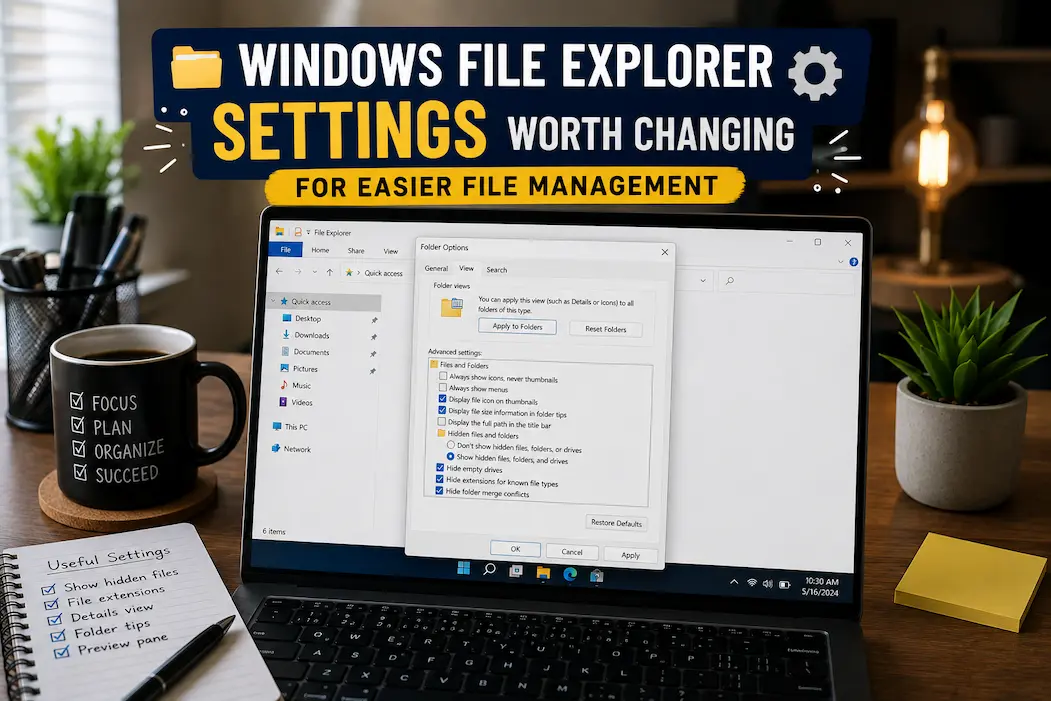
A few settings can make a noticeable difference without turning File Explorer into a complicated workspace. The best changes are usually practical rather than cosmetic: showing information that helps you identify files, choosing a view that suits the folder, reducing unnecessary clutter, and making frequently used locations easier to reach.
You don’t need to change everything in this guide. In fact, leaving most settings at their defaults is perfectly reasonable. The goal is to change the options that remove a recurring annoyance from the way you manage files.
Show File Extensions Instead of Guessing What a File Is
One of the first settings worth changing is File name extensions.
Windows commonly hides extensions for familiar file types, so a file such as invoice.pdf may appear simply as invoice. That looks cleaner, but it removes useful information. When several files have similar names, knowing whether something is a PDF, Word document, spreadsheet, image, archive, or another format can make a real difference.
In current Windows 11 versions, you can enable this through File Explorer > View > Show > File name extensions. Microsoft also provides the setting through Folder Options, although the interface may look different depending on the Windows release.
Once enabled, you’ll see the actual extension as part of the filename. This is particularly useful in Downloads, where files often arrive from different sources and may not have the format you expected.
One Important Warning About Renaming
Visible extensions make it easier to understand files, but they also mean you need to be more careful when renaming them.
Changing report.docx to final.docx is fine. Changing it to final.pdf does not convert the Word document into a PDF. You’re only changing the name Windows uses to identify the file type.
If you need to convert a file, use the application’s export or conversion function. Don’t try to convert formats by changing extensions manually.
Use Details View When You’re Managing Documents
The large icons and thumbnails in File Explorer are useful for some folders, but they aren’t always the best choice for documents.
Switching a folder to Details view gives you information such as the filename, date modified, file type, and size. That makes it much easier to sort through a folder containing dozens or hundreds of files.
Imagine you’re cleaning an old Downloads folder. With large icons, you may have to open several files to determine what they are. In Details view, you can sort by date, type, or size and quickly identify what deserves attention.
You can change the view from the View menu. Windows may remember the chosen view for particular folder types, so you don’t necessarily need to use Details everywhere.
For documents, installers, spreadsheets, PDFs, and mixed work files, it is often a much more informative layout.
Choose Sorting Based on the Job
Sorting by name is familiar, but it isn’t always useful.
If you’re trying to find something you downloaded recently, sorting by Date modified may be faster. If you’re trying to free up storage, sorting by Size can immediately reveal the largest files. If a folder contains several types of files, sorting by Type can separate them logically.
Right-clicking inside a folder or using the relevant column heading in Details view gives you sorting options.
There is no reason to use the same sorting method for every folder. Your Downloads folder, photo archive, project directory, and backup drive may all require different approaches.
The small habit of asking “What am I trying to find?” before choosing a sort order can save more time than any complicated Explorer tweak.
Turn On the Preview Pane for Quick Checks
If you regularly work with documents or images, the Preview pane can reduce unnecessary opening and closing of applications.
With the pane enabled, selecting a supported file can display a preview inside File Explorer. This means you can inspect a document or image without fully opening it.
The feature is useful when you’re looking for a particular file among several with similar names. It can also be handy when reviewing downloaded attachments or sorting a folder of photographs.
Not every file format supports previews, and some previews depend on installed applications or Windows components. If the pane rarely helps you, turn it off. It takes up screen space, and there is no advantage to keeping a feature enabled simply because it exists.
Try the Details Pane When Metadata Matters
The Details pane is different from the Preview pane.
Rather than focusing primarily on the contents of the selected file, it can provide information about the item, such as metadata and other properties depending on the file type.
For some workflows, that is more useful than a visual preview. Someone organizing photographs, for example, may care about dimensions or other file information. A document-heavy workflow may benefit from knowing dates and other properties without opening the file.
You can find these pane options through the View controls in File Explorer.
If the Explorer window starts feeling crowded, don’t use both panes simply because they’re available. Pick the one that supports the task you’re doing.
Keep Hidden Items Hidden Until You Need Them
Windows hides certain files and folders because most people don’t need to interact with them during ordinary file management.
If you are following troubleshooting instructions or need to locate an application configuration folder, you can enable Hidden items from View > Show > Hidden items.
That is different from permanently exposing everything.
For everyday work, keeping hidden items out of sight can make folders easier to understand. When you need to investigate a configuration problem, turn the option on temporarily, find what you need, and switch it back afterward if you prefer a cleaner view.
More visibility isn’t automatically better. It depends on what you’re trying to accomplish.
Leave Protected Operating-System Files Alone
There is a more sensitive setting inside Folder Options that controls Hide protected operating system files.
Unlike ordinary hidden files, these are files that Windows considers important enough to protect from casual modification. Disabling that protection can expose files that should normally remain out of view.
Unless you’re performing a specific troubleshooting task that requires access to them, there is little reason to change this option.
Being able to see a file doesn’t mean you should delete it. If you expose protected system files, treat them as something to investigate rather than something to clean up.
This distinction is particularly important for people who like to keep their computer “tidy” by deleting unfamiliar folders.
Make the Navigation Pane Match Your Workflow
The navigation pane is one of the most useful parts of File Explorer when it contains the locations you actually use.
Depending on your Windows version and configuration, it may show Home or Quick access, OneDrive, This PC, network locations, removable drives, and other destinations.
You can control the visibility of the navigation pane through View > Show > Navigation pane.
Don’t think of reducing the pane as the goal. If you regularly work with a network folder, external drive, or project location, having it immediately accessible is more valuable than keeping the sidebar minimal.
A useful navigation pane should reduce the number of clicks needed to reach important folders.
Pin Important Folders Instead of Repeatedly Searching for Them
If you visit the same folder every day, give it a permanent place in your Explorer navigation.
Windows allows commonly used locations to be pinned in areas such as Quick access or Home, depending on the version you’re using.
This works particularly well for folders such as:
- Active work projects
- Current client files
- A frequently used Downloads subfolder
- A photo-processing folder
- A shared workspace
- A personal archive
The point isn’t to pin every folder you have. If everything is pinned, nothing is easy to spot.
Choose a small number of locations that genuinely save you time.
Decide Whether Recent Files Are Helpful or Distracting
Recent files can be extremely convenient. You can reopen something you were working on without remembering where you saved it.
They can also create clutter, particularly if you’re constantly opening temporary files, downloaded documents, or files from shared locations.
Windows provides controls for recent items and frequently used folders in its Explorer and privacy-related settings. The exact options and wording can change between releases.
On a personal computer, leaving recent files enabled may be useful. On a shared computer, you may prefer to reduce the amount of recent activity displayed in Explorer.
Neither choice is inherently better. It depends on whether convenience or reduced visibility matters more in your situation.
Use File Explorer Tabs for Multi-Location Work
Modern versions of Windows 11 support tabs in File Explorer, which can make file management much less cluttered.
Instead of opening a separate Explorer window for every location, you can keep several folders inside the same window. This is useful when moving files between locations, comparing directories, or working across multiple project folders.
For example, you could keep one tab for Downloads, one for Documents, and another for an external drive.
Tabs aren’t necessarily better than separate windows for every workflow. If you’re dragging files between two locations constantly, separate windows may still be easier. But if your desktop becomes covered in Explorer windows, tabs are worth trying.
Control What File Explorer Opens First
The location that appears when File Explorer starts may not be ideal for everyone.
Depending on your Windows version, you can configure File Explorer to open to Home or This PC.
Home can provide quick access to recent and pinned locations. This PC gives you a more traditional view of drives and common system folders.
If you regularly manage storage across several drives, This PC may be more useful. If most of your work revolves around a handful of frequently accessed folders, Home may save time.
Choose the starting point that matches what you normally do immediately after opening Explorer.
Remove Unnecessary Clutter From Quick Access or Home
The Home or Quick access area can become surprisingly messy over time.
Old projects, temporary folders, external-drive locations, and directories you used once may remain visible or repeatedly appear through usage-based suggestions.
Take a few minutes to remove unnecessary pinned items and review the options controlling recent or frequently used content.
This doesn’t change where your files are stored. It simply makes the Explorer starting point more useful.
Think of it like cleaning the shortcuts on your desk rather than cleaning the entire filing cabinet.
Use Grouping Carefully
File Explorer can group items according to properties such as date, type, size, or other attributes.
Grouping is useful when a folder contains a lot of related files and you want visual separation. It can also make a simple folder harder to scan if you accidentally enable it.
If files suddenly appear divided into sections such as “Today,” “Earlier this week,” or other categories, check the folder’s Group by setting.
If you prefer a straightforward list, set grouping to none. If you’re reviewing a large collection of files by date or type, grouping may be exactly what you need.
This is another setting where the best choice depends entirely on the folder.
Add Columns That Answer Useful Questions
Details view becomes much more powerful when you customize its columns.
Right-click a column heading to see additional information that may be available for the current folder. Depending on what you’re managing, you might find options related to dates, authors, dimensions, file sizes, or other metadata.
Don’t turn on everything.
If you add too many columns, filenames can become cramped and the information becomes harder to scan. Select the few fields that genuinely help you make decisions about the files.
For example, a photo folder might benefit from dimensions, while a document folder might benefit more from modification date and type.
Show Full Paths When You Need More Context
When several folders have similar names, knowing where a file actually resides can prevent mistakes.
File Explorer’s address bar already displays the current folder path, but you can also use the address bar to copy the location when you need to share or document it.
This becomes especially useful when troubleshooting. Instead of telling someone “the file is in a folder called Settings,” you can provide the precise location.
You don’t necessarily need a permanent display of the full path everywhere. Just know that Explorer’s address bar can provide more context than the simplified folder name might suggest.
Use Search Filters Before Opening Dozens of Files
Windows Search inside File Explorer can save considerable time when you remember something about a file but not its exact name.
Depending on your Windows version and the folder being searched, you can narrow results using terms related to file type, date, name, or other properties.
Searching is especially useful when your storage has grown beyond what a simple folder hierarchy can comfortably handle.
Instead of manually opening every folder looking for an old spreadsheet, search for the relevant filename or file type first.
A well-organized folder structure still matters, but search should be treated as a complementary tool rather than a replacement for organization.
Don’t Let One View Control Every Folder
One of the easiest mistakes is trying to force the same File Explorer view on every folder.
A folder full of photographs benefits from large thumbnails. A folder containing reports is usually easier to manage with Details. A folder of software installers might be most useful when sorted by name and type.
Windows can remember folder-specific views, so take advantage of that rather than constantly switching everything back to one preferred layout.
File management becomes easier when the interface reflects the contents of the folder.
Review File Associations When Files Open in the Wrong Program
File Explorer itself doesn’t decide everything about what happens when you double-click a file. Windows uses file associations to determine which application should handle particular file types.
If a PDF suddenly opens in a different application or a document is associated with the wrong program, the problem may be the file association rather than File Explorer.
You can change default applications through Settings > Apps > Default apps in current Windows versions.
Before changing anything, check the actual file extension. If extensions are visible, you can confirm whether Windows is dealing with the file type you expected.
Don’t Install Explorer “Optimizer” Programs Just for These Settings
You don’t need third-party software to unlock most of the useful File Explorer settings discussed here.
There are applications and registry tweaks marketed as ways to “supercharge” Explorer, but adding another program simply to change basic viewing preferences can create unnecessary complexity.
Start with Windows’ built-in controls. They are enough for the majority of everyday file-management needs.
If Explorer is genuinely malfunctioning or unusually slow, investigate the underlying issue rather than installing a collection of tweak utilities.
Settings I Would Prioritize First
If you’re making changes for the first time, start with the options that provide useful information without creating unnecessary complexity.
| Setting | Good Choice When | Main Benefit |
|---|---|---|
| File name extensions | You regularly download or rename files | Makes file types obvious |
| Details view | You manage documents or large folders | Shows useful file information |
| Preview pane | You inspect many supported files | Reduces unnecessary opening |
| Hidden items | You’re troubleshooting | Exposes normally hidden files when needed |
| Navigation pane | You use the same locations frequently | Faster access |
| Recent items | You need quick access to current work | Saves navigation time |
| Grouping | You manage large collections | Creates useful visual categories |
| Custom columns | File metadata matters | Adds information relevant to your work |
| Tabs | You work across several locations | Reduces window clutter |
| Home/This PC startup | Your current starting location is inconvenient | Opens Explorer where you actually need it |
You don’t have to change all ten. In many cases, changing three or four is enough.
Frequently Asked Questions
Which File Explorer setting should I change first?
Showing file name extensions is a strong starting point because it makes the actual file type visible. After that, choose a useful view and organize the navigation pane around the folders you use most.
Should I keep hidden files visible all the time?
You can, but there is usually little need to do so during ordinary file management. Enable Hidden items when you need to troubleshoot or access a configuration folder, then disable it if you prefer a cleaner interface.
Is Details view better than large icons?
Neither is universally better. Details view is generally more useful for documents and mixed files, while large icons or thumbnails are often better for photos and visual content.
Does showing file extensions make Windows safer?
It can make file handling clearer because you can see the actual extension instead of relying on a generic filename. It doesn’t provide complete security, but it can help you notice unexpected file types.
Are File Explorer registry tweaks necessary?
Usually not. Most everyday file-management preferences can be handled through Windows’ normal settings and Explorer menus. Registry changes should be reserved for situations where you understand exactly what they alter.
Why is one File Explorer folder slower than others?
Large numbers of files, network locations, cloud synchronization, media previews, storage problems, or other factors can affect performance. A different view may help in some cases, but changing random Explorer settings is not necessarily the solution.
Make File Explorer Fit the Way You Work
The best File Explorer configuration isn’t the one with the most features enabled. It’s the one that removes unnecessary steps from the tasks you perform regularly.
Show extensions if you need to know what files actually are. Use Details when you’re sorting documents. Turn on previews when they genuinely save time. Keep hidden and protected files out of the way until a specific task requires them. Pin the folders you use frequently, clean up the navigation area, and use tabs when several locations need to stay open.
There is also no reason to change a setting simply because someone labels it a “secret Windows trick.” A setting is useful when it solves a real problem in your workflow. Once File Explorer is configured around the way you actually store, find, inspect, and move files, everyday file management becomes noticeably simpler without adding another application or complicated system tweak.