Switching a WordPress website from HTTP to HTTPS is one of the most important improvements you can make for security. An SSL certificate encrypts the connection between your website and its visitors, helps build trust, and is now considered a standard requirement for modern websites. After enabling HTTPS, you expect everything to work exactly as before—only more securely.
Instead, many site owners are surprised to see browser warnings, broken padlock icons, missing images, or messages about mixed content. Sometimes the website appears normal at first glance, but a closer look reveals that certain fonts, scripts, stylesheets, or media files are still being loaded over HTTP. Modern browsers recognize this inconsistency and flag the page because secure and insecure resources are being mixed together.
Mixed content errors are common after moving an existing website to HTTPS, but they are usually straightforward to fix once you know where to look. The challenge is that there isn’t a single cause. A theme, plugin, old database entries, hardcoded URLs, CDN settings, or even third-party services can all introduce insecure resources.
This guide explains what mixed content errors actually mean, why they appear after enabling HTTPS, how to identify the source, and the safest ways to eliminate them without breaking your website.
What Is a Mixed Content Error?
Every page loaded over HTTPS should request all of its resources through HTTPS as well.
These resources include:
- Images
- CSS files
- JavaScript files
- Fonts
- Videos
- AJAX requests
- Embedded content
A mixed content error occurs when the webpage itself loads securely, but one or more of these resources are still requested over HTTP.
For example:
Secure page
https://example.com
Image loaded insecurely
http://example.com/uploads/logo.png
Although the image may still appear, browsers recognize that the page contains insecure content and may display a warning instead of the familiar padlock icon.
Some browsers even block certain insecure resources entirely, causing missing images, broken layouts, or JavaScript that stops working.
Why Browsers Care About Mixed Content
HTTPS protects information by encrypting communication between the browser and the server.
If even one important resource loads over HTTP, an attacker could potentially modify that resource while it’s being transmitted.
Imagine a secure login page that loads an unsecured JavaScript file. If someone intercepted and altered that script, they could theoretically change how the page behaves despite the rest of the connection being encrypted.
For this reason, browsers have become increasingly strict over the years.
Today, many types of mixed content are automatically blocked rather than simply displaying a warning.
What Usually Causes Mixed Content After Moving to HTTPS?
Most mixed content problems happen because some parts of the website still reference the old HTTP address.
This commonly happens after:
- Installing an SSL certificate.
- Migrating a website.
- Moving to a new hosting provider.
- Changing domains.
- Restoring an old backup.
- Cloning a website from a staging environment.
WordPress itself may already be using HTTPS correctly, while older content stored inside the database continues pointing to HTTP resources.
That’s why some pages work perfectly while others display browser warnings.
Confirm That WordPress Is Using HTTPS
Before looking for individual errors, verify that WordPress itself has been configured correctly.
Open:
Settings → General
Check these two fields:
- WordPress Address (URL)
- Site Address (URL)
Both should begin with:
https://
They should also use the same domain format.
For example:
or
Avoid mixing:
- HTTP and HTTPS
- www and non-www versions
Even a small mismatch can create inconsistent resource loading.
Identify the Resource Causing the Error
The browser usually tells you exactly which file is creating the mixed content warning.
Open your website in Chrome, Edge, or Firefox.
Right-click anywhere on the page and choose the following:
Inspect
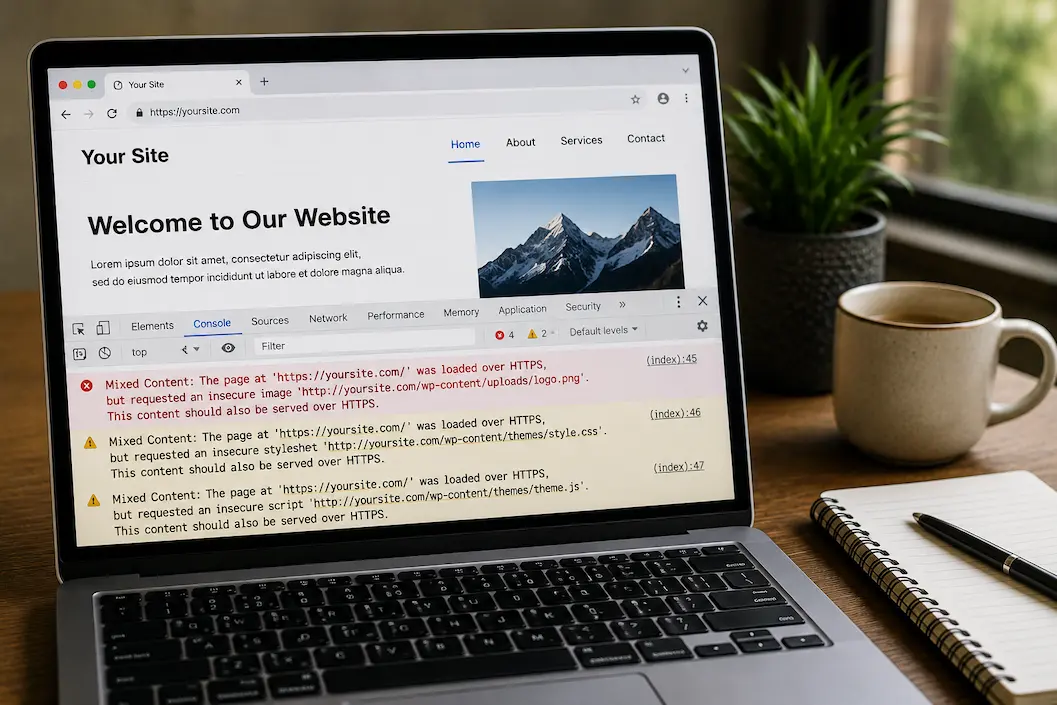
Then open the Console tab.
You may see messages similar to the following:
Mixed Content: The page at ‘https://example.com‘ was loaded over HTTPS, but requested an insecure image, script, or stylesheet.
These messages normally include the full URL of the problematic resource.
Knowing exactly which file is responsible saves a great deal of unnecessary troubleshooting.
Update Old URLs Stored in the Database
One of the most common causes of mixed content is content created before HTTPS was enabled.
Older posts and pages may still contain image URLs such as:
http://example.com/wp-content/uploads/image.jpg
Even though the website now uses HTTPS, those individual links remain unchanged.
Instead of editing hundreds of posts manually, perform a database-wide search and replace.
Replace:
http://example.com
with:
https://example.com
This updates old references throughout your content while leaving everything else intact.
Always create a database backup before performing a large search-and-replace operation.
Check Theme Files for Hardcoded HTTP Links
Some themes contain manually written URLs instead of using WordPress functions that automatically generate secure links.
Review recently customized files, such as
- header.php
- footer.php
- functions.php
- custom templates
Look for entries beginning with:
http://
Replace them only if they’re intended to reference your own website.
If the URL belongs to another service, verify that the service actually supports HTTPS before changing it.
Themes purchased many years ago are particularly likely to contain hardcoded URLs that predate widespread HTTPS adoption.
Review Plugin Settings
Plugins sometimes store their own URLs separately from WordPress.
Examples include:
- Sliders
- Gallery plugins
- Page builders
- Contact forms
- Security plugins
- Analytics tools
- Social sharing plugins
Open each plugin’s settings and look for references to your website address.
Many plugins automatically detect HTTPS after updates, but older versions may require manual adjustments.
If mixed content appeared immediately after installing or updating a plugin, that plugin deserves closer inspection.
Check Custom CSS and JavaScript
Mixed content doesn’t always originate from visible page content.
Custom CSS files sometimes reference images using absolute HTTP paths.
For example:
background-image:url(http://example.com/background.jpg);
Likewise, custom JavaScript may request resources using insecure URLs.
Review any custom code you’ve added through:
- Theme customization
- Child themes
- Code snippet plugins
- Custom CSS sections
Updating these references often removes lingering browser warnings.
Inspect Your CDN Configuration
If your website uses a content delivery network (CDN), some resources may still be served from HTTP.
This often happens when:
- The CDN was connected before HTTPS was enabled.
- SSL wasn’t activated for the CDN.
- Cached files still reference old URLs.
Start by clearing both:
- Website cache
- CDN cache
Then verify that the CDN itself is configured to deliver content securely.
If only images or static files trigger mixed content warnings, the CDN is worth investigating early in the troubleshooting process.
Enable Automatic HTTPS Rewriting
Many hosting providers and CDN services can automatically rewrite HTTP resource requests to HTTPS.
This feature doesn’t fix incorrect URLs stored in your database, but it can resolve certain mixed content issues while you update the website properly.
Think of automatic rewriting as a temporary convenience rather than a permanent solution.
The cleaner approach is ensuring every resource already uses HTTPS before it reaches visitors.
Don’t Forget External Resources
Not every insecure request comes from your own website.
Many pages include resources hosted elsewhere.
Examples include:
- Custom fonts
- Embedded videos
- Maps
- Advertising scripts
- Analytics services
- Social media widgets
If one of these services still provides only an HTTP address, browsers may continue reporting mixed content even though your own website is configured correctly.
Whenever possible, replace external resources with secure HTTPS versions or remove them if they’re no longer necessary.
Verify That Redirects Work Correctly
A proper HTTPS migration normally redirects every HTTP request automatically.
Test several pages by manually changing:
https://
to
http://
The browser should immediately redirect visitors back to the secure version.
If it doesn’t, your server redirects may need attention.
Without consistent redirects, visitors and search engines may continue accessing outdated HTTP URLs.
Clear Every Cache Before Testing Again
Many website owners believe their fixes haven’t worked because they’re still seeing cached content.
After making changes, clear the
- Browser cache
- WordPress cache
- Server cache
- CDN cache
Then refresh the page using a hard reload.
Testing in a private browsing window can also help eliminate cached resources from previous visits.
Advanced Troubleshooting
If browser warnings continue after updating obvious URLs, take a more systematic approach.
Review the browser’s developer tools page by page rather than testing only the homepage. It’s common for a single landing page, blog post, or WooCommerce product to contain old resources while the rest of the site works perfectly.
If the problem affects only uploaded media, inspect the uploads directory and verify that image URLs stored in the database have actually been updated.
For persistent issues following a migration, compare a working page with one that still shows mixed content warnings. The differences often reveal whether the source is a plugin, theme template, embedded media, or manually inserted HTML.
If you’ve recently restored a backup, remember that the backup may contain references to the previous HTTP environment. In that case, repeating a database search-and-replace may resolve dozens of hidden references at once.
Common Mistakes That Delay the Fix
Mixed content errors often linger because the troubleshooting process focuses on the wrong area.
Some common mistakes include:
- Updating only the homepage while leaving old posts unchanged.
- Forgetting to clear cached files.
- Editing individual posts instead of updating the database.
- Assuming the SSL certificate is faulty.
- Ignoring plugin and theme settings.
- Leaving old CDN caches active.
- Testing only one browser.
Most mixed content issues result from inconsistent URLs rather than problems with the SSL certificate itself.
How to Prevent Mixed Content Problems in the Future
Once your website is fully secure, keeping it that way is relatively simple.
Whenever you install a new plugin or theme, verify that it’s actively maintained and compatible with modern WordPress versions. Older software is more likely to contain hardcoded HTTP links.
Avoid manually typing complete URLs when adding images or internal links. Whenever possible, let WordPress generate them automatically.
If you migrate your website or restore backups, include URL verification as part of your post-migration checklist instead of waiting for browser warnings to appear.
Finally, test your website after major updates. A quick review of several pages is often enough to catch new mixed content issues before visitors notice them.
Quick Troubleshooting Reference
| Problem | Likely Solution |
|---|---|
| The browser shows “Not Secure.” | Identify mixed content resources. |
| Images missing after HTTPS | Update image URLs in the database. |
| CSS not loading | Check theme files and cache |
| JavaScript blocked | Replace insecure script URLs |
| Only some pages affected | Search database for old HTTP links |
| Errors after migration | Verify redirects and update URLs |
| Static files still use HTTP | Check CDN configuration |
Frequently Asked Questions
Will mixed content errors harm my website?
They don’t usually damage the website itself, but they reduce security, can break page functionality, and may discourage visitors who see browser warnings.
Is the SSL certificate causing the problem?
Usually not. In most cases, the certificate is working correctly. The issue is that some resources are still being requested through HTTP instead of HTTPS.
Why do only certain pages show mixed content?
Those pages often contain older images, embedded media, or manually added links that weren’t updated during the HTTPS migration.
Can plugins create mixed content errors?
Yes. Plugins may load scripts, stylesheets, images, or external services using outdated HTTP URLs, especially if they haven’t been updated recently.
Should I edit every page manually?
Generally, no. If the issue affects many pages, performing a safe database search-and-replace is much more efficient than editing individual posts.
Why does the padlock disappear even though the page loads?
Browsers remove the secure indicator whenever they detect insecure resources, even if the main page itself loads over HTTPS.
Does clearing the cache really matter?
Absolutely. Cached files may continue serving old HTTP resources even after you’ve corrected the underlying problem, making it appear as though nothing has changed.
How can I confirm the issue has been fixed?
Visit several pages, open your browser’s developer tools, and check the console for mixed content warnings. If no insecure resources are reported and the padlock icon appears consistently, the migration has likely been completed successfully.
Conclusion
Mixed content errors are one of the most common issues people encounter after enabling HTTPS, but they rarely indicate a serious problem with the website itself. In most cases, they simply mean that some part of the page—whether it’s an image, stylesheet, script, or embedded resource—is still pointing to an outdated HTTP address.
Rather than treating browser warnings as isolated problems, look at your website as a whole. Confirm that WordPress is configured for HTTPS, update old database entries, review themes and plugins for hardcoded links, clear every layer of caching, and verify that external services also support secure connections. Once every resource is served consistently over HTTPS, your visitors will see a secure connection, your pages will load without mixed content warnings, and you’ll have a stronger foundation for both security and long-term website maintenance.