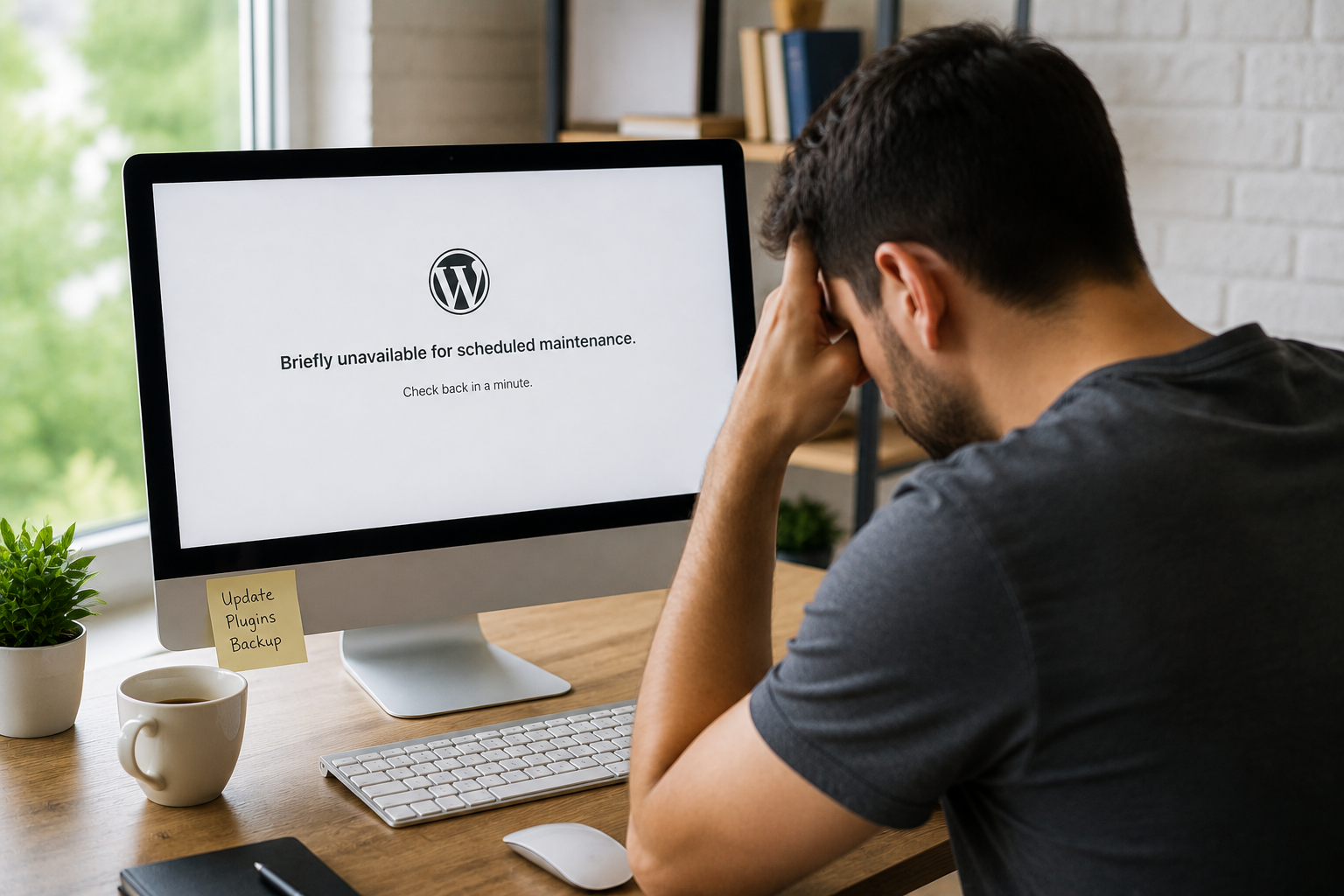
You finish updating a plugin, theme, or WordPress itself; refresh your website; and instead of seeing your homepage, you’re met with a message that says:
Briefly unavailable for scheduled maintenance. Check back in a minute.
Normally, this message disappears within a few seconds. WordPress enters maintenance mode while updates are being installed and then automatically removes the maintenance file once everything finishes successfully.
But sometimes that final step never happens.
A slow internet connection, a browser interruption, a server timeout, or an update that fails halfway through can leave your website stuck in maintenance mode indefinitely. Visitors can’t access your site, and in some cases, even the WordPress dashboard remains unavailable.
The encouraging news is that this is one of the easier WordPress problems to fix. Most websites can be restored in just a few minutes without affecting posts, pages, images, or the database.
This guide explains why WordPress gets stuck in maintenance mode, how to remove it safely, what to do if the simple fix doesn’t work, and how to reduce the chances of it happening again.
Why WordPress Uses Maintenance Mode
Whenever WordPress installs updates, it temporarily creates a file named
.maintenance
This tiny file tells WordPress to display the maintenance message while updates are in progress.
The sequence usually looks like this:
- WordPress creates the
.maintenancefile. - Updates begin installing.
- Files are replaced where needed.
- The update completes successfully.
- WordPress deletes the
.maintenancefile automatically.
The entire process often takes less than a minute.
Problems arise when WordPress never reaches the last step.
Instead of removing the file, it remains in the website’s root directory, causing WordPress to think updates are still running—even though they stopped long ago.
Common Reasons the Maintenance Mode Doesn’t End
The maintenance file itself isn’t usually the real problem. It’s often a symptom of something interrupting the update process.
Some of the most common causes include:
- Closing the browser while updates are still installing.
- Updating several plugins at the same time.
- A plugin causing a fatal PHP error during the update.
- Server timeouts.
- Low PHP memory.
- Insufficient hosting resources.
- File permission problems.
- Interrupted FTP or hosting connections.
- Running incompatible plugins or themes.
- Security software blocking file changes.
One pattern many administrators notice is that the issue appears after updating a large number of plugins together. Although WordPress supports bulk updates, they require more server resources than updating one plugin at a time.
The Fastest Fix: Delete the .maintenance File
In most cases, this single step solves the problem.
Using your hosting file manager or an FTP application, open your WordPress installation directory.
You’ll usually see folders like
wp-admin
wp-content
wp-includes
Look carefully for a hidden file called
.maintenance
Delete only this file.
After deleting it, refresh your website.
If the update had already finished and the file simply wasn’t removed, your website should immediately return to normal.
Can’t See the File?
Many file managers hide files that begin with a period.
Enable the option to display hidden files. Depending on your hosting control panel, this may appear as the following:
- Show Hidden Files
- Display Dotfiles
- View Hidden Items
Without enabling hidden files, the .maintenance file may appear to be missing even though it’s still there.
Check Whether the Update Actually Finished
Removing the maintenance file restores access, but don’t assume the update completed correctly.
Log into WordPress and visit:
Dashboard → Updates
Check whether:
- WordPress still needs updating.
- A plugin update failed.
- A theme update was interrupted.
- Database updates are waiting.
Sometimes the maintenance message disappears, but one plugin remains only partially updated.
If that’s the case, update it again after confirming your website is functioning normally.
Inspect the Plugin That Triggered the Problem
If the issue began immediately after updating a particular plugin, that plugin deserves attention.
Ask yourself:
- Was it a major version upgrade?
- Has it been updated recently by its developer?
- Is it compatible with your version of WordPress?
- Does it require a newer PHP version?
Rather than updating everything again immediately, update only the affected plugin first.
If the same problem returns, temporarily disable that plugin and investigate further before reinstalling it.
Increase the PHP Memory Limit
Updates require more memory than normal page loads.
When PHP runs out of available memory halfway through an update, WordPress may never complete the process.
One common indicator is an update that freezes for a long time before showing the maintenance message permanently.
You can increase the memory allocation in your wp-config.php file by adding:
define('WP_MEMORY_LIMIT', '256M');
Keep in mind that some hosting plans enforce their own memory limits. If increasing the value doesn’t help, you’ll need to adjust the PHP memory setting through your hosting control panel or ask your hosting provider to raise the limit.
Review the error logs.
Deleting the maintenance file solves the symptom, but if updates continue failing, you’ll need to identify the underlying cause.
Start with your hosting provider’s PHP error log.
Look for entries mentioning:
- Fatal errors
- Parse errors
- Memory exhaustion
- Missing files
- Permission errors
- Timeout messages
These logs often point directly to the plugin or file responsible.
WordPress can also create a debug log if debugging is enabled.
Check:
wp-content/debug.log
Reading the error log before making further changes is often much faster than guessing.
Verify File Permissions
WordPress needs permission to create, modify, and remove files during updates.
If permissions are incorrect, updates may begin successfully but fail when WordPress attempts to replace files or delete the maintenance file afterward.
Typical recommendations are
| Item | Recommended Permission |
|---|---|
| Directories | 755 |
| Files | 644 |
wp-config.php |
400 or 440 where supported |
Permissions that are too restrictive can interrupt updates, while permissions that are too open create unnecessary security risks.
Replace an Incomplete Plugin Update
Occasionally, a plugin update stops halfway through, leaving only part of the new version installed.
Symptoms include:
- Missing plugin files.
- PHP fatal errors.
- Blank admin pages.
- Repeated maintenance mode after every update.
The safest solution is to replace the plugin with a fresh copy.
Download the latest version from its official source, remove the damaged plugin directory, and upload the clean version.
Your plugin settings are usually stored in the WordPress database, so replacing plugin files typically doesn’t erase configuration data.
Don’t Ignore Hosting Resource Limits
Shared hosting accounts often impose limits that aren’t immediately obvious.
Large updates may fail because of:
- CPU usage limits.
- Low available RAM.
- Slow disk performance.
- Maximum execution time restrictions.
- Limited PHP workers.
If maintenance mode appears repeatedly during large updates but smaller updates work normally, server resources may be the real bottleneck rather than WordPress itself.
Advanced Troubleshooting
If deleting the .maintenance file doesn’t restore your website, a second issue is likely preventing WordPress from loading.
Disable Plugins Temporarily
Rename the plugins folder inside wp-content.
When WordPress cannot locate the folder, it automatically disables every plugin.
If the website starts working, reactivate plugins individually until you identify the one causing the update failure.
Switch to a Default Theme
A theme update that fails can also prevent WordPress from loading correctly.
Rename your active theme folder.
If another default WordPress theme is installed, WordPress will activate it automatically.
If the site returns, you’ve isolated the problem to the original theme.
Replace Core WordPress Files
Interrupted WordPress core updates occasionally leave important files incomplete.
Download the same version of WordPress from the official website and replace the following:
wp-adminwp-includes- Root core files
Leave these untouched:
wp-contentwp-config.php
This refreshes WordPress itself without affecting your content.
Mistakes That Often Make Things Worse
It’s understandable to want your website online as quickly as possible, but rushing can create new problems.
Avoid these common mistakes:
- Deleting random WordPress files instead of only the
.maintenancefile. - Starting another update before confirming the previous one finished.
- Updating every plugin immediately after restoring the website.
- Restoring an old backup before identifying the actual cause.
- Ignoring PHP error logs.
- Editing core WordPress files unnecessarily.
Working through the issue one step at a time usually resolves it much faster.
How to Prevent Maintenance Mode Problems
Most maintenance mode issues are avoidable with a few simple habits.
Instead of updating everything at once, install updates gradually. Updating five plugins individually is often safer than updating twenty simultaneously, especially on shared hosting.
It’s also worth checking plugin compatibility before major WordPress releases. Developers sometimes need time to adapt their plugins to new versions, and installing updates too quickly can create avoidable conflicts.
Regular backups provide another layer of protection. Even though maintenance mode rarely causes data loss, having a recent backup makes recovery much less stressful if an update fails unexpectedly.
If your website receives regular traffic, consider testing updates on a staging site before applying them to your live website. This gives you an opportunity to identify compatibility issues without affecting visitors.
Finally, keep an eye on your hosting environment. Websites that consistently reach memory limits or execution time limits are more likely to experience interrupted updates than sites with adequate server resources.
Troubleshooting Summary
| Situation | Recommended Action |
|---|---|
| The maintenance message won’t disappear | Delete the .maintenance file |
| The file isn’t visible | Enable hidden files in File Manager |
| The same issue returns after every update | Review plugin compatibility |
| The update freezes repeatedly | Increase PHP memory and check server limits |
| The website breaks after maintenance mode | Disable plugins and inspect error logs |
| The core update failed | Replace WordPress core files |
Frequently Asked Questions
Is it safe to delete the .maintenance file?
Yes. If WordPress has become stuck in maintenance mode, removing this file simply tells WordPress that updates are no longer in progress. It doesn’t delete your website or database.
Why can’t I find the .maintenance file?
Most hosting file managers hide files that begin with a period. Enable the option to show hidden files before searching again.
Will deleting the maintenance file undo the update?
No. It only removes the maintenance notice. If an update failed before completing, you’ll need to rerun that update after your website becomes accessible.
Can a plugin keep putting my site into maintenance mode?
Yes. A plugin with compatibility problems or incomplete updates can repeatedly interrupt the update process. Reviewing recent plugin updates usually helps identify the cause.
Why does this happen more often on shared hosting?
Shared hosting plans often have lower memory limits and shorter execution times. Large updates may exceed those limits, preventing WordPress from completing its maintenance routine.
Should I restore a backup immediately?
Not necessarily. Most maintenance mode problems are resolved without restoring backups. Only consider a restore if updates damaged your website and simpler troubleshooting hasn’t worked.
Can visitors see my website while it’s stuck in maintenance mode?
Usually not. Instead of your normal pages, they’ll see the maintenance message until WordPress exits maintenance mode successfully.
How long should WordPress normally stay in maintenance mode?
For most websites, maintenance mode lasts less than a minute. If the message remains for several minutes without progress, the update likely stopped unexpectedly and needs attention.
Conclusion
Seeing your website stuck in maintenance mode can be unsettling, especially after what should have been a routine update. Fortunately, the fix is often much simpler than it first appears. In many cases, deleting the leftover .maintenance file restores the site immediately because WordPress had already finished its work but failed to clean up afterward.
If the problem keeps returning, treat it as a sign that something else needs attention. An outdated plugin, limited server resources, insufficient PHP memory, or a failed update is usually preventing WordPress from completing the update process properly. By identifying that underlying cause instead of repeatedly deleting the maintenance file, you’ll make future updates smoother and far less likely to interrupt your website.