Finding a file shouldn’t be harder than completing the task you originally intended to do with it. Yet for many, that isn’t the case. A report gets carelessly saved in a corner of the desktop, an important PDF is forgotten in the ‘Downloads’ folder, and there are three versions of the same document with nearly identical names. Individually, these seem insignificant. But over the course of a week, they quietly eat up valuable time that could be spent on more meaningful work.
Digital clutter doesn’t happen overnight. It accumulates gradually as new projects begin, software creates more folders, screenshots pile up, and downloaded data sits idle. Eventually, opening your computer feels more chaotic than opening a messy filing cabinet. You know the file is there, but the real challenge is finding it.
Effective file management isn’t about building a complex folder structure that requires constant maintenance. The best solution is simple enough for daily use and flexible enough to grow with your workload. When every file has its place and every folder has a purpose, daily tasks become much easier and more convenient—without extra effort.
Organize Files by Activity, Not File Type
A common mistake is organizing files by file extension—for example, putting documents in one folder, spreadsheets in another, presentations in a third, and photos in yet another.
This sounds logical, but it doesn’t work that way in practice. A single project might include contracts, photos, spreadsheets, notes, invoices, and presentations. If you scatter these across multiple folders, you are essentially organizing by format rather than purpose.
A better approach is to organize around the work itself. Suppose you are considering renovating a house. Instead of placing quotes in a ‘Documents’ folder, photos in a ‘Photos’ folder, and financial documents in a ‘Spreadsheets’ folder, you create a separate project folder and put all renovation-related files in it.
Naturally, when working, you should focus on the project first, not the file type.
Reduce the Number of Places Where You Save Files
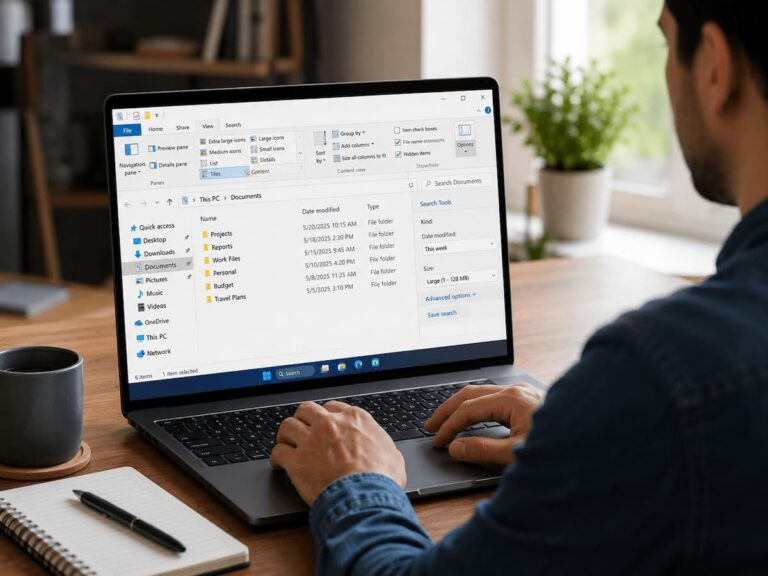
Many computers have the same kinds of files scattered across the Desktop, Downloads, Documents, cloud storage, external drives, and several application-specific folders.
The more locations you regularly use, the harder it becomes to remember where something was saved.
Rather than creating dozens of storage locations, try limiting yourself to a small number of primary folders. This doesn’t reduce flexibility—it reduces uncertainty.
For example:
| Main Folder | Purpose |
|---|---|
| Personal | Household documents, finances, personal records |
| Work | Current work projects and professional files |
| Photos | Images and videos |
| Learning | Courses, research, reference material |
| Archive | Completed projects and older documents |
Within each folder, you can create additional subfolders as needed, but the top-level structure remains consistent and easy to remember.
Give New Files a Permanent Home Immediately
The easiest file to organize is the one you just created.
Many people save documents to the desktop or Downloads folder with the intention of organizing them later. Unfortunately, “later” often turns into several months.
Develop the habit of choosing the correct folder before clicking Save.
Although this process takes a few extra seconds initially, it eliminates the much larger task of sorting hundreds of misplaced files in the future.
If you’re downloading multiple documents throughout the day, set aside five minutes before finishing work to move anything important into its permanent location. That small routine prevents temporary folders from becoming permanent storage.
Make Folder Names Useful Six Months From Now
A folder name should still make sense long after you’ve forgotten why you created it.
Names such as New Folder, Misc, Random, or Important might seem obvious today, but they become much less helpful over time.
Instead, choose names that describe the contents clearly.
For example:
| Less Clear | More Helpful |
|---|---|
| Stuff | Marketing Materials |
| New | 2026 Tax Documents |
| Photos | Family Vacation – Colorado |
| Work | Website Redesign Project |
| Files | Insurance Records |
Descriptive names reduce searching because you can identify the correct folder without opening several others first.
Clear naming also helps if someone else ever needs to locate information on your computer.
Create a Simple Naming Standard for Files
Folders provide structure, but file names are what you’ll search most often.
Without a consistent naming approach, it’s easy to end up with documents like:
- Report
- Report New
- Report Final
- Report Final Updated
- Report Final Latest
Several weeks later, deciding which version is actually current becomes difficult.
Instead of relying on memory, use names that immediately describe the document.
For example:
- Monthly Budget July 2026
- Client Proposal Greenfield
- Employee Handbook Draft
- Garden Project Materials List
The exact format matters less than consistency. If you name files the same way every time, finding them becomes much faster.
Separate Active Work From Completed Work
One reason folders become overwhelming is that current projects remain mixed with everything you’ve completed over the past several years.
Imagine opening your Work folder and seeing hundreds of unrelated projects stretching back five years. Even if everything is technically organized, locating today’s files requires unnecessary scrolling and searching.
A better solution is maintaining separate areas for active and completed work.
For example:
- Active Projects
- Completed Projects
- Archive
Moving finished work into an archive keeps your everyday workspace focused on what you’re currently using without deleting valuable information.
Active folders remain smaller, cleaner, and easier to navigate, while older files remain available whenever you need them.
Let Search Support Your Organization—Don’t Depend on It
Modern operating systems include powerful search tools, and they’re incredibly useful. However, relying on search for every file often hides deeper organizational problems.
Search works best when combined with a logical folder structure. Clear folder names and descriptive file names make search results far more accurate, reducing the number of similar files you need to sort through.
Think of search as a shortcut rather than your primary filing system. When both organization and search work together, locating information becomes much quicker than depending on either method alone.
Treat the Downloads Folder as a Waiting Area
The Downloads folder is one of the busiest locations on almost every computer. Documents, software installers, images, invoices, manuals, and compressed files all pass through it. The problem isn’t that files arrive there—it’s that many of them never leave.
Instead of thinking of Downloads as permanent storage, treat it as a temporary workspace. Once you’ve finished using a downloaded file, decide what should happen next. If it’s important, move it into its proper folder. If it was only needed once, consider whether it should remain on the computer at all.
A quick review every week prevents this folder from turning into an unorganized collection of hundreds of unrelated files. It also makes it much easier to spot recent downloads without scrolling through months or even years of older content.
Reduce Duplicate Files Before They Become Confusing
Duplicate files are one of the biggest reasons digital storage becomes difficult to manage. Sometimes they’re created intentionally while editing a document. Other times they appear because the same attachment is downloaded several times or a file is copied into multiple project folders.
The real problem isn’t just the extra storage they consume. It’s the uncertainty they create.
Imagine opening a folder and finding:
- Budget.xlsx
- Budget (2).xlsx
- Budget Final.xlsx
- Budget Updated.xlsx
Without opening each one, it’s difficult to know which file should actually be used.
Rather than creating another copy “just in case,” develop the habit of updating the original file whenever possible. If multiple versions genuinely need to exist, make the differences obvious through clear naming instead of relying on memory.
Organize Cloud Storage the Same Way You Organize Your Computer
Cloud storage is incredibly convenient, but convenience can sometimes encourage poor organization. Because storage feels almost unlimited, folders tend to grow without much planning.
Keeping your cloud storage organized doesn’t require a completely different system. In fact, using the same folder structure across your computer and cloud account makes navigation much more intuitive.
For example, if your computer contains folders named Work, Personal, Projects, and Archive, using similar categories in your cloud storage means you won’t have to remember two different organization methods.
Consistency reduces mistakes and makes it much easier to find files regardless of where they’re stored.
Spend a Few Minutes Organizing Every Week
Many people postpone organization because they expect it to require an entire afternoon. In reality, small and consistent reviews are far more effective than occasional large cleanups.
A weekly routine doesn’t need to be complicated.
During a short review, you might:
- Move recent downloads into permanent folders.
- Rename files with unclear titles.
- Delete temporary files you no longer need.
- Archive completed projects.
- Remove duplicate documents you’ve noticed during the week.
These small tasks prevent clutter from accumulating, which means future organization sessions become shorter rather than longer.
Like keeping a desk tidy, regular maintenance usually takes less effort than starting from scratch after months of neglect.
Don’t Build a Folder Structure That’s Too Complicated
When people decide to organize their files, it’s tempting to create an elaborate system with dozens of categories and multiple layers of folders.
The intention is good, but complicated structures often become difficult to maintain. If saving a document requires navigating through six different folders, you’ll eventually start placing files wherever it’s quickest.
A practical organization system should be easy enough that you actually use it every day.
A good rule is to pause before creating another subfolder and ask whether it truly makes finding files easier or simply makes the structure more complex.
Simple systems tend to survive because they’re effortless to maintain.
Make File Organization Part of Your Routine
Organization isn’t a one-time project. Every new document, photo, spreadsheet, or presentation becomes another opportunity to either strengthen your system or gradually weaken it.
Fortunately, maintaining good organization rarely requires major effort once the basics are in place.
Consider building a simple checklist into your weekly routine.
| Weekly Task | Purpose |
|---|---|
| Review Downloads | Prevent temporary files from accumulating |
| Rename unclear documents | Improve future searches |
| Archive completed work | Keep active folders manageable |
| Remove unnecessary duplicates | Reduce confusion and wasted storage |
| Check cloud storage | Keep files synchronized and organized |
| Review desktop items | Return temporary files to permanent folders |
Completing these tasks regularly usually takes less time than searching for one misplaced document later.
Common Habits That Make Finding Files Harder
Sometimes the biggest obstacle isn’t the folder structure—it’s everyday habits that slowly create disorder.
Watch out for practices like these:
| Habit | Better Alternative |
|---|---|
| Saving everything on the desktop | Use the desktop only for current work |
| Leaving files in Downloads indefinitely | Move them after use |
| Using vague names like “New Document” | Choose descriptive file names |
| Creating many copies of the same file | Maintain one primary version whenever possible |
| Building deeply nested folders | Keep navigation simple and logical |
| Organizing only when storage is full | Review files regularly throughout the month |
Avoiding these habits makes long-term organization much easier than repeatedly reorganizing the same files.
FAQs
How often should I manage my electronic files?
Most people only need to perform a quick review once a week. If you generate or download large amounts of data daily, multiple short checks throughout the week may be more practical than one major cleanup session.
Should I organize my files by project or by file type?
Sometimes organizing by project is more convenient because all related items—whether documents, photos, spreadsheets, or presentations—stay together. However, the best approach is to align the organization with your daily search habits.
Should I delete or keep old files?
If a file still holds personal, legal, or professional value, it is generally wiser to archive it rather than delete it. Archived files remain accessible but do not clutter your active folders.
How many folders should I create?
There is no absolute standard for the number of folders. The goal is to have enough folders to keep things organized without making navigation difficult. For most people, a few well-defined top-level folders with logically structured subfolders work best.
Will my computer run faster if I organize my files?
While organizing files may not significantly increase processing speed, it makes it easier to locate documents, speeds up backups, minimizes duplicate files, and improves storage management—all of which enhance the overall user experience.