Running a WordPress website isn’t a task you finish once the site goes live. Publishing the first pages, selecting a theme, and installing plugins are only the beginning. From that point forward, the site’s condition depends on regular attention. Without it, small issues can slowly develop into broken pages, slow loading times, compatibility problems, or security risks that are much harder to fix later.
Many website owners think of maintenance as something to do only when a problem appears. In reality, the healthiest websites are usually the ones that receive small, consistent updates before anything goes wrong. A few minutes spent checking the site each week can prevent hours of troubleshooting in the future.
This handbook focuses on practical maintenance habits that keep a WordPress website dependable over time. Whether your site contains a personal blog, a business portfolio, or an information resource, these routines help preserve performance, stability, and usability without requiring advanced technical knowledge.
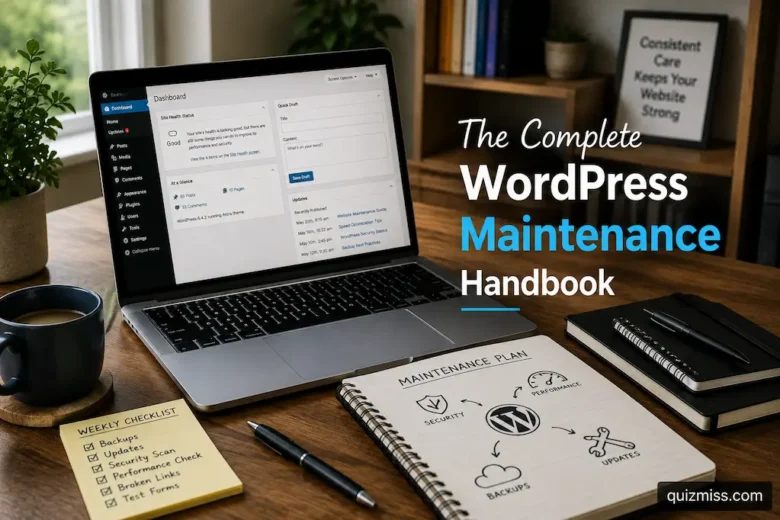
Build a Maintenance Schedule Instead of Relying on Memory
Website maintenance becomes inconsistent when every task depends on remembering it at the right moment. One month updates are installed immediately, the next month they’re postponed, and eventually several changes accumulate at once.
A written maintenance schedule removes that uncertainty.
Rather than trying to complete everything whenever you have spare time, divide responsibilities into manageable intervals.
| Time Frame | Typical Maintenance Focus |
|---|---|
| Weekly | Check updates, review backups, confirm website loads correctly |
| Monthly | Test important pages, review plugins, inspect forms |
| Quarterly | Remove unused themes and plugins, review user accounts |
| Annually | Evaluate hosting plan, renew domain-related services, review overall site structure |
Following a routine like this keeps maintenance predictable and reduces the likelihood of overlooking important tasks.
Always Begin With Backups
Before changing anything on a live website, make sure you have a recent backup available.
Updates usually complete without problems, but themes, plugins, and server environments don’t always interact exactly as expected. If something unexpected occurs, having a reliable backup provides a straightforward way to restore the website.
A useful backup should include both:
- Website files.
- Database content.
Equally important is confirming that backups can actually be restored if necessary. A backup that cannot be recovered provides little practical value.
Treat backups as preparation rather than a reaction.
Keep WordPress Core, Themes, and Plugins Current
WordPress evolves continuously. Updates improve compatibility, introduce new features, correct software bugs, and address known security concerns.
Allowing updates to accumulate for several months increases the chance that multiple changes will need to be addressed simultaneously.
Instead, review available updates regularly and install them in a controlled manner.
A sensible workflow often looks like this:
- Verify that a current backup exists.
- Read update notes if significant changes are involved.
- Update WordPress core when appropriate.
- Update themes and plugins.
- Visit important pages afterward to confirm everything works normally.
This structured approach reduces unnecessary surprises while keeping the website current.
Remove What the Website No Longer Uses
Many WordPress sites gradually collect items that no longer serve a purpose.
An old plugin tested once, several inactive themes, temporary media files, or outdated draft pages may remain for years simply because nothing appears to be broken.
Although these items aren’t always harmful, they increase clutter and make ongoing management more complicated.
Periodically review your installation and ask whether each component still contributes to the website.
Removing unnecessary items simplifies administration and makes future maintenance easier because fewer components require updates or monitoring.
Review User Accounts Carefully
As websites grow, they often create additional user accounts for writers, editors, developers, or temporary contributors.
Months later, you may no longer need some of those accounts.
Instead of focusing only on passwords, review the overall list of users.
Consider questions like these:
- Does every account still have a legitimate purpose?
- Are permission levels appropriate?
- Have former contributors been removed?
- Are administrator accounts limited to people who genuinely require them?
Keeping user management organized helps reduce confusion while ensuring the website remains easier to administer.
Monitor Website Performance Beyond Page Speed
Performance involves much more than loading time.
A website that loads quickly but contains broken navigation, missing images, or malfunctioning forms still creates a poor experience for visitors.
During routine maintenance, browse the site as though you were visiting for the first time.
Check areas such as:
| Area to Review | Reason for Checking |
|---|---|
| Navigation menus | Confirm links remain accurate |
| Contact forms | Verify submissions work correctly |
| Images | Look for missing or incorrectly displayed files |
| Internal links | Identify pages leading to errors |
| Search function | Ensure visitors can locate information |
Looking beyond speed helps maintain the overall quality of the website instead of focusing on only one performance measurement.
Keep Plugins Organized Instead of Installing Everything
Plugins greatly expand WordPress functionality, but adding too many without careful consideration can make long-term maintenance more difficult.
Each plugin introduces another component that may eventually require updates, compatibility checks, and troubleshooting.
Before installing a new plugin, ask yourself:
- Does the website truly need this feature?
- Can existing functionality already accomplish the same goal?
- Will the plugin likely receive regular updates?
- Is there a simpler solution?
Choosing plugins thoughtfully usually results in a cleaner and easier-to-maintain website than collecting dozens of extensions for occasional use.
Document Changes as the Website Evolves
Memory becomes less reliable as websites grow.
Several months after making a change, it can be surprisingly difficult to remember why a plugin was installed, when a theme customization was added, or what prompted a particular configuration adjustment.
Maintaining a simple maintenance log doesn’t require lengthy documentation.
Recording information such as:
- Major updates.
- New plugins.
- Theme changes.
- Hosting adjustments.
- Significant troubleshooting steps.
…creates a useful history that makes future maintenance much easier, especially when several people contribute to the website over time.
Pay Attention to Your Database as the Site Grows
Every post you publish, comment you receive, setting you change, and plugin you install adds information to your WordPress database. Over time, this database naturally becomes larger, especially on websites that have been active for several years.
Growth isn’t a problem by itself, but unused information can accumulate. Expired transients, unnecessary revisions, spam comments, and data left behind by removed plugins may continue occupying space long after they’re useful.
Instead of waiting until performance begins to suffer, review database health periodically. Cleaning unnecessary entries and keeping only relevant information makes long-term management easier and can simplify backups as well.
The goal isn’t to achieve the smallest possible database but to maintain one that accurately reflects the website you actually operate.
Treat Security as an Ongoing Habit
Website security is often discussed only after an attack or unexpected problem. In practice, effective security comes from consistent habits rather than emergency responses.
Good maintenance includes paying attention to the small details that are easy to overlook. Review administrator accounts occasionally, revoke access that is no longer needed, and make sure important software stays current. If your hosting provider offers security monitoring or activity logs, spend a few minutes reviewing them from time to time.
It’s equally important to notice unusual behavior. Unexpected administrator accounts, unfamiliar file changes, repeated failed login attempts, or sudden increases in resource use deserve investigation before they become larger issues.
Security works best when it’s part of your normal maintenance routine instead of a separate task completed only once a year.
Test Important Website Functions Regularly
A website can look completely normal while important features stop working without anyone noticing.
For example, visitors may no longer receive confirmation emails from contact forms, search results may not display correctly, or downloadable resources may have broken links. These problems often remain unnoticed because website owners rarely experience the site the same way new visitors do.
Set aside time to test the features people actually use.
Rather than checking every page individually, focus on functions that directly affect visitors.
| Website Feature | What to Confirm |
|---|---|
| Contact form | Messages are successfully delivered |
| Search | Relevant content appears in results |
| Navigation | Menus lead to the correct pages |
| Downloads | Files open or download correctly |
| Comments (if enabled) | Submission process works normally |
| Login pages | Authorized users can sign in successfully |
A few simple tests often reveal issues long before visitors begin reporting them.
Avoid Making Large Changes on a Busy Day
Sometimes website owners postpone maintenance for weeks and then try to complete everything at once.
Core updates, plugin replacements, design adjustments, new content, SEO improvements, and server changes all happen during the same afternoon. If something unexpected occurs, identifying the cause becomes much more difficult.
Whenever practical, separate major changes into smaller maintenance sessions.
Updating software one day and redesigning page layouts another day creates a much clearer troubleshooting process if something doesn’t behave as expected.
This approach also reduces unnecessary pressure because each task receives proper attention instead of competing with several others.
Keep an Eye on Content That Ages Over Time
Maintenance isn’t limited to the technical side of WordPress. The information published on the website deserves attention as well.
Older articles may reference discontinued products, outdated screenshots, expired promotions, or information that no longer reflects current best practices. Even evergreen content benefits from occasional review to ensure it remains accurate and useful.
Content reviews might include:
- Updating outdated statistics or references.
- Replacing broken external links.
- Refreshing screenshots where necessary.
- Improving internal linking to newer articles.
- Correcting information that has changed over time.
Keeping content current helps visitors while also making the website feel actively maintained.
Small Habits That Make Maintenance Easier
Long-term website health usually comes from simple routines rather than complicated procedures.
Consider incorporating habits like these into your workflow:
- Review the website after every significant update.
- Archive notes about major changes instead of relying on memory.
- Remove temporary files once projects are finished.
- Review installed plugins before adding new ones.
- Check backup status before making structural changes.
- Browse the site from a visitor’s perspective every few weeks.
Individually, these actions take very little time. Together, they create a maintenance process that is much easier to sustain throughout the year.
Common Maintenance Mistakes
Even well-managed websites can develop problems when routine tasks are repeatedly postponed.
Some of the most common examples include:
| Mistake | Better Practice |
|---|---|
| Installing updates without confirming backups | Verify backups first |
| Leaving unused plugins installed indefinitely | Remove components that no longer serve a purpose |
| Ignoring small website issues | Investigate problems while they’re still minor |
| Making several major changes simultaneously | Introduce changes gradually |
| Forgetting to review older content | Schedule periodic content updates |
| Assuming everything works because the homepage loads | Test key visitor features regularly |
Most of these issues are preventable through consistency rather than technical expertise.
FAQs
How much time should I spend on WordPress maintenance each month?
For most websites, one or two short maintenance sessions per month are recommended to review updates, test key features, verify backups, and assess the website’s overall health. Larger or high-traffic websites may require more frequent maintenance.
Should I keep unused applications?
Removing a plugin you no longer need can often simplify website management, as it eliminates unnecessary components that would otherwise require updates or monitoring.
Should WordPress always be updated right away?
Many website owners prefer to check backups and read important update information before implementing major changes. In most cases, carefully planning updates is safer than updating immediately upon release.
What are the best maintenance practices?
Generally, the best approach is to develop a regular maintenance plan. Regular checks help you keep up with updates, backups, content reviews, and speed monitoring.
Conclusion
WordPress maintenance is less about troubleshooting and more about prevention. As you add new content, update software, grow the database, and shift visitor expectations, the website will gradually evolve. Regular, small-scale checks help prevent these changes from escalating into intractable problems.
A reliable maintenance plan doesn’t have to be complicated or time-consuming. By carefully updating software, monitoring website performance, keeping content current, organizing installed components, and tracking significant changes, you can build a website that is easier to manage now and easier to maintain in the future.