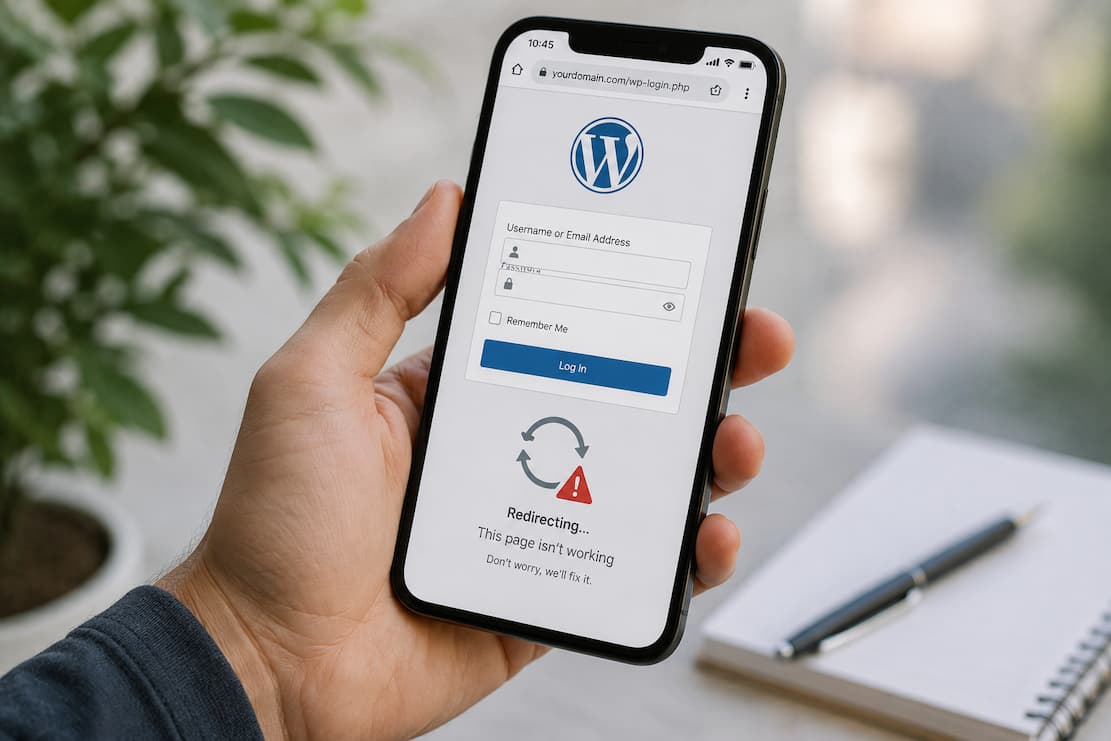
A WordPress login page that simply refreshes instead of logging you in is one of the most frustrating problems website owners encounter. You enter the correct username and password, click Log In, and instead of reaching the WordPress dashboard, you’re taken right back to the login screen with no error message.
This issue, commonly called the WordPress login page refresh loop or login redirect loop, usually isn’t caused by an incorrect password. Instead, it’s often related to cookies, cached files, plugins, themes, corrupted configuration files, incorrect website URLs, or server settings.
The good news is that this problem can almost always be fixed without reinstalling WordPress. This guide explains why the login refresh loop happens, how to identify the real cause, and the safest methods to restore access to your website. You’ll also learn advanced troubleshooting techniques for stubborn cases and practical steps to prevent the issue from returning.
What Causes the WordPress Login Page Refresh Loop?
Before attempting fixes, it’s helpful to understand what happens behind the scenes.
When you log into WordPress:
- WordPress verifies your username and password.
- It creates authentication cookies.
- Your browser stores those cookies.
- WordPress checks whether those cookies exist.
- If everything works correctly, you’re redirected to the dashboard.
If the cookies aren’t created correctly or WordPress can’t verify them, it assumes you’re still logged out and reloads the login page.
Common causes include:
| Cause | Why It Creates a Login Loop |
|---|---|
| Browser cookies | Authentication cookies fail to save |
| Browser cache | Old login sessions conflict with new ones |
| Incorrect WordPress URL | Cookies are generated for the wrong address |
| Plugin conflicts | Security or caching plugins interrupt login |
| Theme problems | Poorly coded themes interfere with authentication |
Corrupted .htaccess |
Redirect rules break login requests |
| Corrupted WordPress files | Authentication files fail to load |
| Hosting cache | Cached login pages prevent session updates |
| File permission issues | WordPress cannot update required files |
| Mixed HTTP/HTTPS settings | Cookies become invalid due to protocol mismatch |
Many users assume the password is wrong, but in most refresh loop cases, authentication actually succeeds—the session simply isn’t preserved.
Quick Fix Checklist
If you need a fast solution, try these in order:
- Clear your browser cache and cookies.
- Open the login page in an incognito or private window.
- Disable all WordPress plugins.
- Switch to a default WordPress theme.
- Check the WordPress address (URL) and site address (URL).
- Regenerate the
.htaccessfile. - Clear any server or CDN cache.
- Verify that your website consistently uses either HTTP or HTTPS.
If the problem persists, continue with the detailed troubleshooting steps below.
Clear Browser Cache and Cookies
This is the simplest fix and often resolves the issue immediately.
Why it works
WordPress relies heavily on cookies for authentication. If your browser stores outdated or corrupted cookies, WordPress may repeatedly think you’re not logged in.
Steps
- Open your browser settings.
- Go to Privacy and Security.
- Choose Clear browsing data.
- Remove:
- Cookies
- Cached images and files
- Restart the browser.
- Visit your WordPress login page again.
If it doesn’t work
Try logging in using:
- Incognito mode
- Another browser
- Another device
If login succeeds elsewhere, the issue is almost certainly browser-related.
Verify WordPress Address and Site Address
Incorrect website URLs are one of the most common reasons for login loops.
Why it happens
If WordPress thinks your site is:
https://example.com
But you’re logging into
http://example.com
or
https://www.example.com
The authentication cookies won’t match the domain.
Check your settings
If you still have database access or can edit configuration files, ensure these URLs match exactly:
- WordPress Address (URL)
- Site Address (URL)
Both should use the same:
- protocol (HTTP or HTTPS)
- domain
- subdomain (www or non-www)
Examples:
or
Avoid mixing formats.
Disable All Plugins
Plugins frequently cause login refresh loops, especially the following:
- security plugins
- login protection plugins
- firewall plugins
- caching plugins
- redirect plugins
- maintenance plugins
Method using File Manager or FTP
Navigate to:
wp-content
Rename:
plugins
to:
plugins-disabled
Now try logging in.
What happens?
WordPress automatically disables every plugin because it can’t find the folder.
If login works:
- rename the folder back
- reactivate plugins one by one
- test after each activation
The plugin that causes the refresh loop is usually the last one activated.
Switch to a Default WordPress Theme
Although less common than plugin conflicts, themes can also interfere with login.
Steps
Inside:
wp-content/themes
Rename your active theme folder.
For example:
astra
becomes
astra-old
If a default WordPress theme such as Twenty Twenty-Five or Twenty Twenty-Six is installed, WordPress automatically switches to it.
Try logging in again.
If login succeeds, the issue is likely within your previous theme or one of its customizations.
Regenerate the .htaccess file.
A damaged .htaccess file can create redirect problems that affect login sessions.
Locate
public_html/.htaccess
Rename it:
.htaccess-old
Now attempt to log in.
If successful:
Go to:
Settings → Permalinks
Without changing anything:
Click:
Save Changes
WordPress automatically creates a fresh .htaccess file.
Check HTTP and HTTPS Consistency
Mixed protocols frequently create cookie problems.
Example:
Homepage:
https://example.com
Login page:
http://example.com/wp-login.php
Because the protocol changes, authentication cookies may not be accepted.
Verify
Make sure every page consistently loads with:
- HTTPS only
or
- HTTP only (not recommended for modern websites)
If your hosting provider includes an SSL certificate, force HTTPS across the entire site.
Clear Server, CDN, and Cache Plugin Caches
Many modern hosting companies use multiple caching layers.
Examples include:
- server cache
- object cache
- page cache
- CDN cache
- edge cache
Sometimes the login page itself becomes cached.
Clear cache from:
- hosting control panel
- CDN dashboard
- WordPress caching plugin
- reverse proxy, if used
Never allow the login page to be cached.
Pages such as:
wp-login.php
and
wp-admin
should always bypass cache.
Verify File Permissions
Incorrect permissions may prevent WordPress from reading or updating necessary files.
Typical recommendations:
| Item | Permission |
|---|---|
| Files | 644 |
| Folders | 755 |
| wp-config.php | 440 or 400 (where supported) |
Permissions that are too restrictive or overly permissive can both cause unexpected authentication issues.
Check the wp-config.php file.
Review your wp-config.php file for custom settings that may interfere with authentication.
Things to inspect include:
- Incorrect site URLs
- Duplicate configuration entries
- Cookie-related constants
- Debug settings left from testing
- Incorrect domain definitions
If you recently edited the file before the login issue started, compare it with a backup or a clean WordPress installation.
Replace Core WordPress Files
Corrupted core files can interrupt the login process.
Safe method
- Download the same WordPress version from the official WordPress website.
- Extract the files.
- Upload fresh copies of:
wp-adminwp-includes
- Replace loose core files in the root directory.
- Do not overwrite:
wp-contentwp-config.php
This refreshes WordPress without affecting your content, themes, plugins, or uploads.
Check Recent Website Changes
One overlooked troubleshooting step is reviewing what changed immediately before the problem appeared.
Ask yourself:
- Did I install a new plugin?
- Did I update WordPress?
- Did I change hosting settings?
- Did I activate Cloudflare or another CDN?
- Did I modify
.htaccess? - Did I edit
wp-config.php? - Did I install a security plugin?
- Did I migrate the website?
Working backward from the most recent change often identifies the root cause much faster than trying random fixes.
Advanced Troubleshooting
If the login page still refreshes after completing the basic steps, investigate these less obvious causes.
Disable security firewall temporarily
Some firewall plugins mistakenly block authentication requests.
Temporarily disable:
- login protection
- brute-force protection
- Web Application Firewall (WAF)
If login works afterward, review the plugin’s rules rather than leaving protection disabled permanently.
Inspect browser developer tools
Open your browser’s developer tools and watch the Network tab while attempting to log in.
Look for:
- repeated 302 redirects
- 403 Forbidden responses
- 500 Internal Server Error
- blocked cookies
These clues often point directly to the source of the problem.
Review server error logs
Your hosting account’s PHP or web server logs may reveal the following:
- PHP fatal errors
- exhausted memory
- plugin crashes
- permission issues
- redirect errors
Logs are especially useful when the login page refreshes without displaying an error message.
Check PHP Version Compatibility
If the problem started after upgrading PHP, one or more plugins or themes may no longer be compatible.
Compare your PHP version with the compatibility requirements of:
- WordPress core
- active theme
- installed plugins
Updating outdated extensions is usually preferable to downgrading PHP.
Common Mistakes That Make the Problem Worse
Avoid these actions while troubleshooting:
- Reinstalling WordPress immediately.
- Deleting the database without a backup.
- Changing multiple settings at once.
- Editing configuration files without saving copies.
- Deleting plugins instead of temporarily disabling them.
- Ignoring browser cookies while focusing only on server settings.
A methodical approach makes it much easier to identify the real cause.
Prevention Tips
To reduce the chances of encountering this issue again:
- Keep WordPress core updated.
- Update plugins and themes regularly.
- Remove unused plugins.
- Avoid installing multiple caching plugins simultaneously.
- Exclude login pages from all caching systems.
- Maintain consistent HTTPS settings.
- Back up your website before making configuration changes.
- Test major updates on a staging site before applying them to a live website.
- Use reputable plugins that are actively maintained and compatible with your WordPress version.
Troubleshooting Summary
| Problem | Most Likely Fix |
|---|---|
| Login refreshes immediately | Clear cookies |
| Login works in incognito. | Browser cache issue |
| Started after plugin installation | Disable plugins |
| Started after theme change | Switch themes |
| HTTP and HTTPS mixed | Standardize site URLs |
| Recent redirect changes | Regenerate .htaccess |
| Login page cached | Clear server and CDN cache |
| Nothing works | Replace WordPress core files and review server logs |
Frequently Asked Questions
Why does WordPress keep returning me to the login page?
The most common reason is that authentication cookies aren’t being created or recognized. This can happen because of browser issues, incorrect site URLs, plugin conflicts, caching, or server configuration problems.
Can a plugin really cause a login refresh loop?
Yes. Security, caching, login customization, and redirect plugins are frequent causes. Disabling all plugins is one of the quickest ways to confirm whether a plugin is responsible.
Will deleting cookies remove my WordPress content?
No. Clearing browser cookies only removes locally stored login information. Your website files, database, posts, and media remain unchanged.
Does changing the theme delete my website design?
No. Switching themes temporarily changes how the site looks but doesn’t delete your content. If your original theme is the cause, you can troubleshoot it and reactivate it later.
Why does the issue appear after moving my website to a new host?
Website migrations often change domains, SSL settings, file permissions, or caching configurations. Any of these changes can prevent WordPress authentication cookies from working correctly.
Is replacing WordPress core files safe?
Yes, as long as you replace only the core WordPress files and leave your wp-content folder and wp-config.php file untouched. This can resolve issues caused by corrupted core files without affecting your content.
Can Cloudflare or another CDN cause login issues?
Yes. If a CDN caches the login page or applies restrictive security rules to authentication requests, it can prevent successful logins. Excluding wp-login.php it wp-admin from the cache usually resolves this.
Should I reinstall WordPress if nothing else works?
A full reinstall should be one of the last options. Most login refresh loops are caused by configuration issues rather than damaged installations, so it’s better to identify and fix the underlying problem first.
Conclusion
A WordPress login page refresh loop almost always points to an authentication problem rather than a failed login. In many cases, clearing browser cookies or disabling a problematic plugin resolves the issue within minutes. When those fixes don’t help, checking your site URLs, regenerating the .htaccess file, switching to a default theme, and reviewing server logs can uncover less obvious causes.
Approach the troubleshooting process one step at a time instead of changing multiple settings simultaneously. That makes it easier to identify the exact cause and reduces the risk of introducing new problems. Once you’ve regained access, keeping WordPress updated, avoiding unnecessary plugins, and maintaining consistent HTTPS and caching settings can help prevent the issue from returning.