
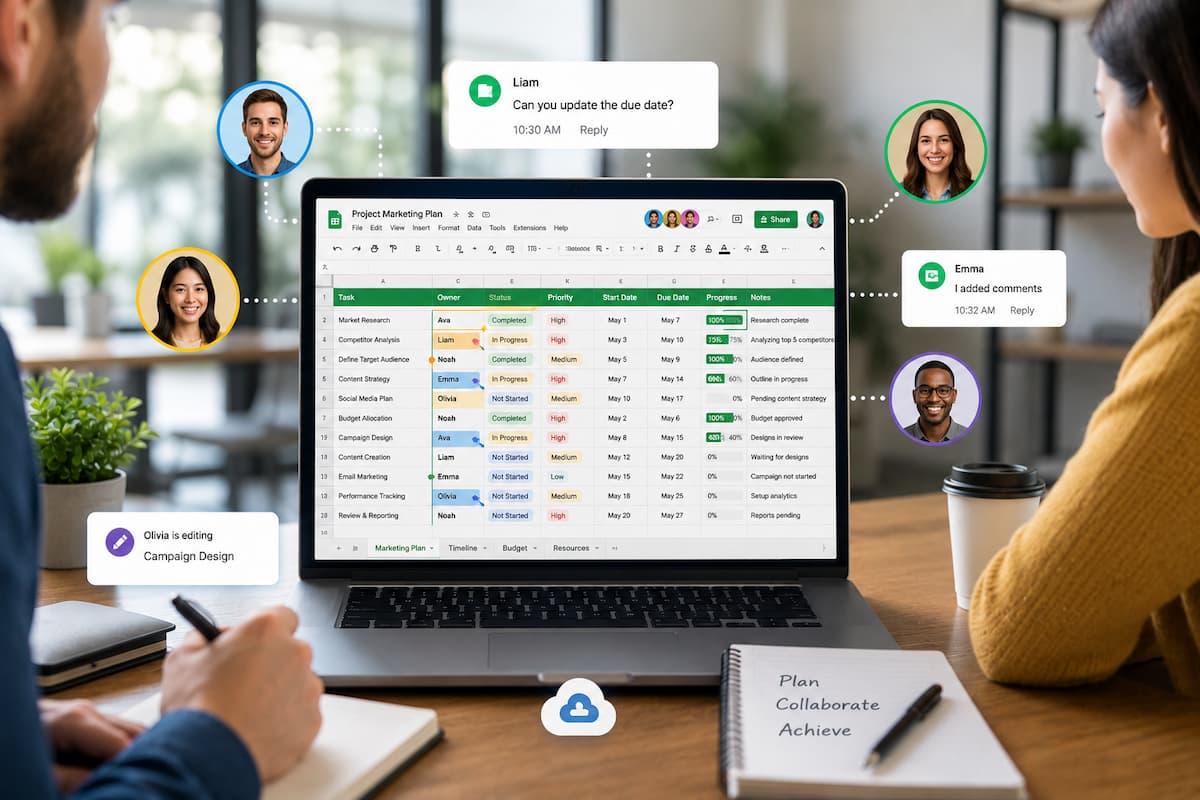
Still, successful collaboration does not happen automatically. Users need to understand sharing permissions, editing controls, comments, version history, and simple organization methods. Without these practices, even a useful tool can become difficult to manage. This guide explains how to collaborate in Google Sheets without editing conflicts. You will learn how real-time editing works, how to control access, how to protect important information, and how to solve common problems. These tips are helpful for students, businesses, remote teams, and anyone who works with shared spreadsheets.
Why Editing Conflicts Happen in Google Sheets
Google Sheets is designed for multiple people to edit one spreadsheet together. However, conflicts can still happen when users do not follow a clear workflow. Most problems come from unclear responsibilities, incorrect permissions, or accidental changes. For example, imagine a project management spreadsheet used by a remote team. One person updates task deadlines while another edits the same rows with progress information. If both users overwrite the same cells, valuable updates may disappear. Understanding why conflicts happen is the first step toward preventing them.
Common Reasons for Spreadsheet Conflicts
| Cause | Example | Solution |
|---|---|---|
| Too many editors | Everyone changes the same information | Assign editing responsibilities |
| Incorrect permissions | A viewer receives full editing access | Choose the correct access level |
| No document structure | Users do not know where to enter information | Create clear sections and instructions |
| Unprotected formulas | A formula is replaced with text | Protect important cells |
Tip: Before sharing a spreadsheet, decide what each person should be allowed to change. Clear roles prevent many editing problems.
How Real-Time Collaboration Works in Google Sheets
Real-time collaboration allows multiple users to open and edit the same Google Sheet at the same time. Instead of creating separate files and combining changes later, everyone works from one updated document. When someone makes a change, Google Sheets automatically saves the update and synchronizes it with other users. Each person can see activity happening in the document, including selected cells and comments.
Key Features of Real-Time Collaboration
- Live editing: Multiple people can type and update information together.
- Automatic saving: Changes are saved without manually pressing a save button.
- User indicators: You can see who is currently viewing or editing.
- Comments: Team members can discuss specific cells without changing data.
- Version history: Previous versions can be reviewed and restored.
Example of Real-Time Collaboration
A marketing team may use one Google Sheet to plan social media content. One employee writes post ideas, another adds publishing dates, and a manager reviews the final schedule. Because everyone works in the same document, the team avoids sending multiple spreadsheet versions through email.
Limitations to Remember
Although Google Sheets handles multiple users effectively, it cannot automatically understand human decisions. If two people intentionally change the same information, the tool cannot know which version is correct. That is why effective collaboration habits are still important.
Understanding Google Sheets Sharing Permissions
One of the most important steps for avoiding editing conflicts is choosing the correct sharing permissions. Many spreadsheet problems happen because users give everyone full editing access when they only need to view or comment. Google Sheets provides different permission levels that control what people can do inside a document. Understanding these options helps you protect important information while still allowing teamwork.
Google Sheets Permission Levels Explained
| Permission Type | What Users Can Do | Best For |
|---|---|---|
| Viewer | Can read the spreadsheet but cannot make changes | Reports, final documents, shared information |
| Commenter | Can add comments and suggestions without changing data | Reviews, feedback, approval processes |
| Editor | Can modify spreadsheet content | Active team members who update information |
How to Choose the Right Permission
Before sharing a Google Sheet, consider what each person actually needs to do.
- If someone only needs to review information, give them viewer access.
- If someone needs to provide feedback, use Commenter access.
- If someone needs to update information regularly, please provide them with Editor access.
Warning: Giving editing access to too many people increases the chance of accidental changes. Only trusted collaborators should have full editing rights.
Preparing Your Google Sheet Before Collaboration
A well-organized spreadsheet is easier to manage when multiple people work on it. Before inviting others, take a few minutes to prepare the document. A messy spreadsheet creates confusion because users may not know where to add information or which sections they should avoid changing.
Create a Clear Spreadsheet Structure
Use separate sheets or sections for different purposes. For example, a project tracking spreadsheet could include the following:
- Overview: A summary of project progress.
- Tasks: A list of assignments and deadlines.
- Team Notes: Additional comments and updates.
- Reports: Charts and final results.
Add Instructions for Other Users
A simple instruction section can prevent many mistakes. Add notes explaining where users should enter information and which areas should not be edited.
For example:
- “Enter new customer information only in the blue columns.”
- “Do not edit cells containing formulas.”
- “Use comments instead of changing approved data.”
Use Consistent Formatting
Formatting is not only about appearance. It helps users understand the purpose of different areas.
| Formatting Method | Purpose |
|---|---|
| Different colors for sections | Helps users identify categories quickly |
| Bold headings | Makes important information easier to find |
| Data validation rules | Prevents incorrect entries |
| Frozen rows and columns | Keeps important labels visible |
Best Practices to Prevent Editing Conflicts
Preventing conflicts is easier than fixing them later. A few simple habits can make collaboration much smoother.
1. Assign Specific Editing Areas
When many people work on one spreadsheet, assign responsibilities. Instead of allowing everyone to edit every section, decide who manages specific areas.
For example:
- A finance employee updates budget numbers.
- A manager reviews approvals.
- A project coordinator updates deadlines.
This reduces accidental overwriting because each person understands their role.
2. Use Comments Instead of Changing Someone Else’s Work
Sometimes you notice information that needs correction, but immediately changing it may create confusion. Comments provide a better way to communicate. A team member can highlight a cell, add a comment, and ask for clarification before making changes.
3. Avoid Editing the Same Cells at the Same Time
Google Sheets can handle multiple editors, but conflicts are more likely when several people modify the same area.
If possible, divide work by:
- Different columns
- Different worksheets
- Different sections
- Different time periods
4. Create a Backup Copy Before Major Changes
Before making large updates, create a copy of the spreadsheet. This provides an additional safety option if something unexpected happens.
Expert Tip: For important business spreadsheets, create a regular backup routine instead of depending only on recovery options.
Using Version History to Manage Changes
One of the most useful Google Sheets collaboration features is version history. It allows you to see previous versions of a spreadsheet and understand what changes were made. This feature is especially helpful when someone accidentally deletes information or changes an important formula.
What Version History Shows
- Who made changes
- When changes happened
- Which cells were modified
- Previous versions of the spreadsheet
How to Access Version History
- Open your Google Sheet.
- Select File from the top menu.
- Choose Version history.
- Select See version history.
- Review previous versions and restore if needed.
When Should You Use Version History?
| Situation | Why Version History Helps |
|---|---|
| A formula disappeared | You can identify when it was removed and restore it |
| Important data was deleted | You can recover an earlier version |
| You need accountability | You can see which user made changes |
Version history should not replace good collaboration practices, but it provides valuable protection when mistakes happen.
Protecting Important Cells and Formulas
Some spreadsheet areas should not be changed by every user. Google Sheets allows you to protect specific ranges or entire sheets to prevent unwanted edits. This is especially useful for spreadsheets containing formulas, financial calculations, or important business data.
Examples of Data That Should Be Protected
- Total calculation formulas
- Important reference tables
- Dashboard information
- Approved financial numbers
- Automated reports
Benefits of Protected Ranges
- Reduces accidental mistakes
- Keeps formulas safe
- Creates better control over teamwork
- Makes large spreadsheets easier to manage
Tip: Protect important formulas but leave necessary input areas editable. Good protection should support teamwork, not block it.
Improving Team Communication While Editing Sheets
Technology can make collaboration easier, but clear communication is still one of the most important parts of successful teamwork. A shared Google Sheet works best when everyone understands how the document should be used. Many editing conflicts happen because people make changes without informing others. A simple communication system can prevent confusion and save time.
Use Comments for Discussions
Comments are useful because they keep conversations connected to specific spreadsheet areas. Instead of sending separate messages explaining a problem, team members can discuss the exact cell or section involved. For example, if a sales number looks incorrect, a user can add a comment asking for verification instead of immediately changing the value.
Mention Team Members When Needed
Google Sheets allows users to mention collaborators in comments. This helps direct questions to the correct person and prevents important requests from being missed.
Create Simple Collaboration Rules
For frequently used spreadsheets, create basic rules that everyone follows.
- Do not delete another person’s updates without discussion.
- Use comments for questions and suggestions.
- Update only the sections assigned to you.
- Review changes before making major edits.
- Keep the spreadsheet structure organized.
Best Practice: A shared spreadsheet should have clear ownership. Even when many people edit a document, someone should be responsible for maintaining its structure.
Common Google Sheets Collaboration Problems and Solutions
Even with proper preparation, users may occasionally experience problems while collaborating. Understanding common issues makes it easier to solve them quickly.
| Problem | Possible Cause | Solution |
|---|---|---|
| Cannot edit the spreadsheet | You have Viewer or Commenter access | Ask the owner to update your permissions |
| Changes are missing | Internet connection problems or delayed syncing | Check your connection and refresh the page |
| Someone changed important data | No protection or unclear editing rules | Use version history to restore information |
| Too many people editing | No workflow organization | Assign specific editing responsibilities |
| The spreadsheet becomes slow | Large files with many formulas and users | Reduce unnecessary data and simplify formulas |
Problem: Multiple People Changed the Same Information
If several users edit the same cells, review version history first. Avoid guessing who made the correct change. Looking at previous versions provides a clear record of what happened.
Problem: Users Accidentally Delete Formulas
Protect formula cells and clearly mark areas where users should enter information. Many spreadsheet mistakes happen because users cannot identify the difference between input cells and calculated cells.
Problem: Team Members Are Confused About Updates
Create a change-tracking method. This could include comments, update notes, or a separate activity log sheet.
Advanced Tips for Better Google Sheets Collaboration
Once you understand basic collaboration features, you can use additional tools to create a more efficient workflow.
Use Data Validation Rules
Data validation controls what users can enter into specific cells. It helps prevent incorrect information from being added.
For example, instead of allowing users to type any project status, create a dropdown list with options such as the following:
- Not Started
- In Progress
- Completed
- Needs Review
This keeps information consistent and reduces cleanup work later.
Use Named Ranges for Important Data
Named ranges allow you to give meaningful names to important cell groups. Instead of remembering complicated cell references, users can work with clear labels.
Separate Input and Calculation Areas
A professional spreadsheet often separates user-entered information from automatic calculations.
For example:
| Section | Purpose |
|---|---|
| Input Area | Users enter new information |
| Calculation Area | Formulas process information |
| Dashboard | Displays final results |
Review Sharing Settings Regularly
Over time, people may leave projects or new team members may join. Regularly reviewing access permissions helps keep documents secure and organized.
Google Sheets Collaboration Checklist
Before sharing a spreadsheet with others, use this checklist:
- Decide who needs viewer, commenter, or editor access.
- Organize sheets and sections clearly.
- Protect important formulas and sensitive areas.
- Add instructions for collaborators.
- Use comments for discussions.
- Keep version history available.
- Create backup copies for important files.
- Review permissions regularly.
Conclusion
Collaborating in Google Sheets does not have to create confusion or editing conflicts. With the right setup, multiple people can work together efficiently while keeping information accurate and organized. The most important steps are choosing the correct sharing permissions, preparing the spreadsheet before sharing, protecting important areas, using comments for communication, and taking advantage of version history when mistakes happen. A successful shared spreadsheet is not only about technology. It is also about creating clear teamwork habits. When everyone understands their role and follows simple collaboration rules, Google Sheets becomes a reliable tool for managing projects, tracking information, and working together from anywhere.
References
- Google Workspace Learning Center – Official guides for Google Sheets collaboration and sharing features.
- Google Docs Editors Help – Official documentation about permissions, version history, and protected ranges.
- Google Workspace Security Center – Information about managing access and protecting shared documents.
- National Institute of Standards and Technology (NIST) – General guidance on data protection and access management practices.