
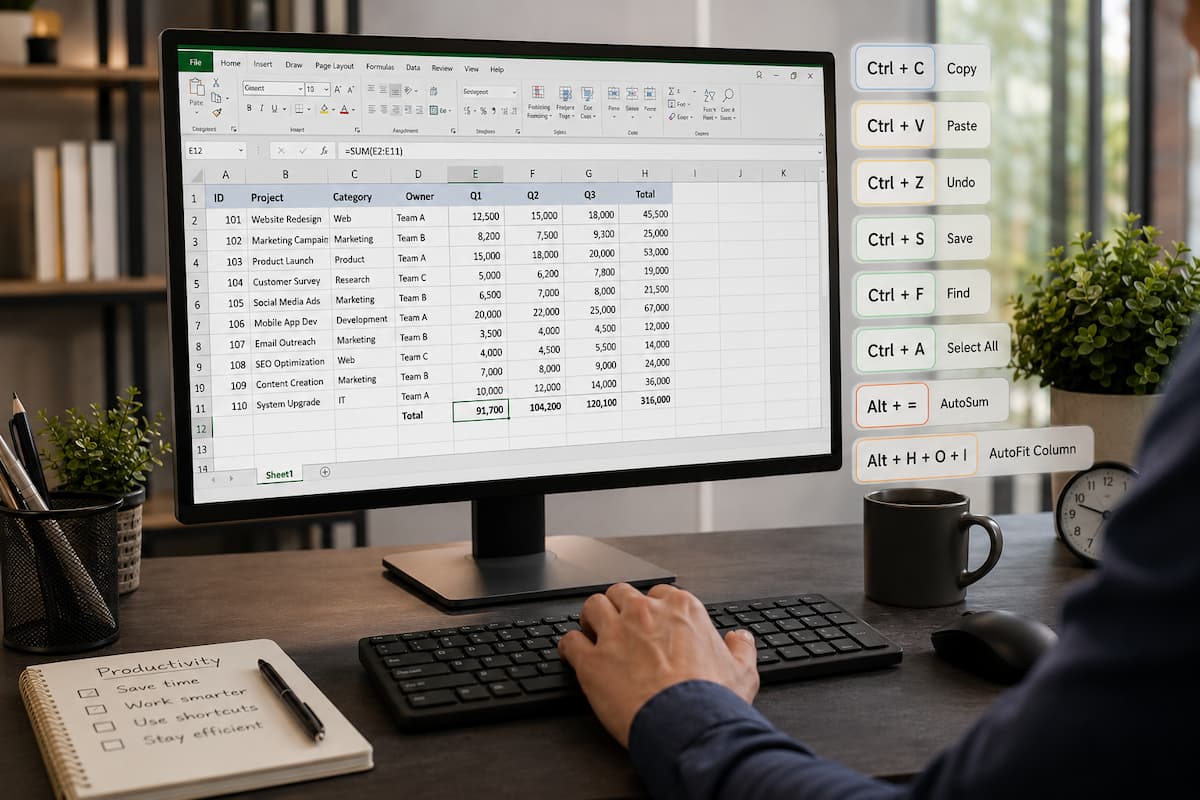
Many people use spreadsheets every day but still complete simple tasks the slow way. They click through menus to copy data, search for information, format cells, switch between sheets, or adjust columns. Each action may only take a few seconds, but those seconds add up when you work with spreadsheets for hours every week. Keyboard shortcuts are one of the easiest ways to improve your spreadsheet workflow. They reduce repetitive mouse movements, help you stay focused on your data, and make common tasks feel almost automatic.
The biggest advantage of shortcuts is not speed alone. They also improve accuracy. When you constantly move between the keyboard and mouse, it becomes easier to select the wrong cell, click the wrong option, or interrupt your workflow. Keyboard commands allow you to perform actions consistently without losing your place. Whether you use Microsoft Excel, Google Sheets, or both, learning the right shortcuts can save significant time. You do not need to memorize hundreds of combinations. A small group of essential shortcuts can handle most daily spreadsheet work.
The Essential Spreadsheet Shortcuts Everyone Should Learn
The best shortcuts are the ones you use repeatedly. These commands work in many spreadsheet applications and provide immediate benefits for everyday tasks.
Copy, Paste, Undo, and Redo: The Shortcuts You Will Use Constantly
The most basic shortcuts are also some of the most valuable.
Copy:
Ctrl + C
Paste:
Ctrl + V
Cut:
Ctrl + X
Undo:
Ctrl + Z
Redo:
Ctrl + Y
These commands replace repeated mouse actions and are used constantly when editing spreadsheets.
For example, imagine creating a monthly sales report. Instead of selecting a formula, clicking copy, moving to hundreds of rows, and clicking paste, you can complete the task instantly with keyboard commands. Undo is especially important in spreadsheet work. Many users hesitate to experiment because they worry about making mistakes. Ctrl + Z gives you the confidence to test changes because you can quickly reverse unwanted actions.
However, remember that undo history is limited. If you close a workbook or perform many unrelated actions, you may not always be able to return to an earlier version. For important files, save regularly.
Save Faster and Avoid Losing Work
One of the simplest habits that prevents frustration is saving frequently.
Shortcut:
Ctrl + S
This action saves your current workbook immediately. Many spreadsheet problems occur because users lose hours of work to unexpected crashes, power outages, or accidental closures.
Modern versions of Microsoft Excel through Microsoft 365 often offer Auto Save when you store files in cloud locations such as OneDrive. Google Sheets automatically saves changes as well. However, manual saving is still a useful habit, especially when working with local files or important documents.
Navigation Shortcuts That Make Large Spreadsheets Easier
Scrolling through large spreadsheets is one of the biggest time-wasters. When a worksheet contains thousands of rows, manually dragging the scroll bar becomes inefficient.
Jump Quickly Through Data
To move to the edge of a data range:
Ctrl + Arrow Key
For example:
Ctrl + Down Arrow
moves from your current cell to the last filled cell in that column.
This is extremely useful when working with long lists such as the following:
- customer databases
- inventory records
- financial reports
- employee information
Without shortcuts, finding the end of a large dataset may require several seconds of scrolling. With keyboard navigation, you can move instantly. A common mistake is using this shortcut without understanding your data structure. If there are empty cells in the middle of your data, Excel may stop at the empty section instead of moving to the true end.
Select Large Amounts of Data Quickly
Selecting large ranges manually can be frustrating.
Instead of dragging your mouse across thousands of cells, use:
Ctrl + Shift + Arrow Key
This option selects data from your current position to the edge of the dataset.
For example:
Ctrl + Shift + Down Arrow
Selects all connected data below the active cell.
This is particularly useful when formatting reports, copying information, or applying formulas to multiple rows.
Formatting Shortcuts That Save Time
Formatting is a major part of spreadsheet work. Reports often need bold headings, date formatting, percentages, borders, and other visual improvements. Using menus for every change slows you down.
Make Text Bold, Italic, or Underlined
Bold:
Ctrl + B
Italic:
Ctrl + I
Underline:
Ctrl + U
These shortcuts are useful when creating professional-looking reports. For example, instead of selecting a heading, moving to the toolbar, finding the bold button, and returning to your sheet, you can highlight the text and press Ctrl + B instantly.
Apply Number Formats Quickly
Common number formats also have shortcuts.
Currency:
Ctrl + Shift + $
Percentage:
Ctrl + Shift + %
Date:
Ctrl + Shift + #
These shortcuts help when working with financial information, sales reports, or statistical data. A frequent mistake is applying the wrong format. For example, changing a number to a percentage format can entirely change how the value appears. Always confirm the data type before formatting.
Shortcuts for Managing Rows and Columns
Working with rows and columns becomes much faster when you know the right commands.
Insert New Rows or Columns
A common task is adding new information to an existing spreadsheet.
Shortcut:
Ctrl + Plus (+)
This opens the insert option, allowing you to add cells, rows, or columns.
Delete Rows or Columns
Shortcut:
Ctrl + Minus (-)
This removes selected cells, rows, or columns.
Be careful when deleting information. If you remove the wrong range, use:
Ctrl + Z
immediately to restore it.
Adjust Column Width Automatically
Long text often gets cut off because columns are too narrow. Instead of manually dragging column borders, double-click the boundary between column letters. Excel automatically adjusts the width to fit the content. This small trick is useful when preparing reports because it improves readability without requiring repeated formatting.
Finding and Managing Information Faster
Large spreadsheets often contain thousands of records. Searching manually is inefficient.
Find Information Instantly
Shortcut:
Ctrl + F
This opens the search tool.
You can quickly locate:
- names
- product codes
- invoice numbers
- specific values
For example, if you have a customer database with thousands of entries, searching manually may take several minutes. Ctrl + F finds the information immediately.
Replace Multiple Values at Once
Shortcut:
Ctrl + H
opens Find and Replace.
This is useful when correcting repeated mistakes. For example, if a product name was entered incorrectly hundreds of times, you can replace all instances at once instead of editing each cell individually. However, use Replace carefully. Always review the results before replacing large amounts of data because incorrect replacements can affect an entire workbook.
Spreadsheet Shortcuts for Working With Multiple Sheets
Many users waste time switching between worksheets using the mouse. Keyboard shortcuts make the process much faster.
Switch to the next worksheet:
Ctrl + Page Down
Switch to the previous worksheet:
Ctrl + Page Up
These shortcuts are especially useful when working with reports that contain multiple tabs.
For example, a financial workbook may contain the following:
- January data
- February data
- March data
- Summary reports
Moving between these sheets becomes much faster with keyboard commands.
Useful Excel and Google Sheets Differences
Most basic shortcuts work similarly in Excel and Google Sheets, but there are some differences. Microsoft Excel is designed for advanced spreadsheet analysis and large workbooks. It includes many specialized keyboard commands, especially on Windows. Google Sheets focuses heavily on collaboration and browser-based work. Some shortcuts may depend on your operating system and browser settings.
For example, Mac users generally use the following:
Command (⌘)
Instead of:
Ctrl
So:
Windows:
Ctrl + C
Mac:
Command + C
The function is the same, but the key combination changes.
How to Build Spreadsheet Shortcut Habits
Trying to memorize dozens of shortcuts at once usually does not work. A better approach is learning them gradually.
Start with shortcuts you use every day:
- Copy and paste
- Undo and redo
- Save
- Search
- Navigate through data
After these become natural, add more advanced shortcuts. Many experienced spreadsheet users do not think about shortcuts consciously. Their hands simply perform the commands because they have repeated them enough times. A good practice method is replacing one mouse action at a time.
For example:
Week one:
Use Ctrl + C and Ctrl + V instead of menu options.
Week two:
Use Ctrl + F instead of manually searching.
Week three:
Practice navigation shortcuts.
Small changes create long-term improvement.
Common Mistakes When Using Spreadsheet Shortcuts
Shortcuts are powerful, but using them incorrectly can create problems. One common mistake is performing actions without checking what is selected. A shortcut affects the active cell or selected range, so accidentally selecting the wrong area can modify important data.
Another mistake is relying on shortcuts without understanding what they do. Memorizing a command without knowing its purpose can lead to confusion. It is also important to remember that shortcuts may differ between operating systems. A shortcut that works on Windows may require the Command key on macOS. If you frequently switch between Excel and Google Sheets, take a few minutes to confirm the shortcuts available on each platform.
Conclusion
Spreadsheet shortcuts are one of the easiest ways to become faster and more confident with Excel and Google Sheets. You do not need to entirely change how you work. Replacing a few repeated mouse actions with keyboard commands can save a surprising amount of time. The most important shortcuts are the ones you use regularly. Start with basic commands like copy, paste, undo, save, search, and navigation. Once those become automatic, add more advanced shortcuts as your work requires them. Over time, shortcuts become less about remembering keys and more about building a smoother workflow. A few minutes spent learning them can save hours every week.
FAQs
1. Do Excel shortcuts work in Google Sheets?
Many common shortcuts work in both applications, including copy, paste, undo, search, and navigation commands. However, some advanced shortcuts differ depending on the platform and operating system.
2. How many spreadsheet shortcuts should I learn?
You do not need hundreds. Learning around 15–20 frequently used shortcuts can significantly improve your workflow.
3. Are keyboard shortcuts faster than using a mouse?
For repeated tasks, shortcuts are usually faster because they reduce unnecessary movement and keep your focus on the spreadsheet.
4. Why are my shortcuts not working in Excel?
Common causes include another program using the same shortcut, incorrect keyboard settings, or selecting a feature where the shortcut does not apply.
5. Should beginners learn shortcuts before formulas?
Both are useful, but formulas automate calculations while shortcuts improve speed. Learning basic formulas and common shortcuts together creates the best results.
6. Do spreadsheet shortcuts work on Mac?
Yes, but many Windows shortcuts use the Command key on a Mac instead of Ctrl.